
Canon MF741Cdw
Canon Color imageCLASS MF741Cdw All-in-One Wireless Laser Printer User Manual
Model: MF741Cdw
1. Introduction
This manual provides essential information for the safe and efficient use of your Canon Color imageCLASS MF741Cdw All-in-One Wireless Laser Printer. This multifunction device is designed for printing, scanning, and copying in business environments. Please read this manual thoroughly before using the printer and keep it for future reference.

Image 1.1: Front view of the Canon Color imageCLASS MF741Cdw printer, highlighting its compact design and integrated touchscreen control panel.
2. Setup
2.1 Unpacking and Contents Verification
Carefully remove the printer from its packaging. Verify that all components listed below are present. If any items are missing or damaged, contact your vendor.
- Canon imageCLASS MF741Cdw Multifunction Color Laser Printer
- Cartridge 055 CMY Starter (Cyan, Magenta, Yellow toner cartridges)
- Cartridge 055 Black Standard (Black toner cartridge)
- Power Cord
- User Software DVD-ROM
- Owner's manual (this document)

Image 2.1: All items included in the Canon imageCLASS MF741Cdw package, laid out for inspection.
2.2 Power Connection
- Connect the power cord to the printer's power input.
- Plug the other end of the power cord into a grounded electrical outlet.
- Press the power button to turn on the printer.
2.3 Toner Cartridge Installation
Refer to the detailed instructions provided in the 'Getting Started Guide' or the User Software DVD-ROM for proper installation of the toner cartridges. Ensure each cartridge is securely seated in its designated slot.
2.4 Software and Driver Installation
Insert the 'User Software DVD-ROM' into your computer's DVD drive and follow the on-screen instructions to install the necessary drivers and utility software. Alternatively, visit the official Canon support website for the latest drivers and software downloads.
2.5 Network Connection
The MF741Cdw supports multiple connectivity options:
- Ethernet: Connect an Ethernet cable from your network router or switch to the printer's Ethernet port.
- Wi-Fi: On the printer's 5-inch color touchscreen, navigate to the network settings and select your Wi-Fi network. Enter the password if prompted.
- Wi-Fi Direct: This allows direct connection from a mobile device without a router. Refer to the on-screen instructions for activation.
- USB: For a direct connection to a computer, use a USB 2.0 cable (not included).
3. Operating Instructions
3.1 Loading Paper
Open the paper cassette and load paper with the print side facing down. Adjust the paper guides to fit the paper size. The cassette holds up to 250 sheets of 20 lb bond paper. The Automatic Document Feeder (ADF) can hold up to 50 sheets for scanning or copying multiple documents.

Image 3.1: Demonstrating how to load documents into the Automatic Document Feeder (ADF) for scanning or copying.
3.2 Basic Printing
From your computer or mobile device, select the Canon MF741Cdw printer. Adjust print settings such as color, paper size, and duplex printing (auto 2-sided printing is supported). The printer offers a print speed of 28 pages per minute (ppm) for 8.5 x 11" paper.

Image 3.2: The printer's capability for automatic 2-sided printing, with performance metrics of 28 pages per minute for printing and 27 images per minute for scanning.
3.3 Scanning and Copying
Place documents on the scanner glass or in the Automatic Document Feeder (ADF). Use the 5-inch color touchscreen to select 'Scan' or 'Copy'. Follow the on-screen prompts to adjust settings like resolution, color mode, and destination (for scanning). Copy speeds are 28 ppm for letter-sized documents.
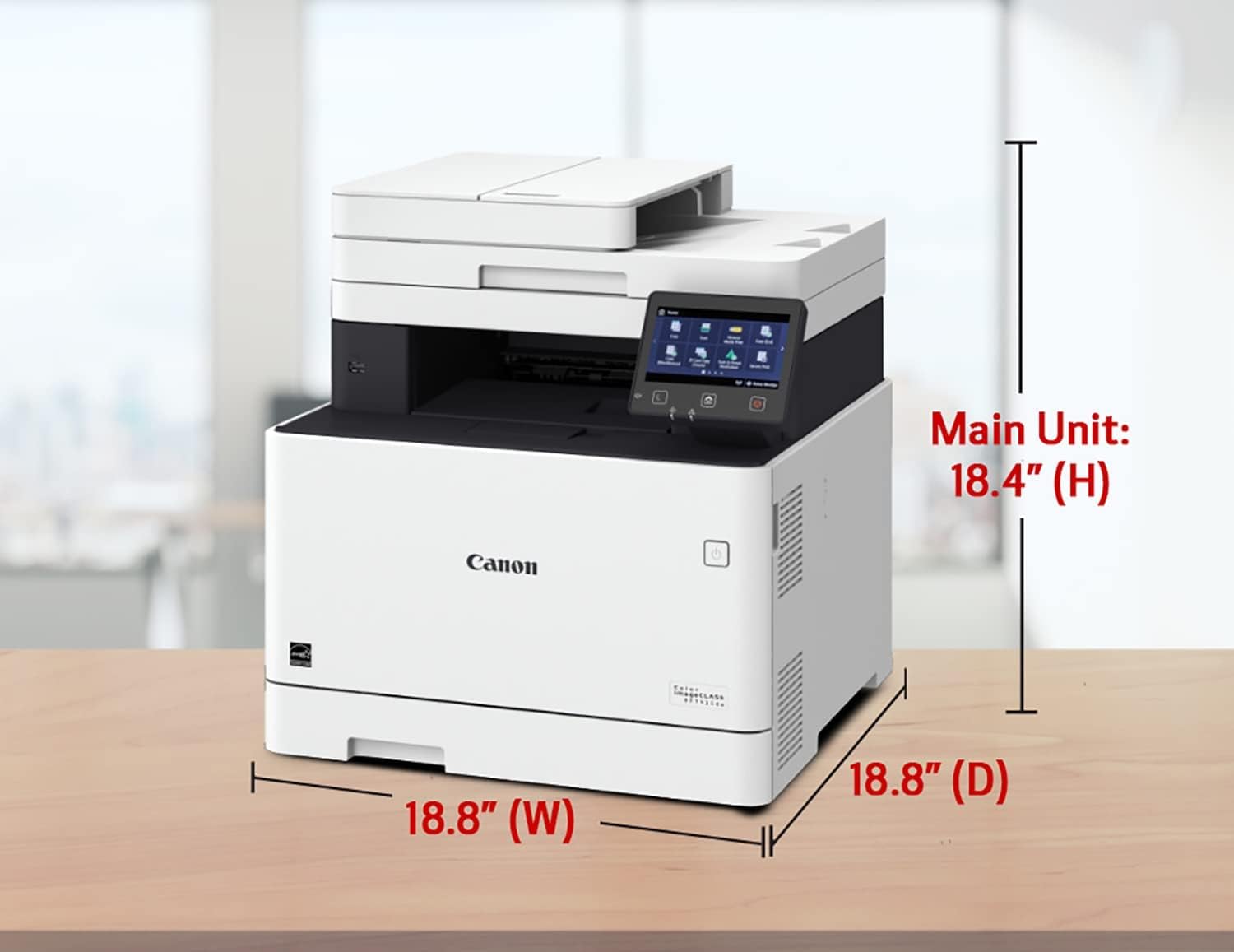
Image 3.3: Utilizing the Automatic Document Feeder (ADF) for efficient scanning or copying of multiple pages.
3.4 Mobile Printing Solutions
The MF741Cdw supports various mobile printing options:
- Canon PRINT Business app: Download the free app from Google Play or the App Store to print and scan directly from your compatible mobile device.
- Apple AirPrint: For iOS devices, print directly without installing additional drivers.
- Mopria Print Service: For Android devices, print directly using the Mopria Print Service.
- Google Cloud Print: Print from Chrome-based devices and web services.

Image 3.4: The Canon PRINT Business app interface on a mobile device, illustrating its functionality for printing and scanning.
3.5 Using the 5-inch Touchscreen
The intuitive 5-inch color touchscreen provides access to all printer functions. It can be customized by a device administrator to streamline daily tasks. Navigate through menus by tapping icons and swiping.
4. Maintenance
4.1 Toner Cartridge Replacement
When a toner cartridge is low or empty, a message will appear on the touchscreen. Follow the on-screen instructions or refer to the detailed guide in the User Software DVD-ROM for safe replacement of Cartridge 055 series toner cartridges.
4.2 Cleaning the Printer
Regularly clean the exterior of the printer with a soft, dry, lint-free cloth. For the scanner glass, use a soft cloth lightly dampened with a non-abrasive glass cleaner. Avoid spraying cleaner directly onto the printer components.
5. Troubleshooting
If you encounter issues with your printer, refer to the troubleshooting section in the User Software DVD-ROM or the online support resources. Common issues and their solutions are typically covered there. Basic steps often include:
- Checking power connections.
- Verifying network connectivity.
- Ensuring paper is loaded correctly and free of jams.
- Checking toner levels.
- Restarting the printer and the connected device.
6. Specifications
| Feature | Specification |
|---|---|
| Model Name | imageCLASS MF741Cdw |
| Functions | Print, Scan, Copy |
| Printing Technology | Color Laser |
| Print Resolution | 600 x 600 dpi |
| Print Speed (Letter) | Up to 28 ppm |
| Copy Speed (Letter) | Up to 28 ppm |
| First Print Out Time | Approx. 7.5 seconds |
| Automatic Duplex Printing | Yes |
| Automatic Document Feeder (ADF) | 50-sheet capacity |
| Standard Paper Capacity | 250 sheets (20 lb bond) |
| Display | 5-inch Color Touchscreen |
| Connectivity | USB 2.0 (Host x2, Device x1), 10/100/1000Base-T Ethernet, Wi-Fi 802.11b/g/n, Wi-Fi Direct |
| Memory | 1GB |
| Product Dimensions (W x D x H) | 18.8 x 18.8 x 18.4 inches |
| UPC | 724129324655 |

Image 6.1: Physical dimensions of the Canon MF741Cdw printer for space planning.
7. Warranty Information
This Canon imageCLASS MF741Cdw printer comes with a 90 days limited warranty. Please refer to the warranty card included in the box or visit the official Canon website for full terms and conditions regarding warranty coverage and service.
8. Support
For further assistance, technical support, or to download the latest drivers and software, please visit the official Canon support website. You may also find helpful FAQs and troubleshooting guides there.
Ask a question about this manual
Ask about setup, troubleshooting, compatibility, parts, safety, or missing instructions. Manuals+ will review the question and use this page’s manual context to help answer it.