
1. Introduction
This manual provides detailed instructions for the DINOSTRIKE WP102 Wireless Presentation Clicker. This device combines a presentation remote with air mouse functionality, designed to enhance your presentations with seamless control and interaction. It features a 2-in-1 USB-A/USB-C receiver for broad compatibility and a rechargeable battery for extended use.
2. Package Contents
- DINOSTRIKE WP102 Wireless Presentation Clicker
- 2-in-1 USB-A/USB-C Receiver (stored inside the clicker)
- USB Charging Cable
- User Manual (this document)
3. Product Overview

Figure 1: DINOSTRIKE WP102 Wireless Presentation Clicker with its 2-in-1 USB receiver and battery icon.
3.1. Components and Controls
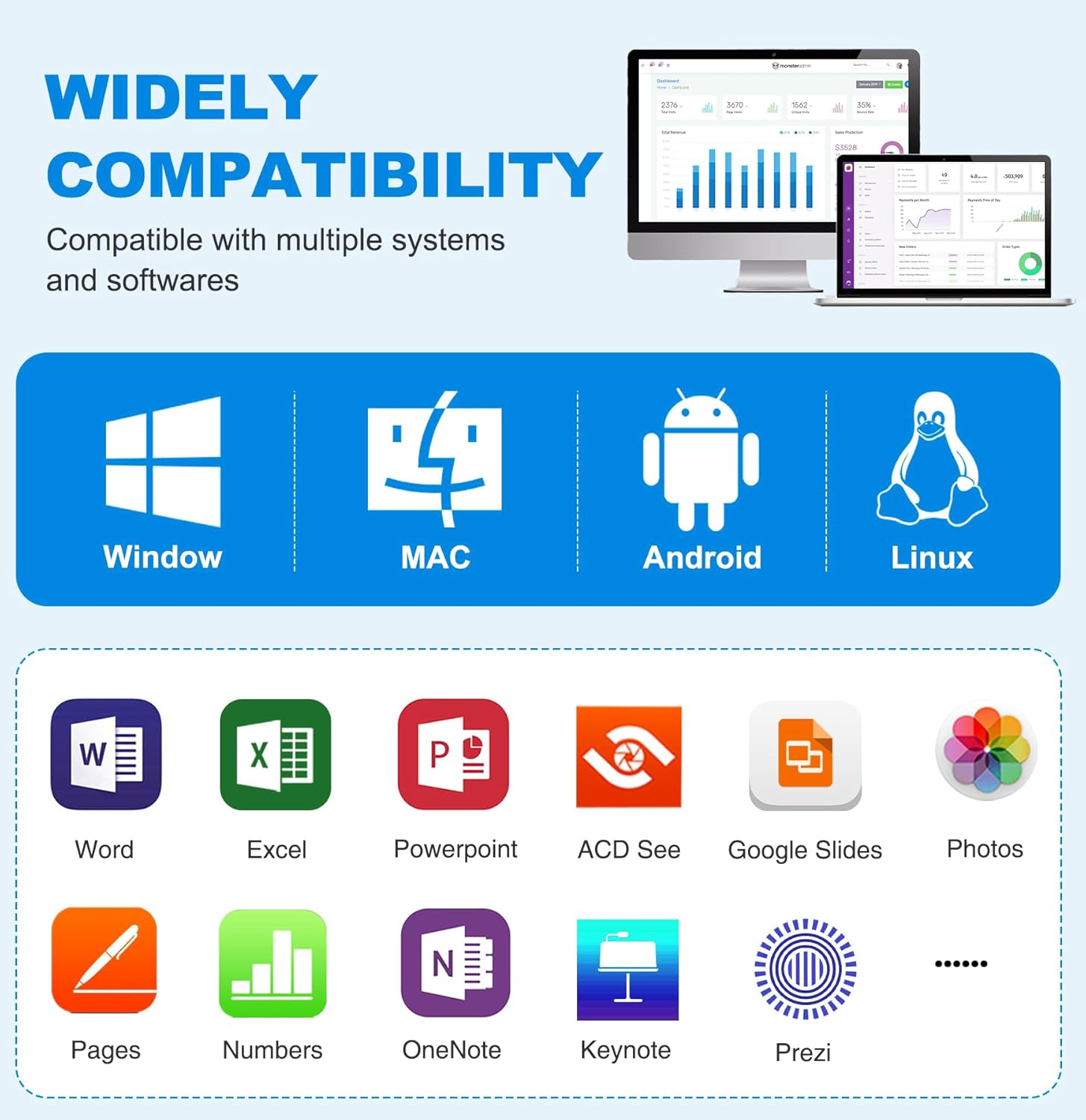
Figure 2: DINOSTRIKE WP102 Presentation Clicker highlighting various control functions.
- Laser Pointer Button: Activates the red laser for highlighting.
- Page Up/Down Buttons: Navigates through presentation slides.
- Mouse Mode Switch: Toggles between presentation mode and air mouse mode.
- Left/Right Mouse Keys: Functions as left and right clicks in mouse mode.
- Volume Control Buttons (+/-): Adjusts system volume.
- On/Off Switch: Powers the device on or off.
- USB-C Charging Port: For recharging the internal battery.
- 2-in-1 USB-A/USB-C Receiver: Stores securely inside the clicker.
4. Setup
4.1. Charging the Device
The DINOSTRIKE WP102 has a built-in 300 mAh rechargeable battery. To charge:
- Locate the USB-C charging port on the side of the clicker.
- Connect the provided USB charging cable to the clicker and a compatible USB power source (e.g., computer USB port, wall adapter).
- A full charge takes approximately 3 hours and provides weeks of usage. The device will enter sleep mode when not in use to conserve power.

Figure 3: Integrated USB receiver storage and charging port.
4.2. Connecting the Receiver
The clicker uses a 2-in-1 USB-A/USB-C receiver for wireless connectivity. No software installation is required (plug and play).
- Gently slide open the bottom cover of the clicker to reveal the stored 2-in-1 USB receiver.
- Remove the receiver from its storage slot.
- Plug the receiver into an available USB-A or USB-C port on your computer (MacBook, laptop, PC).
- Turn on the presentation clicker using the On/Off switch. The device should automatically connect to your computer.

Figure 4: 2-in-1 USB-A and USB-C receiver connected to a laptop.
5. Operating Instructions
5.1. Laser Pointer
Press and hold the dedicated laser pointer button to activate the bright red laser. This allows you to highlight specific points on your presentation screen. The laser has a range of up to 656 feet.
5.2. Slide Navigation
Use the Page Up and Page Down arrow buttons to move forward or backward through your presentation slides.
5.3. Air Mouse Control
The clicker features an air mouse function for wireless cursor control. This allows you to interact with your computer screen as if using a traditional mouse.
- Press the Mouse Mode Switch button (often indicated by a mouse icon) to enter or exit air mouse mode.
- Once in mouse mode, move the clicker in the air to control the cursor on your screen.
- Use the Left/Right Mouse Keys for clicking actions.

Figure 5: Air mouse control in action.
5.4. Volume Adjustment
Press the + or - buttons on the side of the clicker to adjust the volume on your connected computer.
5.5. Full/Black Screen & Hyperlink Activation
The clicker supports functions for toggling full/black screen modes and activating hyperlinks within your presentations. Refer to your presentation software's specific settings for optimal use of these features.
6. Compatibility
The DINOSTRIKE WP102 Wireless Presentation Clicker is widely compatible with various operating systems and presentation software:
- Operating Systems: Windows 7/8+, Mac OS, Linux, Android.
- Software: PowerPoint, Keynote, Prezi, Word, Excel, ACD See, Google Slides, Photos, Pages, Numbers, OneNote.

Figure 6: Compatibility with operating systems and software.
7. Maintenance
To ensure the longevity and optimal performance of your DINOSTRIKE WP102 Presentation Clicker:
- Keep the device clean by wiping it with a soft, dry cloth.
- Avoid exposing the device to extreme temperatures, moisture, or direct sunlight.
- Store the USB receiver inside the clicker when not in use to prevent loss.
- Charge the device regularly to maintain battery health, even if not used frequently.
8. Troubleshooting
8.1. Device Not Responding
- Ensure the clicker is powered on.
- Verify the USB receiver is securely plugged into your computer's USB-A or USB-C port.
- Check the battery level of the clicker and recharge if necessary.
- Try plugging the receiver into a different USB port on your computer.
- Restart your computer.
8.2. Laser Pointer Not Working
- Ensure the clicker is powered on and fully charged.
- Confirm you are pressing the correct button for the laser pointer.
8.3. Air Mouse Cursor Is Erratic or Unresponsive
- Ensure you are in air mouse mode (toggle the mouse mode switch).
- Move the clicker smoothly and avoid sudden, jerky movements.
- Ensure there are no obstructions between the clicker and the receiver.
9. Specifications
| Model Number | WP102 |
| Connectivity Technology | Radio Frequency (RF 2.4GZ) |
| Compatible Devices | Personal Computer (Windows 7/8+, Mac OS, Linux, Android) |
| Max Control Distance (Wireless) | 164 feet (50 meters) |
| Max Control Distance (Air Mouse) | 82 feet (25 meters) |
| Laser Range | 656 feet (200 meters) |
| Battery Capacity | 300 mAh |
| Charging Time | Approx. 3 hours |
| Item Weight | 2.11 ounces (60 grams) |
| Package Dimensions | 6.38 x 1.57 x 0.63 inches |
10. Warranty and Support
For warranty information or technical support, please refer to the contact details provided with your product packaging or visit the official DINOSTRIKE website. Keep your purchase receipt for warranty claims.