
1. Introduction
The WRSFXV Scansense AI Smart Pen is a versatile device designed to enhance learning, productivity, and communication. It integrates advanced scanning, artificial intelligence, and translation capabilities into a portable pen-shaped form factor. This manual provides detailed instructions for setting up, operating, and maintaining your Scansense AI Smart Pen.
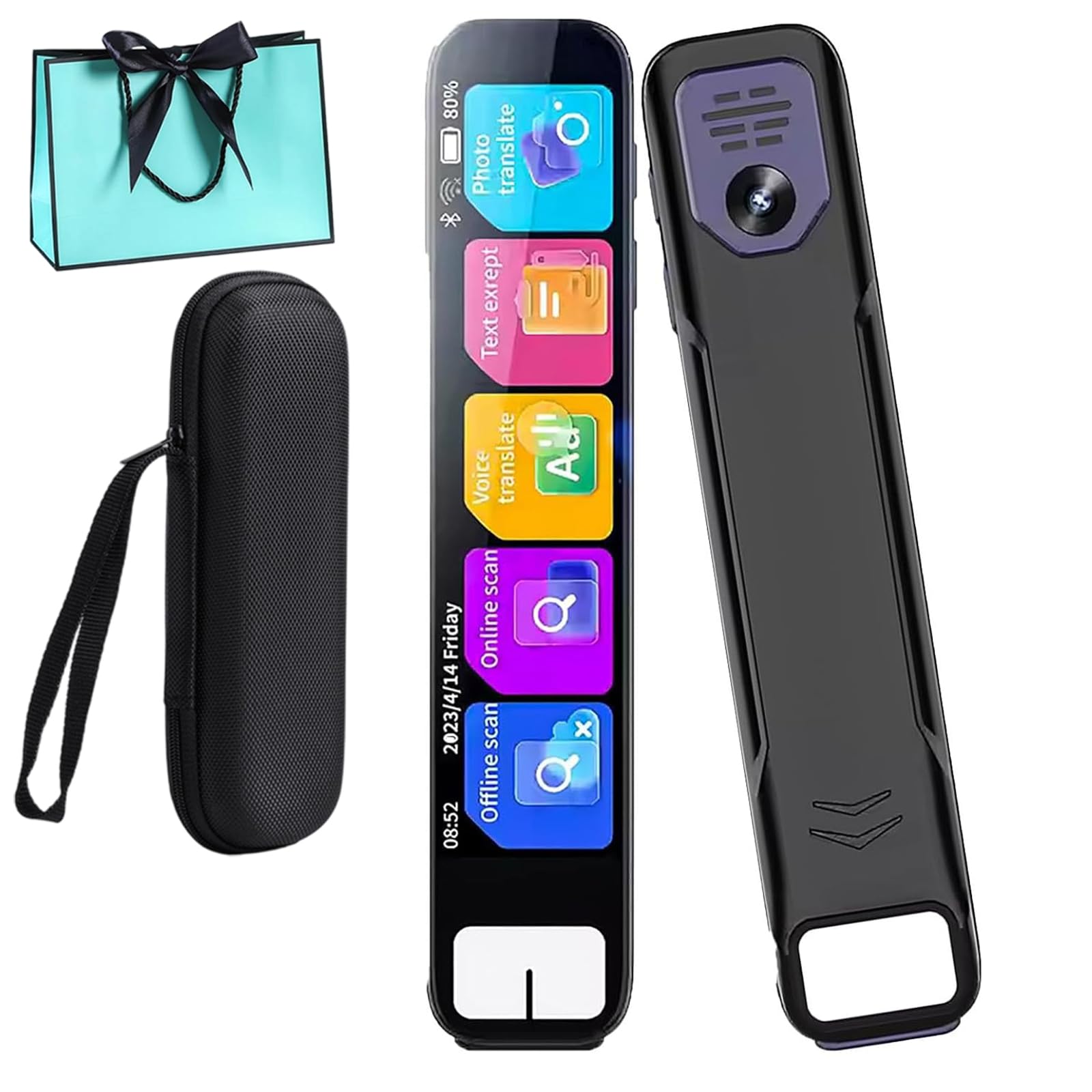
Figure 1.1: The WRSFXV Scansense AI Smart Pen, showcasing its sleek design and integrated screen.
2. Product Overview
The Scansense AI Smart Pen features a compact design with a high-resolution screen and intuitive controls. Key components include:
- Scanning Tip: Located at the bottom, used for scanning text.
- HD Touchscreen: A 3.5-inch display for navigation, viewing scanned text, translations, and application interfaces.
- Power Button: For turning the device on/off and waking/sleeping the screen.
- Microphone: For voice recording and voice translation input.
- Speaker: For audio playback of translations and recorded content.
- USB-C Port: For charging the device.

Figure 2.1: Front and back view of the Scansense AI Smart Pen, highlighting its screen and rear camera/scanner components.
3. Setup
3.1. Initial Charging
Before first use, fully charge the Scansense AI Smart Pen using the provided USB-C cable and a compatible power adapter. The charging indicator on the screen will show the battery status.
3.2. Power On/Off
- To Power On: Press and hold the Power button until the screen illuminates.
- To Power Off: Press and hold the Power button, then select 'Power Off' on the screen.
- To Sleep/Wake: Briefly press the Power button.
3.3. Wi-Fi Connection
For online features such as certain translations, ChatGPT integration, and software updates, connect the device to a Wi-Fi network:
- From the home screen, swipe down to access the quick settings or navigate to 'Settings'.
- Select 'Wi-Fi' and turn it on.
- Choose your desired network from the list and enter the password if prompted.
4. Operating Instructions
The Scansense AI Smart Pen offers various modes and functions accessible via its touchscreen interface.
4.1. Text Scanning and AI Assistance
This feature allows for quick digitization of text and provides AI-powered explanations or solutions.
- Select the 'Scan' or 'AI Assistant' mode from the home screen.
- Position the scanning tip over the text you wish to scan (printed or handwritten).
- Gently glide the pen across the text. Ensure even pressure and a steady movement for optimal accuracy.
- The scanned text will appear on the screen. For AI assistance, the device will process the content and display relevant information, step-by-step solutions, or explanations.

Figure 4.1: The Scansense AI Smart Pen actively scanning text from a book, demonstrating its offline translation capability.
4.2. Multilingual Translation
The pen supports both offline and online translation for a wide range of languages.
- Offline Scan Translation: Select 'Offline Scan' mode. Scan text as described in 4.1. The device will display the translation on the screen using its built-in language packages (e.g., 13 kinds of accurate offline translation packages).
- Online Scan Translation: Requires Wi-Fi connection. Select 'Online Scan' mode. Scan text, and the device will provide translations for a broader range of languages (e.g., 60 kinds of speech).
- Voice Translation: Select 'Voice Translate' mode. Speak into the microphone, and the pen will translate and display the text, often with audio output.
- Photo Translation: Use the integrated camera to capture text from documents or signs. The pen will then translate the text. This feature may have both online and offline capabilities depending on the language.

Figure 4.2: A hand holding the Scansense AI Smart Pen, demonstrating its instant voice translation feature with text displayed on the screen.
4.3. ChatGPT Integration
Access AI-powered conversational capabilities directly from your pen.
- Ensure the pen is connected to Wi-Fi.
- Select the 'ChatGPT' application from the home screen.
- Type or speak your questions and prompts. The AI will provide responses, assist with brainstorming, or refine content.
4.4. Voice Recording & Wi-Fi Sync
Record audio and synchronize it with your scanned notes.
- Select the 'Voice Record' application.
- Tap the record button to start and stop recording.
- Recorded audio files can be synced wirelessly to your connected devices, allowing for comprehensive review alongside scanned text.
4.5. Additional Features
The Scansense AI Smart Pen includes several other useful tools:
- Text Extraction: Digitize and save text from scanned documents.
- Electronic Dictionary: A built-in multilingual dictionary for quick word lookups.
- Word Bank: Create and manage lists of words for language learning or study.
- Oral Arithmetic Learning: Practice arithmetic problems directly on the device.

Figure 4.3: A comprehensive diagram detailing the various functions of the Scansense AI Smart Pen, including online/offline translation, intelligent recording, photo translation, dictation assistant, phonetic word search, electronic dictionary, text extraction, word bank, and oral arithmetic learning.

Figure 4.4: The Scansense AI Smart Pen displayed alongside a list of its core functionalities: Text Scanning & Instant Answers, Large HD Screen, Wi-Fi Connectivity, Voice Recording, and ChatGPT Integration.
5. Maintenance
5.1. Cleaning
- Use a soft, dry, lint-free cloth to clean the device's exterior.
- For the screen, use a screen-specific cleaning solution and a microfiber cloth.
- Do not use abrasive cleaners, alcohol, or solvents, as these can damage the device.
- Keep the scanning tip free of dust and debris to ensure accurate scanning.
5.2. Storage
Store the Scansense AI Smart Pen in a cool, dry place away from direct sunlight and extreme temperatures. When not in use for extended periods, ensure the device is fully charged before storage and recharge it periodically to maintain battery health.
6. Troubleshooting
| Problem | Possible Cause | Solution |
|---|---|---|
| Device does not power on. | Low battery. | Charge the device for at least 30 minutes. |
| Scanning is inaccurate or fails. | Uneven scanning speed/pressure; dirty scanning tip; poor lighting; text too small/blurry. | Ensure steady, even scanning. Clean the scanning tip. Scan in well-lit conditions. Ensure text is clear and legible. |
| Wi-Fi connection issues. | Incorrect password; out of range; network interference. | Verify Wi-Fi password. Move closer to the router. Restart the pen and router. |
| Translation not working (online features). | No Wi-Fi connection; server issues. | Check Wi-Fi connection. Try again later if it's a server-side issue. |
| Touchscreen unresponsive. | Temporary software glitch. | Restart the device. If issue persists, contact support. |
7. Specifications
- Brand: WRSFXV
- Model: Scansense AI Smart Pen
- Connectivity: Wi-Fi
- Display: 3.5-inch HD Touchscreen
- Scanner Type: Document
- Maximum Media Size: 8.5 x 11 inches
- Offline Translation Languages: 13+ (Built-in packages)
- Online Translation Languages: 50+ (Requires Wi-Fi)
- Features: AI-Powered Assistance, Text Scanning, Multilingual Translation, ChatGPT Integration, Voice Recording, Text Extraction, Electronic Dictionary, Word Bank, Oral Arithmetic Learning.
- Parcel Dimensions: 19.5 x 10 x 10 cm; 300 g

Figure 7.1: The Scansense AI Smart Pen displayed on a stand, emphasizing its compact and portable design.
8. Warranty and Support
For warranty information and customer support, please refer to the documentation included with your purchase or visit the official WRSFXV website. Keep your proof of purchase for any warranty claims.