
1. Introduction
The REKONG AX900 is a USB WiFi 6 adapter designed to provide high-speed wireless internet and Bluetooth 5.3 connectivity to your desktop or laptop computer. Featuring the 802.11ax standard and RTL8851BU chip, it supports dual-band operation (2.4GHz and 5GHz) for flexible and efficient network access. This adapter is compatible with Windows 10 and Windows 11 operating systems.
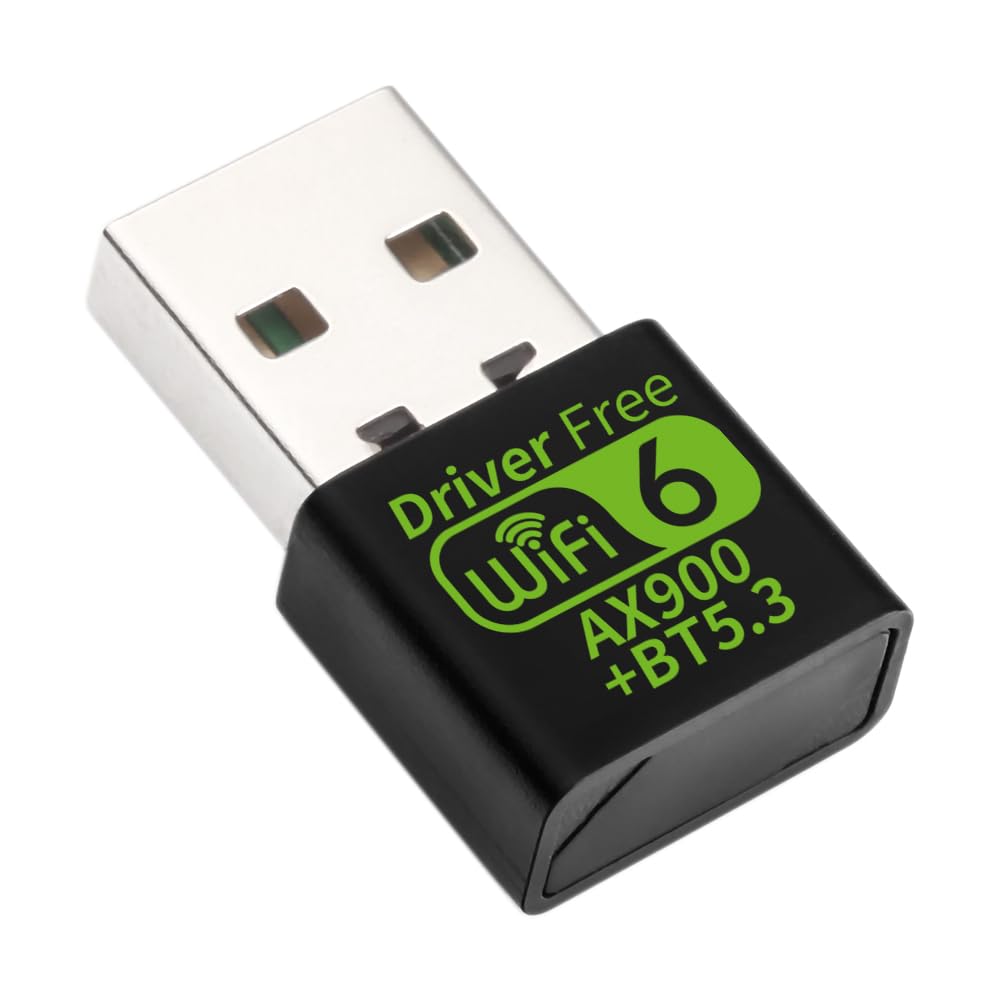
Image: The REKONG AX900 USB WiFi 6 Adapter, a compact black device with green "Driver Free WiFi 6 AX900 + BT5.3" branding, shown from the front with its USB connector.
2. Package Contents
Verify that all items are present in the package:
- 1 x REKONG AX900 USB WiFi 6 Adapter
3. Setup Instructions
Follow these steps to install and set up your REKONG AX900 USB WiFi 6 Adapter:
- Insert the Adapter: Locate an available USB port on your desktop or laptop computer. Carefully insert the REKONG AX900 USB WiFi 6 Adapter into the USB port. Ensure it is fully seated.
- Driver Installation: For most Windows 10 and Windows 11 systems, the adapter is designed for "Plug and Play" operation, meaning drivers should install automatically.
- Manual Driver Installation (if needed): If the adapter is not recognized automatically or if you experience connectivity issues, you may need to manually install drivers.
- Access the device manufacturer's website (REKONG) and navigate to the support or downloads section for the AX900 model.
- Download the latest drivers compatible with your operating system (Windows 10/11).
- Follow the on-screen instructions to install the drivers.
- Verification: After installation, check your computer's Device Manager to confirm that the WiFi and Bluetooth devices are listed and functioning correctly.

Image: A close-up view of the REKONG AX900 USB WiFi 6 Adapter inserted into the USB port of a laptop, illustrating its compact design.
4. Operating Instructions
4.1. Connecting to a Wi-Fi Network
- Ensure the adapter is properly installed and recognized by your system.
- Click on the Wi-Fi icon in your computer's system tray (usually in the bottom-right corner of the screen).
- A list of available Wi-Fi networks will appear. Select your desired network.
- Click "Connect". If prompted, enter the network security key (password).
- Once connected, the Wi-Fi icon will indicate an active connection.

Image: Two individuals engaged in activities requiring high-speed internet: one gaming on a console (5GHz band, 600Mbps) and another working on a laptop (2.4GHz band, 286Mbps), illustrating the adapter's dual-band capabilities.
4.2. Using Bluetooth 5.3
The integrated Bluetooth 5.3 allows you to connect various Bluetooth-enabled devices to your computer.
- Enable Bluetooth: Go to your computer's Settings (Windows Key + I) > Bluetooth & devices. Ensure Bluetooth is turned "On".
- Pair a Device: Click "Add device" and select "Bluetooth".
- Put your Bluetooth device (e.g., headphones, mouse, keyboard) into pairing mode. Refer to your device's manual for specific instructions.
- Select your device from the list that appears on your computer and follow any on-screen prompts to complete the pairing process.

Image: A diagram showing the REKONG AX900 adapter connected to a PC/Laptop, with various Bluetooth devices like audio speakers, game controllers, printers, headphones, mice, keyboards, phones, and tablets wirelessly connected to the adapter.
5. Maintenance
To ensure the longevity and optimal performance of your REKONG AX900 adapter:
- Keep the adapter clean and free from dust. Use a soft, dry cloth for cleaning.
- Avoid exposing the adapter to extreme temperatures, humidity, or direct sunlight.
- Do not attempt to disassemble or repair the adapter yourself. This may void any warranty.
- When not in use for extended periods, you may remove the adapter from the USB port.
6. Troubleshooting
If you encounter issues with your REKONG AX900 adapter, refer to the following troubleshooting tips:
| Problem | Possible Solution |
|---|---|
| Adapter not recognized / No Wi-Fi or Bluetooth options. |
|
| Frequent disconnections or unstable Wi-Fi. |
|
| Slow Wi-Fi speeds. |
|
| Bluetooth device not pairing or connecting. |
|
7. Specifications
| Feature | Detail |
|---|---|
| Model Number | AX900 |
| Wireless Standard | 802.11ax (WiFi 6) |
| Chipset | RTL8851BU |
| Frequency Bands | 2.4GHz and 5GHz (Dual-Band) |
| Max Data Transfer Rate | Up to 900Mbps (2.4GHz: 286Mbps, 5GHz: 600Mbps) |
| Bluetooth Version | Bluetooth 5.3 |
| Hardware Interface | USB 2.0 |
| Compatible Operating Systems | Windows 10, Windows 11 |
| Product Dimensions | 1.02 x 0.55 x 0.27 inches (26mm x 15mm x 7.5mm) |
| Item Weight | 5.1 ounces (146 Grams) |
| Security Protocols | WPA3 |

Image: A diagram illustrating the dimensions of the REKONG AX900 USB WiFi 6 Adapter, showing its length (26mm), width (15mm), and thickness (7.5mm).
8. Warranty and Support
For warranty information or technical support, please contact the manufacturer, REKONG, directly through their official website or the retailer where the product was purchased. Keep your purchase receipt as proof of purchase.