
1. Introduction
This manual provides detailed instructions for the setup, operation, and maintenance of your IDEALROYAL Wireless Mini Keyboard with Touchpad Mouse. Please read this manual thoroughly before using the product to ensure proper function and longevity.
2. Package Contents
Verify that all items listed below are included in your package:
- 1x Mini Wireless Keyboard
- 1x USB Dongle (Wireless receiver)
- 1x USB Charging Cable
- 1x Rechargeable Li-ion Battery (BL-5C type)
- 1x User Manual (This document)
Note: The wireless receiver is located in the battery compartment at the back of the keyboard.
3. Product Overview
Familiarize yourself with the components and layout of your wireless mini keyboard.
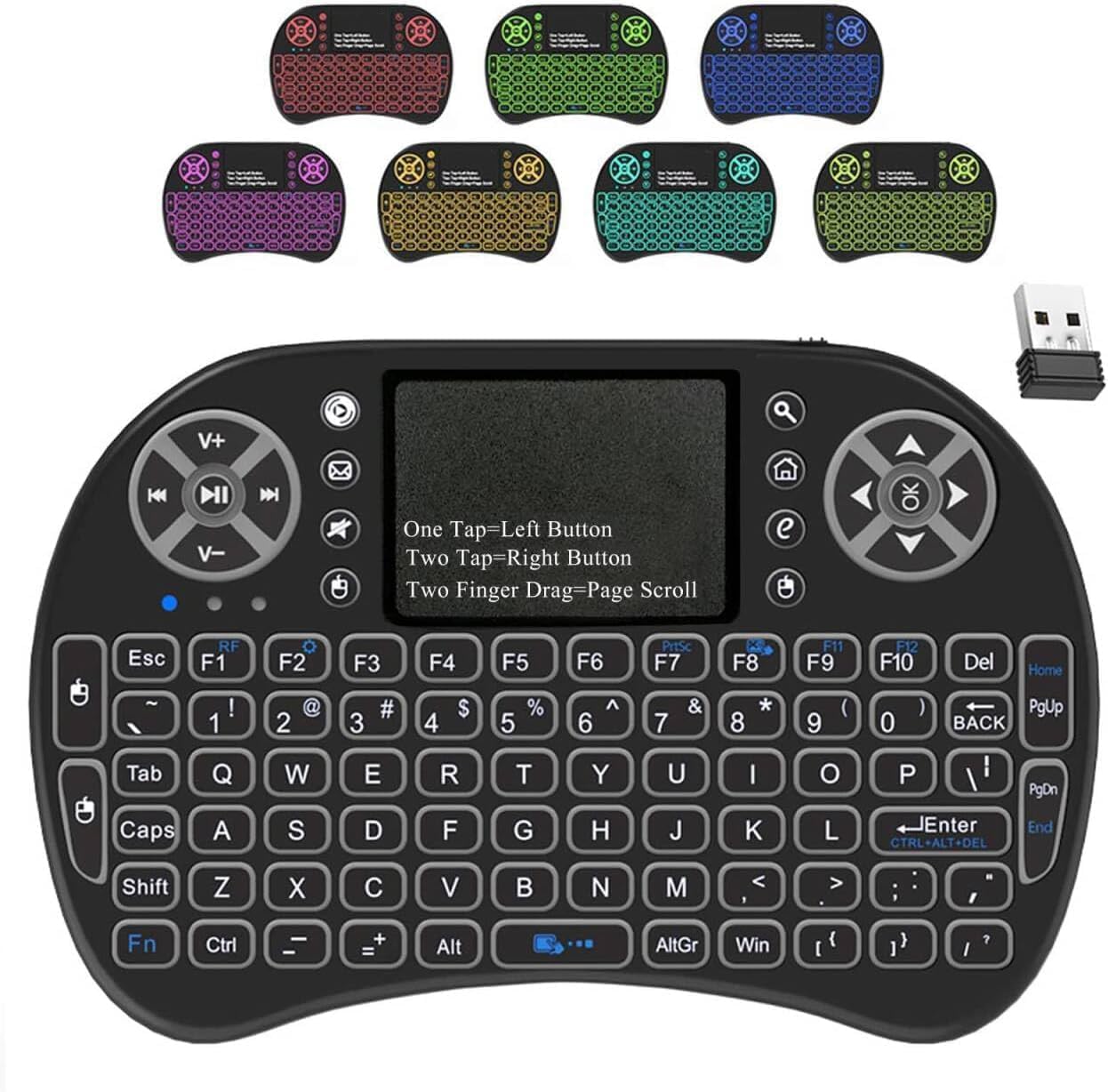
Figure 3.1: Front view of the IDEALROYAL Wireless Mini Keyboard, showing the QWERTY layout, touchpad, and media control buttons. The image also displays various backlight color options.

Figure 3.2: Side view of the IDEALROYAL Wireless Mini Keyboard illustrating its compact dimensions: approximately 5.71 inches (length), 3.82 inches (width), and 0.79 inches (thickness).

Figure 3.3: Rear view of the IDEALROYAL Wireless Mini Keyboard with the battery compartment open, showing the slot for the rechargeable Li-ion battery and the storage location for the USB wireless receiver.

Figure 3.4: Diagram detailing the various function keys and touchpad gestures on the IDEALROYAL Wireless Mini Keyboard, including multimedia controls, mouse functions, and backlight activation.
4. Setup
4.1. Charging the Battery
- Locate the USB Charging Cable included in the package.
- Connect the small end of the USB Charging Cable to the Mini USB Port on the keyboard (refer to Figure 3.4 for port location).
- Connect the larger end of the USB Charging Cable to a standard USB power source (e.g., computer USB port, USB wall adapter).
- The charging indicator light on the keyboard will illuminate during charging and turn off when fully charged.
Note: Ensure the battery is fully charged before initial use for optimal performance.
4.2. Installing the Battery and USB Receiver
- Open the battery compartment cover on the back of the keyboard (refer to Figure 3.3).
- Insert the rechargeable Li-ion battery into the compartment, ensuring correct polarity.
- Remove the USB wireless receiver from its storage slot within the battery compartment.
- Close the battery compartment cover securely.
4.3. Connecting to Your Device
- Insert the USB wireless receiver into an available USB port on your target device (e.g., PC, Smart TV, Android TV Box).
- Turn on the keyboard using the ON/OFF switch (refer to Figure 3.4 for switch location).
- The device should automatically detect and install the necessary drivers. No additional software installation is typically required.
- Once connected, the keyboard is ready for use.
Note: This device requires a USB port to operate. If your device lacks a standard USB-A port, a USB adapter (not included) may be necessary.
5. Operating Instructions
5.1. Basic Keyboard Functions
The keyboard features a standard QWERTY layout. Press keys as you would on a regular keyboard for text input.
5.2. Touchpad Functions
The integrated touchpad supports multi-finger gestures:
- Single Finger Tap: Functions as a left mouse click.
- Double Finger Tap: Functions as a right mouse click.
- Double Finger Drag: Scrolls the screen (up/down).
- Adjusting Touchpad Sensitivity: Press Fn + Space to adjust the DPI (sensitivity) of the touchpad.
5.3. Backlight Control
The keyboard features a 7-color RGB backlight:
- To turn the backlight ON/OFF: Hold Fn and press F2.
- To change backlight colors: While the backlight is on, hold Fn and press F2 repeatedly to cycle through the 7 available colors.
5.4. Multimedia and Shortcut Keys
The keyboard includes several dedicated multimedia and shortcut keys for enhanced functionality. These keys are typically activated by pressing them directly or in combination with the Fn key.
| Key Combination | Function |
|---|---|
| Dedicated Button | On/Off Switch, Mailbox, Mute, Left Mouse Button, Search, My Computer, Browser Home, Right Mouse Button |
| Fn + F1 | Adjust mouse sensitivity |
| Fn + F7 | Turn on/off touchpad |
| Fn + F8 | [Print Screen] Shortcut |
| Fn + F9 | Maximize current page |
| Fn + F10 | Open development tools |
| Fn + Home | Jump to start of a text |
| Fn + End | Jump to end of a text |
| Fn + Win | [Start/Menu] Bar |
5.5. Auto Sleep and Wake Mode
To conserve battery power, the keyboard will automatically enter sleep mode after a period of inactivity. To wake it up, simply press any key or tap the touchpad.
6. Compatibility
The IDEALROYAL Wireless Mini Keyboard is compatible with a wide range of devices that support a standard USB interface for input devices. This includes:
- PC (Windows OS)
- Macbook (with USB-A port or adapter)
- Android TV Box
- Smart TV
- HTPC/IPTV
- Tablets (with USB-A port or adapter)
- Gaming Consoles (e.g., Xbox Series X, Xbox One S - requires USB-A port)
- Smartphones (with USB-A port or adapter)
Note: Compatibility may vary depending on the specific device and its operating system's support for external keyboards and mice.

Figure 6.1: Visual representation of the IDEALROYAL Wireless Mini Keyboard's compatibility with devices such as PC, Android TV Box, Macbook, Smart TV, and Projector, all connecting via a 2.4GHz USB receiver.
7. Maintenance
7.1. Cleaning
To clean the keyboard, gently wipe the surface with a soft, dry cloth. For stubborn dirt, a slightly damp cloth can be used, ensuring no moisture enters the device. Avoid using harsh chemicals or abrasive cleaners.
7.2. Battery Care
- Charge the battery regularly, even if the keyboard is not in frequent use, to maintain battery health.
- Avoid exposing the battery to extreme temperatures.
- If the keyboard will not be used for an extended period, it is recommended to fully charge the battery and then store the keyboard in a cool, dry place.
- The BL-5C type Li-ion battery is removable and replaceable. If a replacement is needed, ensure it is a compatible BL-5C battery.
8. Troubleshooting
8.1. Keyboard Not Responding
- Ensure the keyboard is turned ON.
- Check if the battery is charged. Connect the charging cable and observe the charging indicator.
- Verify that the USB wireless receiver is securely plugged into a working USB port on your device.
- Try plugging the USB receiver into a different USB port.
- Ensure the keyboard is within the operational range (up to 10 meters) of the USB receiver and there are no significant obstructions.
- Restart your device.
8.2. Touchpad Not Working Correctly
- Ensure the touchpad is not accidentally turned off. Press Fn + F7 to toggle the touchpad ON/OFF.
- Clean the touchpad surface to remove any dirt or debris that might interfere with tracking.
- Adjust touchpad sensitivity using Fn + Space.
8.3. Backlight Not Working
- Ensure the keyboard is turned ON and has sufficient battery charge.
- Press Fn + F2 to toggle the backlight ON/OFF.
8.4. Poor Wireless Connection
- Reduce the distance between the keyboard and the USB receiver.
- Remove any large metal objects or other electronic devices that might cause interference between the keyboard and the receiver.
- Ensure the USB receiver is not obstructed.
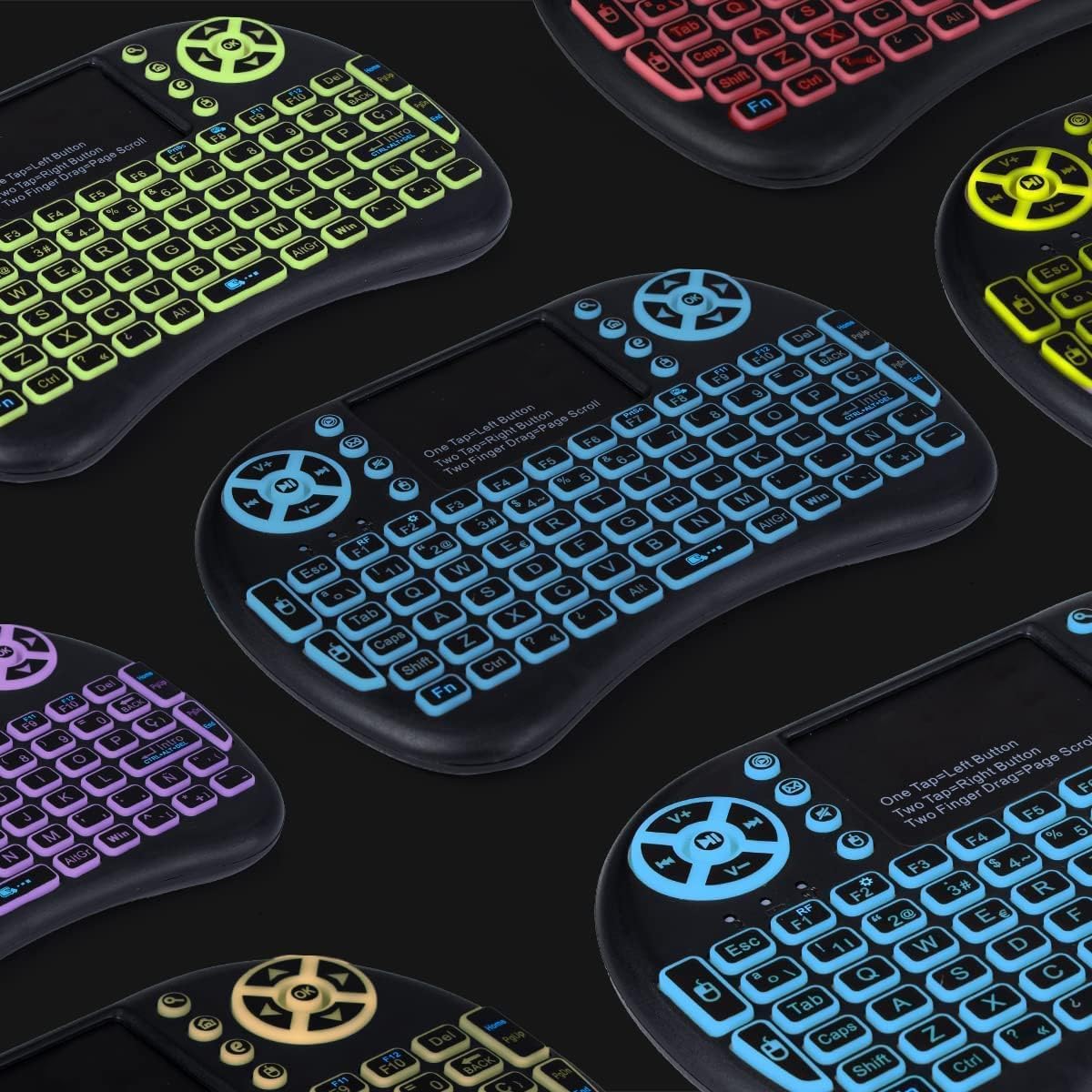
Figure 8.1: A collection of IDEALROYAL Wireless Mini Keyboards showcasing the different RGB backlight color options available, highlighting the visual appeal in various lighting conditions.
9. Specifications
| Feature | Detail |
|---|---|
| Model | B0FG7TCLR4 |
| Connectivity | 2.4GHz Wireless (USB Receiver) |
| Control Distance | Up to 10 meters (33 feet) |
| Battery Type | Rechargeable Li-ion (BL-5C) |
| Operational Voltage | 3.3V |
| Operating Current | 50mA (active), 1mA (sleep mode) |
| TX Power | +5db Max |
| Backlight | 7 Colors RGB |
| Dimensions | Approx. 14.7 x 9.8 x 1.9 cm (5.8 x 3.8 x 0.75 inches) |
| Weight | Approx. 3.84 ounces |
| Keyboard Layout | QWERTY |
| Special Features | Backlit, Portable, Integrated Touchpad, Multi-finger functions, Auto sleep/wake |
10. Warranty and Support
This product is manufactured by Hongsha under the IDEALROYAL brand. For warranty information and technical support, please refer to the seller's policies on the platform where the product was purchased or contact the manufacturer directly.
Please retain your proof of purchase for any warranty claims.