
1. Product Overview
The Hapippofa P150W Caregiver Pager System is designed to provide a reliable alert solution for individuals needing assistance, such as the elderly, patients, or those with disabilities. This system allows users to send distress signals via an emergency button, which triggers an alarm on the host unit and sends notifications to a connected mobile application. It offers remote monitoring capabilities without requiring monthly fees for basic functionality.
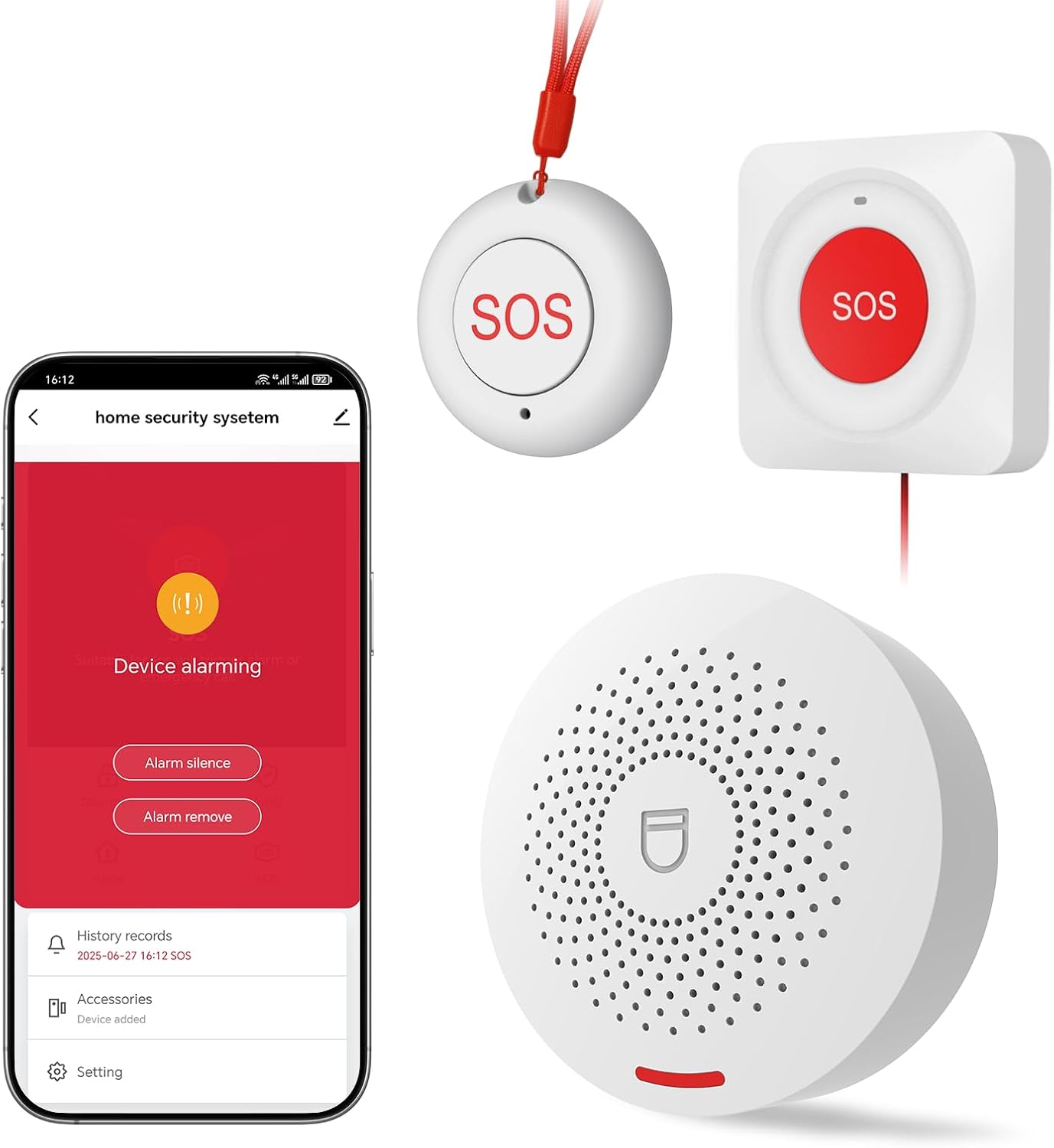
Image 1.1: Overview of the Hapippofa P150W Caregiver Pager System, showing the main alarm host and two types of emergency buttons.
2. Components
The Hapippofa P150W system includes the following components:
- Alarm Host (Receiver): The central unit that plugs into a power outlet, emits alarms, and connects to your Wi-Fi network.
- Emergency Buttons: These include a panic button (round, wearable) and an SOS button (square, wall-mountable with pull cord).

Image 2.1: Detailed view of the alarm host, panic button, and SOS button, including their dimensions and key features like speaker hole, indicator light, and function button.
3. Setup Instructions
3.1. Unboxing and Initial Inspection
Carefully remove all components from the packaging. Inspect each item for any signs of damage. Ensure all listed components are present.
3.2. Powering the Alarm Host
- Plug the alarm host into a standard electrical outlet.
- The host will power on, and its indicator light will activate.
3.3. Installing Batteries in Buttons
The round panic buttons come with pre-installed batteries. For the square SOS buttons, install 2 AAA alkaline batteries (included) into the battery compartment, ensuring correct polarity.
3.4. Connecting to Wi-Fi
Follow these steps to connect your alarm host to your home Wi-Fi network using the mobile application:
- Press and hold the function setting button on the alarm host for 5 seconds, then release it. The alarm host will voice prompt "Enter WiFi network configuration mode," and the green indicator light will flash quickly.
- Open the Tuya Smart or Smart Life APP on your mobile phone.
- Click the "+" icon in the upper right corner of the interface and select "Add Device."
- In the Discovered Devices area, press "Add" next to "Smart Alert System."
- Enter your Wi-Fi password and click "Next." Note: The system only supports 2.4GHz Wi-Fi networks.
- Wait for the app to connect to the device. Once connected, the host will announce "WiFi connection successful."
Video 3.1: This video demonstrates the step-by-step process of configuring the Hapippofa P150W Caregiver Pager System to a Wi-Fi network using the mobile application, including pressing the function button, opening the app, adding the device, and entering Wi-Fi credentials.
3.5. Adding Accessories
To add emergency buttons (accessories) to your system:
- In the mobile application, navigate to the "Accessories" section.
- Click the "+" icon in the upper right corner to initiate the accessory adding process.
- Press the "SOS" button on the emergency button you wish to add. The app will detect the accessory.
- Click "Confirm" in the app after the device is added successfully.
- Repeat these steps for each additional emergency button. Up to 99 accessories can be configured.
Video 3.2: This video illustrates how to add additional emergency buttons (accessories) to the Hapippofa P150W Caregiver Pager System through the mobile application, including triggering the SOS button and confirming the addition.
4. Operating Instructions
4.1. Emergency Call Function
When an emergency occurs, the user presses the SOS button on any configured accessory. The alarm host will immediately issue a warning sound, and simultaneously, the connected mobile phone(s) will receive a distress signal notification.

Image 4.1: This image illustrates the alert process: a panic button press activates the receiver, which then sends warning alerts to a smartphone, suitable for kids, elderly, pregnant individuals, and patients.
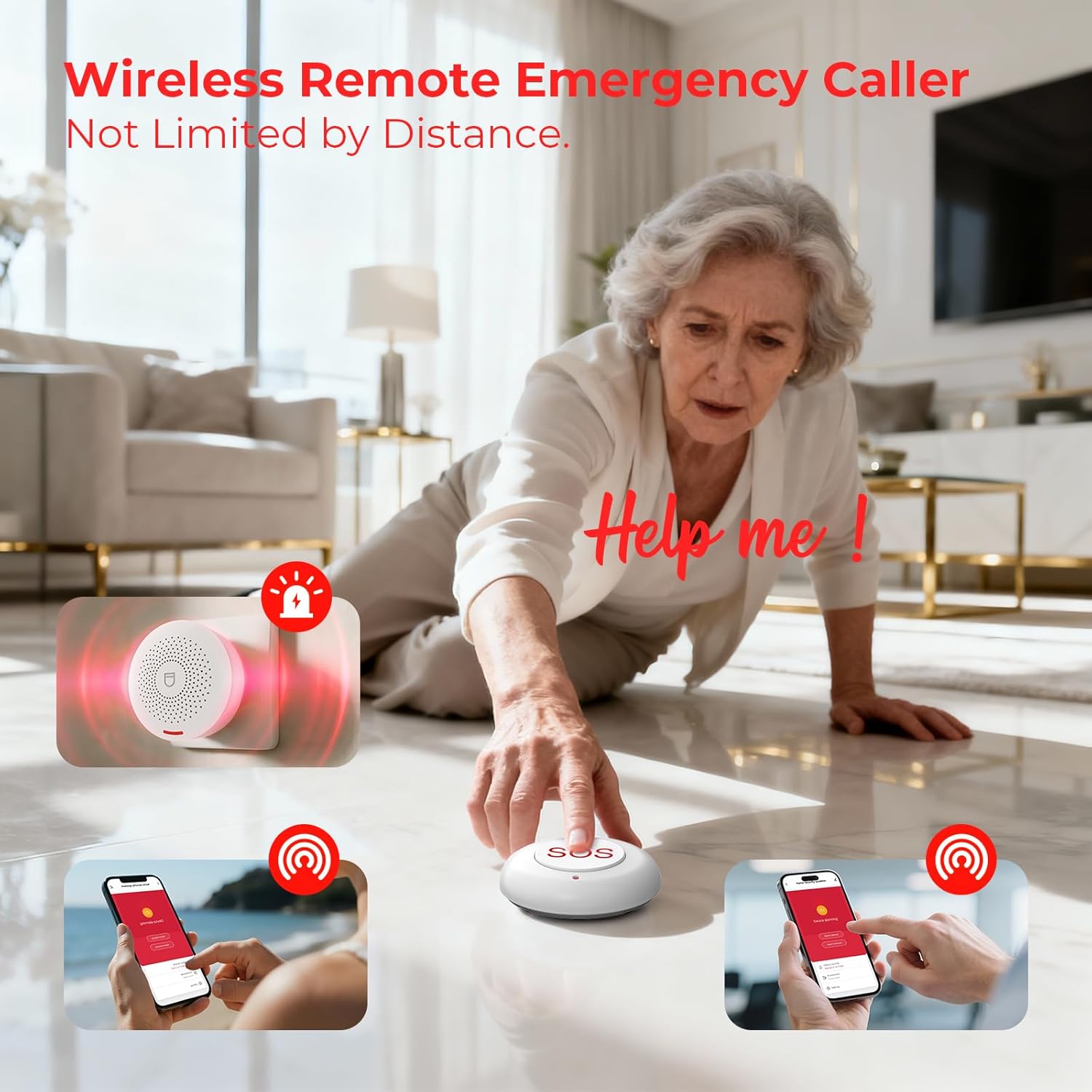
Image 4.2: An elderly woman on the floor reaching for an SOS button, demonstrating the wireless remote emergency caller function and mobile phone alerts.
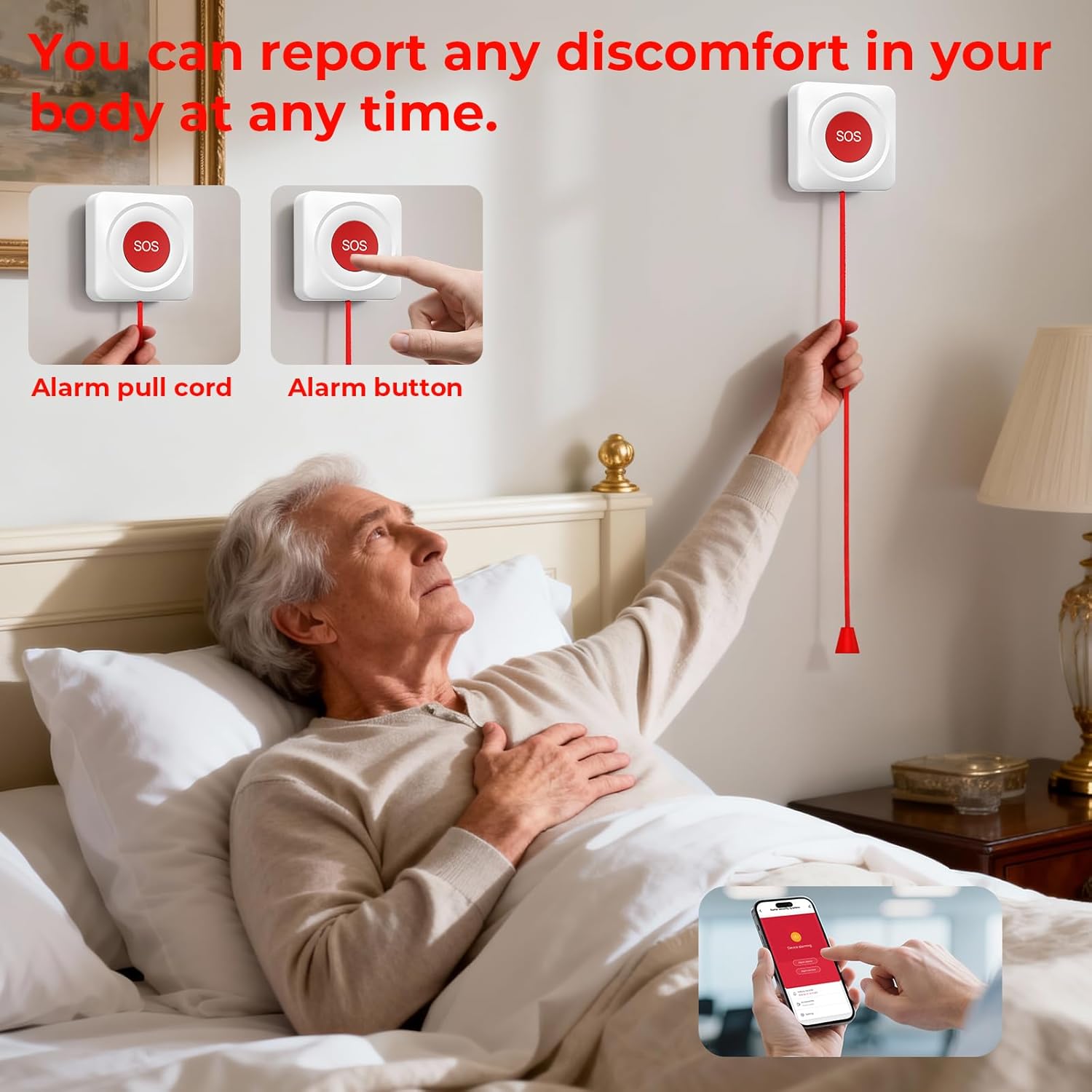
Image 4.3: An elderly man in bed reaching for a wall-mounted SOS button, highlighting both the alarm pull cord and direct button press options for reporting discomfort.
4.2. Volume Adjustment
The alarm host offers 5 levels of volume, ranging from 0dB to 100dB. You can adjust the volume through the mobile application settings to a comfortable level according to your needs. A silent mode with just an LED flash is also available.
4.3. Language Selection
The system supports 9 adjustable languages, including English, French, German, Spanish, Arabic, Portuguese, and Italian. You can select your preferred language in the mobile application settings.
4.4. Work Modes
Each accessory can be configured with different work modes:
- Sound and Light: The host emits both an audible alarm and a visual light alert.
- Sound: The host emits only an audible alarm.
- Lighting: The host provides only a visual light alert.
- Close: No alarm or light is triggered by this accessory.
4.5. Ringtone Selection
The system offers 32 different tunes to choose from for the alarm sound. You can select your preferred ringtone for each accessory through the mobile application.
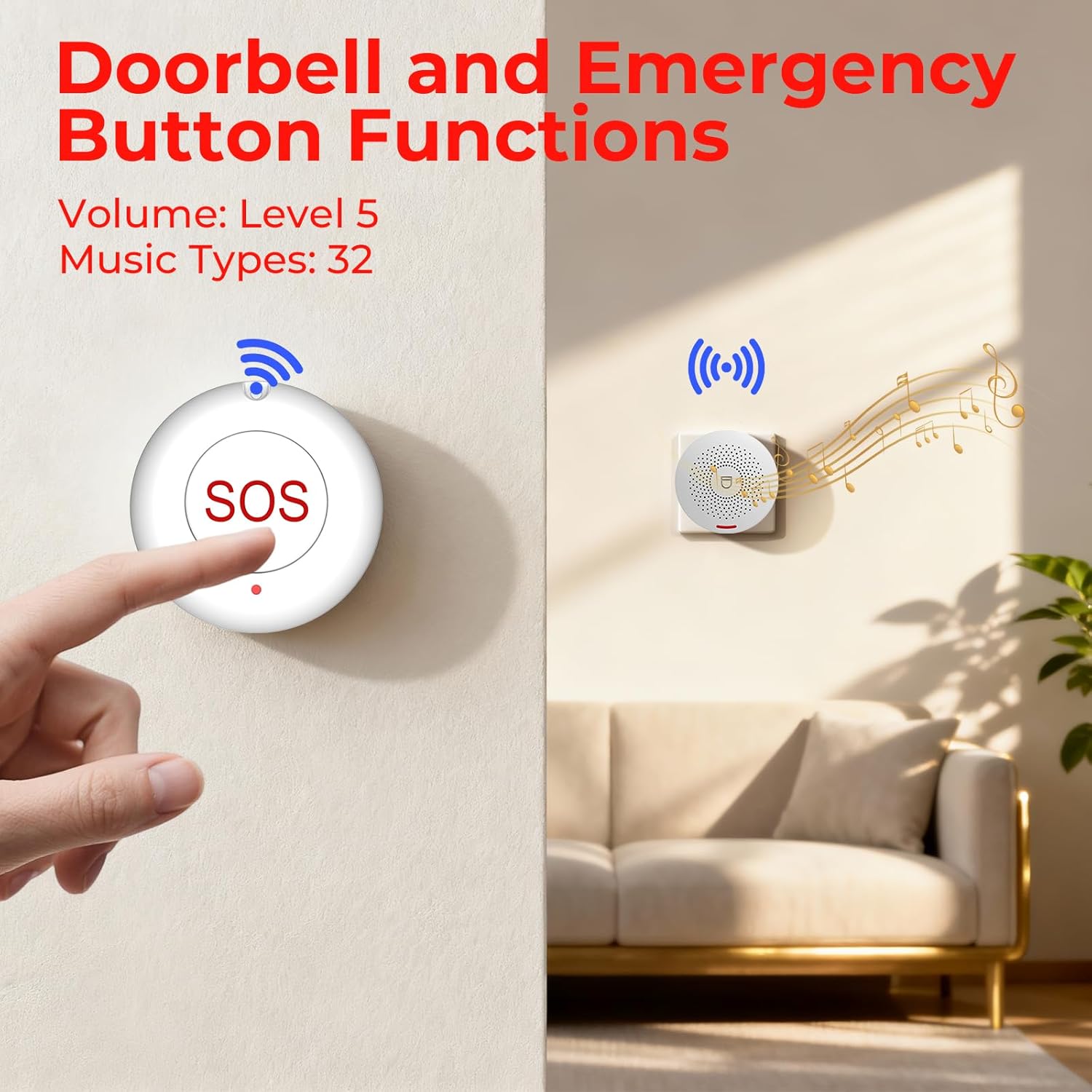
Image 4.4: The alarm host displaying its doorbell and emergency button functions, indicating 5 volume levels and 32 music types.
4.6. Multi-Person Sharing
By connecting your phone to the Tuya Smart or Smart Life app, you can share the device with other family members or caregivers. When an emergency button is pressed, all shared users will receive an app notification, ensuring multiple individuals are alerted.
4.7. Alexa Voice Control
The Hapippofa P150W system supports Alexa voice control, allowing for convenient hands-free operation of certain functions.
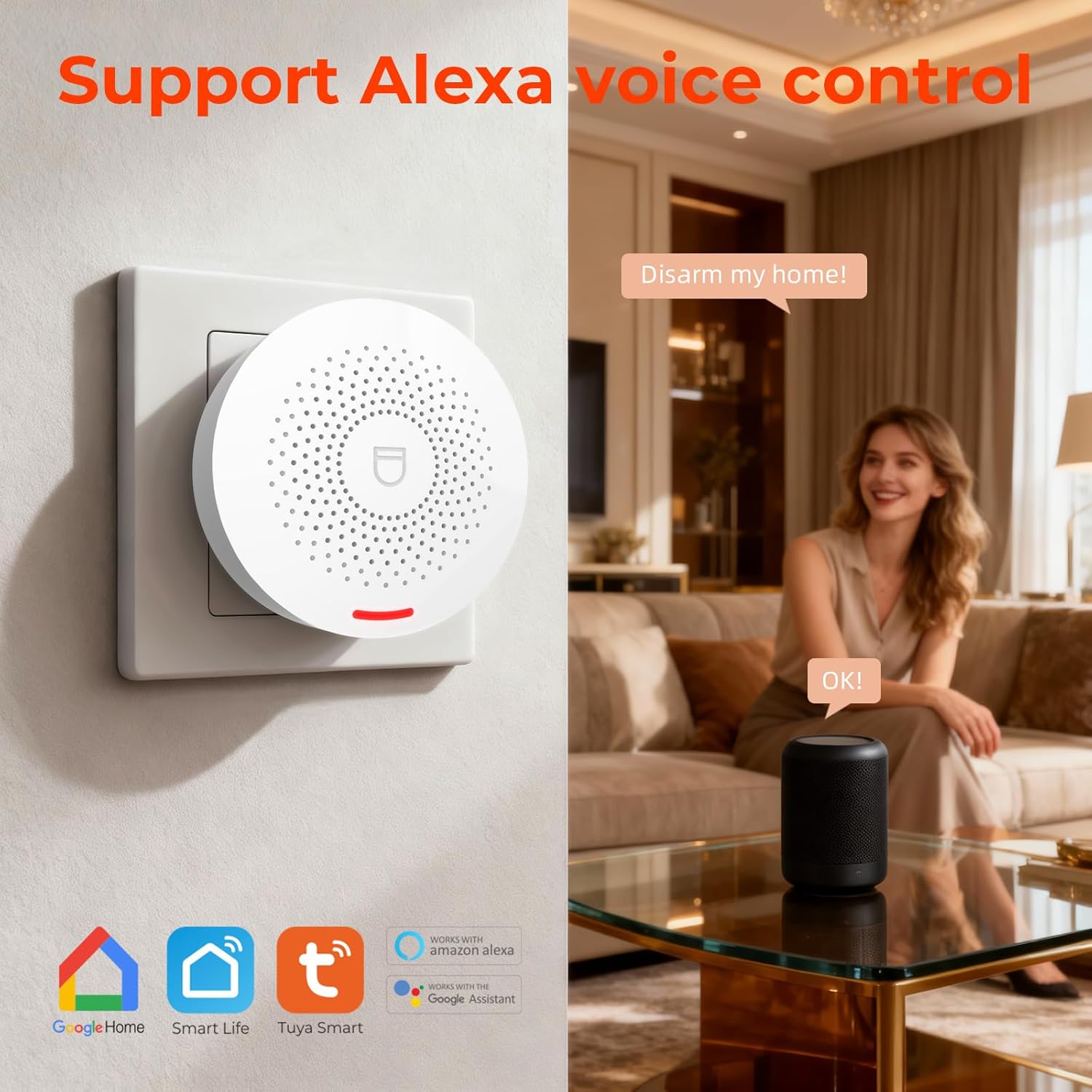
Image 4.5: A woman in a living room interacting with an Alexa device, demonstrating the system's support for Alexa voice control.
5. Maintenance
5.1. Battery Replacement
For the square SOS buttons, replace the 2 AAA alkaline batteries when the low battery indicator appears or when the button becomes unresponsive. Ensure to use new batteries of the correct type and insert them with the correct polarity.
5.2. Cleaning
Wipe the alarm host and emergency buttons with a soft, dry cloth. Do not use liquid cleaners or abrasive materials, as these can damage the devices.
5.3. Connectivity Check
Periodically check the mobile application to ensure the alarm host is connected to the Wi-Fi network and all accessories are functioning correctly. Test the emergency buttons regularly to confirm they trigger alerts.
6. Troubleshooting
6.1. No Alert on Mobile Phone
- Ensure the alarm host is properly connected to your 2.4GHz Wi-Fi network.
- Verify that the mobile application (Tuya Smart or Smart Life) has notification permissions enabled on your phone.
- Check if you have an active subscription for additional phone notifications, if required for your desired alert type.
- Confirm that the accessory's work mode is set to 'Sound and Light' or 'Sound' in the app settings.
6.2. False Alerts
- Ensure emergency buttons are placed in locations where they will not be accidentally pressed or triggered.
- If using wearable buttons, ensure they are worn in a manner that prevents unintended activation.
6.3. No Sound from Alarm Host
- Check the volume settings for the alarm host in the mobile application. Adjust to a higher level if necessary.
- Ensure the accessory's work mode is not set to 'Lighting' or 'Close'.
6.4. Device Not Connecting to Wi-Fi
- Confirm your Wi-Fi network is 2.4GHz. The device does not support 5GHz networks.
- Double-check the Wi-Fi password entered in the app.
- Ensure the alarm host is in Wi-Fi network configuration mode (green indicator light flashing quickly).
- Move the alarm host closer to your Wi-Fi router during the setup process.
7. Specifications
| Feature | Specification |
|---|---|
| Model Number | P150W |
| Manufacturer | Hapippofa |
| Item Weight | 8.4 ounces |
| Product Dimensions | 5.03 x 3.07 x 5.5 inches |
| Power Source | Battery Powered (for buttons), AC Powered (for host) |
| Battery Type (Buttons) | 2 AAA Alkaline batteries (included for square buttons) |
| Control Method | Voice (via app/Alexa), Manual Button Press |
| Included Components | Alarm host + emergency button(s) |
| Compatible Devices | Smartphone (via Tuya Smart/Smart Life app), Alexa |
| Wi-Fi Support | 2.4GHz only |
| Volume Levels | 5 levels (0-100dB) |
| Ringtones | 32 options |
| Language Support | 9 languages (English, French, German, Spanish, Arabic, Portuguese, Italian, Chinese, etc.) |
8. Warranty and Support
8.1. Warranty Information
Specific warranty details for the Hapippofa P150W Caregiver Pager System are not provided in this manual. Please refer to the product packaging or contact the manufacturer directly for warranty terms and conditions.
8.2. Customer Support
If you have any questions, encounter issues, or require assistance with your Hapippofa P150W Caregiver Pager System, please contact Hapippofa customer support. They are committed to providing satisfactory solutions.
For further assistance, please visit the official Hapippofa website or refer to the contact information provided with your product packaging.