
Haudio 2+32GB
Haudio Wireless CarPlay Android Auto Head Unit - 7 Inch Double Din Car Stereo
Model: 2+32GB
Introduction
This manual provides detailed instructions for the installation, operation, and maintenance of your Haudio 7-inch Wireless CarPlay and Android Auto Head Unit. Please read this manual thoroughly before use to ensure proper functionality and safety. This device integrates advanced connectivity and entertainment features into your vehicle's dashboard.
Setup: What's in the Box
Upon unboxing, verify that all components listed below are present. The main unit and accessories are typically packaged together.

Image: Contents of the package including the head unit, wiring, and mounting brackets.
- Haudio 7-inch Head Unit
- Power Cable Harness
- RCA Cables
- GPS Antenna
- USB Cables (2)
- Mounting Brackets (2)
- Instruction Manual
- (Note: Backup camera is not included with this specific model variant.)
Installation
Installation methods vary significantly between different car models. It is highly recommended to seek assistance from a professional car audio installer or a qualified car modification shop for proper installation. Incorrect wiring can damage the unit or your vehicle's electrical system.

Image: Rear view of the head unit showing connections for Power Cable, 20P-RCA Wire, 4P-USB Wire, and GPS Antenna.
General Wiring Guidelines:
- Power Connection: Connect the main power harness to your vehicle's existing stereo wiring. Ensure correct connections for constant power (yellow), accessory power (red), and ground (black).
- Speaker Connections: Connect the speaker wires from the head unit harness to your vehicle's speaker wires. Pay attention to positive and negative terminals for each speaker.
- GPS Antenna: Mount the GPS antenna in a location with a clear view of the sky, typically on the dashboard or under the windshield.
- USB Connections: Utilize the provided USB cables for data transfer, charging, or connecting external devices.
- RCA Connections: Use RCA cables for external amplifier connections or video output/input.
- Steering Wheel Controls (SWC): If your vehicle supports steering wheel controls, connect the SWC wires. Configuration may be required in the unit's settings.
Refer to your vehicle's specific wiring diagram and the detailed instructions provided in the included manual for precise connections.
Operating Instructions
1. CarPlay and Android Auto Integration
The head unit supports both wired and wireless CarPlay and Android Auto. This allows for seamless integration of your smartphone's navigation, music, and communication features.

Image: Display showing the Wireless CarPlay and Android Auto interface with voice control prompts.
- Wireless Connection: Enable Bluetooth and Wi-Fi on your smartphone. Pair your phone with the head unit via Bluetooth. Follow the on-screen prompts to establish a wireless CarPlay or Android Auto connection.
- Wired Connection: Connect your smartphone to the head unit using a USB cable. The system will automatically launch CarPlay or Android Auto.
- Compatibility: The unit is compatible with iOS 26+ for CarPlay and various Android versions for Android Auto. For a list of compatible car models, refer to Apple CarPlay available models.
2. Navigation and Maps
The unit features a built-in GPS module and supports offline map downloads for navigation without an internet connection. You can also use navigation apps via CarPlay or Android Auto.
Video: Demonstration of offline map download and navigation features on the Haudio 7-inch Car Stereo.
- Offline Maps: Access the Maps application, select the option to download offline maps, and choose the desired region.
- Navigation: Enter your destination to receive turn-by-turn directions. The system supports split-screen navigation for enhanced usability.
- Voice Control: Utilize Siri Eyes Free or Google Voice Assistant for hands-free navigation commands.
3. Audio and Media Playback
Enjoy high-quality audio through the professional audio architecture, supporting various formats and customization options.
Video: Demonstration of playing Spotify music and downloading/removing software from the App Store on the Haudio 7-inch Car Stereo.
- Music Playback: Play music from various sources including Bluetooth streaming (A2DP), USB drives, or streaming apps like Spotify.
- Radio: Access FM, AM, and RDS radio stations. Tune in manually or use the auto-scan feature to find available stations.
- Equalizer: Adjust audio settings using the 10-band parametric EQ for a personalized sound experience.
- Video Playback: The 600x1024 IPS touchscreen supports 4K H.265 video decoding. Videos can be played from USB or streaming apps like YouTube and Netflix.
Video: Demonstration of FM, AM, RDS radio functionality and 600x1024 IPS screen video playback on the Haudio 7-inch Car Stereo.
Video: Demonstration of playing YouTube videos and UI switching on the Haudio 7-inch Car Stereo.
4. App Management and Customization
The unit runs on an open Android 13.0 platform, allowing for app installation and UI customization.
- App Installation: Download and install applications from the integrated App Store or via APK files.
- UI Switching: The unit offers 25 customizable user interfaces to suit your preferences.
- Split-Screen/PIP: Utilize split-screen mode for multitasking, such as navigation while playing media. Picture-in-Picture (PIP) mode is also supported for video playback.

Image: The Haudio head unit displaying a split screen with navigation on one side and music playback on the other.

Image: The Haudio head unit displaying YouTube and Netflix applications, indicating multimedia capabilities.
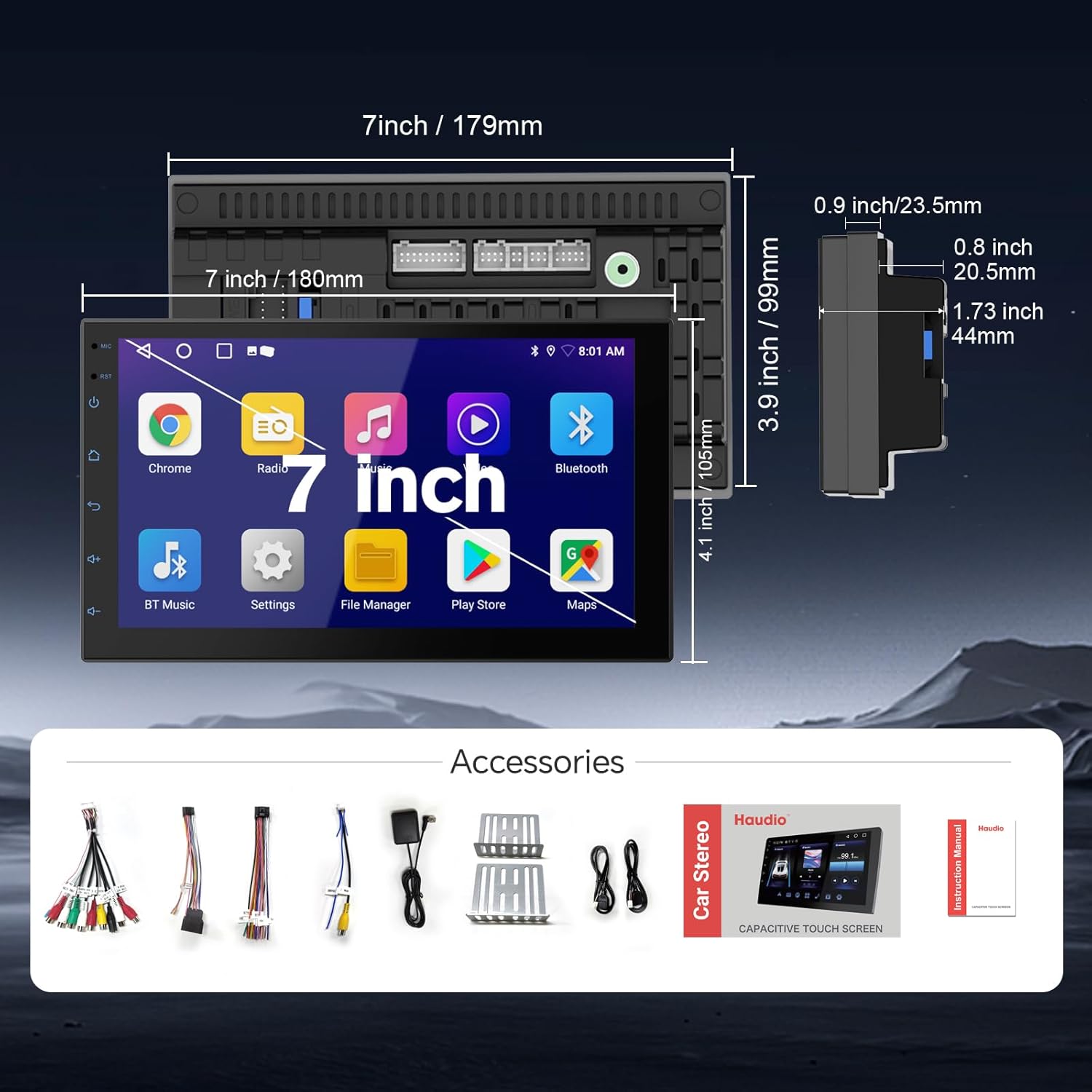
Image: The Haudio head unit demonstrating Wireless HD Mirror Link functionality, mirroring a smartphone screen.
5. Voice Control
The unit supports Siri and Google Voice Control for hands-free operation, enhancing safety while driving.

Image: Illustration of Siri and Google Voice Control commands being used with the Haudio head unit.
- Activation: Activate voice control through CarPlay or Android Auto.
- Commands: Use commands like "Hey Siri, call [contact]" or "Hi Google, navigate home" for various functions.
Maintenance
- Screen Cleaning: Use a soft, lint-free cloth to clean the touchscreen. Avoid abrasive cleaners or solvents.
- Software Updates: Periodically check for and install Over-The-Air (OTA) software updates to ensure optimal performance and access to new features.
- General Care: Avoid exposing the unit to extreme temperatures, direct sunlight for prolonged periods, or excessive moisture.
Troubleshooting
| Problem | Possible Cause | Solution |
|---|---|---|
| No Power | Incorrect wiring; Blown fuse; Vehicle battery issue. | Check power and ground connections. Inspect vehicle fuses. Ensure vehicle battery is charged. Consult a professional installer. |
| No Sound | Incorrect speaker wiring; Amplifier not powered; Volume too low; Mute activated. | Verify speaker connections. Ensure external amplifier (if used) is powered. Check volume levels and mute status. Access factory settings (code 000000) to adjust amplifier volume if applicable. |
| CarPlay/Android Auto Not Connecting | Bluetooth/Wi-Fi off on phone; Incorrect pairing; USB cable issue; Software glitch. | Ensure phone's Bluetooth and Wi-Fi are on. Re-pair the device. Try a different USB cable. Restart both the head unit and your phone. |
| GPS Signal Lost/Inaccurate | GPS antenna obstruction; Antenna not properly connected. | Ensure GPS antenna has a clear view of the sky. Check antenna connection to the head unit. |
| Screen Unresponsive/Frozen | Software error; Temporary glitch. | Press the RST (Reset) button (usually a small pinhole). If persistent, perform a factory reset (data will be lost). |
Specifications
| Feature | Detail |
|---|---|
| Model Number | 2+32GB |
| Display | 7-inch 600x1024 IPS Touchscreen, 450nit brightness, 170° viewing angles, Anti-glare |
| Processor | MT8163 Quad-core |
| Memory/Storage | 2GB RAM / 32GB ROM |
| Operating System | Android 13.0 |
| Audio Output | 18W×4 channels (THD<0.3%), 10-band Parametric EQ, Dolby Digital pass-through, ASP 3D soundstage virtualization |
| Connectivity | Dual-mode BT 4.1 (A2DP/AVRCP/HSP), 2.4GHz WiFi, USB OTG (exFAT/NTFS support), Zlink protocol |
| Video Decoding | 4K H.265 |
| Power Input | 11-16V DC |
| Dimensions (Approx.) | 8.46 x 5.79 x 5.47 inches (Package) |
| Item Weight | 2.35 pounds (Unit) / 1.07 Kilograms |

Image: Technical drawing showing the dimensions of the Haudio 7-inch head unit.
Warranty and Support
For warranty information and technical support, please refer to the contact details provided in the packaging or visit the official Haudio website. Keep your purchase receipt as proof of purchase for any warranty claims.
Ask a question about this manual
Ask about setup, troubleshooting, compatibility, parts, safety, or missing instructions. Manuals+ will review the question and use this page’s manual context to help answer it.