
A7
Generic Mini Wireless Security Camera A7 User Manual
Model: A7
Brand: Generic
1. Introduction
This manual provides detailed instructions for the setup, operation, and maintenance of your Generic Mini Wireless Security Camera A7. This 1080P HD PTZ (Pan-Tilt-Zoom) camera is designed for indoor surveillance, offering features such as night vision, two-way audio, and motion tracking. Please read this manual thoroughly before using the product to ensure correct installation and optimal performance.
2. Package Contents
Verify that all items listed below are included in your package:
- Camera Body
- Mounting Bracket
- USB Charging Cable (short, extension recommended)
- User Manual
3. Product Overview
The Generic Mini Wireless Security Camera A7 features a compact design with advanced surveillance capabilities. Key components include the camera lens, infrared LEDs for night vision, a microphone, a speaker for two-way audio, and a reset button. The camera is equipped with two antennas for stable Wi-Fi connectivity.

Image: Front view of the Generic Mini Wireless Security Camera A7, showing the lens, IR LEDs, and dual antennas.
4. Setup Guide
4.1. Powering On
Connect the provided USB charging cable to the camera's power input and plug the other end into a compatible USB power adapter (not included). The camera will power on automatically. Note that the included USB cable is short; an extension cable may be required depending on your installation location.
4.2. App Installation and Account Creation
Download the recommended mobile application (refer to the packaging or quick start guide for the specific app name) from your smartphone's app store (iOS or Android). Install the app and follow the on-screen instructions to create a new user account.
4.3. Wi-Fi Connection
Ensure your Wi-Fi router is operating on a 2.4 GHz network. This camera is compatible exclusively with 2.4 GHz Wi-Fi and does not support 5 GHz networks. Follow the in-app instructions to add your camera and connect it to your home Wi-Fi network. This typically involves scanning a QR code displayed on your phone with the camera lens.
4.4. MicroSD Card Installation (Optional)
For local video storage, insert a MicroSD/TF card (up to 128 GB, not included) into the designated slot on the camera. Ensure the camera is powered off before inserting or removing the card. The camera supports continuous recording or event-triggered recording to the MicroSD card.

Image: Illustration of flexible storage options, including MicroSD card slot and cloud storage.
5. Operating Instructions
5.1. Pan, Tilt, and Zoom (PTZ) Control
From the mobile app, you can remotely control the camera's pan (horizontal) and tilt (vertical) movements. The camera offers 355° horizontal and 90° vertical coverage, allowing you to adjust the viewing angle as needed.
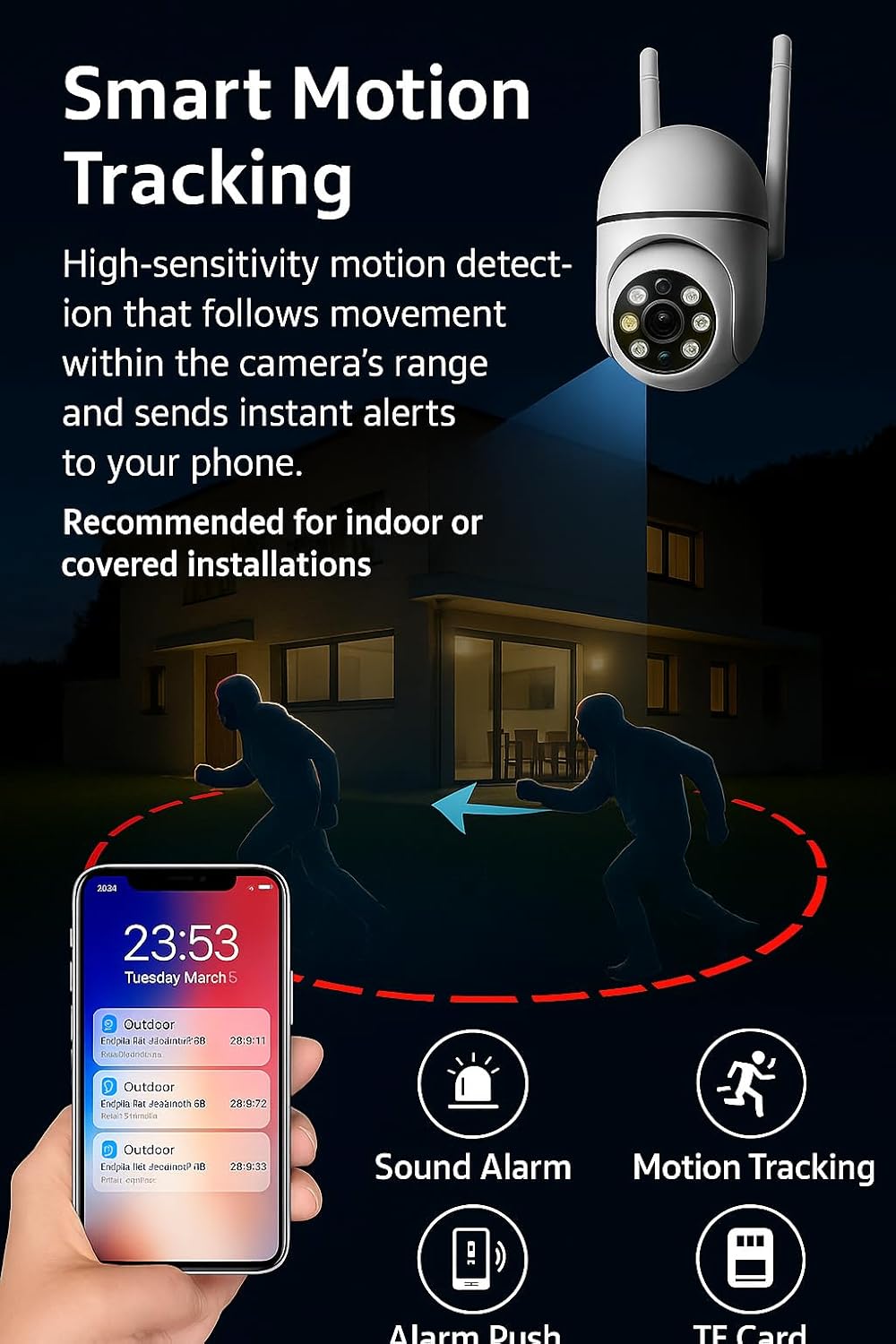
Image: Remote control rotation of the camera via a smartphone, illustrating 355° pan and 90° tilt capabilities.
5.2. Two-Way Audio
The camera features a built-in microphone and speaker, enabling two-way communication. You can listen to the environment around the camera and speak through the camera using the mobile app.

Image: Demonstration of the two-way voice intercom feature, allowing communication with individuals near the camera.
5.3. Night Vision Modes
The camera is equipped with 8 IR LEDs, providing clear night vision in low-light conditions. It supports both infrared night vision for complete darkness and color night vision in certain low-light scenarios.

Image: Visual comparison between Full Color Night Vision and Infrared Night Vision capabilities.
5.4. Motion Tracking and Alerts
The camera features high-sensitivity motion detection that can track movement within its range. When motion is detected, the camera sends instant alerts to your mobile phone via the app. This feature is recommended for indoor or covered installations.

Image: Illustration of Smart Motion Tracking, showing detection, tracking, and mobile alerts.
5.5. Video Recording and Storage
Videos can be recorded and stored in two ways: on a local MicroSD card (up to 128 GB, not included) or via optional cloud storage (subscription may apply). Configure your preferred storage method within the mobile application settings.
6. Installation Guidelines
The camera comes with a mounting bracket for flexible installation. It can be mounted on a wall or ceiling. While the camera has an IP65 splash-resistant rating, it is primarily designed for indoor use. For outdoor installations, it is recommended to place the camera in covered or protected areas such as under a roof or porch to ensure extended durability and protection from direct weather exposure.
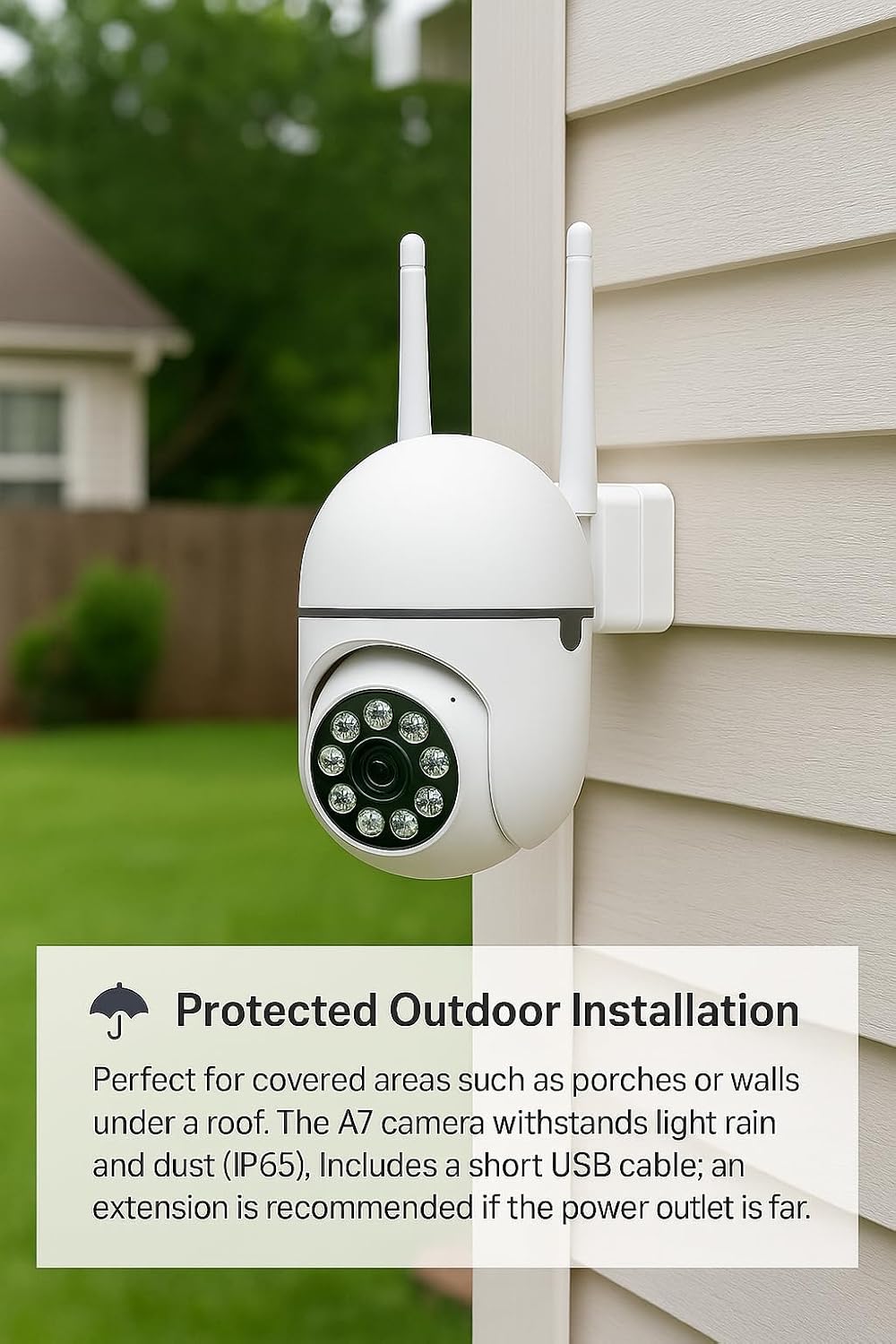
Image: Example of protected outdoor installation, showing the camera mounted under a covered area.
7. Maintenance
To ensure optimal performance and longevity of your camera:
- Cleaning: Gently wipe the camera lens and body with a soft, dry cloth. Avoid using harsh chemicals or abrasive materials.
- Firmware Updates: Regularly check the mobile app for available firmware updates. Keeping the firmware updated ensures the latest features and security patches.
- Power Supply: Ensure a stable power supply. Avoid frequent power interruptions.
8. Troubleshooting
- Camera not connecting to Wi-Fi:
- Ensure your Wi-Fi network is 2.4 GHz. The camera does not support 5 GHz.
- Check if the Wi-Fi password entered is correct.
- Move the camera closer to the Wi-Fi router.
- Reset the camera using the reset button and try the setup process again. - No video recording:
- Verify that a MicroSD card is properly inserted and formatted (if using local storage).
- Check the storage settings in the mobile app.
- If using cloud storage, ensure your subscription is active. - Poor image quality:
- Ensure the camera lens is clean.
- Check your internet connection speed. A stable connection is required for high-quality streaming.
- Adjust the camera's position to avoid glare or obstructions. - Two-way audio not working:
- Check the microphone and speaker settings in the mobile app.
- Ensure your phone's volume is up and the app has microphone permissions.
9. Technical Specifications
| Feature | Specification |
|---|---|
| Model Name | A7 Wireless PTZ Security Camera |
| Video Capture Resolution | 1080p |
| Connectivity Technology | Wi-Fi (2.4GHz only) |
| Pan/Tilt Coverage | 355° Horizontal, 90° Vertical |
| Night Vision Range | 10 Meters (8 IR LEDs) |
| Storage Options | MicroSD/TF card (up to 128 GB), Cloud Storage (optional) |
| Audio | Two-Way Audio (Built-in Mic & Speaker) |
| Motion Detection | Yes, with Motion Tracking and Alerts |
| Indoor/Outdoor Usage | Indoor, Protected Outdoor (IP65 splash-resistant) |
| Power Source | USB (Battery Powered: No) |
| Dimensions (L x W x H) | 3.94 x 3.39 x 3.34 inches |
| Item Weight | 10.6 ounces |
| Material | Acrylonitrile Butadiene Styrene (ABS), Plastic |
10. Warranty and Support
For warranty information or technical support, please refer to the contact details provided on the product packaging or the retailer's website where the product was purchased. Keep your purchase receipt as proof of purchase.
Ask a question about this manual
Ask about setup, troubleshooting, compatibility, parts, safety, or missing instructions. Manuals+ will review the question and use this page’s manual context to help answer it.