1. Introduction
Thank you for choosing the ALSO GO Upgraded Podcast Microphone Bundle. This comprehensive kit is designed to provide a professional audio experience for various applications, including podcasting, recording, singing, streaming, and gaming. It features dual condenser microphones, a portable audio interface mixer with sound effects, and wide compatibility across multiple devices and platforms. This manual will guide you through the setup, operation, and maintenance of your new podcast equipment.

Image 1.1: The ALSO GO Podcast Microphone Bundle supporting a double live broadcast setup.
2. What's Included
Please verify that all items listed below are present in your package:
- Sound Card ×1
- Live Streaming Cable ×1
- Accompaniment Cable ×1
- Charging Cable ×1
- Boom Arm ×2
- Microphone ×2
- Audio Cable ×2
- Shock Mount ×2
- Pop Filter ×2
- User Manual ×1

Image 2.1: All included components of the condenser microphone kit with the sound card.
3. Product Overview
3.1 Condenser Microphones
The bundle includes two professional condenser microphones with Super Cardioid pickup technology. These microphones are designed for clear audio capture, minimizing background noise. Each microphone features a full metal design, a 16mm large diaphragm, and comes with a dual-layer pop filter and windproof foam cap for optimal sound quality.

Image 3.1: Features of the condenser microphone, including cardioid pickup and smart DSP chip.
3.2 Audio Interface Mixer (Sound Card)
The portable audio interface mixer is the central hub for your podcasting setup. It offers a range of controls and features to enhance your audio, including 10 built-in sound effects, 4 customizable sound effects, one-click denoise, and 12-level auto-tuning. The mixer is battery-powered for portability and integrates wirelessly via Bluetooth for music accompaniment.

Image 3.2: Overview of the multifunctional sound card, highlighting noise reduction, voice change, auto-tune, and custom soundpads.
4. Setup Guide
4.1 Initial Charge
For first-time use or after long storage, fully charge the audio interface mixer using the provided Charging Cable. Connect the charging cable to the Charging 5V=1A port on the sound card and a suitable USB power source.
4.2 Microphone Assembly
- Attach each microphone to its respective shock mount.
- Secure the shock mount to the boom arm.
- Mount the boom arm to your desk or desired surface using the fixing clip.
- Position the pop filter in front of the microphone.
- Connect the Audio Cable from each microphone to the MIC IN ports on the sound card.
4.3 Connecting to Devices
The audio interface mixer offers wide compatibility:
- PC/Laptop: Connect the sound card to your computer using the OTG/PC Live port.
- Smartphone: Use the Live Streaming Cable to connect your smartphone to the LIVE OUTPUT port for live broadcasts.
- Headphones/Earphones: Connect your monitoring headphones (without mic) to the HEADSET or EARPHONE output ports.
- Accompaniment: Connect an external audio source (e.g., another smartphone) via the Accompaniment Cable to the AUX-IN port, or use Bluetooth for wireless music input.
- External Instrument: Connect a 6.35mm TRS line output from an instrument to the dedicated MIC IN port.
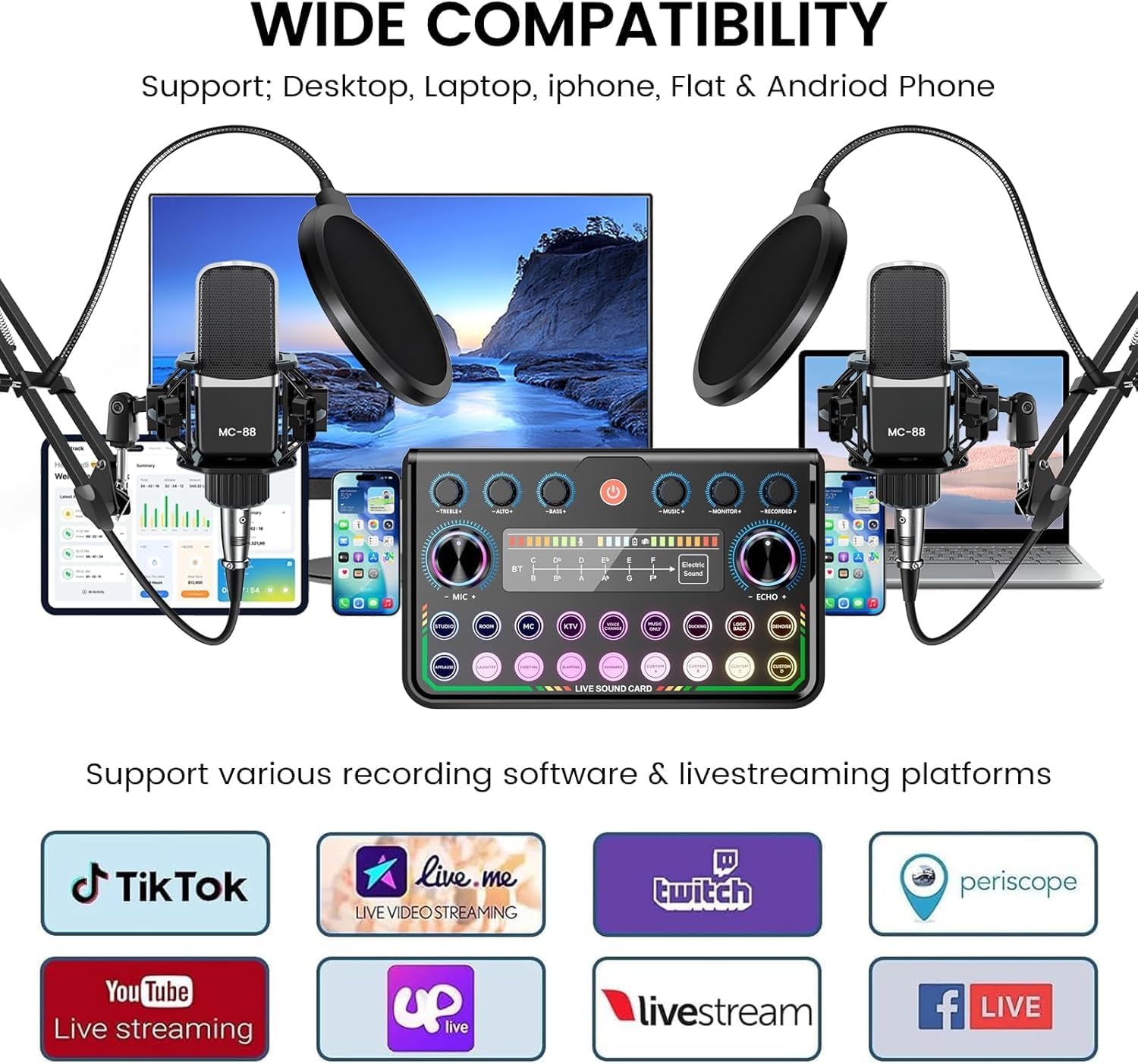
Image 4.1: Connection diagram illustrating how to connect microphones, headphones, and various devices to the sound card.
5. Operating Instructions
5.1 Power On/Off
Press and hold the power button on the sound card to turn it on or off. The indicator lights will illuminate when powered on.
5.2 Adjusting Audio Levels
- MIC Volume: Use the MIC + / - knob to adjust the microphone input volume.
- Monitor Volume: Use the MONITOR + / - knob to adjust the headphone monitoring volume.
- Music Volume: Use the MUSIC + / - knob to adjust the accompaniment music volume.
- Echo: Adjust the echo effect with the ECHO + / - knob.
- Treble/Bass: Fine-tune your vocal tone using the TREBLE + / - and BASS + / - controls.
5.3 Sound Effects and Voice Change
- Built-in Sound Effects: Press the dedicated buttons for various effects like applause, laughter, cheers, slapping, etc.
- Custom Sound Effects: The sound card features 4 customizable sound effect pads (Custom A, B, C, D). Record your own short audio clips to these pads for quick playback during your broadcast.
- Voice Change: Use the VOICE CHANGE button to cycle through different voice modulation effects (e.g., female, male, child, monster).
- Electric Sound: Activate the ELECTRIC SOUND effect for a unique vocal style, with 12-level auto-tuning.
- Denoise: Press the DENOISE button for one-click background noise reduction.

Image 5.1: The sound card's interface showing the 4 customizable sound effect buttons and denoise function.
5.4 Bluetooth Connection
To connect an external device for wireless music accompaniment:
- Turn on the sound card.
- Activate Bluetooth on your smartphone or tablet.
- Search for the sound card's Bluetooth name (refer to the device's display or manual for the exact name, often 'P99 Sound Card').
- Pair your device. Once connected, you can play music wirelessly through the sound card.

Image 5.2: Establishing a Bluetooth connection for wireless music accompaniment.
6. Key Features
- Dual Microphone Support: Designed for two-person broadcasting with two condenser microphones.
- Integrated Audio Mixer: Portable sound card with built-in audio interface.
- Sound Effects: 10 built-in sound effects and 4 customizable sound pads.
- Voice Modulation: Multiple voice change options and 12-level auto-tuning.
- Noise Reduction: One-click denoise function for clear audio.
- Wireless Connectivity: Bluetooth for music accompaniment.
- Wide Compatibility: Works with PCs, smartphones, Xbox, Windows, Mac OS, iOS, and Android.
- Applications: Ideal for live streaming, gaming, recording, singing, and video conferencing.

Image 6.1: The podcast bundle is suitable for diverse applications including singing, podcasting, gaming, and streaming.

Image 6.2: The audio interface mixer offers wide compatibility with various devices and streaming platforms.
7. Specifications
| Feature | Detail |
|---|---|
| Brand | ALSO GO |
| Model Name | MG0020-2-B1 |
| Item Weight | 5.8 Pounds |
| Microphone Form Factor | Studio Condenser |
| Power Source | Battery Powered |
| Material | ABS Plastic |
| Hardware Platform | Laptop |
| Number of Channels | 2 |
| Operating System | Android, Windows, iOS |
| Connectivity Technology | XLR |
| Connector Type | USB Type-C |
| Special Feature | Noise Reduction |
| Compatible Devices | Smartphone, PC, Xbox |
| Polar Pattern | Super Cardioid |
| Audio Sensitivity | 85 Decibels |
| Battery Type | Manganese |
8. Maintenance
- Cleaning: Use a soft, dry cloth to clean the surfaces of the microphones and sound card. Avoid using liquid cleaners or abrasive materials.
- Storage: When not in use, store the bundle in a cool, dry place away from direct sunlight and extreme temperatures.
- Cable Care: Avoid bending or crimping cables excessively to prevent damage.
- Pop Filter/Windscreen: Regularly clean or replace pop filters and windscreens to maintain hygiene and acoustic performance.
9. Troubleshooting
- No Sound Output:
- Ensure the sound card is powered on and fully charged.
- Check all cable connections (microphones, headphones, output to device).
- Verify volume levels on the sound card and connected device are not muted or too low.
- Confirm the correct input/output device is selected in your computer's or smartphone's audio settings.
- Poor Audio Quality/Noise:
- Ensure microphones are properly positioned with pop filters.
- Activate the Denoise function on the sound card.
- Check for loose connections or damaged cables.
- Reduce microphone gain if distortion occurs.
- Minimize external background noise in your recording environment.
- Bluetooth Connection Issues:
- Ensure the sound card's Bluetooth is active.
- Make sure your device's Bluetooth is on and discoverable.
- Unpair and re-pair the device if connection fails.
- Ensure no other devices are interfering with the Bluetooth signal.
10. Warranty and Support
For warranty information and customer support, please refer to the contact details provided on the product packaging or visit the official ALSO GO website. Keep your purchase receipt as proof of purchase for any warranty claims.