
1. Introduction
This manual provides comprehensive instructions for the installation, operation, and maintenance of your Diamond X80s Android Car Stereo System. Please read this manual thoroughly before using the product to ensure proper functionality and safety. Keep this manual for future reference.
2. Safety Information
- Professional Installation Recommended: Due to the complexity of car electrical systems, professional installation is highly recommended to prevent damage to the unit or your vehicle.
- Power Supply: Ensure the unit is connected to a 12V DC power supply with a negative ground. Incorrect voltage can cause damage.
- Avoid Water and Moisture: Do not expose the unit to water or excessive moisture.
- Temperature: Operate the unit within recommended temperature ranges. Extreme temperatures can affect performance.
- Driving Safety: Do not operate the unit in a way that distracts you from driving. Always prioritize road safety.
- Ventilation: Ensure adequate ventilation around the unit to prevent overheating.
3. Package Contents
Verify that all items listed below are included in your package:
- 1 Car Media Player
- 1 GPS Antenna
- Connectors
- 2 USB Connector Cables
- Power Connectors
- 1 Audio Output Harness
- 1 AUX Input Harness
- 1 Reversing Video Adapter Cable
- 1 4G/USB Adapter Cable
- 1 HDMI Adapter Cable
- 1 15A Stereo Fuse
- 1 Camera Cable

Figure 3.1: The product packaging for the Diamond X80s, displaying features such as Strong Core, Multi Color display, Alloy Body, and Original Authentic branding.
4. Setup
4.1. Installation
Installing the Diamond X80s unit requires careful attention to your vehicle's wiring. It is strongly recommended to have this unit installed by a qualified professional to ensure correct wiring and avoid damage to the unit or your vehicle's electrical system.
- Disconnect Battery: Before starting any electrical work, disconnect the vehicle's negative battery terminal to prevent short circuits.
- Mounting: Securely mount the head unit in the designated dashboard slot. Ensure it is stable and does not obstruct any vehicle controls.
- Wiring Connections: Connect the power harness, speaker wires, GPS antenna, USB cables, and any other auxiliary inputs/outputs according to the wiring diagram provided with your unit. Pay close attention to positive and negative terminals.
- Camera and HDMI: If installing a reversing camera or using HDMI output, connect the respective cables.
- Reconnect Battery: Once all connections are secure, reconnect the vehicle's negative battery terminal.
4.2. Initial Power-On
After installation, turn on your vehicle's ignition. The Diamond X80s unit should power on automatically. Follow any on-screen prompts for initial setup, such as language selection and time zone.
5. Operating Instructions
The Diamond X80s features an intuitive Android interface designed for ease of use while driving.

Figure 5.1: The Diamond X80s car stereo system in operation, showing a music player interface, time display, and application icons on its screen.
5.1. Display and Interface
- 10.1-inch Touchscreen: Navigate the system by tapping, swiping, and pinching on the high-resolution 1280x720 display.
- Picture-in-Picture (PIP): Utilize the PIP function to view two applications simultaneously, such as navigation and media playback.
- Multicolour Interface: The user interface offers customizable color schemes.
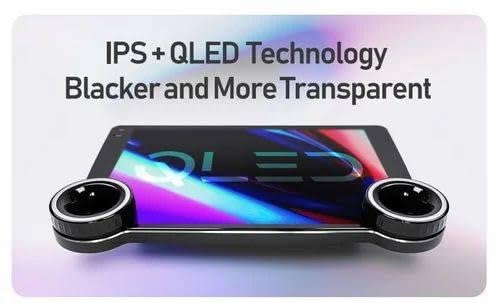
Figure 5.2: The screen of the Diamond X80s car stereo, illustrating its IPS+QLED technology for blacker blacks and more transparent visuals.
5.2. Control Knobs
The unit features dual control knobs for quick and blind operation, allowing for easy adjustments without diverting attention from the road.

Figure 5.3: A detailed view of the dual control knobs on the Diamond X80s car stereo, designed for easy and quick adjustments while driving.
5.3. Android Operating System
Powered by Android 10-13, the system provides access to various applications and features. The strong core processor ensures smooth performance and multitasking.
5.4. Connectivity
- CarPlay Compatibility: Connect your iPhone for seamless integration of navigation, music, and communication features.
- Mobile Internet: Connect to mobile internet via a compatible 4G/USB adapter for online services and app downloads.
- USB Connectivity: Use the USB ports for media playback or connecting compatible devices.
5.5. Audio Features
- 5.1ch Audio Output: Supports multi-channel audio for an immersive sound experience.
- DSP EQ: Utilize the Digital Sound Processor Equalizer for detailed sound customization.
- RDS: Radio Data System provides additional information from FM radio broadcasts.
5.6. Smart Functions
- Voice Control: Use voice commands for hands-free operation of various functions.
- Navigation System: Integrated navigation capabilities guide you to your destination.
6. Maintenance
- Cleaning the Screen: Use a soft, lint-free cloth to gently wipe the display. Avoid abrasive cleaners or solvents.
- Software Updates: Periodically check for system software updates to ensure optimal performance and access to new features. Updates can typically be found in the system settings menu.
- General Care: Keep the unit free from dust and debris. Ensure all connections remain secure.
7. Troubleshooting
If you encounter issues with your Diamond X80s unit, refer to the following common problems and solutions:
- No Power:
- Check the vehicle's fuse box and the unit's inline fuse (15A).
- Ensure all power connections are securely attached.
- Verify the vehicle's battery is charged.
- No Sound:
- Check speaker connections.
- Verify volume settings and ensure the unit is not muted.
- Confirm audio output settings in the system menu.
- Touchscreen Unresponsive:
- Restart the unit by turning off the vehicle's ignition and restarting.
- Ensure the screen is clean and free of debris.
- GPS Signal Lost:
- Ensure the GPS antenna is properly connected and has a clear view of the sky.
- Move the vehicle to an open area away from tall buildings or tunnels.
- CarPlay Not Connecting:
- Ensure your iPhone is compatible with CarPlay and running the latest iOS version.
- Try using a different USB cable.
- Check CarPlay settings on both the unit and your iPhone.
8. Specifications
| Feature | Specification |
|---|---|
| Brand | Generic |
| Model | Diamond 2k |
| Product Dimensions | 7.62 x 22.86 x 25.4 cm |
| Item Weight | 700 g |
| Display Size | 10.1-inch |
| Display Resolution | 1280 x 720 |
| Operating System | Android 10-13 |
| RAM | 4GB |
| Storage Capacity | 64GB |
| Connectivity Technology | USB |
| Compatible Devices | Smartphone |
| Audio Output Mode | Stereo |
| Surround Sound Channel Configuration | 5.1 |
| Wattage | 60 Watts |
| Special Features | RDS, Picture-in-Picture, Voice Control, Navigation System |
9. Warranty and Support
9.1. Warranty Information
This product is covered by a standard manufacturer's warranty. Please refer to the warranty policy provided at the time of purchase for specific terms and conditions, including coverage duration and claim procedures. Keep your proof of purchase for warranty claims.
9.2. Customer Support
For technical assistance, troubleshooting beyond this manual, or warranty inquiries, please contact your retailer or the manufacturer's customer support. Contact details are typically available on the product packaging or the seller's website.


