
1. Introduction
Welcome to the user manual for your MBG line Q85 Compact Voice Recorder. This professional digital voice recorder is designed for discreet and high-quality audio capture, ensuring important conversations, lectures, or personal memos are recorded with exceptional clarity. Its innovative design operates without visible lights or audible sounds, making it ideal for various recording environments. This manual provides essential information on setting up, operating, maintaining, and troubleshooting your device to ensure optimal performance.
2. Product Overview
2.1 Key Features
- High-Definition Audio: Records at 192kbps for clear sound quality.
- Voice Activated Recording (VOS): Automatically starts recording when sound is detected, conserving battery and memory.
- Large Storage Capacity: 32GB internal memory, capable of storing up to 380 hours of audio.
- Extended Battery Life: Integrated 1750mAh battery provides up to 300 hours of recording autonomy.
- Discreet Design: No visible lights or sounds during operation.
- Magnetic Attachment: Powerful integrated magnet for versatile and discreet placement.
- Timestamp Function: Automatically adds date and time to recordings for easy organization.
- Easy File Management: Connects directly to computers via USB and supports OTG connection for smartphones (adapter not included).
2.2 Device Components
The MBG line Q85 recorder features a compact design with essential controls and ports.

Figure 1: MBG line Q85 Compact Voice Recorder. The image displays the device's sleek black rectangular form factor, highlighting its compact size and textured surface. A smaller depiction shows the device comfortably held in a hand, emphasizing its portability.
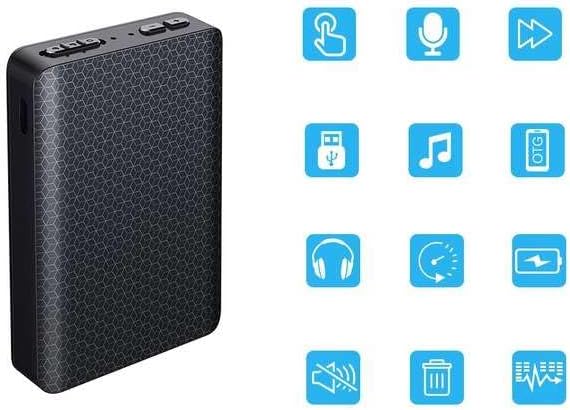
Figure 2: The MBG line Q85 Voice Recorder shown alongside a grid of blue icons representing its various functions. These icons indicate features such as playback, microphone input, track skipping, USB connectivity, music playback, OTG support, headphone output, time setting, battery status, mute function, file deletion, and equalizer settings.
While specific button labels may vary, the device typically includes:
- Power/Record Switch: A slide switch to turn the device on/off and initiate/stop recording.
- USB-C Port: For charging and connecting to computers or smartphones.
- Microphone: Integrated high-sensitivity microphone.
- Indicator Light (Internal): A small, internal LED that may briefly illuminate during power-on or charging, but remains off during recording for discretion.
3. Setup
3.1 Initial Charging
Before first use, fully charge the device. Connect the MBG line Q85 to a USB power source (e.g., computer USB port, USB wall adapter) using the provided USB-C cable. The charging time is approximately 5 hours.

Figure 3: The MBG line Q85 Voice Recorder is shown connected to a USB wall adapter via a white cable, indicating that the device is currently charging. A blue lightning bolt icon in the upper left corner further signifies the charging status.
3.2 Time Synchronization
To ensure accurate timestamps on your recordings, synchronize the device's internal clock with your computer's time. Connect the recorder to your computer. The device will appear as a removable drive. Locate and run the time synchronization utility (often a small executable file or a text file with instructions) found on the device's internal storage. Follow the on-screen prompts to set the correct date and time.
4. Operating Instructions
4.1 Power On/Off
- To Power On: Slide the power switch to the 'ON' position. The device may briefly show an internal indicator light before entering standby mode.
- To Power Off: Slide the power switch to the 'OFF' position. Ensure all recordings are saved before powering off.
4.2 Standard Recording
To begin recording:
- Ensure the device is powered on.
- Slide the record switch to the 'RECORD' position. The device will start recording immediately. No external lights or sounds will indicate recording is in progress.
- To stop recording, slide the record switch back to the 'OFF' or 'SAVE' position. The recording will be saved automatically.
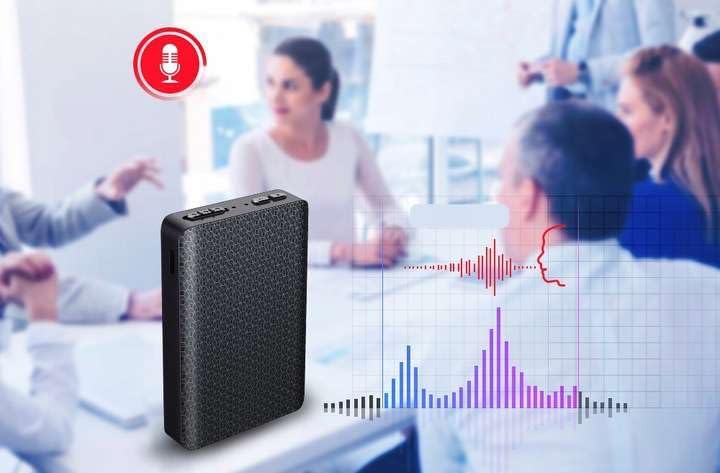
Figure 4: The MBG line Q85 Voice Recorder is depicted on a table in what appears to be a meeting or discussion setting. A red microphone icon with a sound wave graphic overlays the image, symbolizing active audio recording. A visual representation of a sound wave with peaks and troughs extends from the device, illustrating the capture of speech.
4.3 Voice Activated Recording (VOS)
The VOS feature allows the recorder to start recording only when sound is detected, pausing during silence to save memory and battery. Refer to the device's internal instructions (often a text file on the device when connected to a computer) for specific steps to enable or disable VOS mode. Typically, this involves a specific sequence of switch movements or a setting file modification.
4.4 Playback and File Management
The MBG line Q85 does not have an integrated speaker for direct playback. Recordings must be accessed via a computer or smartphone.
- Connecting to a Computer: Connect the recorder to your computer using the USB-C cable. The device will be recognized as a removable drive. Navigate to the 'RECORD' folder to find your audio files (WAV format).
- Connecting to a Smartphone (OTG): For direct access from a smartphone, you will need an OTG adapter (not included). Connect the recorder to your smartphone via the OTG adapter. Your phone's file manager app can then be used to access and play the recordings.

Figure 5: The MBG line Q85 Voice Recorder is shown connected to a smartphone with a USB-C cable. The smartphone's screen displays a file management interface, showing folders labeled 'LOST.DIR', 'MUSIC', and 'RECORD', indicating that the recorder's storage is accessible on the phone.
5. Maintenance
- Cleaning: Use a soft, dry cloth to clean the device. Avoid using liquid cleaners or solvents.
- Storage: Store the device in a cool, dry place away from direct sunlight, extreme temperatures, and humidity.
- Battery Care: To prolong battery life, avoid fully discharging the battery frequently. Charge the device regularly, even if not in use for extended periods.
- Data Backup: Regularly back up important recordings to your computer or cloud storage to prevent data loss.
6. Troubleshooting
- Device Not Turning On:
Ensure the battery is charged. Connect the device to a power source and allow it to charge for at least 30 minutes before attempting to power it on again. - No Sound Recorded:
Check if the device was in recording mode. Ensure the microphone is not obstructed. Verify that the VOS feature is not set too high, preventing recording of low-level sounds. - Cannot Connect to Computer/Smartphone:
Try a different USB-C cable or USB port. Ensure the device is powered on when connecting. For smartphones, confirm your phone supports OTG functionality and that the OTG adapter is working correctly. - Poor Audio Quality:
Ensure the device is placed in an optimal location, not too far from the sound source and away from excessive background noise. - Battery Not Charging:
Verify the USB cable and power adapter are functional. Try charging from a different USB port or power source.
7. Specifications
| Feature | Specification |
|---|---|
| Model | Q85 Compact |
| Recording Quality | 192kbps |
| Recording Autonomy | Up to 300 hours |
| File Size (approx.) | 1.4MB per minute |
| Maximum Capacity (32GB) | Up to 380 hours |
| Audio Format | WAV |
| Voice Activation (VOS) | Yes |
| Internal Memory | 32 GB |
| Timestamp | Yes |
| USB Drive Function | Yes |
| Charging Time | Up to 5 hours |
| Power Supply | 5V (USB) |
| Microphone Range | Up to 10m |
| Battery | Integrated 1750mAh |
| Dimensions | 72mm (H) x 54mm (W) x 12mm (D) |
| Weight | 65 Grams |
| Compatible Devices | Personal computer, Smartphone |
| USB Ports | 1 (USB-C) |
| Microphone Form Factor | Integrated |
8. Warranty and Support
The MBG line Q85 Compact Voice Recorder comes with a 1-year manufacturer warranty. Please retain your proof of purchase for warranty claims.
For technical support, troubleshooting assistance beyond this manual, or warranty inquiries, please contact your retailer or the MBG line customer service directly. Contact information can typically be found on the product packaging or the seller's website.