
1. Introduction
This manual provides detailed instructions for the safe and effective use of your ZOLAMENTE 4K 80MP Camcorder DV10. Please read this manual thoroughly before operating the device and retain it for future reference. Proper use will ensure optimal performance and longevity of your camcorder.
2. Package Contents
Verify that all items listed below are present in your package:
- ZOLAMENTE 4K 80MP Camcorder DV10
- Rechargeable Batteries (x2)
- 64GB SD Card
- Remote Controller
- USB Cable
- User Manual
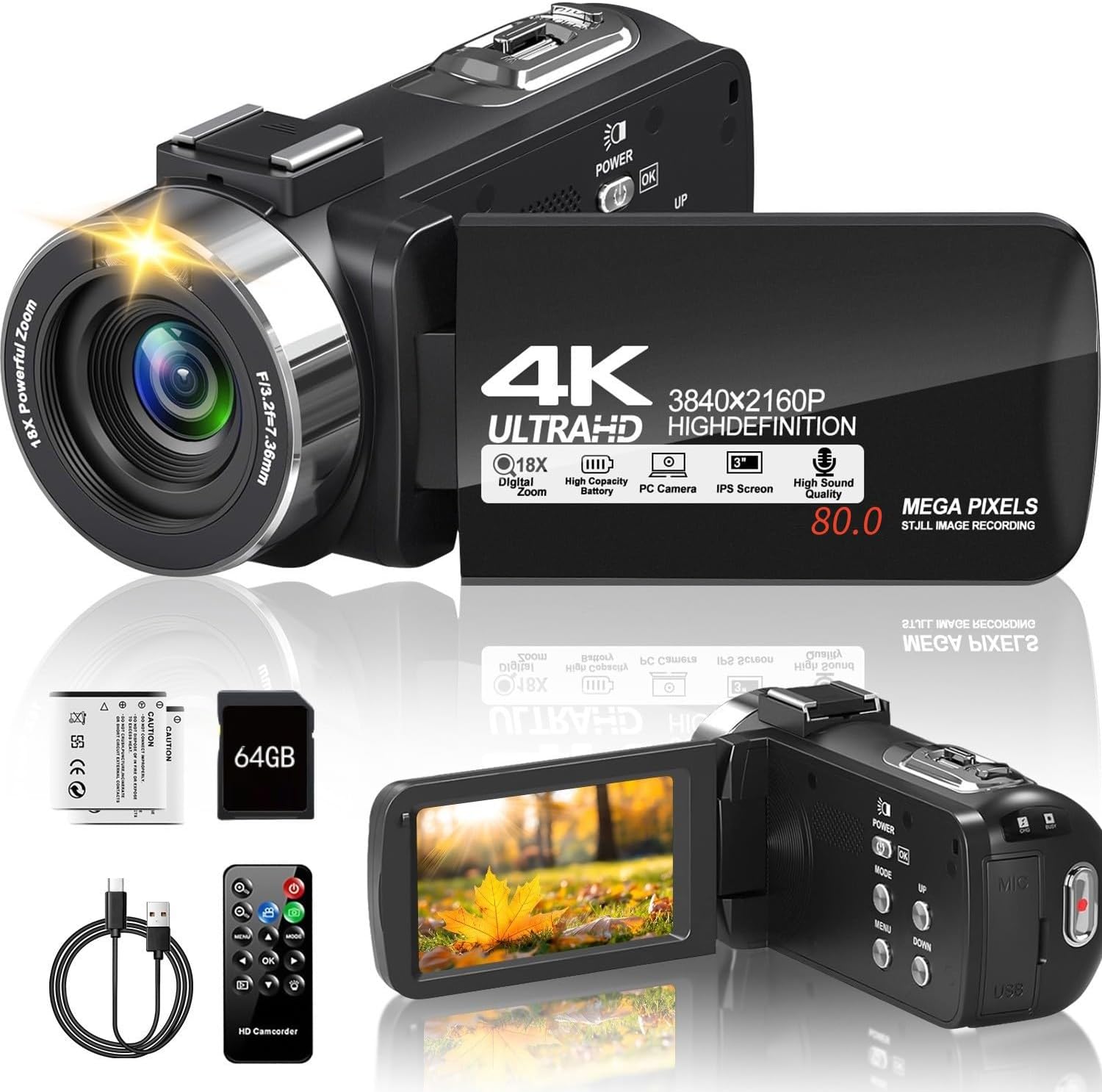
Image 2.1: The ZOLAMENTE 4K 80MP Camcorder DV10 shown with its included accessories, including two batteries, a 64GB SD card, a remote control, and a USB cable.
3. Product Overview
Familiarize yourself with the main components of your camcorder.
3.1 Key Features
- 4K Ultra HD Video Resolution (3840x2160)
- 80 Megapixel Image Resolution
- 18X Digital Zoom
- 3.0-inch 270° Rotatable IPS Screen
- Infrared (IR) Night Vision
- Webcam Functionality
- Support for external microphone (not included)

Image 3.1: The camcorder featuring its 3.0-inch IPS screen, capable of 270-degree rotation for flexible viewing angles during recording or playback.

Image 3.2: Visual representation of the camcorder's 18X digital zoom capability and its ability to capture images at 80 megapixels, highlighting detail capture.
4. Setup
4.1 Charging the Battery
Before first use, fully charge both included batteries. A full charge may take approximately 2 hours. A fully charged battery provides approximately one hour of recording time.
- Insert a battery into the battery compartment.
- Connect the camcorder to a power source using the provided USB cable.
- The charging indicator light will illuminate. It will turn off or change color once charging is complete.
4.2 Inserting the SD Card
The camcorder supports SDHC (Class 10) and SDXC (Class 10) memory cards up to 256GB. A 64GB SD card is included.
- Ensure the camcorder is powered off.
- Locate the SD card slot.
- Gently push the SD card into the slot until it clicks into place. Ensure the card's metal contacts face the correct direction.
- To remove, gently push the card in again until it springs out.
Important: When inserting an SD card for the first time, the camera may prompt you to format it. It is recommended to format the card directly through the camera's menu system (Menu > Mode > Down buttons to navigate). If the camera repeatedly asks to format the card, initially format it using a computer, then re-format it using the camera.
5. Operating Instructions
5.1 Power On/Off
- To power on, press and hold the POWER button.
- To power off, press and hold the POWER button again.
5.2 Basic Video Recording
- Power on the camcorder.
- Ensure the camcorder is in video recording mode (indicated by an icon on the screen).
- Press the REC/STOP button to start recording. The recording indicator will flash.
- Press the REC/STOP button again to stop recording.
5.3 Taking Photos
- Power on the camcorder.
- Switch to photo mode.
- Frame your shot using the screen.
- Press the PHOTO button to capture an image.
5.4 Using Digital Zoom
While recording or in standby mode, use the W/T (Wide/Telephoto) lever to adjust the digital zoom. Push towards T to zoom in and towards W to zoom out.
5.5 Screen Rotation
The 3.0-inch IPS screen can rotate up to 270 degrees, allowing for various shooting angles and self-recording. Gently pivot the screen to your desired position.
5.6 Playback
- Press the MODE button to enter playback mode.
- Use the navigation buttons to select the video or photo you wish to view.
- Press the OK button to play a video or view a photo.
6. Advanced Features
6.1 Infrared (IR) Night Vision
The camcorder is equipped with IR night vision for recording in low-light or dark environments, capturing black and white footage.
- In video or photo mode, press the IR button to activate night vision.
- Press the IR button again to deactivate.

Image 6.1: The camcorder's infrared night vision feature shown capturing a clear black and white image in a dimly lit environment, with an 'ON' indicator.
6.2 Webcam Function
Connect your camcorder to a computer to use it as a webcam for live streaming or video calls.
- Connect the camcorder to your computer using the USB cable.
- Select 'PC Camera' or 'Webcam' option on the camcorder screen (if prompted).
- Your computer should recognize the camcorder as a webcam. Select it in your video conferencing or streaming software.

Image 6.2: The camcorder connected via USB to a laptop, displaying its live feed on the laptop screen, illustrating its webcam functionality for online platforms.
6.3 Remote Control Operation
The included remote control allows for convenient operation from a distance, useful for self-recording or group shots.
- Point the remote control directly at the camcorder's IR receiver.
- Use the corresponding buttons on the remote for functions like record, stop, zoom, and menu navigation.
6.4 Recording While Charging
The camcorder supports recording while connected to a power source, allowing for extended recording sessions without interruption.

Image 6.3: The camcorder actively recording footage while simultaneously connected to an external power bank via its USB cable, demonstrating the 'record while charging' feature.
6.5 Special Recording Modes
The camcorder offers various modes to enhance your creative possibilities:
- Time-Lapse Recording: Captures images at set intervals to create a sped-up video.
- Pause Function: Allows you to pause and resume recording within a single video file.
- Self Timer: Delays photo capture by 3, 5, or 10 seconds.
- Continuous Shooting: Captures multiple photos in quick succession.
- Motion Detection: Starts recording automatically when motion is detected.
- Slow Motion: Records video at a higher frame rate for slow-motion playback.

Image 6.4: A collage illustrating the diverse recording capabilities of the camcorder, including time-lapse, pause function, self-timer, continuous shooting, motion detection, timed photo, and slow motion.
7. Maintenance
7.1 Cleaning the Camcorder
- Use a soft, dry cloth to clean the camcorder body.
- For the lens, use a specialized lens cleaning cloth and solution. Avoid touching the lens with your fingers.
- For the screen, use a soft, lint-free cloth.
7.2 Battery Care
- Store batteries in a cool, dry place when not in use.
- Do not expose batteries to extreme temperatures.
- If not using the camcorder for an extended period, remove the batteries.
7.3 Storage
Store the camcorder in a protective case or bag to prevent dust and scratches. Avoid storing in direct sunlight or areas with high humidity.
8. Troubleshooting
8.1 Common Issues and Solutions
- Camcorder does not power on:
Ensure the battery is fully charged and correctly inserted. Try using the second battery. - SD card error / Camera asks to format repeatedly:
Ensure the SD card is correctly inserted and unlocked. Format the SD card using a computer first, then re-format it using the camera's menu. Ensure the SD card is Class 10 or higher. - Poor image/video quality:
Check that the lens is clean. Ensure adequate lighting for your recording environment. Adjust settings like resolution and exposure in the menu. - Short battery life:
Ensure batteries are fully charged. Battery life can be affected by continuous recording, zoom usage, and IR night vision. Consider recording while charging for extended use. - Remote control not working:
Ensure there are no obstructions between the remote and the camcorder's IR receiver. Check the remote's battery.
9. Specifications
| Brand | ZOLAMENTE |
| Model Name | DV10 |
| Camcorder Type | Video Camera |
| Video Resolution | 4K Ultra HD (3840x2160) |
| Image Resolution | 80 Megapixels |
| Digital Zoom | 18X |
| Screen Size | 3.0 Inches IPS, 270° Rotatable |
| Special Features | Night Vision, Webcam Function |
| Flash Memory Type | SD (Supports up to 256GB SDXC Class 10) |
| Connectivity Technology | USB |
| Item Weight | 1.1 Pounds |
10. Warranty & Support
Your ZOLAMENTE Camcorder DV10 comes with a standard manufacturer's warranty. Please refer to the warranty card included in your package for specific terms and conditions.
10.1 Customer Support
If you encounter any issues or have questions not covered in this manual, please contact our customer service team. For prompt assistance, we recommend the following steps:
- Go to your order history on the platform where you purchased the product.
- Find your order ID for the ZOLAMENTE Camcorder DV10.
- Click on the 'Contact Seller' option.
Our customer service team is dedicated to assisting you within 24 hours.