
Hikity Hikity-A4232H1MI2-63EU
Hikity Android 15 1 DIN Car Radio User Manual
Model: Hikity-A4232H1MI2-63EU
Introduction
Thank you for purchasing the Hikity Android 15 1 DIN Car Radio. This advanced car stereo system features a 7-inch retractable touchscreen, offering a seamless blend of entertainment, navigation, and connectivity. With Wireless CarPlay and Android Auto, integrated 4G WiFi, DSP audio processing, and GPS capabilities, this unit is designed to enhance your driving experience. This manual provides detailed instructions for installation, operation, maintenance, and troubleshooting to ensure optimal performance and longevity of your device.
Safety Information
Please read all safety instructions carefully before installation and operation. Failure to follow these guidelines may result in injury, damage to the device, or damage to your vehicle.
- Ensure the vehicle's ignition is off and the battery is disconnected before beginning installation to prevent electrical short circuits.
- Consult a professional installer if you are unsure about any part of the installation process.
- Do not operate the device in a way that distracts you from driving. Always prioritize road safety.
- Avoid exposing the unit to extreme temperatures, direct sunlight for prolonged periods, or excessive moisture.
- Use only specified accessories and parts.
Package Contents
Verify that all items listed below are included in your package:
- 1 x Android Stereo System
- 1 x Power Cable
- 1 x GPS Antenna
- 1 x User Manual
- 1 x Microphone
- 1 x 4G Module
- 1 x WiFi Antenna
- 1 x Mounting Bracket
- 1 x Rear Camera

Figure 1: Diagram showing product dimensions and a visual representation of the included accessories and their connections.
Product Overview
The Hikity Android 15 Car Radio is a feature-rich 1 DIN unit designed for modern vehicle integration. It boasts a powerful 8-core CPU, 6GB RAM, and 128GB ROM for smooth operation and ample storage.

Figure 2: Front view of the Hikity Android 15 Car Radio, showcasing its retractable 7-inch display with various application icons.

Figure 3: Illustration detailing the powerful internal components of the car radio, including the Android 15 operating system, 8-core CPU, 6GB RAM, and 128GB ROM.
Key Features:
- 7-inch Retractable Capacitive Touchscreen: Provides clear visuals and intuitive control.
- Android 15 Operating System: Offers a modern and customizable user interface.
- High Performance: Equipped with an 8-core 1.6 GHz CPU, 6GB RAM, and 128GB ROM.
- Wireless CarPlay & Android Auto: Seamless smartphone integration for navigation, music, and calls.
- Built-in 4G WiFi: Enables internet connectivity for online maps, streaming, and app downloads.
- Bluetooth 5.0: For hands-free calling and audio streaming.
- DSP Audio Processing: Advanced sound customization for an enhanced audio experience.
- GPS/BDS/Glonass Navigation: Supports online and offline mapping.
- AM/FM/RDS Radio: Access to a wide range of radio stations.
- Split Screen Function: Run two applications simultaneously.
- Steering Wheel Control Support: For convenient operation while driving.
- Dual USB Interface: For media playback and device charging.
- Rear Camera Input: Supports CVBS, AHD, and 360 Panorama cameras (optional).
Setup & Installation
Proper installation is crucial for the performance and safety of your car radio. It is recommended to have this unit installed by a qualified professional.
1. Pre-Installation Check:
- Ensure your vehicle's power is disconnected.
- Confirm the compatibility of the 1 DIN size with your car's dashboard.
- Gather all necessary tools (wire strippers, screwdrivers, electrical tape, etc.).
2. Wiring Connections:
Refer to the wiring diagram provided in Figure 1 (Product Size & Packing List) for detailed connection points. Key connections include:
- Power Cable: Connect the yellow wire to constant 12V (battery), red wire to accessory 12V (ignition switched), and black wire to ground.
- Speaker Outputs: Connect to your vehicle's speakers (4 x 50W amplification).
- GPS Antenna: Connect to the dedicated GPS port and mount in a location with clear sky view.
- WiFi Antenna: Connect to the WiFi antenna port.
- 4G Module: Connect the 4G module and insert a SIM card if 4G connectivity is desired.
- Rear Camera: Connect the video input from the rear camera to the designated input.
- Microphone: Connect the external microphone for improved call quality.
- USB Ports: Connect USB devices as needed.
- Steering Wheel Control (SWC): Connect the SWC wires to your vehicle's steering wheel control interface (if applicable).
3. Physical Installation:
- Carefully slide the head unit into the 1 DIN opening in your dashboard.
- Secure the unit using the provided mounting bracket and screws.
- Ensure all cables are neatly tucked away and not pinched.
- Reconnect the vehicle's battery.

Figure 4: Visual comparison of a car dashboard before and after the installation of the Hikity 1 DIN Car Radio.
4. Initial Power On:
After installation, turn on your vehicle's ignition. The unit should power on and display the Hikity logo. Follow any on-screen prompts for initial setup, such as language selection and time zone.
Operating Instructions
1. Basic Controls:
- Power Button: Press to turn the unit on/off.
- Volume Knob: Rotate to adjust volume. Press to mute/unmute.
- Screen Retraction: The 7-inch screen is manually retractable. Gently push or pull the screen to adjust its position or store it.
- Touchscreen Interface: Navigate through menus and applications by tapping and swiping on the capacitive touchscreen.
2. Android 15 Interface:
The unit runs on Android 15, providing a familiar smartphone-like experience. You can download and install apps from the pre-installed app store or via APK files.
3. Wireless CarPlay & Android Auto:
Connect your iPhone or Android smartphone wirelessly for a streamlined in-car experience. This allows access to navigation, music, messages, and calls through the car radio's interface.
- Ensure Bluetooth and Wi-Fi are enabled on your smartphone.
- On the car radio, select the CarPlay or Android Auto application.
- Follow the on-screen instructions to pair your device.
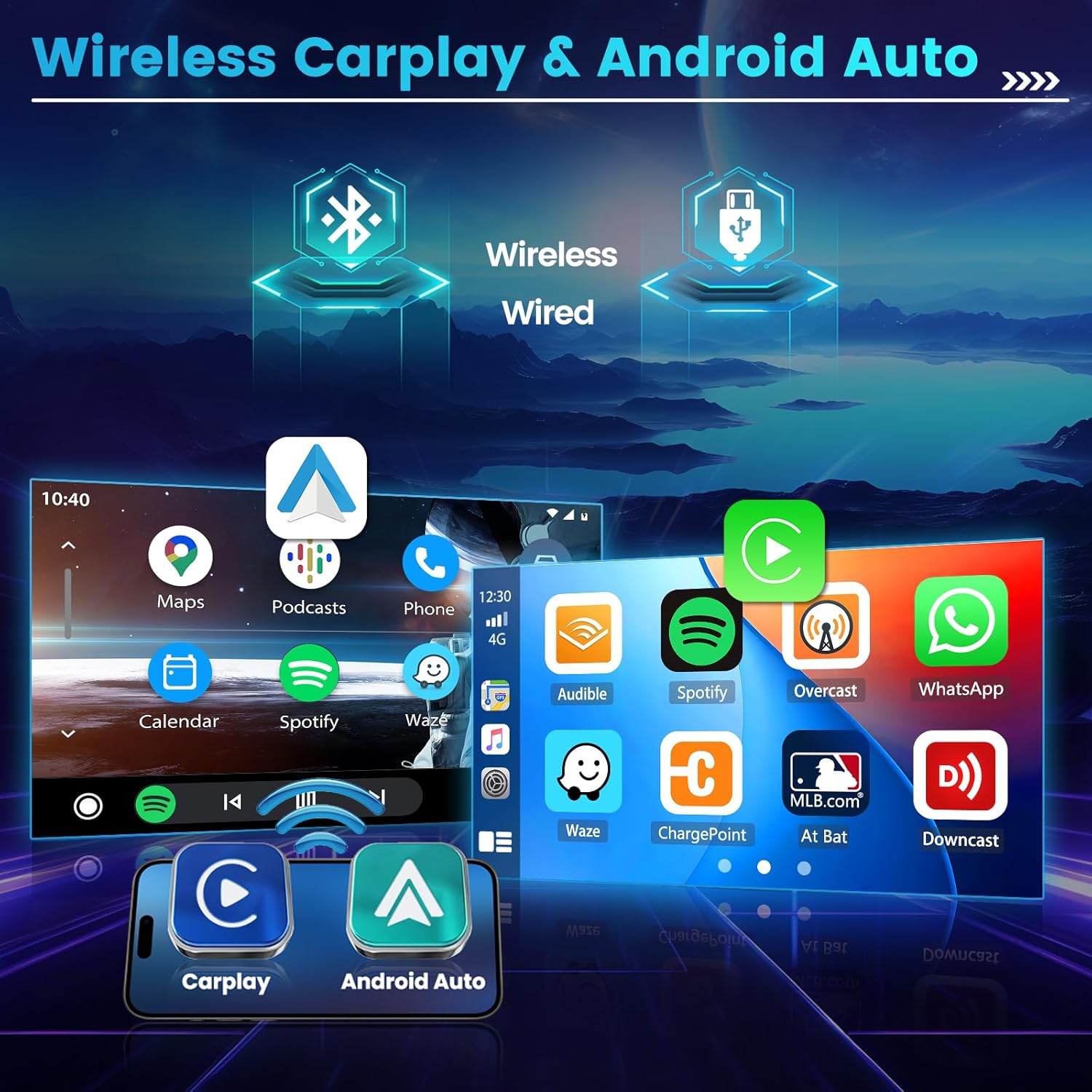
Figure 5: Display showing the Wireless CarPlay and Android Auto interfaces, demonstrating smartphone integration for various applications.
4. Bluetooth 5.0:
Pair your smartphone via Bluetooth for hands-free calling and audio streaming.
- Go to the Bluetooth settings on the car radio.
- Enable Bluetooth on your phone and search for available devices.
- Select "Hikity Car Radio" (or similar name) from the list and confirm pairing.
5. Radio (AM/FM/RDS):
Access the Radio application to tune into AM, FM, or RDS stations.
- Use the scan function to automatically find and save stations.
- Manually tune by frequency.
- RDS (Radio Data System) provides additional information like station name and song title where available.

Figure 6: Screenshots illustrating the Bluetooth pairing interface and the AM/FM/RDS radio tuning screen.
6. DSP Audio Adjustment:
Utilize the Digital Signal Processor (DSP) to customize your audio experience. Adjust equalizer settings, balance, fader, and subwoofer output to match your preferences.
7. Split Screen Function:
Multitask efficiently by running two applications side-by-side on the screen. For example, use navigation on one side and music playback on the other.
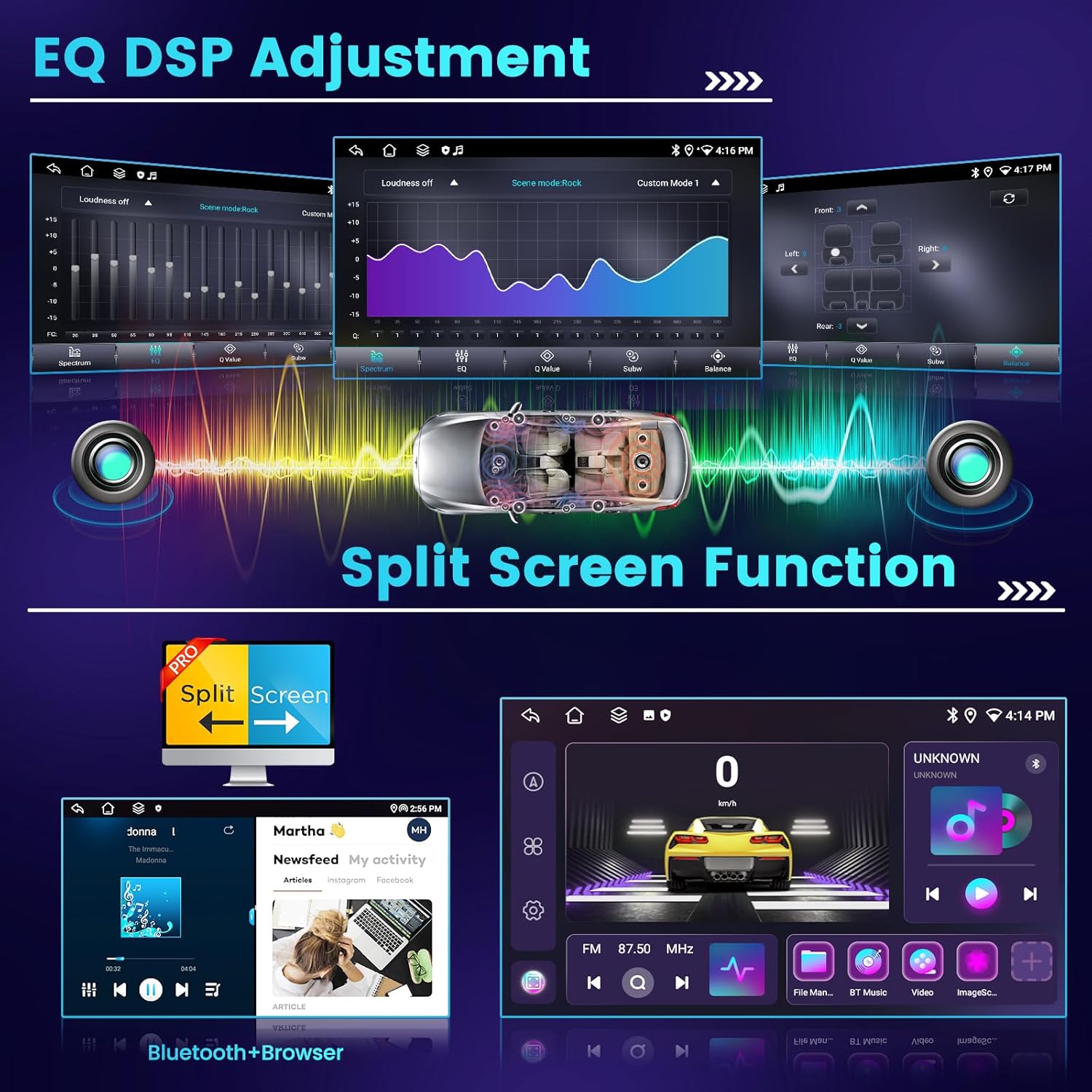
Figure 7: Visuals demonstrating the detailed EQ DSP adjustment interface and the split-screen functionality, allowing two apps to run concurrently.
8. 4G WiFi & GPS Navigation:
Connect to the internet via built-in 4G WiFi (requires SIM card in 4G module) or by tethering to a mobile hotspot. Use the integrated GPS for precise navigation.
- WiFi Connection: Go to Settings > Network & Internet > Wi-Fi to connect to available networks.
- 4G Connection: Ensure the 4G module is installed with a valid SIM card.
- GPS: The unit supports GPS, BDS, and Glonass. Pre-installed navigation apps can be used, or you can download others from the app store.

Figure 8: Screenshots illustrating the 4G WiFi connection process and the GPS navigation interface with map display.
9. Steering Wheel Control (SWC):
If connected, configure the steering wheel controls through the unit's settings to map functions like volume, track skip, and mode switching to your vehicle's steering wheel buttons.
10. Rear Camera Input:
When the vehicle is shifted into reverse, the unit will automatically display the feed from the connected rear camera, assisting with parking and maneuvering.
Maintenance
1. Cleaning:
- Use a soft, dry cloth to wipe the screen and exterior.
- For stubborn smudges on the screen, use a screen cleaner specifically designed for electronic displays.
- Avoid using abrasive cleaners or solvents.
2. Software Updates:
Periodically check for software updates to ensure optimal performance and access to new features. Updates can typically be found on the manufacturer's website or through the unit's system settings if an internet connection is available.
Troubleshooting
If you encounter issues with your Hikity car radio, refer to the following common problems and solutions:
| Problem | Possible Cause | Solution |
|---|---|---|
| Unit does not power on. | Incorrect wiring, blown fuse, vehicle battery issues. | Check power cable connections (constant 12V, accessory 12V, ground). Inspect vehicle fuses. Ensure battery is charged. |
| No sound from speakers. | Speaker wires disconnected, volume too low, mute enabled, incorrect audio output settings. | Verify speaker wire connections. Increase volume. Check if mute is active. Adjust audio settings (balance, fader, DSP). |
| GPS signal is weak or lost. | GPS antenna improperly installed or obstructed. | Ensure GPS antenna is mounted in a clear line of sight to the sky. Check antenna connection. |
| Bluetooth connection issues. | Device not in pairing mode, interference, incorrect pairing process. | Ensure both devices are in pairing mode. Delete previous pairings and try again. Move closer to the unit. |
| Touchscreen unresponsive. | Software glitch, screen damage. | Restart the unit (power cycle). If issue persists, contact support. |
If the problem persists after attempting these solutions, please contact Hikity customer support for further assistance.
Specifications
| Feature | Specification |
|---|---|
| System | Android 15.0 |
| CPU | 8-core, 1.6 GHz |
| RAM | 6 GB |
| ROM | 128 GB |
| Screen Size | 7 inches |
| Screen Resolution | 1024 x 600 |
| Amplifier Power | 4 x 50 W |
| Radio Chip | SI4755 |
| DSP Chip | AK7604 |
| Bluetooth Version | 5.0 |
| Operating Temperature | -40 °C to +85 °C |
| Operating Voltage | 9 V to 16 V |
| USB Ports | 2 (USB 2.0) |
| Navigation Support | GPS/BDS/Glonass |
| Audio Formats | APE/FLAC/WAV/MP3/WMA, etc. |
| Video Formats | MKV/RMVB/AVI/MP4/MDV, etc. |
| Image Formats | PNG/JPEG/JPG/GIF/WBMP/BNP, etc. |
| Product Dimensions | 18.8 x 19.3 x 5.2 cm |
| Product Weight | 1.62 kg |
Warranty and Support
Hikity products are manufactured to high quality standards. For warranty information and technical support, please refer to the warranty card included with your product or visit the official Hikity website. Keep your purchase receipt as proof of purchase for warranty claims.
For further assistance, you may contact Hikity customer service through the contact information provided on their official website or through your point of purchase.
Ask a question about this manual
Ask about setup, troubleshooting, compatibility, parts, safety, or missing instructions. Manuals+ will review the question and use this page’s manual context to help answer it.