
1. Introduction
Thank you for choosing the Baetaey WiFi Signal Amplifier and Repeater. This device is designed to extend the coverage of your existing wireless network, eliminating dead zones and providing a stronger, more reliable internet connection throughout your home or office. It supports both Repeater and Access Point (AP) modes and features an Ethernet port for wired connections.
2. Product Overview
The Baetaey WiFi Signal Amplifier is a compact device that plugs directly into a wall outlet. It features external antennas for enhanced signal transmission and reception, and an Ethernet port for connecting wired devices or for use in AP mode.
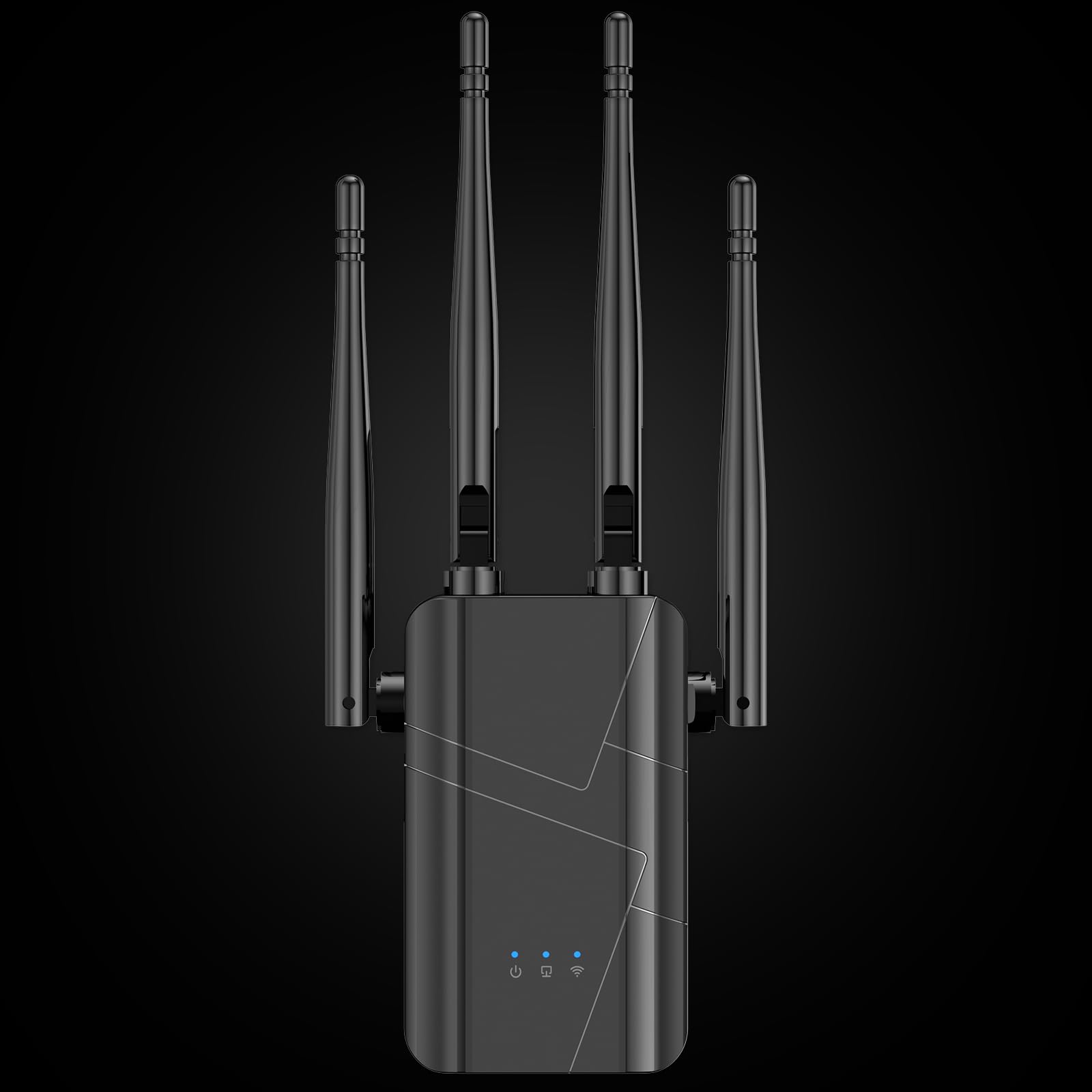
Image 1: Front view of the Baetaey WiFi Signal Amplifier, showing its compact design, two adjustable antennas, and an indicator light. The device is designed to plug directly into a power outlet.
3. Setup Instructions
Follow these steps to set up your Baetaey WiFi Signal Amplifier:
- Unpack the Device: Carefully remove the WiFi amplifier from its packaging.
- Power On: Plug the WiFi amplifier into an electrical outlet in a central location, ideally halfway between your router and the area with poor WiFi signal. Wait for the power indicator light to turn on and stabilize.
- Connect to the Repeater's Network: On your computer or smartphone, search for available WiFi networks. Connect to the network named something like "WiFi-Repeater" or "Baetaey_EXT". This network will not have internet access initially.
- Access Setup Page: Open a web browser (e.g., Chrome, Firefox) and enter the default IP address or domain name into the address bar. Common addresses include 192.168.1.1, 192.168.0.1, or repeater.net. Refer to the label on your device for the exact address.
- Log In: Enter the default username and password, usually admin/admin or specified on the device label.
- Select Operating Mode: Choose Repeater Mode to extend your existing WiFi network, or AP Mode to create a new WiFi network from a wired Ethernet connection. For most users, Repeater Mode is appropriate.
- Select Host Network (Repeater Mode): The device will scan for available WiFi networks. Select your home or office WiFi network from the list.
- Enter Host Network Password: Input the password for your selected host WiFi network.
- Configure Repeater Network: You can choose to keep the same network name (SSID) as your main router (e.g., "YourWiFi_EXT") or create a new one. Set a password for the extended network. It is recommended to use a strong, unique password.
- Apply Settings and Reboot: Save your settings. The device will reboot. Once it restarts, the indicator lights should show a successful connection to your main router.
- Connect Your Devices: Connect your WiFi-enabled devices to the newly configured extended network.
4. Operating Instructions
Once set up, the Baetaey WiFi Signal Amplifier operates automatically. It will continuously extend your chosen WiFi network. For optimal performance, ensure the device is placed in a location where it receives a good signal from your main router and can effectively broadcast to the desired areas.
- Ethernet Port Usage: The integrated Ethernet port can be used to connect a wired device (e.g., a desktop computer, gaming console, smart TV) to the extended network, providing a stable wired connection.
- Indicator Lights: Pay attention to the device's indicator lights. They typically show power status, WiFi signal strength, and connection status to the main router. Refer to your device's specific light patterns for detailed information.
5. Maintenance
To ensure the longevity and optimal performance of your WiFi amplifier:
- Keep the device clean and free from dust. Use a soft, dry cloth for cleaning.
- Ensure adequate ventilation around the device to prevent overheating. Do not cover it or place it in enclosed spaces.
- Avoid placing the device near strong electromagnetic interference sources (e.g., microwave ovens, cordless phones).
- Periodically check for firmware updates on the manufacturer's website to ensure the best performance and security.
6. Troubleshooting
If you encounter issues with your Baetaey WiFi Signal Amplifier, refer to the following common problems and solutions:
- No Internet Connection After Setup:
- Ensure the repeater is within range of your main router and receiving a strong signal.
- Verify that you entered the correct password for your main WiFi network during setup.
- Reboot both your main router and the WiFi amplifier.
- Try resetting the amplifier to factory defaults (usually via a small reset button) and repeat the setup process.
- Slow Internet Speed:
- The repeater might be too far from your main router, resulting in a weak signal to extend. Try moving it closer.
- Interference from other electronic devices can degrade performance.
- Ensure your main internet connection is stable and fast. The repeater cannot improve the speed of a slow primary connection.
- Check if too many devices are connected to the extended network.
- Cannot Access Setup Page (192.168.1.1, etc.):
- Ensure your device (computer/smartphone) is connected to the repeater's default WiFi network (e.g., "WiFi-Repeater") and not your main router's network.
- Clear your browser's cache and cookies, or try a different browser.
- Verify the correct IP address or domain name for the setup page from the device label.
- Signal Drops Frequently:
- Relocate the amplifier to a position with fewer physical obstructions (walls, large furniture) between it and your main router.
- Check for potential sources of interference.
- Ensure the amplifier's firmware is up to date.
7. Specifications
| Feature | Detail |
|---|---|
| Brand | Baetaey |
| Manufacturer | Baetaey |
| Product Type | Electronics |
| Number of Units | 1 |
| Color | Black |
| Connectivity Interface | RJ45 (Ethernet Port) |
| Product Weight | 209 g |
| Package Dimensions | 26.01 x 9.3 x 5.41 cm |
| ASIN | B0FG2257WS |
| Available for purchase since | June 30, 2025 |
8. Warranty and Support
Specific warranty details for the Baetaey WiFi Signal Amplifier (Model: B0FG2257WS) are not provided in this manual. For warranty information, technical support, or further assistance, please refer to the documentation included with your product or contact the manufacturer directly through their official website or customer service channels.