
1. Introduction
This manual provides comprehensive instructions for the installation, operation, and maintenance of your We Technology Sdl-2000 Smart Gate Lock. This advanced keyless entry system integrates multiple unlocking methods, a built-in camera, and a doorbell function for enhanced security and convenience. Please read this manual thoroughly before installation and use to ensure proper functionality and safety.
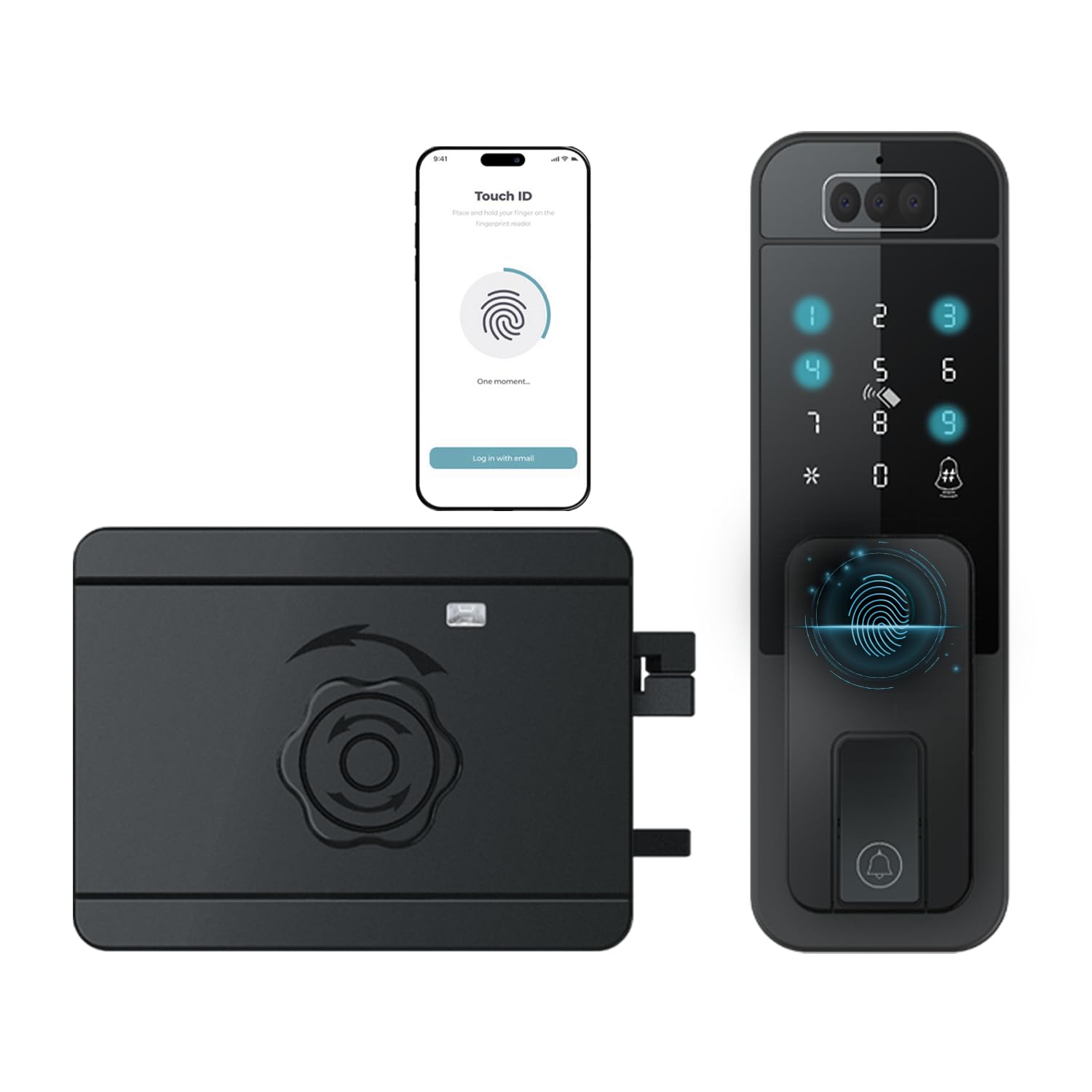
Image 1.1: We Technology Sdl-2000 Smart Gate Lock with Camera & Doorbell.
2. Product Features
The We Technology Sdl-2000 Smart Gate Lock offers a robust set of features designed for modern security needs:
- 7-in-1 Keyless Entry: Unlock your gate using Facial Recognition, Palm Vein ID, Fingerprint, Keypad, IC Card, Mechanical Key, or the Tuya Smart App.
- Next-Gen Biometric Recognition: Advanced Face and Palm Vein ID for fast, secure, and contactless access.
- Integrated Camera & Doorbell: Monitor visitors, communicate in real-time, and receive alerts directly to your smartphone.
- Intelligent Auto-Lock: Automatically secures the door upon closing for peace of mind.
- Full Remote Control via Tuya App: Manage access, share temporary codes, and track entry logs from any location.
- Powerful 2500mAh Lithium Battery: Long-lasting, rechargeable power ensures continuous operation.
- Durable Construction: Made from zinc material for robust security.
3. Package Contents
Please verify that all components are present in the package before proceeding with installation:
- 1 x Smart Gate Lock Front Panel
- 1 x Smart Gate Lock Rear Panel (Lock Body)
- 1 x Install Screw Package
- 1 x User Manual (this document)
- 2 x IC Cards
- 2 x Lock Side Strips
- 2 x Mechanical Keys
- 1 x USB Cable
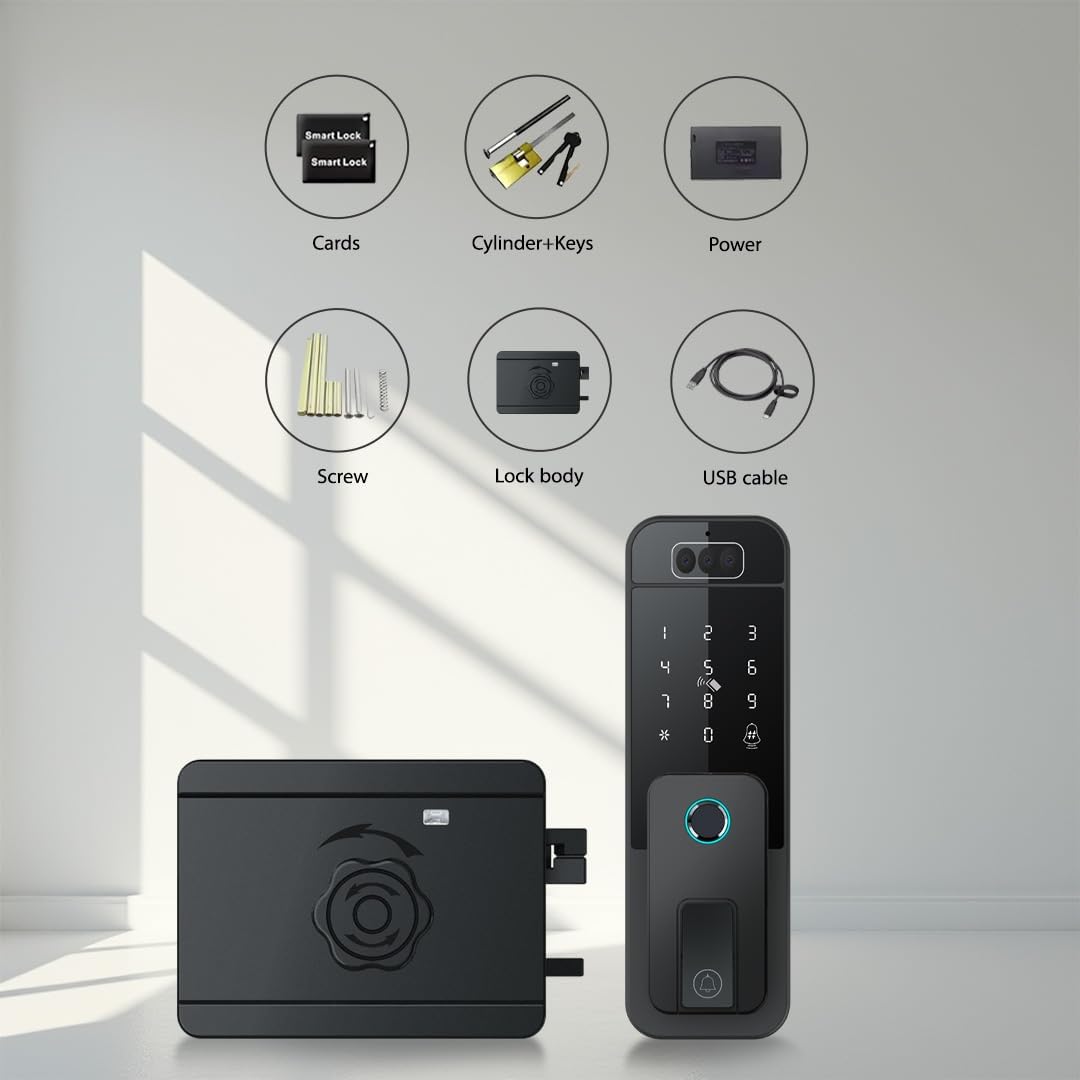
Image 3.1: All components included in the We Technology Sdl-2000 Smart Gate Lock package.
4. Installation Guide
Follow these steps carefully to install your We Technology Sdl-2000 Smart Gate Lock. It is recommended to watch the installation video for visual guidance.
Video 4.1: Detailed installation steps for the We Technology Sdl-2000 Smart Gate Lock.
- Prepare the Door: Use the provided cutting template to mark and drill holes on your door. Ensure the dimensions match the lock's requirements (refer to Image 4.1).
- Install Side Frame Lock Box: Secure the side frame lock box to the door frame using screws.
- Prepare Front Panel: Fix the silicone pad onto the front panel. Insert the lock cylinder into the lock hole of the front panel and secure it with screws. Install the joint pipes.
- Mount Front Panel: Install the front panel onto the door, ensuring the cables pass through the designated holes. Fix it with screws.
- Install Back Panel: Fix the silicone pad onto the back panel. Connect the cable from the front panel to the back panel. Install the battery.
- Secure Back Panel: Place the back cover back and fix it with screws. Ensure all connections are secure and the lock operates smoothly.

Image 4.1: Product dimensions and door handing guide for installation.
5. Operation Guide
The We Technology Sdl-2000 Smart Gate Lock offers multiple ways to unlock. Familiarize yourself with each method for convenient access.
Video 5.1: Overview of the various unlocking methods for the smart gate lock.
5.1 Unlocking Methods
- Facial Recognition: Stand in front of the lock's camera. The lock will automatically scan and unlock if your face is registered.
- Palm Vein ID: Place your palm in front of the sensor for quick and secure palm vein recognition.
- Fingerprint: Place your registered fingerprint on the fingerprint sensor.
- Keypad (Passcode): Enter your registered 6-digit passcode on the keypad.
- IC Card: Tap your registered IC card on the card reader area.
- Mechanical Key: In case of emergency or battery depletion, use the physical key to unlock.
- Tuya Smart App: Use the Tuya app on your smartphone to remotely unlock the door.
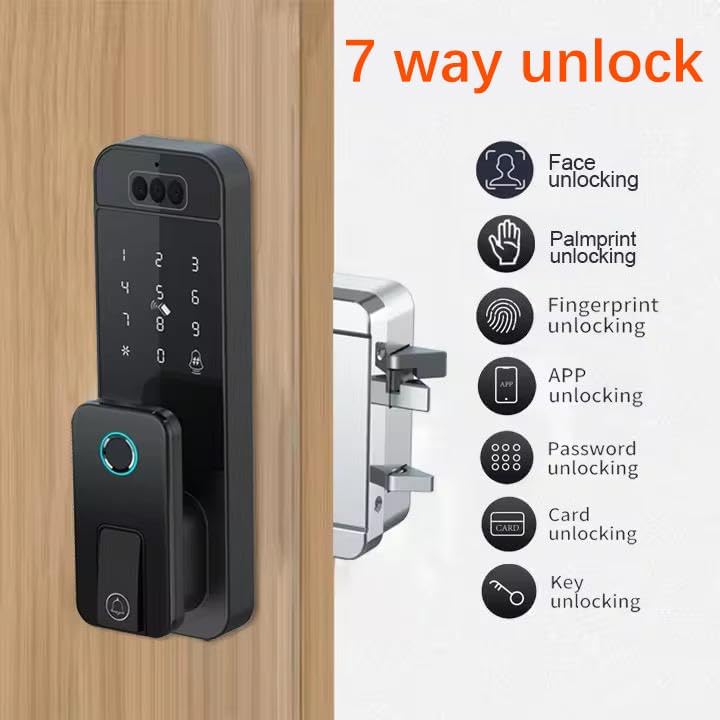
Image 5.1: Visual representation of the seven unlocking methods.
5.2 Auto-Lock Function
The lock is equipped with an intelligent auto-lock feature. After successful unlocking and the door closing, the lock will automatically re-engage after a set period (configurable in settings) to ensure security.
5.3 Emergency Power
If the battery is completely depleted, you can use a USB power bank to provide emergency power via the USB port on the lock's exterior to gain access.
6. Configuration Guide
This section details how to configure various settings of your smart lock, including user management and system preferences. Refer to the configuration video for visual instructions.
Video 6.1: Step-by-step guide for configuring the smart gate lock settings.
6.1 Pre-setup (Factory Mode)
In factory mode, select your preferred language (1. Chinese, 2. English). Press '*' '#' and input '000000#' to enable the lock menu. This pre-setup is only required in factory mode.
6.2 Enter Lock Menu
Press '*' '#' and input the admin information (initial password: 123456). You will then be prompted to add a new password in the initialized status. The main menu options are:
- 1: Admin setting
- 2: User setting
- 3: RF remote setting (Optional)
- 4: Network setting
- 5: Linkage setting (Optional)
- 6: System setting
- 7: Lock control setting
6.3 Admin Setting
Enter the lock menu, then press '1' to enter admin setting. The add steps are similar to user setting:
- 1: Add fingerprint/password/card
- 2: Add face
- 3: Add palm
6.4 User Setting
Enter the lock menu, then press '2' to enter user setting. Here you can manage user credentials:
- 1: Add fingerprint/password/card
- 2: Add face
- 3: Add palm
- 4: Delete password
- 5: Delete card
- 6: Delete fingerprint
- 7: Delete face
- 8: Delete palm
To Add Fingerprint/Password/Card:
- Add password: Input 6 digits twice and confirm.
- Add fingerprint: Put your finger on the finger zone several times until it mentions successfully.
- Add card: Put the card on the card zone.
To Add Face:
- Face the camera. Voice broadcast: 'Face the camera' when captured successfully.
- Turn your head 'Left', 'Right', 'Up', 'Down' slowly following the voice guide.
To Add Palm:
- Aim your palm at the camera at a distance of 10-30cm until the voice mentions 'Succeed'.
- Note: Please aim the palm, not the finger. The distance should not be too close or too far.
To Delete Password:
- Enter user setting, press '4' '#' to delete password.
- Note: Press '5', '6', '7', '8' to delete card/fingerprint/face/palm accordingly. All password/fingerprint/card/face/palm will be deleted after the corresponding operation.
6.5 System Setting
Enter the lock menu, then press '6' to enter system setting:
- 1: Time setting
- 2: Language setting
- 3: Volume setting
- 4: Passage key setting
- 5: Body detection setting
- 6: Battery selection
- 7: Reset to factory
Time Setting:
- Enter system setting, press '1' to enter time setting.
- Input time based on format: Year(2 digits)_Month(2 digits)_Day(2 digits).
Language Setting:
- Enter system setting, press '2' to enter language setting.
- Options: 1: Chinese, 2: English.
Volume Setting:
- Enter system setting, press '3' to enter volume setting.
- Options: 1: Increase, 2: Decrease.
Passage Key Setting:
- Enter system setting, press '4' to enter passage key setting, which controls the function of normal open mode.
- Options: 1: Open, 2: Close.
Body Detection Setting:
- Enter system setting, press '5' to enter body sensing setting.
- Options: 1: Open, 2: Close.
Battery Selection:
- Enter system setting, press '6' to enter battery selection.
- Options: 1: Alkaline battery, 2: Lithium battery, 3: Auto detection.
Reset To Factory:
- Enter system setting, press '7' to reset to factory.
- Input '000#' to initialize the system. All data will be cleared after initialization. Please operate it carefully.
- Note: If you want to delete admins, please reset to factory.
6.6 Lock Control Setting
Enter the lock menu, then press '7' to enter lock control setting. Press '1' to set motor direction according to door direction.
6.7 Network Setting (Tuya App)
Enter the lock menu, then press '4' to enter network setting. Press '1' to configure the network.
Download the 'Tuya' app on your phone and register an account. Follow the in-app instructions to add your smart lock to the network. Once connected, you can remotely unlock by pressing the doorbell button on the lock and accepting the remote unlock request in the app.
7. Specifications
| Feature | Detail |
|---|---|
| Brand | We Technology |
| Model Name | Smart Digital Lock (Sdl-2000) |
| Lock Type | Biometric, Deadbolt |
| Material | Zinc |
| Color | Black |
| Finish Type | Polished |
| Item Dimensions (L x W x H) | 7 x 3.5 x 6.5 inches |
| Item Weight | 4 pounds |
| Special Features | Alarm, Anti-Peeping Password, Auto-Lock, One-Touch Lock |
| Controller Type | Android, iOS (Tuya App) |
| Control Method | App, Remote, Touch |
| Power Source | 2500mAh Lithium Battery (rechargeable) |
8. Troubleshooting
If you encounter issues with your smart lock, please refer to the following common solutions:
- Lock Not Responding: Check battery levels. If low, recharge using the USB port or replace batteries.
- Biometric Recognition Failure: Ensure your finger/palm/face is clean and properly positioned. Re-register biometric data if issues persist.
- Keypad Not Working: Ensure the keypad is clean. Try entering the default admin password to access the menu.
- App Connectivity Issues: Verify your Wi-Fi network is active and the lock is within range. Reconfigure network settings in the lock menu if necessary.
- Forgotten Password/Admin: If you forget the admin password and cannot access the lock menu, a factory reset may be required. Refer to the 'Reset to Factory' section (6.5) for instructions.
- Motor Direction Issue: If the lock motor operates incorrectly, adjust the motor direction in the 'Lock Control Setting' (6.6).
For persistent issues, please contact customer support.
9. Warranty and Support
Your We Technology Sdl-2000 Smart Gate Lock comes with a standard manufacturer's warranty. Please refer to the warranty card included in your package for specific terms and conditions. For technical support, service, or warranty claims, please contact We Technology customer service through their official channels or visit their website.
Contact Information:
- Manufacturer: Smart Security Solutions
- Brand Store: We Technology Amazon Store