
1. Product Overview
This Inefala car stereo is designed as an upgrade for Nissan Versa Sedan models manufactured between 2015 and 2019. It features a Qualcomm octa-core processor, 4GB RAM, 64GB ROM, and a 10.1-inch IPS touchscreen with 1280x720 resolution. Key functionalities include wireless CarPlay, Android Auto, Bluetooth 5.1, GPS navigation, FM/RDS radio, and DSP audio processing.
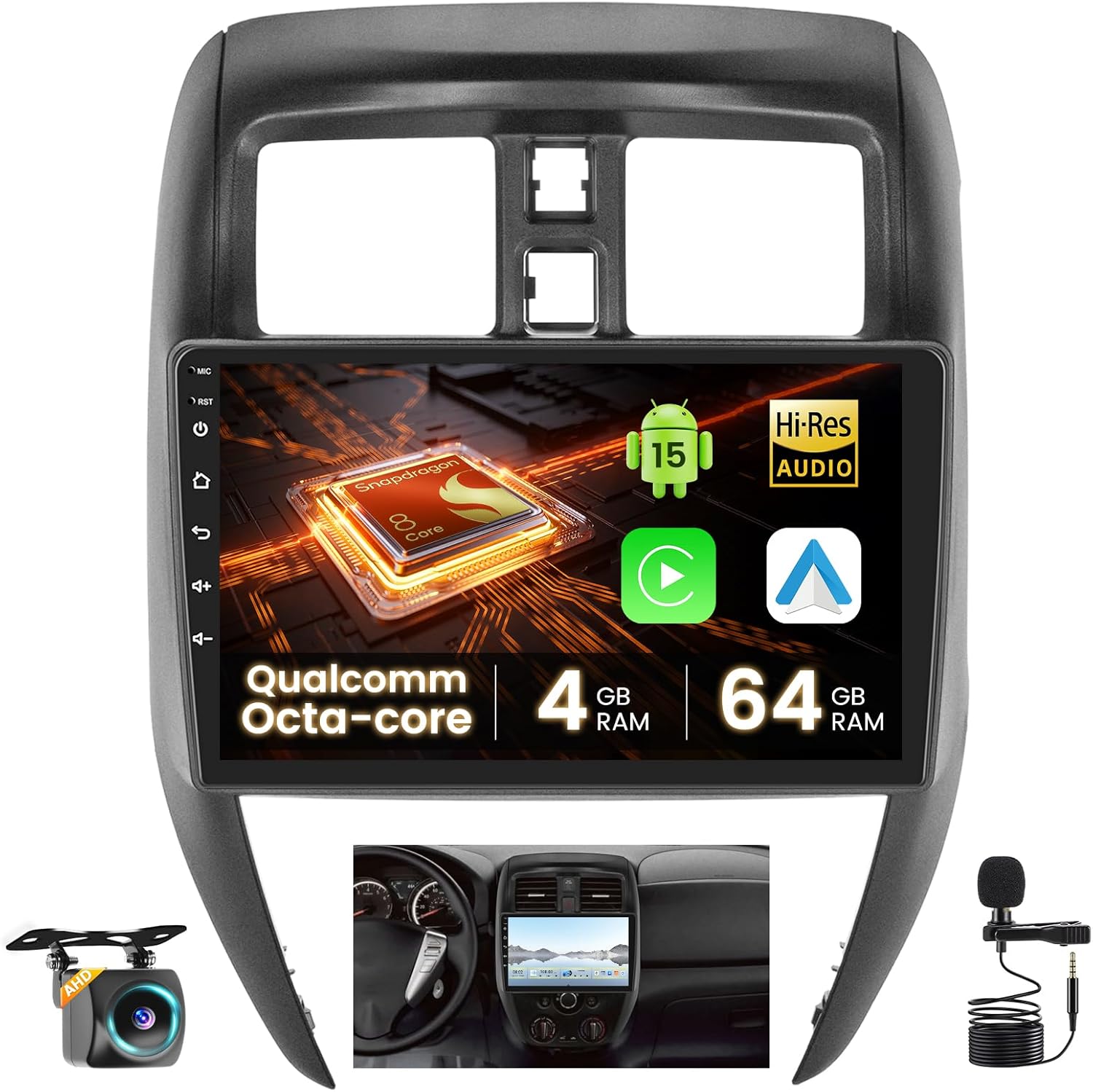
Image 1.1: The Inefala car stereo seamlessly integrated into the dashboard of a Nissan Versa Sedan.
2. What's in the Box
Verify that all components are present before beginning installation:
- 1 x Inefala Android Radio for Nissan Versa Sedan
- 1 x Power Cable
- 1 x Original USB Cable
- 1 x RCA Harness
- 1 x GPS Antenna
- 1 x AHD Backup Camera
- 1 x External Microphone
- 1 x Radio Adapter Cable
- 1 x Rear Camera Input Cable
- 2 x USB Cables
- 1 x Installation Tool Set

Image 2.1: Overview of the car stereo dimensions and the complete package contents.
3. Installation Guide
3.1 Vehicle Compatibility
This dash kit is specifically designed for Nissan Versa Sedan models from 2015 to 2019. Before purchasing and installing, ensure the power cable port on your vehicle matches the provided cable. Contact support if the power cord does not fit.

Image 3.1: Visual guide for checking vehicle compatibility with the car stereo.
3.2 Quick Test Before Installation
To confirm the car stereo is functioning correctly before full installation:
- Connect the red and yellow wires of the car stereo to the positive pole of a 12V battery.
- Connect the black wire to the negative pole of the battery.
- After approximately 2 seconds, check if the car stereo screen lights up. If it does, the stereo is functioning normally.
If the device does not work after installation, recheck the installation procedure and wiring.
3.3 Wiring the Backup Camera
The reversing input must be connected even if a reversing camera is not used, as it can affect WiFi and Bluetooth signals.
- Cables 1 and 5: Connect the positive pole of the car reversing light cable.
- Cable 2: Connect the negative pole of the car reversing light cable.
- Cables 3 and 4: Connect to the reverse trigger wire of the power cable (labeled 'Reverse/Back'). If not needed, pull it out and connect it if the last step does not work.

Image 3.2: Backup camera wiring diagram.
4. Operating Instructions
4.1 Wireless CarPlay & Android Auto
The car stereo supports wireless CarPlay and Android Auto for seamless integration with your smartphone. This allows for voice-assisted controls and easy access to music, navigation, calls, and messages.
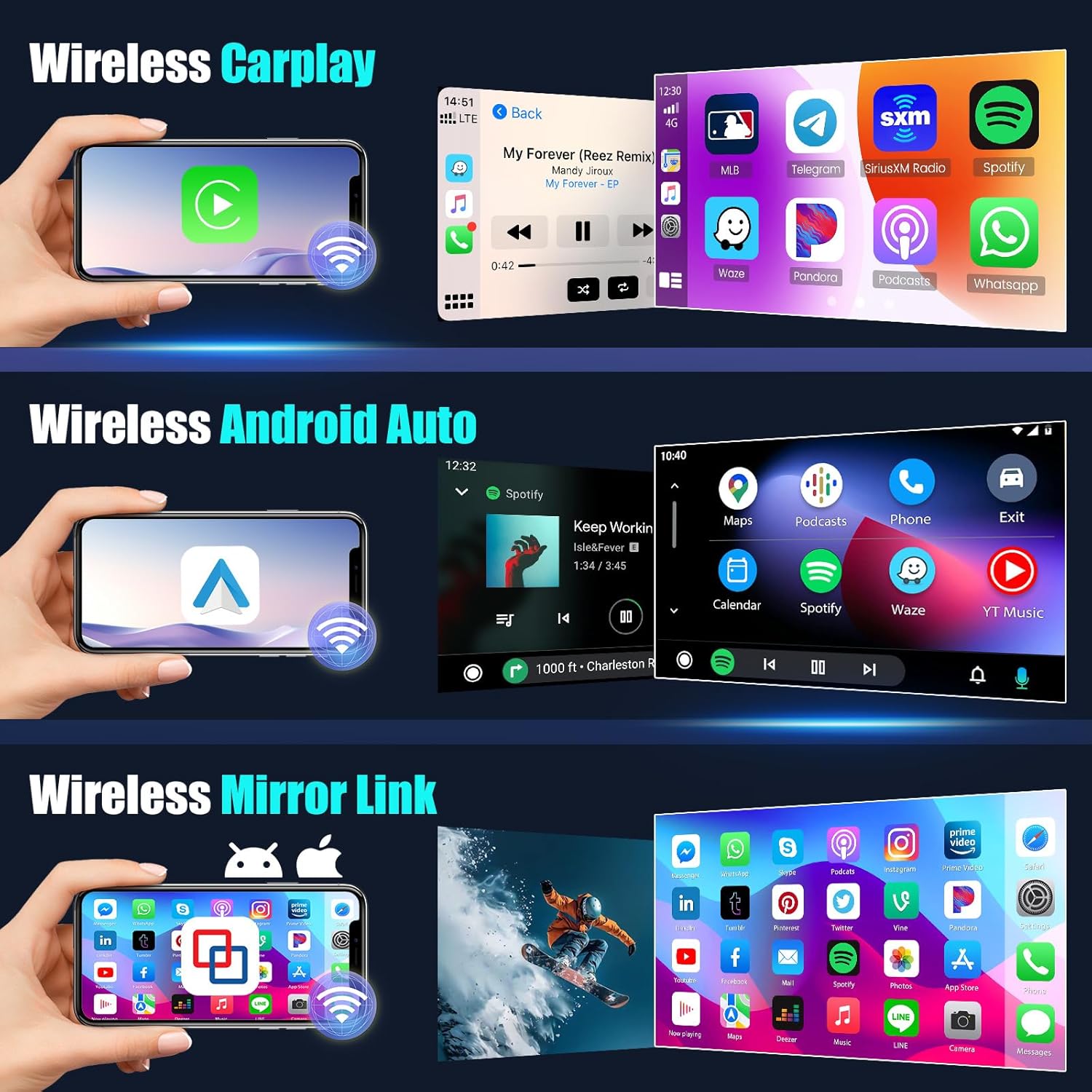
Image 4.1: Wireless CarPlay and Android Auto interfaces.
Connection Steps:
- Open the CarPlay or Android Auto application on the car stereo.
- Connect your phone to the car stereo via Bluetooth.
- Follow the on-screen prompts to complete the connection.
Video 4.1: Official demonstration of CarPlay and Android Auto connection.
Note: For some Samsung and Huawei phones, Android Auto and Mirror Link functionality may be limited. Ensure your phone supports Google Services and has the 'Android Auto' app installed.
4.2 Mirror Link
The Mirror Link feature allows you to mirror your smartphone's screen onto the car stereo display via a WiFi hotspot connection.

Image 4.2: Wireless Mirror Link functionality.
4.3 GPS Navigation & WiFi Functions
The unit supports online and offline navigation using GPS, Galileo, and Glonass satellite systems for wide coverage. Connect to a WiFi hotspot to download apps like YouTube and TikTok, enriching your in-car experience.

Image 4.3: GPS Navigation and WiFi features.
4.4 Bluetooth 5.1
Bluetooth 5.1 enables hands-free calling, phone book download, and music playback for a safer and more convenient driving experience.
4.5 FM/RDS Radio
The stable FM/RDS radio allows you to preset up to 48 stations, providing access to channel broadcasts, weather forecasts, and real-time road conditions.
4.6 Steering Wheel Control
The system supports steering wheel button functions, allowing you to control the car audio system easily while driving. Activation requires key learning in settings if no CANBUS box is present.

Image 4.4: Bluetooth, FM/RDS Radio, and Steering Wheel Control interfaces.
4.7 User Interface (UI) Customization
The IPS screen supports split-screen functionality and 1080P video playback. You can switch between 4 different UIs with customizable colors.
Image 4.5: Customizable UI and screen partitioning options.
5. Maintenance
To ensure the longevity and optimal performance of your Inefala car stereo, follow these maintenance guidelines:
- Screen Cleaning: Use a soft, lint-free cloth to gently wipe the touchscreen. Avoid abrasive cleaners or harsh chemicals that could damage the screen.
- Temperature Control: Avoid exposing the unit to extreme temperatures, both hot and cold, for extended periods. The built-in cooling fan helps manage internal temperatures during operation.
- Software Updates: Periodically check for software updates to ensure you have the latest features and performance enhancements.
- Connection Integrity: Ensure all cables and connections remain secure to prevent signal loss or intermittent functionality.

Image 5.1: The cooling fan system helps maintain optimal operating temperature.
6. Troubleshooting
If you encounter issues with your car stereo, consider the following common troubleshooting steps:
- No Power: Verify all power cable connections are secure and correctly wired to the vehicle's 12V battery. Re-perform the quick test (Section 3.2) to confirm basic functionality.
- No Sound: Check speaker connections and ensure the volume is not muted or set too low. Verify audio output settings in the system menu.
- Steering Wheel Controls Not Working: If your vehicle does not have a CANBUS box, activation of steering wheel controls requires key learning in the settings menu. Navigate to Settings > Factory Settings (Password 8888) > Protocol settings to match the car model. If the wiring harness is different or damaged, contact customer support.
- CarPlay/Android Auto Connection Issues: Ensure Bluetooth is enabled on both the stereo and your phone. For Android Auto, confirm your phone supports Google Services and has the 'Android Auto' app installed. Check WiFi hotspot connection for Mirror Link.
- GPS Signal Problems: Ensure the GPS antenna is properly installed and has a clear line of sight to the sky.
- Screen Unresponsive: Try restarting the device. If the issue persists, ensure the screen is clean and free from obstructions.
7. Specifications
| Feature | Description |
|---|---|
| Brand | Inefala |
| Model | 4+64G 8 Core |
| Screen Size | 10.1 Inches |
| Screen Resolution | IPS 1280 x 720 |
| Operating System | Android 15 |
| Processor | Qualcomm Octa-Core |
| RAM | 4GB |
| ROM | 64GB |
| Connectivity | Bluetooth 5.1, USB, Wi-Fi, Wireless |
| Special Features | Wireless CarPlay & Android Auto & Mirror Link, DSP Hi-Res 36-band EQ, 4 Customizable UIs, 1080P Video Playback, Support Reverse Input, Steering Wheel Learning, GPS Navigation (GPS/Galileo/Glonss), FM/RDS Radio |
| Included Components | Android Radio, Power Cable, Original USB Cable, RCA Harness, GPS Antenna, AHD Backup Camera, External Microphone, Radio Adapter Cable, Rear Camera Input Cable, 2 USB Cables, Installation Tool |
8. Warranty Information
The Inefala car stereo comes with a 1-Year Warranty from the date of purchase. Please retain your proof of purchase for warranty claims.
9. Customer Support
For any questions, technical assistance, or warranty inquiries, please contact Inefala Direct customer support. It is recommended to provide relevant pictures or videos to help resolve issues faster.
Contact Email: inefalaservices@163.com

Image 9.1: Inefala customer support contact details.