
1. Introduction
This manual provides detailed instructions for the installation, operation, and maintenance of your Denver IIC-251ED WiFi IP Indoor Camera. Please read this manual thoroughly before using the product to ensure correct usage and to prevent damage. Keep this manual for future reference.
2. Safety Information
- Ensure the camera is installed in a stable location to prevent it from falling.
- Use only the power adapter supplied with the device. Using an incorrect adapter may cause damage or fire.
- Do not expose the camera to water, moisture, or extreme temperatures. This product is designed for indoor use only.
- Avoid placing the camera near heat sources or in direct sunlight.
- Do not attempt to disassemble or repair the camera yourself. Refer all servicing to qualified personnel.
- Keep the camera and its accessories out of reach of children.
3. Package Contents
Please check the package contents upon opening. If any items are missing or damaged, contact your retailer.
- Denver IIC-251ED WiFi IP Indoor Camera
- Power Adapter
- Mounting Accessories (screws, wall plugs)
- User Manual (this document)
4. Product Overview
The Denver IIC-251ED is a WiFi-enabled IP indoor camera designed for home surveillance. It features 1080p Full HD video, two-way audio, infrared night vision, and motion detection capabilities. The camera is TUYA compatible, allowing for easy integration with smart home systems.
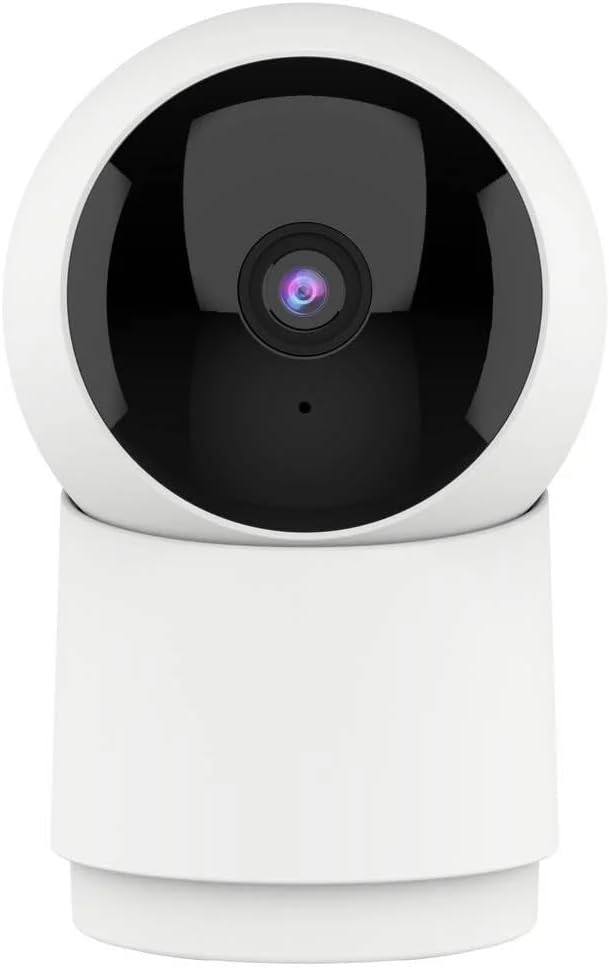
Image 1: Front view of the Denver IIC-251ED WiFi IP Indoor Camera. The camera features a spherical top housing the lens, mounted on a cylindrical base, allowing for pan and tilt functionality.

Image 2: Product packaging for the Denver IIC-251ED, indicating key features such as Wi-Fi connectivity, 1080p Full HD resolution, built-in speaker/microphone, IR LED for night vision, and motion detection. It also highlights TUYA compatibility.
5. Setup
5.1 App Installation
- Download the compatible smart home application (e.g., Tuya Smart or Smart Life) from your mobile device's app store.
- Search for "Tuya Smart" or "Smart Life" in the Apple App Store or Google Play Store.
- Install the application and create an account if you are a new user.
5.2 Powering On the Camera
- Connect the power adapter to the camera's power input port.
- Plug the power adapter into a wall outlet.
- The camera will power on and initiate its startup sequence. Wait for the indicator light to flash, indicating it is ready for pairing.
5.3 Pairing with the App
- Open the installed smart home application on your mobile device.
- Tap the "+" icon (usually in the top right corner) to add a new device.
- Select "Security & Video Surveillance" and then choose "Smart Camera" or a similar option.
- Follow the on-screen instructions to connect the camera to your Wi-Fi network. This typically involves entering your Wi-Fi password and scanning a QR code generated by the app with the camera's lens.
- Once connected, the camera will be added to your device list in the app.
6. Operating Instructions
6.1 Live View
From the app's device list, tap on your camera to access the live video feed. You can view real-time footage from your camera.
6.2 Pan and Tilt Control
The Denver IIC-251ED camera offers flexible viewing angles. You can remotely control the camera's movement through the app.

Image 3: Diagram illustrating the pan (355° horizontal) and tilt (50° vertical) capabilities of the Denver IIC-251ED camera, alongside a smartphone displaying the camera's app interface.
- In the live view interface, use the directional controls (usually a joystick or arrow buttons) to pan the camera horizontally up to 355 degrees and tilt it vertically up to 50 degrees.
6.3 Two-Way Audio
The camera is equipped with a built-in speaker and microphone, allowing for two-way communication.
- Tap the microphone icon in the app to speak through the camera's speaker.
- The camera's microphone will pick up audio from its surroundings, which you can hear through your phone.
6.4 Motion Detection and Alerts
The camera can detect motion and send alerts to your mobile device.
- Enable motion detection in the camera settings within the app.
- Adjust sensitivity levels as needed.
- When motion is detected, you will receive a notification on your phone.
6.5 Recording and Playback
The camera supports video recording, typically to a microSD card (not included) or cloud storage (subscription may be required).
- Insert a microSD card (up to 128GB, Class 10 recommended) into the camera's card slot for local storage.
- Configure recording settings (e.g., continuous recording, event-triggered recording) in the app.
- Access recorded footage through the "Playback" or "History" section in the app.
6.6 Night Vision
The integrated IR LEDs provide clear video footage even in low-light or complete darkness.
- Night vision typically activates automatically in low-light conditions.
- You can usually adjust night vision settings (e.g., auto, on, off) in the app.
7. Maintenance
- Cleaning: Use a soft, dry cloth to clean the camera's exterior. Do not use liquid cleaners or aerosols. Gently wipe the lens with a microfiber cloth if necessary.
- Firmware Updates: Regularly check the app for available firmware updates to ensure optimal performance and security.
- Storage: If storing the camera for an extended period, disconnect it from power and store it in a cool, dry place.
8. Troubleshooting
- Camera not connecting to Wi-Fi: Ensure your Wi-Fi network is 2.4GHz (5GHz is not supported by many smart cameras). Check Wi-Fi password accuracy. Move the camera closer to the router.
- No live view: Check your internet connection. Ensure the camera is powered on and connected to Wi-Fi. Restart the camera and the app.
- Motion detection not working: Verify that motion detection is enabled in the app settings. Adjust sensitivity. Ensure there are no obstructions blocking the camera's view.
- Poor video quality: Check your Wi-Fi signal strength. Ensure the camera lens is clean.
- Cannot hear audio or speak through camera: Check volume settings on your phone and in the app. Ensure microphone and speaker permissions are granted to the app.
9. Specifications
| Model | IIC-251ED (Reference: 118101020112) |
| Brand | Denver |
| Connectivity | WiFi (2.4GHz) |
| Video Resolution | 1080p Full HD |
| Pan Angle | 355 degrees |
| Tilt Angle | 50 degrees |
| Audio | Two-way (Built-in Speaker & Microphone) |
| Night Vision | IR LED |
| Motion Detection | Yes |
| Compatibility | TUYA Smart Home Ecosystem |
| Dimensions | 15 x 9 x 8 cm |
| Weight | 330 grams |
10. Warranty and Support
For warranty information and technical support, please refer to the warranty card included with your product or visit the official Denver website. Do not attempt to repair the device yourself, as this may void your warranty.
For further assistance, please contact Denver customer support.


