
1. Introduction
The Daewoo Pack Alarme Connectée WiFi Vigilia VIG102 is a comprehensive, subscription-free wireless home security system designed for easy installation and remote management. This manual provides detailed instructions for setting up, operating, and maintaining your alarm system to ensure optimal performance and security for your home or apartment.
2. Package Contents
Verify that all the following components are included in your package:
- 1 Vigilia Wifi Alarm Central Unit
- 1 IP506P Indoor Full HD Surveillance Camera
- 4 2-in-1 Opening & Vibration Contact Sensors
- 1 Motion Detector (PIR)
- 1 Remote Control
- 2 RFID Badges
- 1 WOS305 Outdoor Siren
- Power Adapters and Batteries

Image 1: Overview of the Daewoo Vigilia VIG102 alarm system components, including the central unit, camera, sensors, remote, and siren.
3. Setup
3.1 Initial Power-On
- Connect the power adapter to the Vigilia Wifi Alarm Central Unit and plug it into a power outlet.
- Ensure the central unit powers on and displays the main interface.
3.2 App Installation & Connection
The Daewoo Home Connect application (or Smart Life app) is required for remote control and notifications. Ensure your smartphone's Bluetooth is active and connected to a 2.4 GHz Wi-Fi network.
- Download the "Daewoo Home Connect" or "Smart Life" app from your device's app store (iOS or Android).
- Register for a new account or log in if you already have one.
- In the app, tap the "+" icon to add a new device.
- Select "Sensors" then "Alarm (Wi-Fi)".
- Enter your 2.4 GHz Wi-Fi network password.
- Follow the on-screen prompts to reset the device (usually by pressing and holding the RESET button for 5 seconds until the indicator blinks).
- The app will automatically discover and connect to the alarm central unit.
Troubleshooting App Connection:
- Ensure your Wi-Fi network is 2.4GHz.
- Check network environment (router distance, signal interference).
- Verify router settings for connection restrictions.
- Confirm Wi-Fi name has no special characters and password is correct.
- Check if the Wi-Fi module of the host is starting normally (main menu - version of the host).
3.3 Component Pairing
To add accessories, navigate to the "Parts" menu on the central unit, then select the accessory type (e.g., "Remote", "Detector") and choose "Add". Activate the accessory as instructed below:
Remote Control
- On the central unit, go to "Parts" -> "Remote" -> "Add".
- Press any button on the remote control to pair it. The central unit will confirm successful pairing.

Image 2: The remote control for arming and disarming the system.
RFID Tags
- On the central unit, go to "Parts" -> "RFID" -> "Add".
- Tap the RFID tag against the RFID reader on the central unit to pair.
Door/Window Sensors
- On the central unit, go to "Parts" -> "Detector" -> "Add".
- Separate the two parts of the door/window sensor (magnet and sensor unit) to trigger it. The central unit will confirm successful pairing.
- Install the sensor on a door or window frame, ensuring the two parts are aligned and close when the door/window is closed.

Image 3: A 2-in-1 opening and vibration contact sensor, designed for doors and windows.
Motion Detector (PIR)
- On the central unit, go to "Parts" -> "Detector" -> "Add".
- Wave your hand in front of the motion detector to trigger it. The central unit will confirm successful pairing.
- Install the motion detector in a strategic location, typically 1.8-2.2 meters high, to cover the desired area. It is compatible with pets up to 10 kg to minimize false alarms.

Image 4: The passive infrared (PIR) motion detector included in the system.
Outdoor Siren (WOS305)
- On the central unit, go to "Parts" -> "Detector" -> "Add".
- On the siren, press and hold the switch for 2 beeps to match. Note: You must press the button on the alarm host as soon as possible to successfully connect.
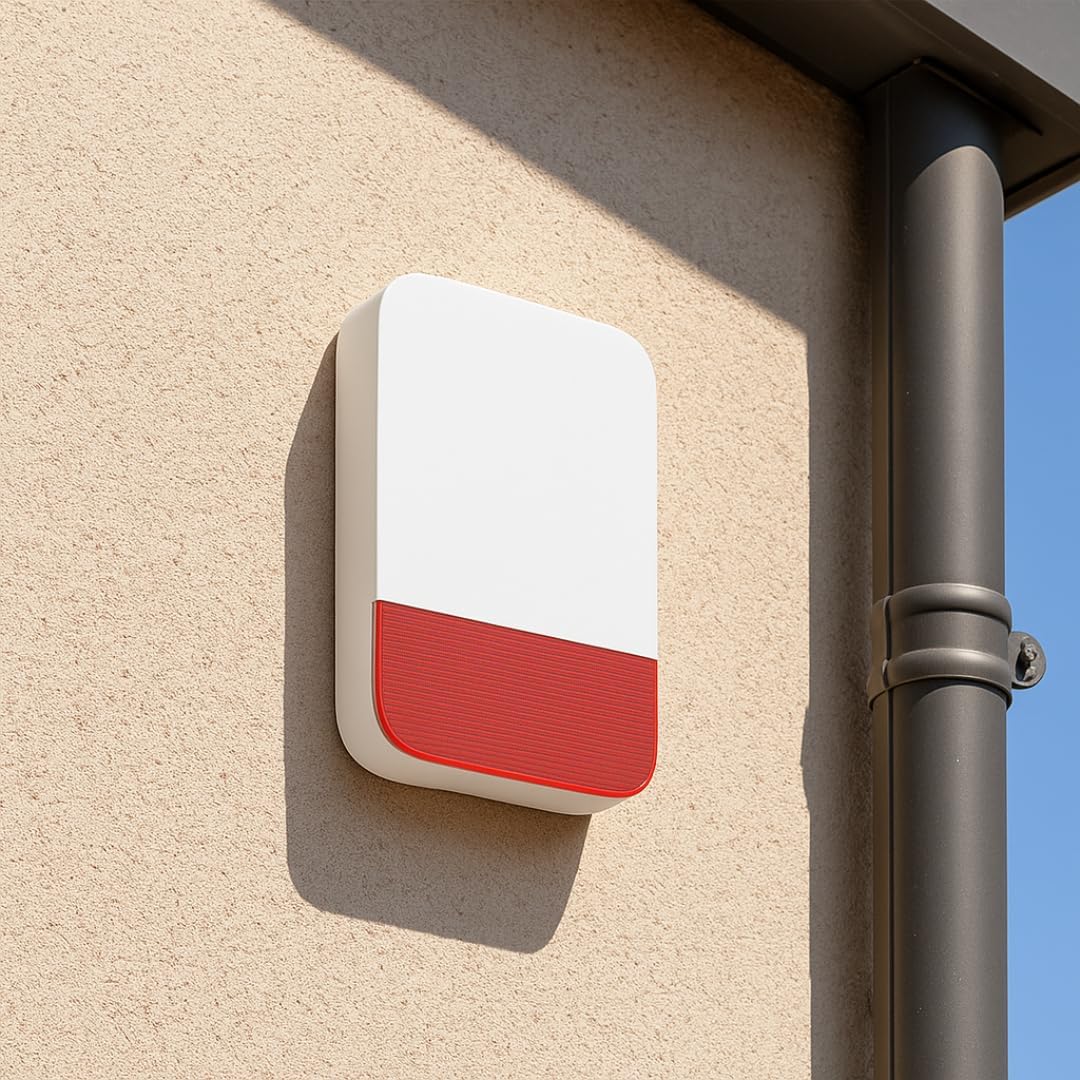
Image 5: The WOS305 outdoor wireless solar siren, part of the Daewoo Vigilia system.
4. Operating Instructions
4.1 Arming and Disarming the System
Your Daewoo Vigilia VIG102 system offers multiple ways to arm and disarm:
- Via Mobile App: Use the "Daewoo Home Connect" or "Smart Life" app to remotely arm (Away mode), disarm, or set to Home mode.
- Via Remote Control: Press the appropriate buttons on the remote control to arm or disarm the system.
- Via Keypad: Enter your security code on the central unit's keypad to arm or disarm.
- Via RFID Tag: Tap an authorized RFID tag against the central unit's RFID reader to quickly arm or disarm.
4.2 Alarm Notifications
In the event of an intrusion or triggered sensor, the system will alert you:
- App Notifications: Receive instant push notifications on your smartphone.
- Phone Calls & SMS: If a SIM card is inserted (not included), the system can send SMS alerts and make calls to pre-programmed numbers.
- Siren Activation: The outdoor siren will activate, emitting a loud sound and flashing lights to deter intruders and alert neighbors.
4.3 Customizing Settings
All system settings, including arming/disarming schedules, sensor zone types, siren volume, and notification preferences, can be configured through the mobile application.
5. Maintenance
- Battery Replacement: Replace batteries in wireless sensors and remote controls as indicated by low battery alerts on the central unit or app.
- Cleaning: Regularly clean the central unit, sensors, and camera lenses with a soft, dry cloth. Avoid abrasive cleaners or solvents.
- Firmware Updates: Check the mobile app periodically for firmware updates for the central unit and camera to ensure optimal performance and security.
- System Test: Periodically test all sensors and the siren to ensure they are functioning correctly.
6. Troubleshooting
6.1 Connectivity Issues
- No Wi-Fi Connection:
- Ensure your network is 2.4GHz.
- Check network environment (router distance, signal interference).
- Verify router settings for connection restrictions.
- Confirm Wi-Fi name has no special characters and password is correct.
- Check if the Wi-Fi module of the host is starting normally (main menu - version of the host).
- SIM Card Issues (if applicable):
- Ensure the SIM card is inserted correctly and has an active signal.
- Verify the SIM card's local operator supports the alarm module.
- Check if the GSM module of the host is starting normally (main menu - version).
6.2 Accessory Pairing Problems
- Accessory Battery Low: Replace batteries in the accessory.
- Distance: The distance between the accessory and the host may be too far.
- Signal Interference: Accessories may experience signal interference around the host.
- Hardware Reasons: Accessories may lose launch function due to hardware issues.
- Host Exclusion: The host may have excluded the accessory due to hardware problems.
To troubleshoot accessory pairing, open the main menu of the host to find the accessories decoder. The function of the decoder is to test the accessory, checking if there is a transmitted signal to the host. If the decoder does not receive the data code of the accessory, other accessories can be replaced. If the host can receive the data code of other parts, then it can be determined that the previous fitting is a non-good product. Conversely, if all the accessories of the data code host decoder can not receive it, it may be a problem with the host itself.
7. Specifications
| Feature | Detail |
|---|---|
| Manufacturer | Daewoo Security |
| Product Dimensions (L x W x H) | 25 x 18 x 10 cm |
| Weight | 2.44 Kilograms |
| Model Number | VIG102 |
| Power Type | Battery Powered, Electric Cable |
| Installation Method | Screw-in |
| Compatible Devices | Smartphone |
| Video Recording Resolution | 1080p (for IP506P camera) |
| Connectivity Technology | Wireless (Wi-Fi) |
| Alert Type | Audio and Motion |
| Control Method | Application |
| Included Components | 1 Vigilia Wifi alarm central, 1 IP506P indoor camera, 4 2-in-1 opening & vibration contacts, 1 motion detector, 1 remote control, 2 RFID badges, 1 WOS305 outdoor siren, power adapters and batteries. |
8. Warranty & Support
For warranty information and technical support, please refer to the documentation included in your product package or visit the official Daewoo Security website. Keep your proof of purchase for warranty claims.
For further assistance, you may contact Daewoo Security customer service through the contact details provided in your product documentation.