Introduction
The F998 Live Sound Card Audio Mixer is a versatile and portable audio interface designed for live streaming, podcasting, gaming, and music recording. It integrates a sound mixer, voice transformer, Bluetooth receiver, and FX processor, offering a comprehensive solution for creators. This manual provides detailed instructions for setting up, operating, and maintaining your F998 mixer to ensure optimal performance.
Package Contents
Before you begin, please verify that all items are present in the package:
- F998 Live Sound Card Audio Mixer
- USB Charging/Data Cable
- 3.5mm Audio Cables (typically 2-3)
- User Manual (this document)
Product Overview
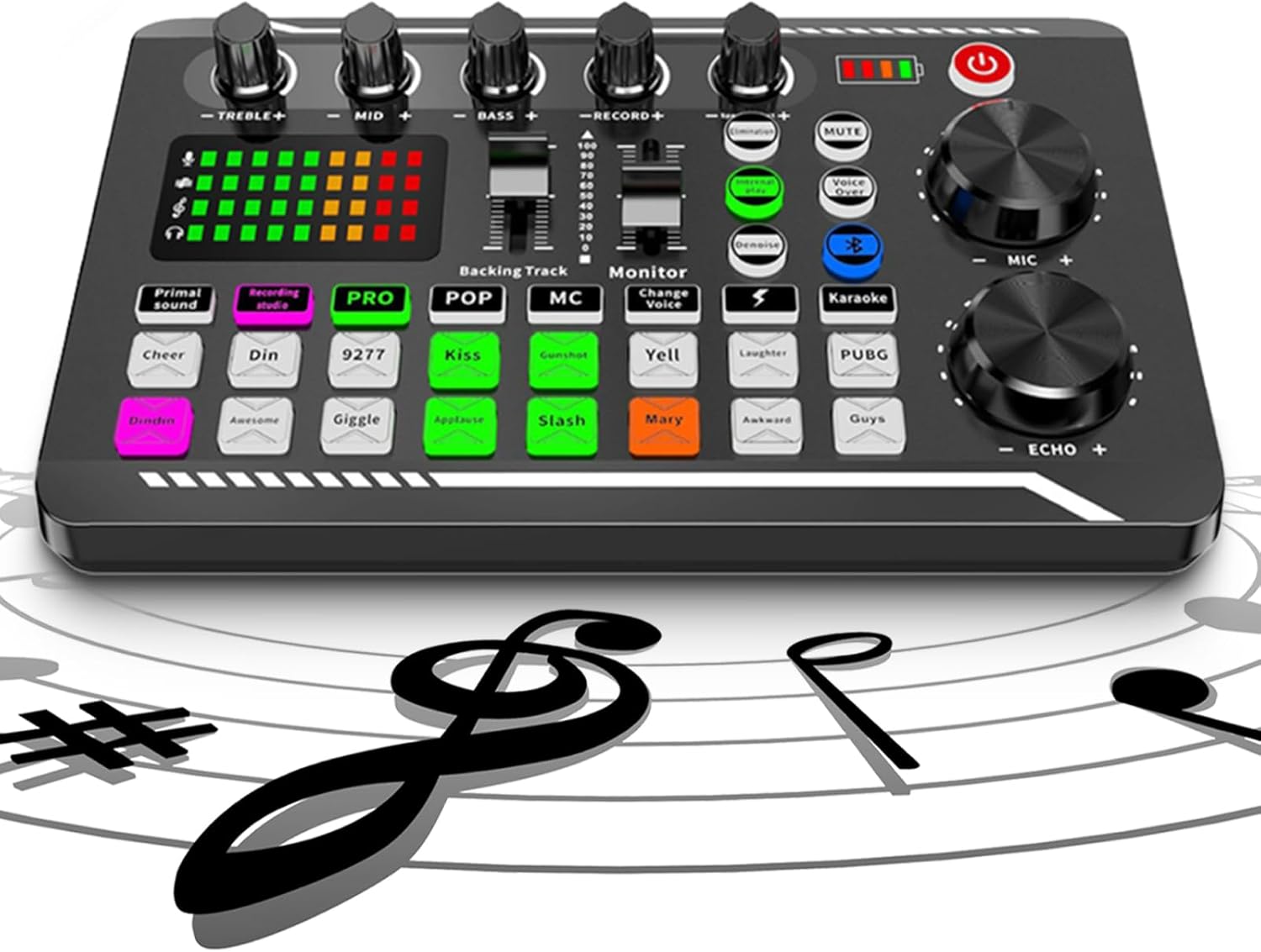
Figure 1: Front view of the F998 Live Sound Card Audio Mixer, showing various knobs, faders, and buttons for sound control and effects.
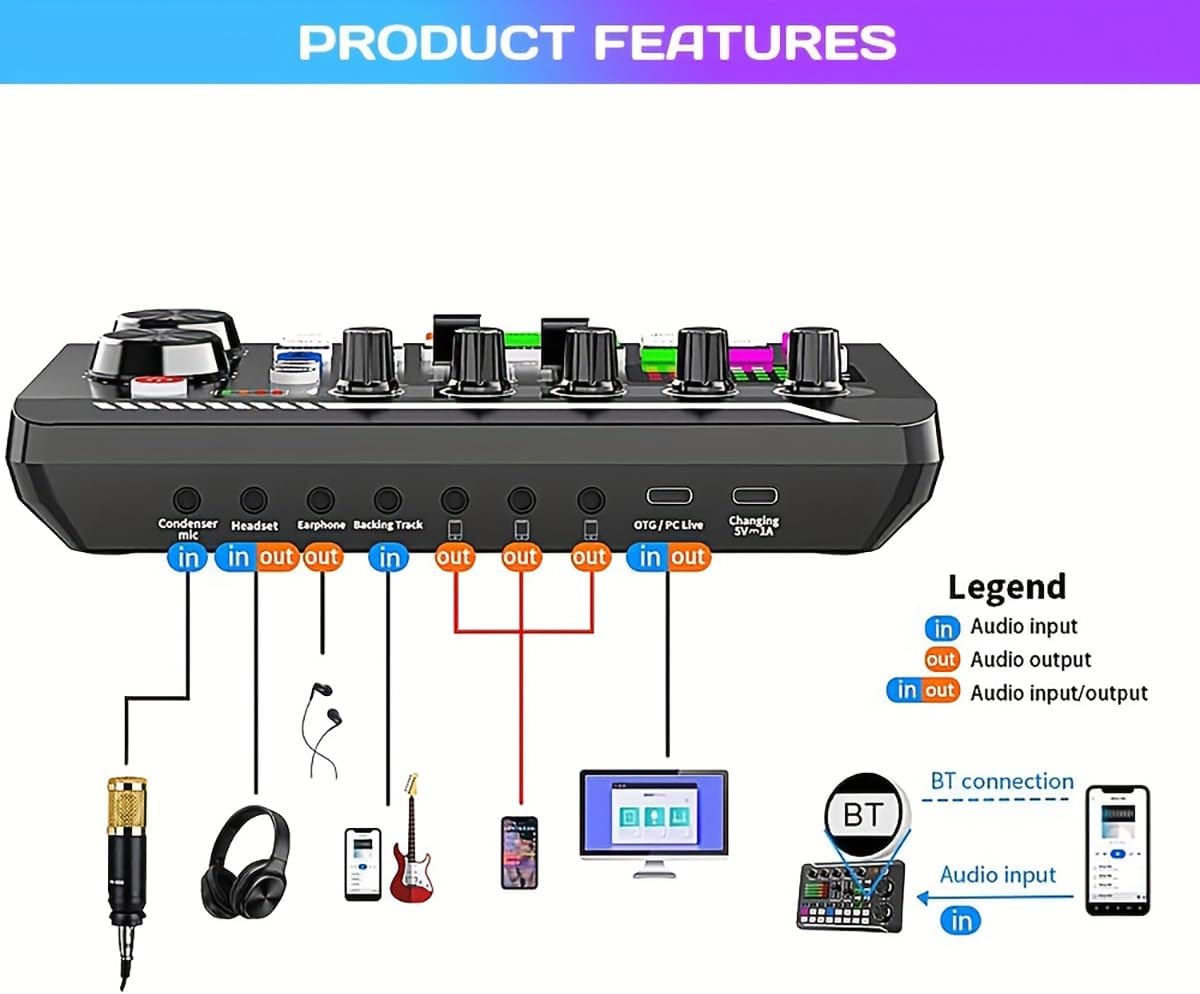
Figure 2: Rear view of the F998 Live Sound Card Audio Mixer, illustrating the input and output ports and their connections.
The F998 mixer features a compact design with intuitive controls. Key components include:
- Audio Control Knobs: Treble, Mid, Bass, Record, Monitor, Microphone, and Echo adjustment knobs.
- Faders: Dedicated faders for backing track and monitor levels.
- Sound Effects Buttons: 16 fixed sound effects for various scenarios.
- Voice Changer Modes: Buttons for different voice transformation effects.
- Pro Functions: Denoise, Elimination, Voice Over, Internal Play.
- Connectivity Ports: Condenser Mic, Headset, Earphone, Backing Track, OTG/PC Live, and Charging ports.
- Bluetooth Module: For wireless audio input.
Setup Guide
1. Charging the Device
Before first use, ensure the F998 mixer is fully charged. Connect the provided USB charging cable to the "Charging 5V-1A" port on the mixer and to a USB power adapter (not included) or a computer USB port. The battery indicator lights will show charging status.
2. Basic Connections
Refer to Figure 2 for port locations. Use the provided 3.5mm audio cables for connections.
- Microphone Connection: Connect your condenser microphone to the "Condenser Mic" input port.
- Headphones/Earphones: Connect your monitoring headphones or earphones to the "Headset" or "Earphone" output ports.
- External Audio Source (Backing Track): Connect a phone, tablet, or other audio device to the "Backing Track" input port to play background music.
- Live Streaming/Recording (Phone): Connect your phone to one of the "Live" output ports using a 3.5mm audio cable. You can connect up to three phones simultaneously for multi-platform streaming.
- Live Streaming/Recording (PC/Computer): Connect the mixer to your computer using the USB cable via the "OTG/PC Live" port. This port handles both audio input/output and power for PC connection.
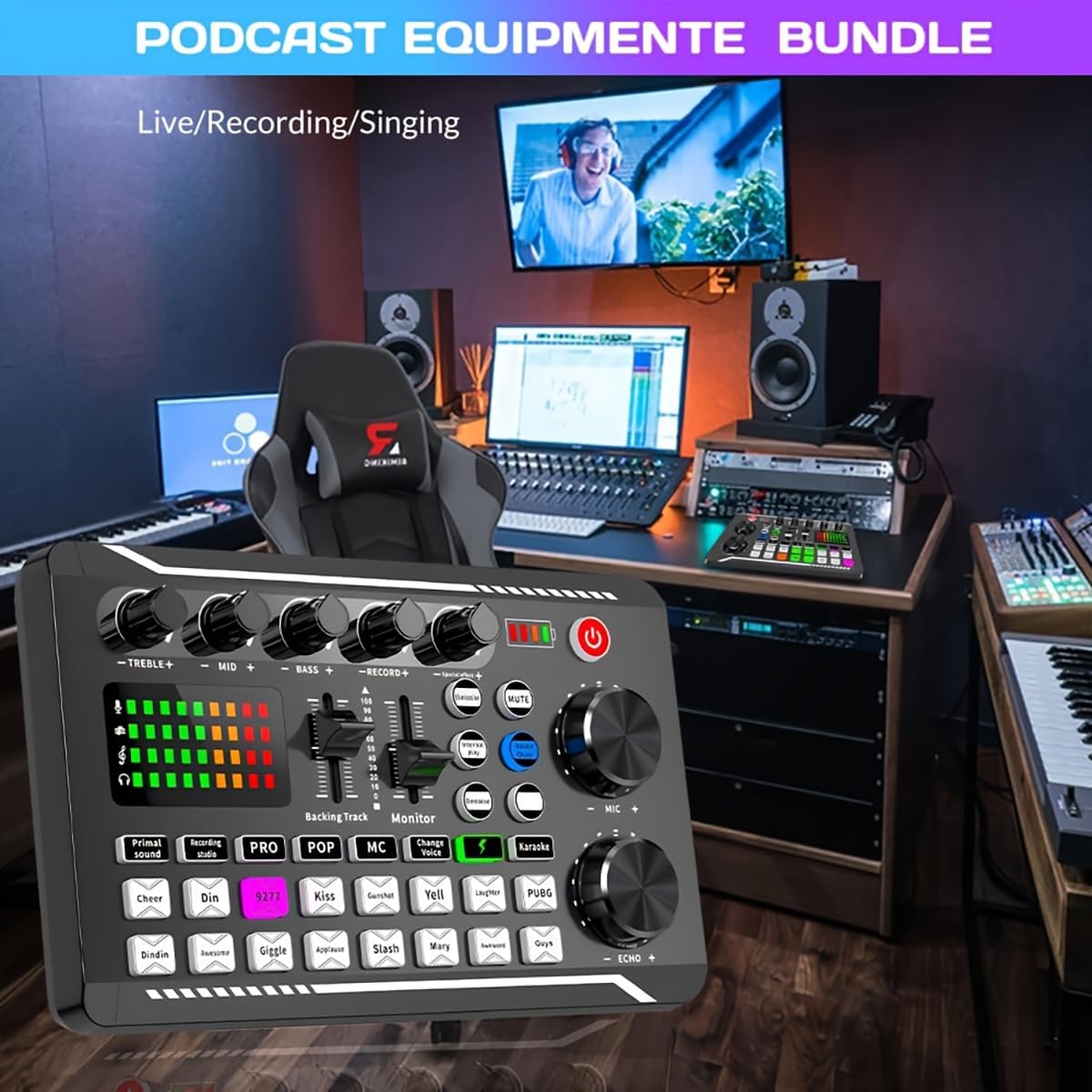
Figure 3: The F998 mixer integrated into a podcasting/streaming setup with a computer and microphone.
3. Bluetooth Connection
To connect an audio source wirelessly via Bluetooth:
- Turn on the F998 mixer by pressing the power button.
- Activate Bluetooth on your phone or tablet.
- Search for "F998" in your device's Bluetooth settings and pair with it. The Bluetooth indicator light on the mixer will confirm connection.
- Once connected, you can play backing tracks or other audio wirelessly through the mixer.

Figure 4: Close-up of the F998 mixer highlighting the Bluetooth connectivity feature.
Operating Instructions
1. Power On/Off
Press and hold the power button (red button) located on the top right of the mixer to turn the device on or off.
2. Audio Adjustments
- TREBLE+/MID+/BASS+: Adjust the high, mid, and low frequencies of your microphone input.
- RECORD+: Controls the output volume of your recording.
- MONITOR+: Adjusts the volume of your headphones/earphones for monitoring.
- MIC+: Controls the overall microphone input volume.
- ECHO+: Adjusts the echo effect level for your microphone.
- Backing Track Fader: Controls the volume of the background music input.
- Monitor Fader: Controls the overall monitoring volume.
3. Sound Effects and Voice Changer
The F998 features 16 fixed sound effects and 4 voice changer modes to enhance your live broadcasts or recordings.
- Sound Effects Buttons: Press any of the 16 buttons (e.g., Primal sound, Din, Kiss, Gunshot, Yell, Laughter, PUBG, etc.) to trigger the corresponding sound effect.
- Voice Changer Modes: Use the "Change Voice" button to cycle through different voice transformation effects.

Figure 5: User operating the F998 mixer during a recording session, demonstrating its use for clear audio capture.
4. Professional Functions
- Denoise: Activates noise reduction to minimize background noise.
- Elimination: Removes vocals from a song, leaving only the instrumental track (karaoke mode).
- Voice Over: Automatically lowers background music volume when you speak into the microphone.
- Internal Play: Routes internal computer audio back into the stream/recording.
5. Rhythm-Activated LED Lighting
The F998 features intelligent light control where console LEDs sync to your music's beat. Press the dedicated "Lightning logo button" to control or cycle through lighting effects.
6. Multi-Platform Live Broadcast
The F998 supports simultaneous live broadcasting on multiple platforms (e.g., TikTok, YouTube, Twitch) by connecting up to three phones via the "Live" output ports, or by connecting to a PC via the "OTG/PC Live" USB port.

Figure 6: A content creator using the F998 mixer to broadcast live across multiple platforms.
Maintenance and Care
- Cleaning: Use a soft, dry cloth to clean the surface of the mixer. Do not use liquid cleaners or abrasive materials.
- Storage: Store the device in a cool, dry place away from direct sunlight and extreme temperatures.
- Handling: Avoid dropping or subjecting the mixer to strong impacts.
- Battery Care: For optimal battery life, avoid fully discharging the battery frequently. Charge the device regularly, even if not in use for extended periods.
Troubleshooting
| Problem | Possible Cause | Solution |
|---|---|---|
| No sound output from headphones/speakers. |
|
|
| Microphone not picking up sound. |
|
|
| Bluetooth connection issues. |
|
|
| Sound quality is poor or noisy. |
|
|
Specifications
| Feature | Detail |
|---|---|
| Model | F998 |
| Brand | liucocotos |
| Item Weight | 14.9 ounces (approx. 422 grams) |
| Package Dimensions | 8.78 x 5.75 x 1.85 inches (approx. 22.3 x 14.6 x 4.7 cm) |
| Power Source | Corded Electric (USB 5V-1A) |
| Battery Type | Lithium Ion (1 Nonstandard Battery included) |
| Number of Channels | 2 |
| Connectivity Technology | USB, Bluetooth, 3.5mm Audio Jack |
| Audio Input | Microphone, Backing Track (3.5mm), Bluetooth |
| Sound Effects | 16 fixed sound effects |
| Voice Changer Modes | 4 modes |
| Pro Functions | Denoise, Elimination, Voice Over, Internal Play |

Figure 7: Dimensions of the F998 Live Sound Card Audio Mixer.
Warranty and Support
This product is covered by the standard return and refund policy of the retailer where it was purchased. For specific warranty details, please refer to your purchase documentation or contact the seller directly.
For technical support, troubleshooting assistance, or inquiries regarding your F998 Live Sound Card Audio Mixer, please contact liucocotos customer service through the platform where you made your purchase. You may also visit the official liucocotos store on Amazon for more information and contact options: liucocotos Amazon Store.