Introduction
This manual provides essential information for setting up, operating, and maintaining your KurieTim 16" FHD Gaming Laptop. Please read this guide thoroughly to ensure optimal performance and longevity of your device.
What's in the Box
Verify that all items are present in the packaging:
- KurieTim 16" FHD Gaming Laptop
- Power Adapter
- User Manual (this document)
Setup
1. Initial Power-On and Charging
Before first use, connect the laptop to the power adapter and a wall outlet. Allow the battery to charge fully. The charging port is located on the side of the laptop.
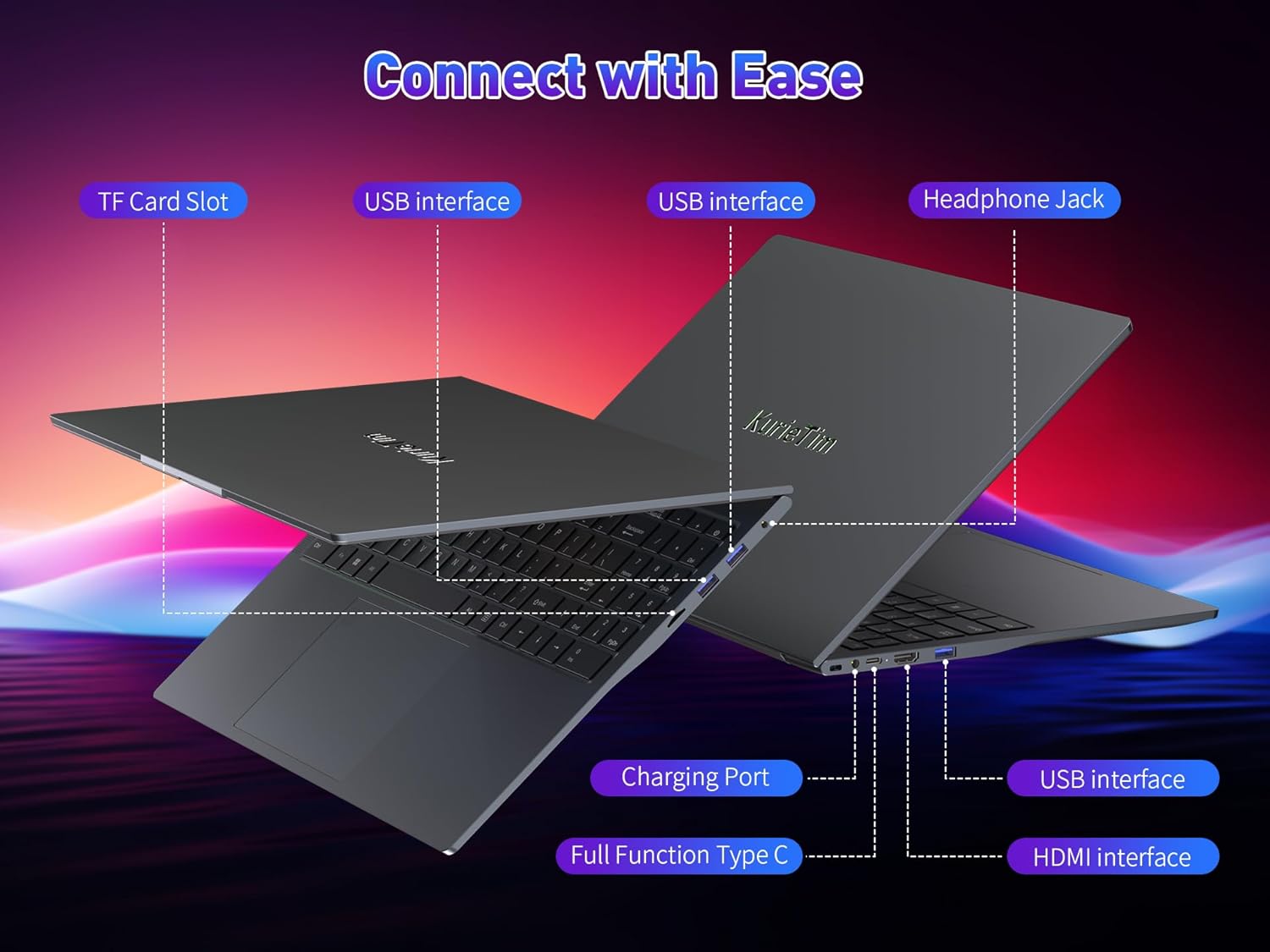
Image: Side view of the laptop highlighting the charging port and other interfaces.
2. Operating System Setup (Windows 11 Pro)
Upon first power-on, the laptop will guide you through the Windows 11 Pro setup process. Follow the on-screen instructions to configure language, region, network connection, and user accounts.
3. Fingerprint Reader Setup
For enhanced security, set up the fingerprint reader. This option is typically available during the initial Windows setup or can be configured later via Windows Settings > Accounts > Sign-in options. The fingerprint sensor is integrated into the power button or touchpad area.

Image: Close-up of the laptop keyboard showing the fingerprint unlock sensor, typically integrated into the power button or touchpad area.
Operating Instructions
1. Power On/Off
- To Power On: Press the power button located on the keyboard deck.
- To Power Off: Click the Start button in Windows, then select Power > Shut down.
- Sleep Mode: Close the laptop lid or select Power > Sleep from the Start menu.
2. Keyboard Features
Your laptop features a backlit keyboard and a numeric keypad for enhanced usability.
- Backlit Keyboard: Press Fn + Fx (where Fx is the designated function key, often F5 or F10) to toggle the keyboard backlight on/off or adjust brightness levels.
- Numeric Keypad: Use the dedicated numeric keypad for efficient data entry.
Image: Top-down view of the laptop keyboard, illustrating the backlit keys and numeric keypad.
3. Camera Privacy Switch
A physical privacy switch is provided for the integrated webcam. Slide the switch to cover or uncover the camera lens, ensuring your privacy when the camera is not in use.
Image: Detail of the laptop's top bezel, showing the webcam and its physical privacy switch.
4. Connectivity
The laptop offers various ports and wireless options:
- USB Ports: 1x USB 3.0, 2x USB 2.0 for connecting peripherals.
- Type-C Port: A full-function Type-C port for data transfer, video output, and power delivery (check specific functionality with device specifications).
- HDMI Port: Connect to external displays or projectors.
- Headphone Jack: For audio output.
- TF Card Slot: For expanding storage or transferring data from memory cards.
- Wi-Fi: Supports 802.11ac for wireless internet connectivity.
- Bluetooth: Version 4.2 for connecting wireless accessories.
Image: Diagram illustrating the location and type of all connectivity ports on the laptop.
5. Display Features
The 16-inch Full HD IPS screen provides clear visuals. Adjust display settings via Windows Settings > System > Display.

Image: The laptop screen displaying a high-resolution image, emphasizing its visual quality.
Maintenance
1. Cleaning
- Use a soft, lint-free cloth to clean the screen and exterior.
- Avoid harsh chemicals or abrasive materials.
- Ensure the laptop is powered off and unplugged before cleaning.
2. Battery Care
- To prolong battery life, avoid fully discharging the battery frequently.
- Store the laptop in a cool, dry place if not used for extended periods.
- The average battery life is approximately 3 hours under typical usage. For longer sessions, keep the power adapter connected.
3. Software Updates
Regularly check for and install Windows updates and driver updates to ensure system stability and security.
Troubleshooting
- Laptop does not power on: Ensure the power adapter is securely connected to both the laptop and a working power outlet. Verify the power outlet is functional. If the battery is completely drained, it may take a few minutes of charging before the laptop can power on.
- Short Battery Life: The laptop has an average battery life of 3 hours. To maximize battery duration, reduce screen brightness, close unnecessary applications, and disconnect unused peripherals. Consider carrying the power adapter for extended use.
- Wi-Fi/Bluetooth Connectivity Issues: Check if Wi-Fi or Bluetooth is enabled in Windows settings. Restart the laptop and your router/modem. Ensure drivers are up to date.
- System Slowdown: Close unused applications, check for background processes consuming high resources (Task Manager), ensure sufficient free storage space, and run a virus scan.
- Keyboard Backlight Not Working: Ensure the backlight function is enabled using the designated Fn key combination (e.g., Fn + F5). Check keyboard settings in Windows.
Specifications
| Feature | Detail |
|---|---|
| Model Name | T160hi713620hlaptop |
| Processor | 13th Gen Intel Core i7-13620H (10 Cores/16 Threads, up to 4.9GHz) |
| RAM | 32GB DDR4 |
| Storage | 1TB PCIe SSD |
| Display | 16-inch Full HD IPS (1920x1200 pixels) |
| Graphics | Intel UHD Graphics for 13th Gen Intel Processors |
| Operating System | Windows 11 Pro |
| Wireless Connectivity | Wi-Fi 802.11ac, Bluetooth 4.2 |
| Ports | 1x USB 3.0, 2x USB 2.0, 1x Full-function Type-C, 1x HDMI, 1x Headphone Jack, 1x TF Card Slot |
| Special Features | Backlit Keyboard, Fingerprint Reader, Numeric Keypad, Privacy Camera Switch, Stereo Speakers |
| Battery Life (Average) | 3 Hours |
| Dimensions (LxWxH) | 14.17 x 0.71 x 10.83 inches |
| Weight | 3.75 pounds |
Warranty and Support
For warranty information and technical support, please refer to the documentation included with your purchase or visit the official KurieTim website. Keep your proof of purchase for warranty claims.
For further assistance, you may contact KurieTim customer service through their official channels.