
1. Introduction
Thank you for choosing the GUEVWES ZTD39 USB Condenser Microphone. This manual provides essential information for the proper setup, operation, and maintenance of your new microphone. Designed for clear audio capture, this microphone is suitable for various applications including gaming, streaming, podcasting, and recording.
2. Safety Information
- Do not expose the microphone to water or excessive moisture.
- Avoid dropping or subjecting the microphone to strong impacts.
- Keep the device away from heat sources and direct sunlight.
- Use only the provided cables and accessories.
- Do not attempt to disassemble or repair the microphone yourself. Contact customer support for assistance.
3. Package Contents
Verify that all items are present in your package:
- GUEVWES ZTD39 USB Condenser Microphone
- Pop Filter (metal mesh)
- 2-meter Type-C Data Cable
- Type-C OTG Adapter
- Instruction Manual (this document)

Figure 1: Package contents including the microphone, pop filter, cables, and adapter.
4. Product Overview
4.1. Key Features
- Professional Sound: Equipped with one-touch noise reduction, real-time monitoring, and adjustable reverb modes.
- RGB Lighting: 10 customizable lighting effects including rainbow, breathing, gradient, and fixed colors.
- Intuitive Controls: One-tap mute button, volume knob, and quick toggle for RGB and reverb.
- Plug & Play: No drivers required for Windows, Mac, PS4, PS5, laptops, and Android phones (with adapter).
- Stable Design: Heavy, non-slip base and included pop filter for clear audio.
4.2. Components and Controls
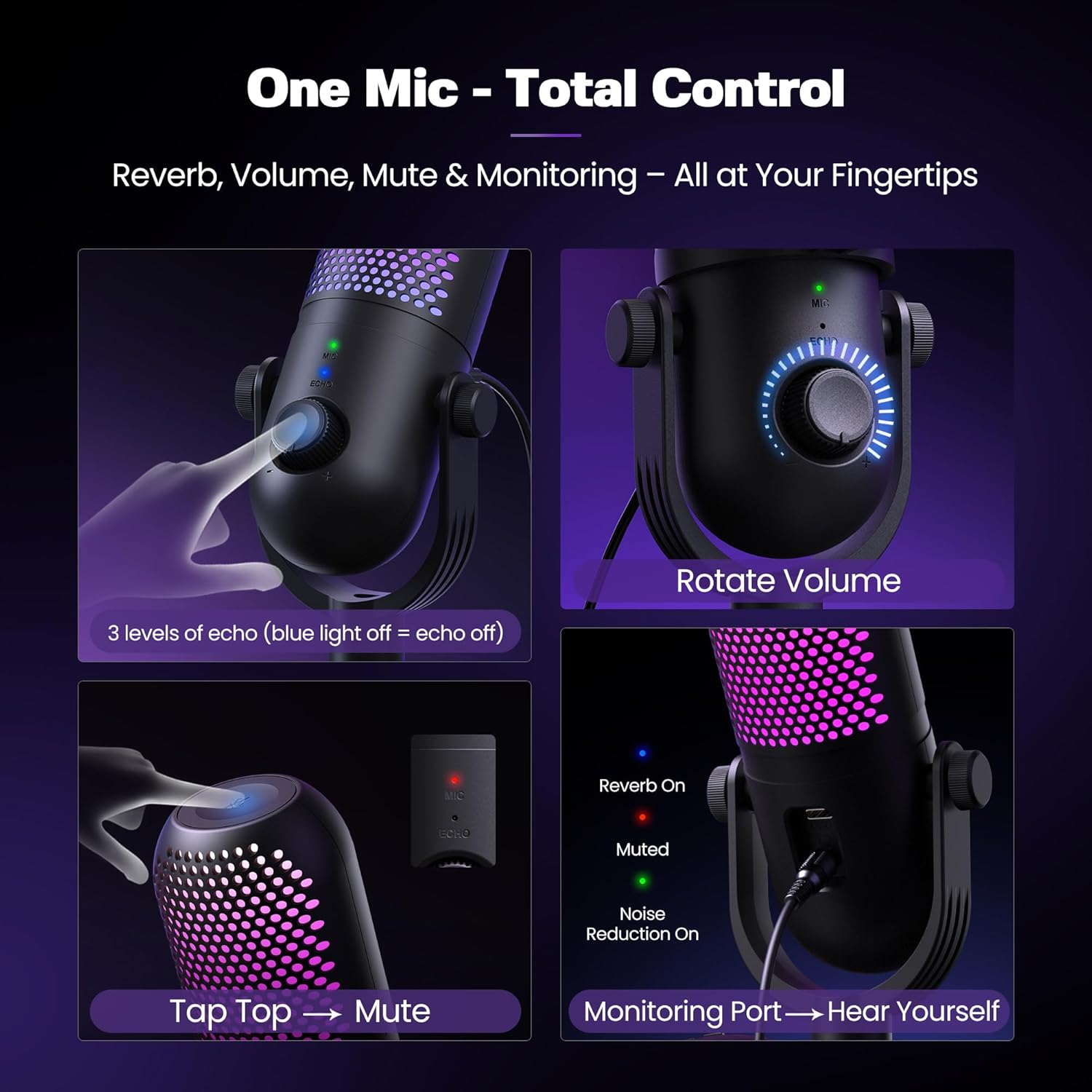
Figure 2: Front view of the microphone highlighting the volume knob, mute button, and indicator lights.
- Microphone Grille: Captures audio.
- Mute Button (Top): Tap to mute/unmute. LED indicator shows status (Red for muted, Green for active).
- Volume Knob: Rotate to adjust microphone input volume. Long press to cycle through RGB lighting modes.
- Echo Button (Integrated with Volume Knob): Press to cycle through 3 reverb modes (blue light off = echo off).
- Noise Reduction Button (Long Press Volume Knob): Long press the volume knob to activate/deactivate noise reduction (Green LED indicates active).
- USB-C Port (Rear): Connects to your device using the provided cable.
- 3.5mm Headphone Jack (Rear): For real-time audio monitoring with zero latency.
- Adjustable Stand: Allows tilting the microphone for optimal positioning.
5. Setup
5.1. Assembly
- Unpack all components from the box.
- Screw the microphone unit onto the desktop stand. Ensure it is securely fastened.
- Attach the pop filter to the front of the microphone grille. The pop filter helps reduce plosive sounds (P, B, T) for clearer audio.

Figure 3: Microphone assembled with pop filter and stable base.
5.2. Connecting to Your Device
- Connect one end of the 2-meter Type-C data cable to the USB-C port on the back of the microphone.
- Connect the other end of the cable to an available USB port on your computer (Windows/Mac), PS4/PS5, or laptop.
- For Android phones, use the included Type-C OTG adapter if your phone supports OTG functionality.
- Note: This microphone is not compatible with Xbox consoles.
- The microphone is plug-and-play; no additional drivers are typically required. Your operating system should automatically detect and install the necessary drivers.
- Once connected, the RGB lighting on the microphone will illuminate, indicating it is powered on.
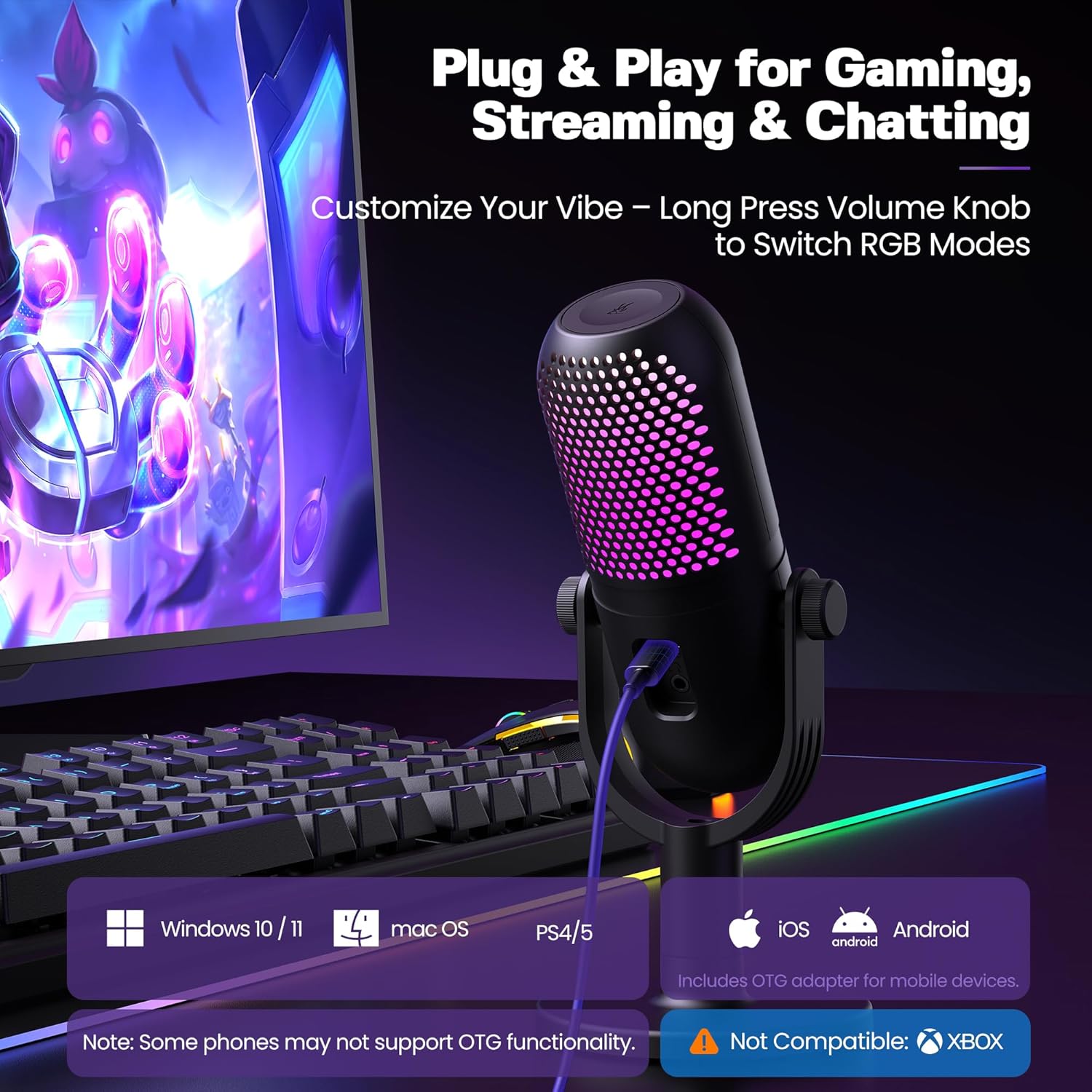
Figure 4: Microphone connected to a PC, illustrating multi-device compatibility.
6. Operating Instructions
6.1. Mute Function
Tap the top of the microphone to instantly mute or unmute. The LED indicator will change color to show the status:
- Green LED: Microphone is active.
- Red LED: Microphone is muted.
6.2. Volume Control
Rotate the volume knob on the front of the microphone clockwise to increase volume and counter-clockwise to decrease volume. This adjusts the input gain of the microphone.
6.3. RGB Lighting Effects
The microphone features 10 vibrant RGB lighting effects. To cycle through these modes, long press the volume knob. You can also turn off the lights if preferred.

Figure 5: Examples of the 10 RGB lighting effects.
6.4. Noise Reduction
To activate the one-touch noise reduction feature, long press the volume knob. A green LED will indicate that noise reduction is active, helping to eliminate background noise for clearer audio. Long press again to deactivate.

Figure 6: Microphone with active noise reduction, showing frequency response curve and SNR comparison.
6.5. Reverb Modes
The microphone includes 3 adjustable reverb modes. Press the volume knob (short press) to cycle through the available reverb effects. The blue LED indicates reverb status (off for no reverb).
6.6. Real-time Monitoring
Plug headphones into the 3.5mm jack on the back of the microphone to monitor your voice with zero latency. This allows you to hear your audio input in real-time.
7. Compatibility
The GUEVWES ZTD39 USB Condenser Microphone is compatible with the following operating systems and devices:
- Windows (10/11)
- macOS
- PlayStation 4 (PS4)
- PlayStation 5 (PS5)
- Laptops
- Android Phones (via Type-C OTG adapter, if supported by phone)
Important: This microphone is not compatible with Xbox consoles.
8. Troubleshooting
| Issue | Possible Solution |
|---|---|
| Microphone not detected. |
|
| No sound output from headphones. |
|
| Background noise is present. |
|
| RGB lights are not working. |
|
9. Specifications
| Feature | Detail |
|---|---|
| Brand | GUEVWES |
| Model Name | ZTD39 |
| Microphone Form Factor | Table Array, Large Diaphragm |
| Connectivity Technology | USB |
| Connector Type | USB Type-C |
| Polar Pattern | Unidirectional |
| Signal-to-Noise Ratio | 96 dB |
| Impedance | 2200 Ohm |
| Power Source | Corded Electric |
| Material | Plastic |
| Color | Black |
| Item Weight | 1.06 pounds (480 Grams) |
| Product Dimensions (L x W x H) | 3.86 x 3.86 x 9.06 inches |
| Compatible Devices | MAC, PS4/5, Windows |
| Special Feature | 1-Touch Recording (refers to mute/noise reduction) |
10. Maintenance
- Cleaning: Use a soft, dry cloth to clean the microphone's exterior. Do not use liquid cleaners or solvents.
- Storage: Store the microphone in a cool, dry place when not in use.
- Pop Filter: The metal mesh pop filter can be gently wiped clean with a damp cloth if necessary. Ensure it is completely dry before reattaching.
11. Warranty and Support
GUEVWES offers a free warranty extension to 36 months. To register your product for the extended warranty:
- Get your order number from Amazon. (Look for 3 numbers - 7 numbers).
- Send the order number to the GUEVWES service team's email.
- Your extended warranty will be registered within 48 hours.
For product inquiries or technical support, please contact: SERVICE@GUEVWES.COM

Figure 7: Warranty card with instructions for extended warranty registration.