
Introduction
This manual provides essential instructions for the installation, operation, and maintenance of your ASAHOM S1080 Waterproof Control Box. This control box is designed exclusively for use with ASAHOM S1080 Series RGBCW Permanent Outdoor Lights PRO. Please read this manual thoroughly before use to ensure proper functionality and safety.
Package Contents
Verify that all items listed below are included in your package:
- 1 x ASAHOM S1080 Waterproof Control Box with Dual Output and WLED
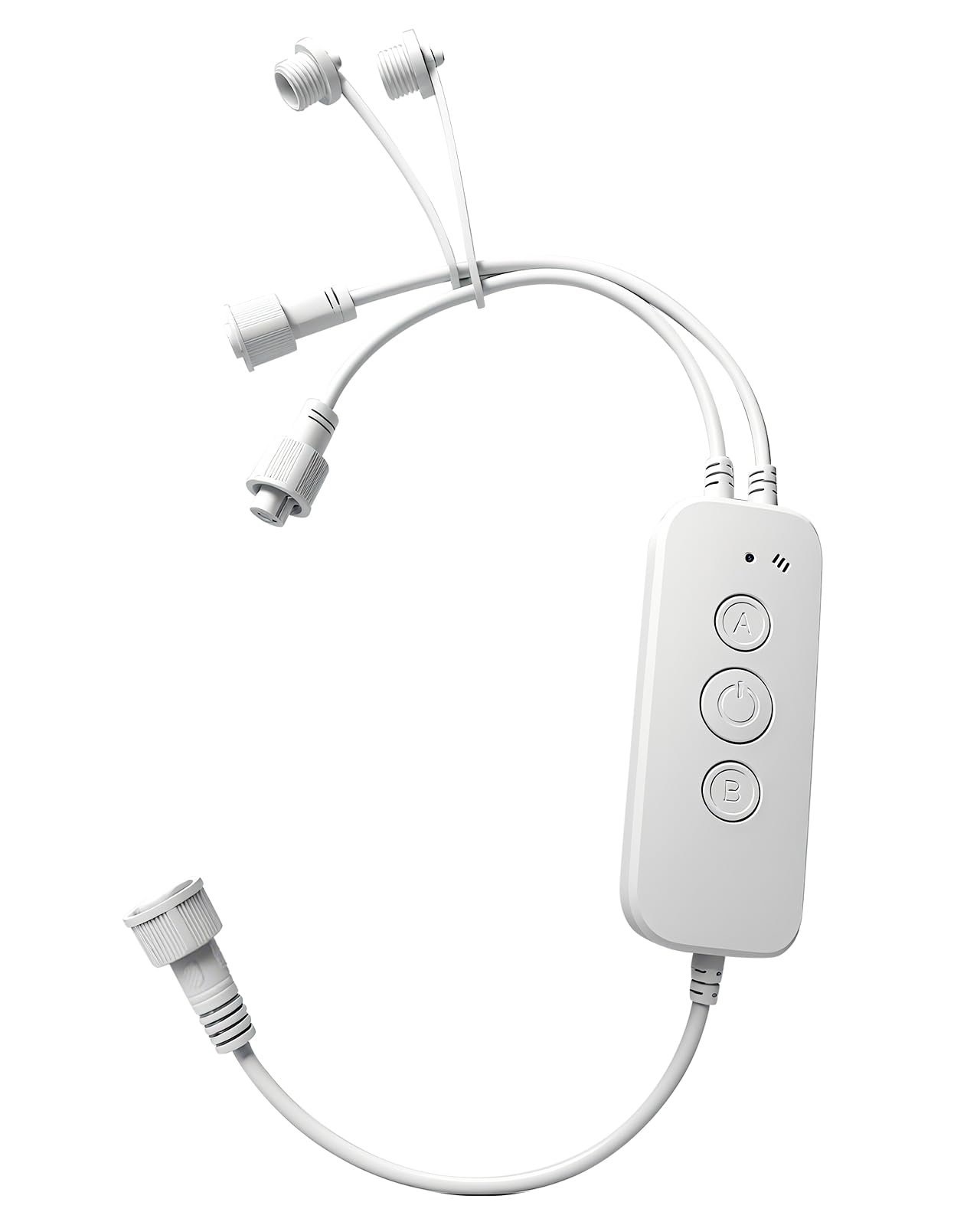
Image: The ASAHOM S1080 Waterproof Control Box, showing its compact design and white casing.
Setup
The ASAHOM S1080 Control Box is designed for straightforward integration with your ASAHOM S1080 Series RGBCW Permanent Outdoor Lights PRO. Ensure the power supply is disconnected before making any connections.
- Connect Light Strings: The control box features dual output ports. Connect your ASAHOM S1080 light strings to either or both output ports as required by your installation layout.
- Secure Unused Ports: If only one output port is utilized, ensure the waterproof cap on the unused port is securely tightened. This is crucial for maintaining the waterproof integrity of the control box.
- Microphone Placement: During installation, position the control box so that the microphone opening is not obstructed. This ensures optimal sound pickup for the Audio Reactive feature.
- Power Connection: Once all light strings are securely connected and unused ports are capped, connect the control box to the compatible ASAHOM S1080 power supply.

Image: The ASAHOM S1080 Control Box illustrating its dual output ports for connecting light strings.
Operating Instructions
Button Functions
The control box features three physical buttons for direct control:
- ON/OFF Button:
- Press briefly to turn the lights on or off.
- Press and hold for more than 5 seconds to restore factory settings.
- A Button: Single press to change the color of the lights.
- B Button: Single press to switch between different lighting modes.
Dual Output
The control box supports connecting light strings to either or both output ports. This flexibility allows for various installation configurations. Always ensure any unused output port has its waterproof cap securely tightened to prevent water ingress.
Microphone
The integrated microphone enables the Audio Reactive feature, allowing the lights to respond to sound. For optimal performance, ensure the microphone opening is unobstructed and the sound source is positioned as close as possible to the microphone when this feature is active.
Indicator Light
The indicator light provides visual feedback on the device's status:
- Blinking Blue: The device is in pairing mode, ready to connect to a network.
- Solid Blue: The device is successfully connected to the network.
The indicator light can also be turned off via the settings within the associated mobile application.
Maintenance
To ensure the longevity and optimal performance of your ASAHOM S1080 Waterproof Control Box, follow these maintenance guidelines:
- Regular Cleaning: Periodically wipe the exterior of the control box with a soft, damp cloth to remove dust and debris. Avoid using harsh chemicals or abrasive cleaners.
- Inspect Connections: Regularly check all cable connections to ensure they are secure and free from damage. Verify that waterproof caps on unused ports are tightly sealed.
- Environmental Protection: While the control box is waterproof, avoid submerging it in water or exposing it to extreme weather conditions beyond its rated specifications.
- Software Updates: Keep the associated mobile application updated to the latest version to benefit from performance improvements and new features.
Troubleshooting
If you encounter issues with your ASAHOM S1080 Waterproof Control Box, refer to the following common troubleshooting steps:
- Lights Not Turning On:
- Ensure the control box is properly connected to the power supply and the power supply is plugged into a functional outlet.
- Check all connections between the control box and the light strings.
- Briefly press the ON/OFF button on the control box.
- No Network Connection (Indicator Blinking Blue):
- Ensure your Wi-Fi network is active and within range.
- Follow the pairing instructions in the mobile application to reconnect the device.
- Try restarting your Wi-Fi router.
- Incorrect Light Behavior:
- If the lights are not responding as expected, try restoring the control box to factory settings by pressing and holding the ON/OFF button for more than 5 seconds.
- Verify settings within the mobile application.
- Audio Reactive Feature Not Working:
- Ensure the microphone opening is not blocked.
- Position the sound source closer to the control box.
- Check if the Audio Reactive feature is enabled in the mobile application.
If problems persist, contact ASAHOM customer support for further assistance.
Specifications
| Brand | ASAHOM |
| Model Name | Control Box |
| Model Number | A1029 |
| Color | White |
| Connectivity Technology | Wi-Fi |
| Controller Type | Button Control, Remote Controlled (via app) |
| Button Quantity | 3 |
| Compatible Devices | ASAHOM S1080 Series RGBCW Permanent Outdoor Lights PRO, Smartphone |
| Max Number of Supported Devices | 1 (Control Box per light system) |
Warranty
ASAHOM products are manufactured to high-quality standards. For specific warranty details, including coverage period and terms, please refer to the warranty information provided with your original purchase documentation or visit the official ASAHOM website. Keep your proof of purchase for warranty claims.
Support
For technical assistance, product inquiries, or to report any issues not covered in this manual, please contact ASAHOM customer support. You can typically find contact information on the ASAHOM official website or through your purchase platform.
Online Resources: Visit the ASAHOM Store on Amazon for additional product information and accessories.