
Introduction
This manual provides essential information for setting up, operating, maintaining, and troubleshooting your HP DeskJet 2842e All-in-One Printer. This device is designed for printing, copying, and scanning documents, offering reliable performance for home and small office use. Please read these instructions carefully to ensure optimal use and longevity of your printer.
What's in the Box
Verify that all components are present in the packaging:
- HP DeskJet 2842e All-in-One Printer
- HP 67 Setup Black Cartridge
- HP 67 Setup Tri-color Cartridge
- Power cord
- Setup guide

Image: The HP DeskJet 2842e All-in-One Printer, white with chili red accents, showing a document in the output tray.
Setup
1. Unpacking
Carefully remove the printer from its packaging. Remove all protective tapes and packing materials from the exterior and interior of the printer.
2. Power Connection
Connect the power cord to the rear of the printer and then to a wall outlet. Press the power button to turn on the printer.
3. Ink Cartridge Installation
- Open the ink cartridge access door.
- Remove the setup ink cartridges from their packaging.
- Insert the black cartridge into the right slot and the tri-color cartridge into the left slot until they click into place.
- Close the ink cartridge access door.
4. Paper Loading
- Pull out the input tray.
- Slide the paper width guides outward.
- Load a stack of plain white paper into the input tray, print side down.
- Slide the paper width guides inward until they rest against the edges of the paper.
- Extend the output tray extender.
5. Wireless Setup
To connect your printer to a wireless network:
- Install the HP Smart app on your computer or mobile device.
- Follow the on-screen instructions in the HP Smart app to connect your printer to your Wi-Fi network. Ensure your router supports 2.4 GHz frequency for optimal connection.
- The app will guide you through the remaining setup steps, including printer registration and HP+ activation if applicable.

Image: The HP DeskJet 2842e printer shown with a mobile phone displaying the HP Smart app, illustrating wireless connectivity and management.
Operating the Printer
1. Printing Documents
To print from your computer or mobile device, select the print option within your application. Choose the HP DeskJet 2842e from the list of available printers. Adjust print settings such as paper size, orientation, and print quality as needed, then click 'Print'.
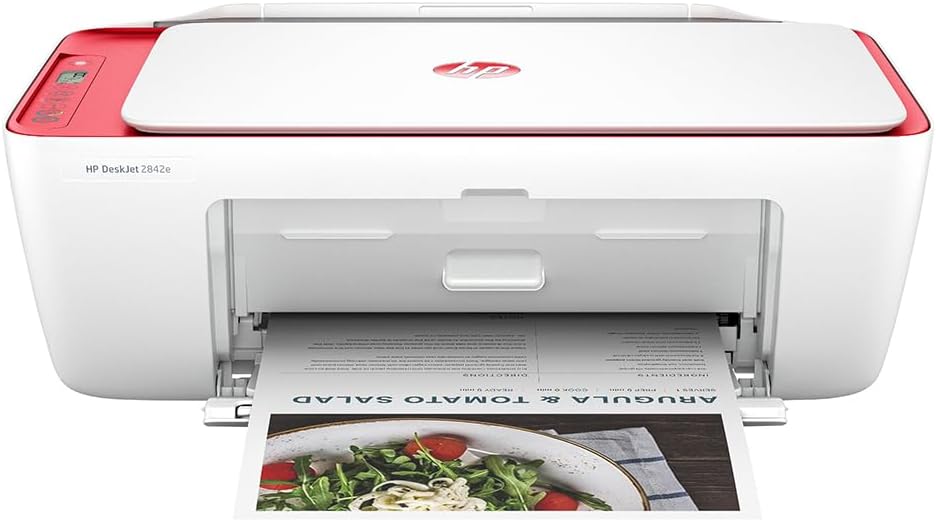
Image: The HP DeskJet 2842e printer in operation, producing a printed document.
2. Copying Documents
Place the document face-down on the scanner glass. On the printer's control panel, press the Copy button (often indicated by a document icon). You may have options to select color or black-and-white copy, and the number of copies. Press the Start Copy button to begin.
3. Scanning Documents
Place the document face-down on the scanner glass. Open the HP Smart app on your computer or mobile device and select the 'Scan' function. Follow the prompts to adjust scan settings (e.g., resolution, file type) and initiate the scan. The scanned document will be saved to your specified location.
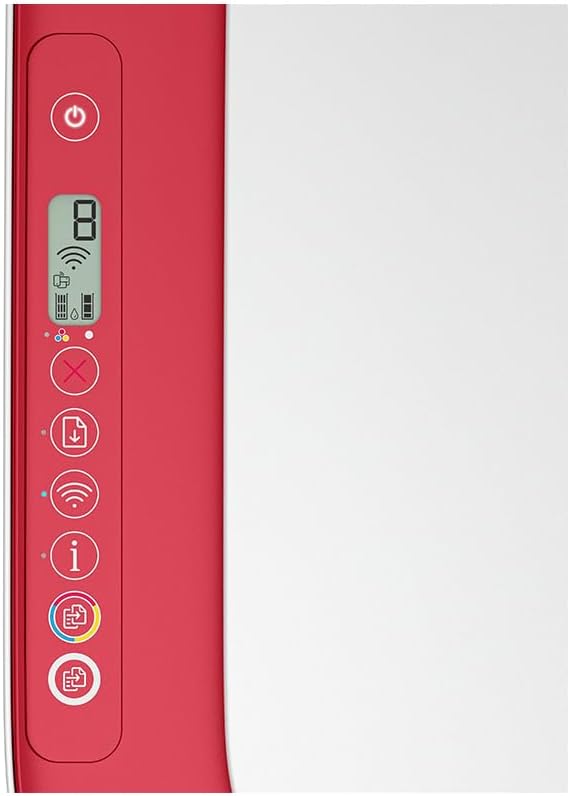
Image: A detailed view of the printer's control panel, highlighting the various buttons and indicator lights for operation.
Maintenance
1. Replacing Ink Cartridges
When an ink cartridge is low or empty, an indicator light on the control panel will illuminate. To replace:
- Ensure the printer is on.
- Open the ink cartridge access door.
- Gently press down on the empty cartridge to release it, then pull it out.
- Unpack the new HP 67 ink cartridge, removing the protective tape.
- Insert the new cartridge into its corresponding slot (black on the right, tri-color on the left) until it clicks into place.
- Close the ink cartridge access door. The printer will automatically align the new cartridges.
2. Cleaning the Printer
Regular cleaning helps maintain print quality and extends printer life:
- Exterior: Wipe the exterior surfaces with a soft, lint-free cloth dampened with water.
- Scanner Glass: Use a soft cloth and a non-abrasive glass cleaner to clean the scanner glass. Avoid spraying cleaner directly onto the glass.
- Printhead Cleaning: If print quality issues persist, use the HP Smart app or printer software to initiate a printhead cleaning cycle.
Troubleshooting
- Printer Not Connecting to Wi-Fi:
Ensure your Wi-Fi router is broadcasting a 2.4 GHz signal, as this printer model primarily uses this frequency. Restart your router and printer. Use the HP Smart app to re-attempt the wireless setup. - Print Quality Issues (Streaks, Faded Prints):
Check ink levels and replace any low or empty cartridges. Perform a printhead cleaning and alignment through the HP Smart app or printer software. Ensure you are using genuine HP ink cartridges. - Paper Jams:
Turn off the printer and unplug the power cord. Carefully open all access doors and remove any jammed paper, pulling gently in the direction of the paper path. Ensure no small pieces of paper remain. Close all doors and reconnect power. - Printer Not Responding:
Verify the printer is powered on and connected to your computer or network. Restart both the printer and your computer/device. Check for any error messages on the printer's control panel or in the HP Smart app.
Specifications
| Brand | HP |
| Model Name | 588L0A#1H5 (DeskJet 2842e) |
| Connectivity Technology | Wi-Fi |
| Printing Technology | Inkjet |
| Functions | Print, Copy, Scan (All-in-One) |
| Max Print Speed (Monochrome) | 7 ppm |
| Max Print Speed (Color) | 5 ppm |
| Max Print Resolution (B&W/Color) | 600 dpi |
| Max Media Size | 8.5 x 11 inches |
| Max Input Sheet Capacity | 60 sheets |
| Scanner Type | Flatbed |
| Included Components | HP 67 Setup Black Cartridge, HP 67 Setup Tri-color Cartridge, Power cord, Setup guide |
| Product Dimensions | 18.5 x 7.5 x 13.75 inches |
| UPC | 724129312379 |
Warranty and Support
This HP DeskJet 2842e All-in-One Printer comes with a 90-day limited warranty from the manufacturer. For detailed warranty terms and conditions, please refer to the documentation included with your product or visit the official HP support website.
For further assistance, technical support, or to download the latest drivers and software, please visit the official HP support website or contact HP customer service. Keep your product model number (588L0A#1H5) and serial number ready when contacting support.