
Introduction
This manual provides essential information for the proper use and care of your BoxWave DirectSync USB 3.0 A to USB 3.1 Type C Cable. This cable is designed for both charging and high-speed data transfer between compatible devices.
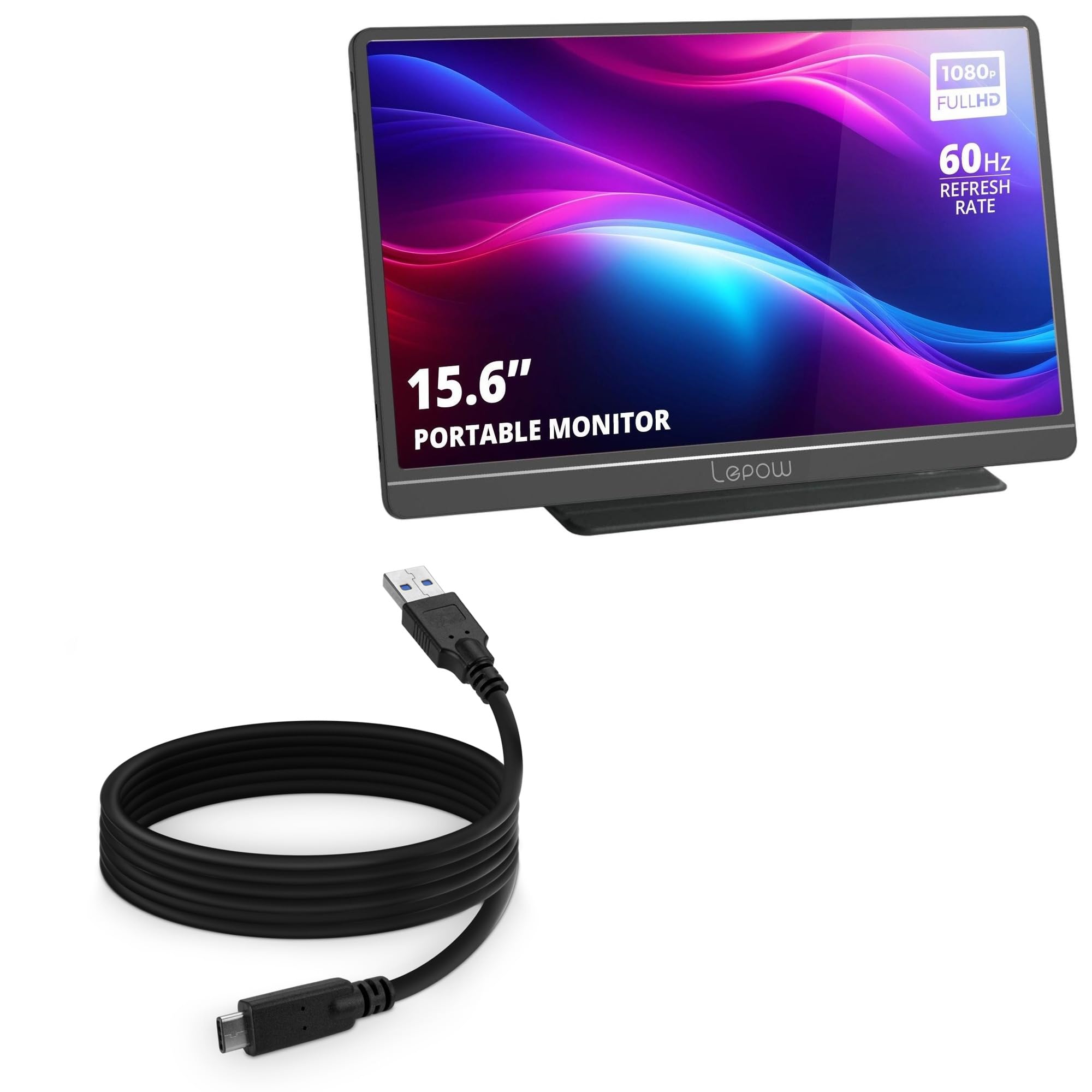
Image: The BoxWave DirectSync USB 3.0 A to USB 3.1 Type C Cable, coiled, showcasing its black color and connector types.
Setup
- Identify Connectors: Locate the USB 3.0 Type-A connector (larger, rectangular end, typically blue inside) and the USB 3.1 Type-C connector (smaller, reversible end).
- Connect to Power/Data Source: Insert the USB 3.0 Type-A connector into a compatible USB 3.0 port on your computer, wall adapter, or power bank. Ensure the port is capable of providing sufficient power for charging or is a data-enabled port for syncing.
- Connect to Device: Insert the USB 3.1 Type-C connector into the USB-C port of your compatible device, such as the RNRUO Portable Monitor Ultra Slim model RTDD2556VD or other USB-C enabled devices. The Type-C connector is reversible, allowing for easy connection in any orientation.

Image: A BoxWave DirectSync cable connecting a laptop to a smartphone, illustrating simultaneous charging and data transfer. The phone displays a '95% Charged' indicator.
Operating Instructions
Charging Your Device
To charge your device, connect the USB 3.0 Type-A end of the cable to a power source (e.g., a wall charger, power bank, or computer USB port) and the USB 3.1 Type-C end to your device. The cable supports efficient power delivery for charging compatible devices.
Transferring Data
For data transfer, connect the USB 3.0 Type-A end to a USB 3.0 compatible port on your computer and the USB 3.1 Type-C end to your device. The cable supports Hi-Speed USB 3.1 data transfers, enabling speeds up to 5Gbps for quick file synchronization and backups.

Image: A BoxWave DirectSync cable connecting a tablet to a power bank on a wooden desk, demonstrating its use for charging portable devices.
Flexible Length
The generous 6-foot length of the DirectSync cable provides flexibility, allowing you to comfortably use or charge your device even when the power source is not immediately adjacent.

Image: A BoxWave DirectSync cable plugged into a wall outlet, extending across a room to a device placed on a sofa, illustrating its 6-foot length for flexible use.
Maintenance
- Cable Care: Avoid sharp bends, kinks, or excessive pulling on the cable, especially near the connectors. This helps preserve the internal wiring and outer jacket.
- Cleaning: If the cable becomes dirty, gently wipe it with a soft, dry, lint-free cloth. Do not use harsh chemicals or abrasive cleaners.
- Storage: When not in use, coil the cable loosely to prevent tangling and damage. Store it in a cool, dry place away from direct sunlight and extreme temperatures.
Reinforced Strain Relief
The DirectSync cable features reinforced rubberized grommet strain reliefs at both ends. This design provides protection against common wear and tear, reducing the risk of kinks or splitting at the connector points.

Image: A close-up view of the USB-C and USB-A connectors of the BoxWave DirectSync cable, highlighting the reinforced strain relief design that prevents kinking and splitting.
Troubleshooting
- Device Not Charging:
- Ensure both ends of the cable are securely connected.
- Verify that the power source (wall adapter, computer port) is functional and providing power.
- Test the cable with another device or power source if possible.
- Data Transfer Issues:
- Confirm both devices (computer and portable monitor/device) are powered on and configured for data transfer.
- Ensure the USB 3.0 Type-A port on your computer is functioning correctly.
- Check your device's settings to ensure it allows data transfer over USB.
- Slow Charging or Data Transfer:
- Ensure you are using a USB 3.0 compatible port on your computer for optimal data speeds. USB 2.0 ports will result in slower transfer rates.
- For charging, ensure your power adapter provides sufficient wattage for your device.
Specifications
| Product Type | USB 3.0 A to USB 3.1 Type C Cable |
| Model | DirectSync |
| Length | 6 feet (1.8 meters) |
| Data Transfer Speed | Up to 5 Gbps (USB 3.0/3.1 Gen 1) |
| Functionality | Charge and Sync |
| Color | Black |
| Item Weight | 3 ounces |
| Manufacturer | BoxWave |
Warranty and Support
BoxWave provides limited third-party technical support for your device (up to 3 inquiries via messaging). For further assistance or warranty information, please contact BoxWave Corporation directly through their official support channels.
Please note: The RNRUO Portable Monitor Ultra Slim model RTDD2556VD (15.6 in) device is not included with this cable.