
HP HP 17 Inch Laptop
HP 17 Inch Laptop User Manual
Model: HP 17 Inch Laptop
1. Product Overview
The HP 17 inch Laptop is a powerful and versatile computing device designed for productivity and entertainment. It features a large 17.3-inch Full HD display, an AMD Ryzen 5 7430U processor, ample memory, and fast solid-state storage, making it suitable for a wide range of tasks from daily computing to more demanding applications.
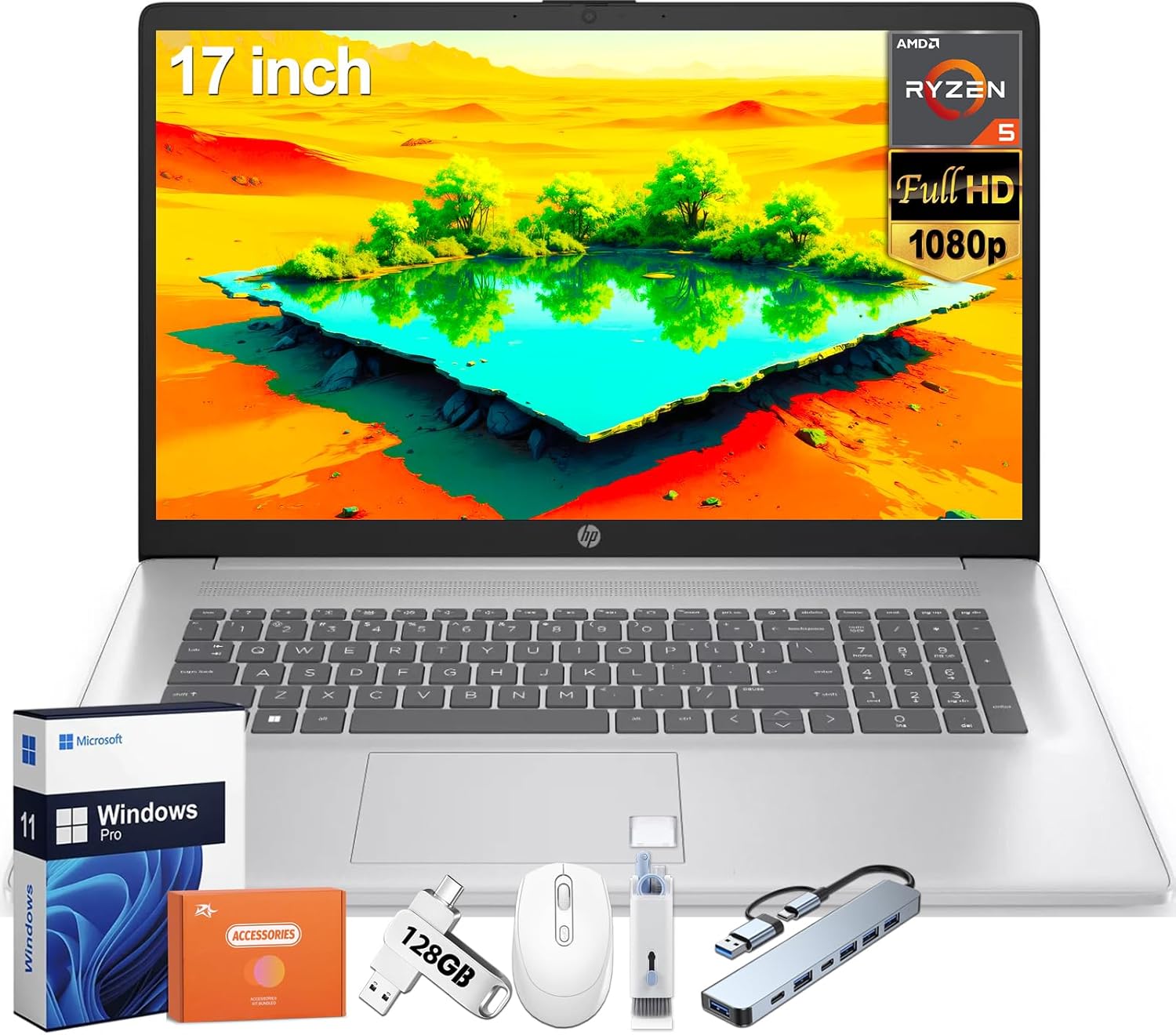
Figure 1.1: Front view of the HP 17 inch Laptop, showcasing its large display and full-size keyboard.
Key Features
- Processor: AMD Ryzen 5 7430U (6-Core, Up to 4.5GHz) for efficient multitasking.
- Memory: 32 GB DDR4 RAM for smooth application performance.
- Storage: 1 TB PCIe SSD for fast boot times and ample storage.
- Display: 17.3 inch FHD (1920 x 1080) 250-Nits Anti-Glare Display.
- Graphics: Integrated AMD Radeon Graphics for clear visuals.
- Operating System: Windows 11 Pro for enhanced productivity and security.
- Connectivity: Wi-Fi 6 (Wireless-AX) and Bluetooth 5.3.
- Camera: Integrated HP TrueVision 720p HD Camera with Privacy Shutter.

Figure 1.2: Overview of the laptop's core components including AMD Ryzen 5 7430U processor, AMD Radeon Graphics, 1 TB PCIe NVMe M.2 SSD, and 32 GB DDR4-3200 RAM.
2. Physical Components and Ports
Familiarize yourself with the various physical components and connection ports on your HP 17 inch Laptop.
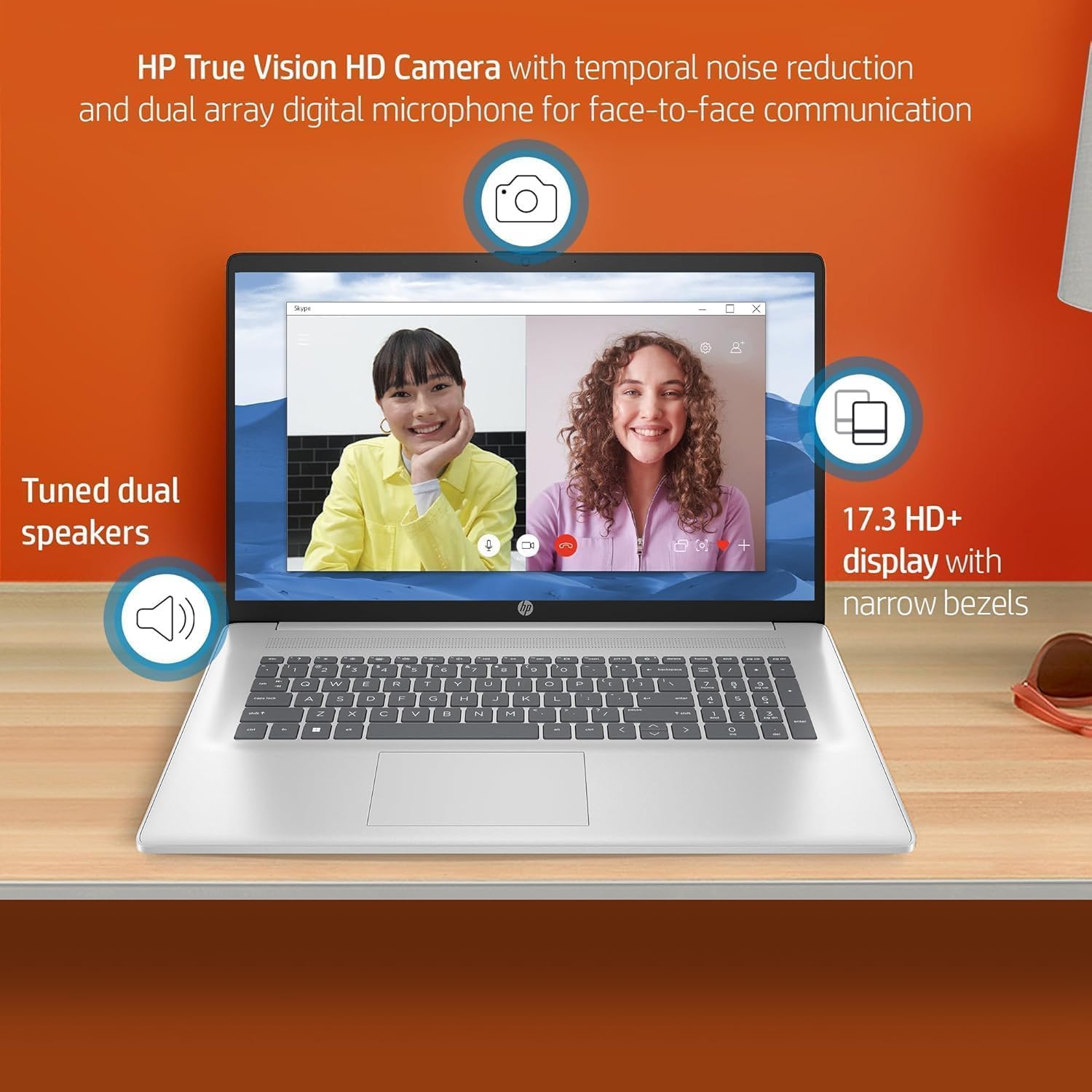
Figure 2.1: Close-up of the laptop's display area, highlighting the HP True Vision HD Camera, tuned dual speakers, and the 17.3-inch HD+ display with narrow bezels.
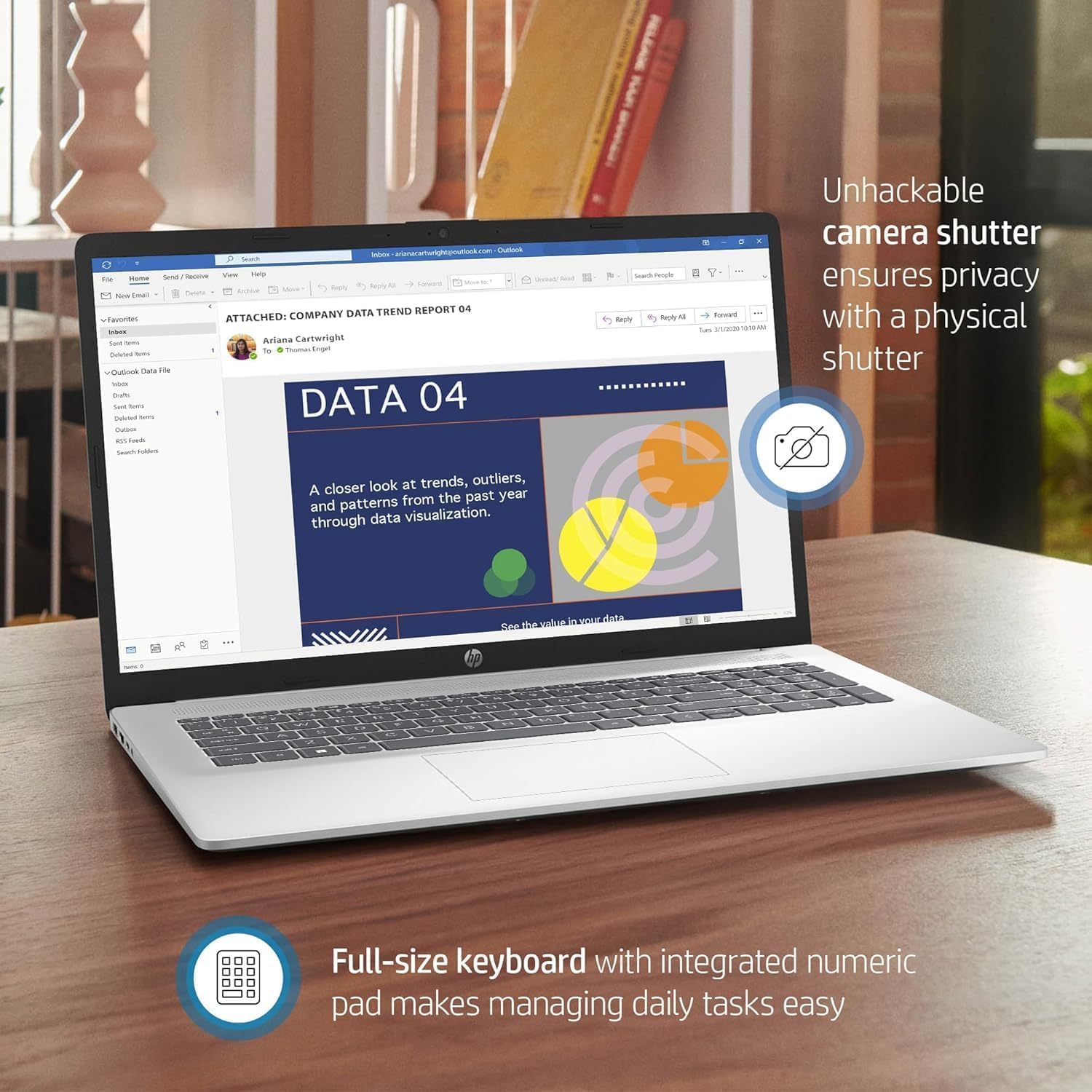
Figure 2.2: View of the laptop's keyboard and the camera with its physical privacy shutter, emphasizing user security and comfortable typing.
Available Ports
The laptop is equipped with various ports for connecting external devices:
- 1x USB Type-C port
- 2x USB Type-A ports
- 1x HDMI 1.4b port
- 1x Headphone/Microphone Combination Jack

Figure 2.3: Side views of the HP 17 inch Laptop illustrating the location of its ports and overall dimensions (15.78" W x 0.78" H x 10.15" D).
3. Initial Setup
Follow these steps to set up your new HP 17 inch Laptop for the first time.
- Unpack the Laptop: Carefully remove the laptop and all accessories from the packaging. Ensure you have the laptop, 45 W Smart AC power adapter, and any included setup posters.
- Connect Power: Plug the AC power adapter into the laptop's power port and then into a wall outlet. It is recommended to use the laptop with the power adapter connected during the initial setup.
- Power On: Open the laptop lid and press the power button, typically located above the keyboard.
- Windows Setup: Follow the on-screen instructions to complete the Windows 11 Pro setup. This includes selecting your region, language, connecting to a Wi-Fi network, accepting the license agreement, and creating a user account.
- Updates: Once Windows is set up, connect to the internet and allow the system to download and install any pending updates. This ensures optimal performance and security.
4. Operating Your Laptop
This section provides basic guidance on using your HP 17 inch Laptop.
Using the Keyboard and Touchpad
- The laptop features a full-size keyboard with a numeric keypad for comfortable typing.
- The HP Imagepad serves as your pointing device. Use single-finger taps for clicks, two-finger taps for right-clicks, and multi-touch gestures for scrolling and zooming.
Connecting to Networks
- Wi-Fi: Click the network icon in the taskbar, select your desired Wi-Fi network, enter the password if prompted, and click Connect.
- Bluetooth: To connect Bluetooth devices, go to Windows Settings > Bluetooth & devices, turn on Bluetooth, and select 'Add device'.
Using External Displays
You can connect an external monitor or projector using the HDMI 1.4b port. Press the Windows key + P to open the Project menu and select your desired display mode (e.g., Duplicate, Extend, Second screen only).
5. Maintenance and Care
Proper care and maintenance will extend the life of your HP 17 inch Laptop.
- Cleaning: Use a soft, lint-free cloth to clean the screen and exterior. For stubborn smudges, dampen the cloth slightly with water or a screen cleaner. Avoid harsh chemicals.
- Battery Care: To maximize battery life, avoid extreme temperatures. For long-term storage, charge the battery to about 50% and store the laptop in a cool, dry place.
- Software Updates: Regularly check for and install Windows updates and HP driver updates to ensure system stability and security.
- Ventilation: Ensure the laptop's vents are not obstructed to prevent overheating. Use the laptop on a hard, flat surface.
- Data Backup: Regularly back up your important data to an external drive or cloud storage to prevent data loss.
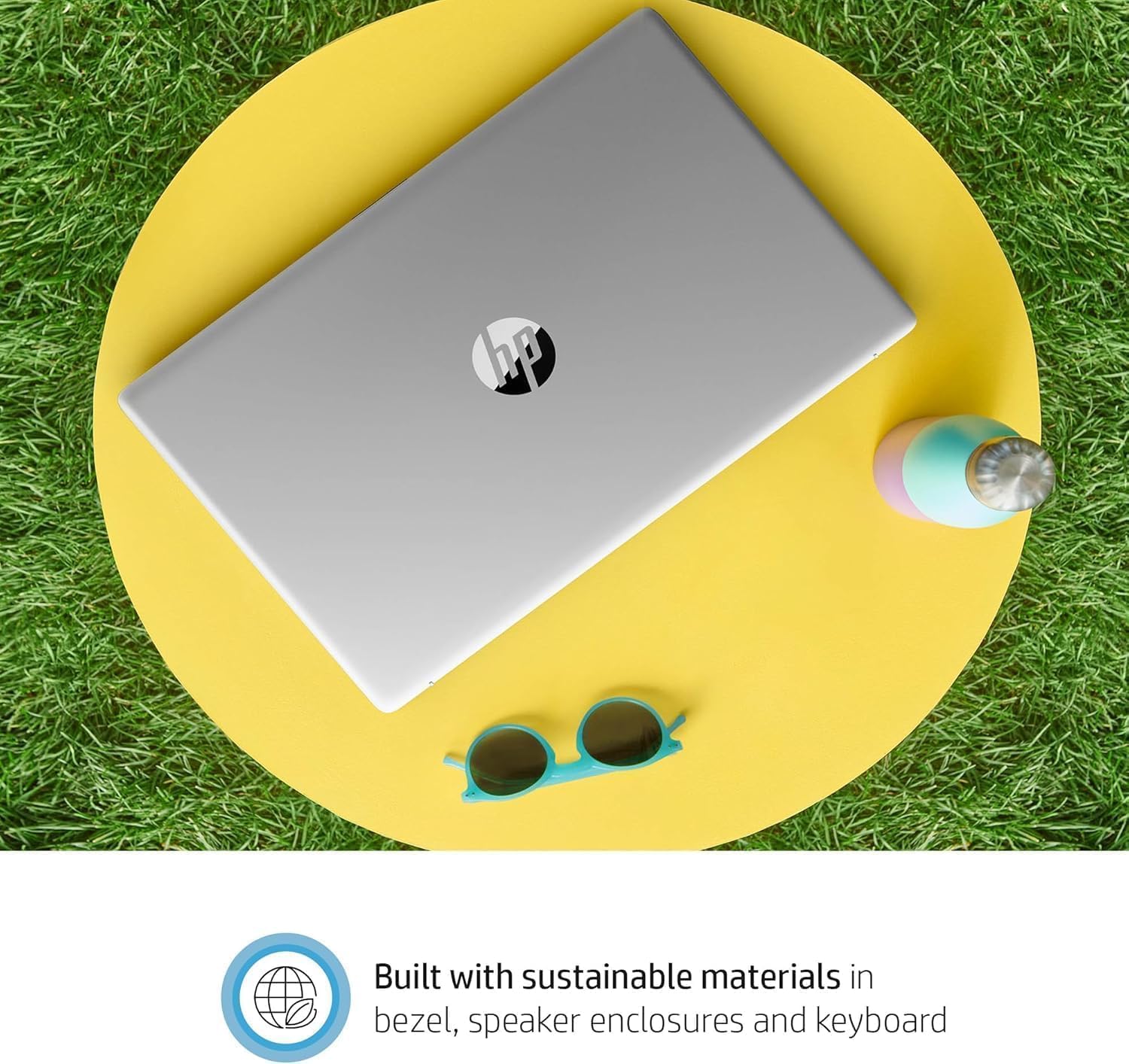
Figure 5.1: The HP 17 inch Laptop is built with sustainable materials in its bezel, speaker enclosures, and keyboard, reflecting HP's commitment to environmental responsibility.
6. Troubleshooting Common Issues
This section provides solutions to common problems you might encounter.
Laptop Does Not Power On
- Ensure the power adapter is securely connected to both the laptop and a working power outlet.
- Try a different power outlet.
- If the battery is completely drained, it may take a few minutes of charging before the laptop can power on.
No Wi-Fi Connection
- Check if Wi-Fi is enabled in Windows settings.
- Restart your router and modem.
- Ensure you are within range of the Wi-Fi network.
- Run the Windows Network Troubleshooter.
Screen is Blank or Flickering
- Restart the laptop.
- If an external monitor is connected, try disconnecting it.
- Update your graphics drivers.
Slow Performance
- Close unnecessary applications running in the background.
- Check for and install any pending Windows updates.
- Ensure there is sufficient free space on your SSD.
- Run a virus scan.
7. Technical Specifications
Detailed specifications for the HP 17 inch Laptop.
| Feature | Specification |
|---|---|
| Model Name | HP 17 Inch Laptop |
| Processor | AMD Ryzen 5 7430U (6-Core, Up to 4.5GHz) |
| RAM | 32 GB DDR4 SDRAM |
| Hard Drive | 1 TB SSD (Solid State) |
| Screen Size | 17.3 Inches |
| Screen Resolution | 1920 x 1080 pixels (FHD) |
| Graphics Coprocessor | AMD Radeon R5 (Integrated) |
| Operating System | Windows 11 Pro |
| Wireless Type | 802.11ax (Wi-Fi 6) |
| Bluetooth | Bluetooth 5.3 |
| USB Ports | 1x USB Type-C, 2x USB Type-A |
| HDMI Port | 1x HDMI 1.4b |
| Audio Port | 1x Headphone/Microphone Combination Jack |
| Item Weight | 4.58 pounds |
| Product Dimensions | 15.78 x 0.78 x 10.15 inches |
| Color | Natural Silver |
8. Warranty and Support
Warranty Information
Your HP 17 inch Laptop comes with a 1-year manufacturer's warranty. This warranty covers defects in materials and workmanship under normal use. Please retain your proof of purchase for warranty claims.
For specific terms and conditions of the warranty, please refer to the documentation included with your product or visit the official HP support website.
Customer Support
If you encounter any issues not covered in this manual or require further assistance, please contact HP Customer Support. You can find support resources, drivers, and contact information on the official HP website:
When contacting support, please have your laptop's serial number and model name (HP 17 Inch Laptop) ready. This information can usually be found on a label on the bottom of the laptop or within the system information settings in Windows.