
Introduction
The Fodsports T1 PRO is an advanced motorcycle intercom system designed to enhance communication and entertainment during rides. Featuring Qualcomm Bluetooth V5.4, it offers stable connections, long range, and low latency. This device supports group intercom for up to 6 riders, music sharing, FM radio, and includes triple noise cancellation technology for clear audio. Its user-friendly design allows for one-click mode switching and easy operation even with gloves.

Image: Fodsports T1 PRO Motorcycle Intercom unit, showcasing its sleek design and the five interchangeable sticker options available for customization.
What's in the Box
Verify that all components are present in your package:
- T1 PRO Intercom Unit
- User Manual
- USB Type-C Charging Cable
- Hard Tube Microphone
- Button Microphone
- Speakers (pre-attached to microphone cables)
- Helmet Clamp Mount
- 3M Tape Clamp Mount
- Velcro Pads for Speakers and Microphones
- 3M Glue Velcro for Clamp Mount
- Screw Driver (for clamp mount)
- Interchangeable Sticker Skins (5 designs)

Image: A detailed layout of all components included in the Fodsports T1 PRO package, such as the intercom unit, microphones, speakers, mounting options, cables, and user manual.
Setup
1. Charging the Device
Before first use, fully charge the T1 PRO unit. Connect the provided USB Type-C cable to the charging port on the device and a suitable USB power source. The indicator light will show charging status and turn off when fully charged.
- Charging Time: Approximately 1.5 to 2 hours
- Talk Time: Up to 20 hours
- Intercom Time: Up to 22 hours
- Music Playback Time: Up to 25 hours
- Standby Time: Over 300 hours
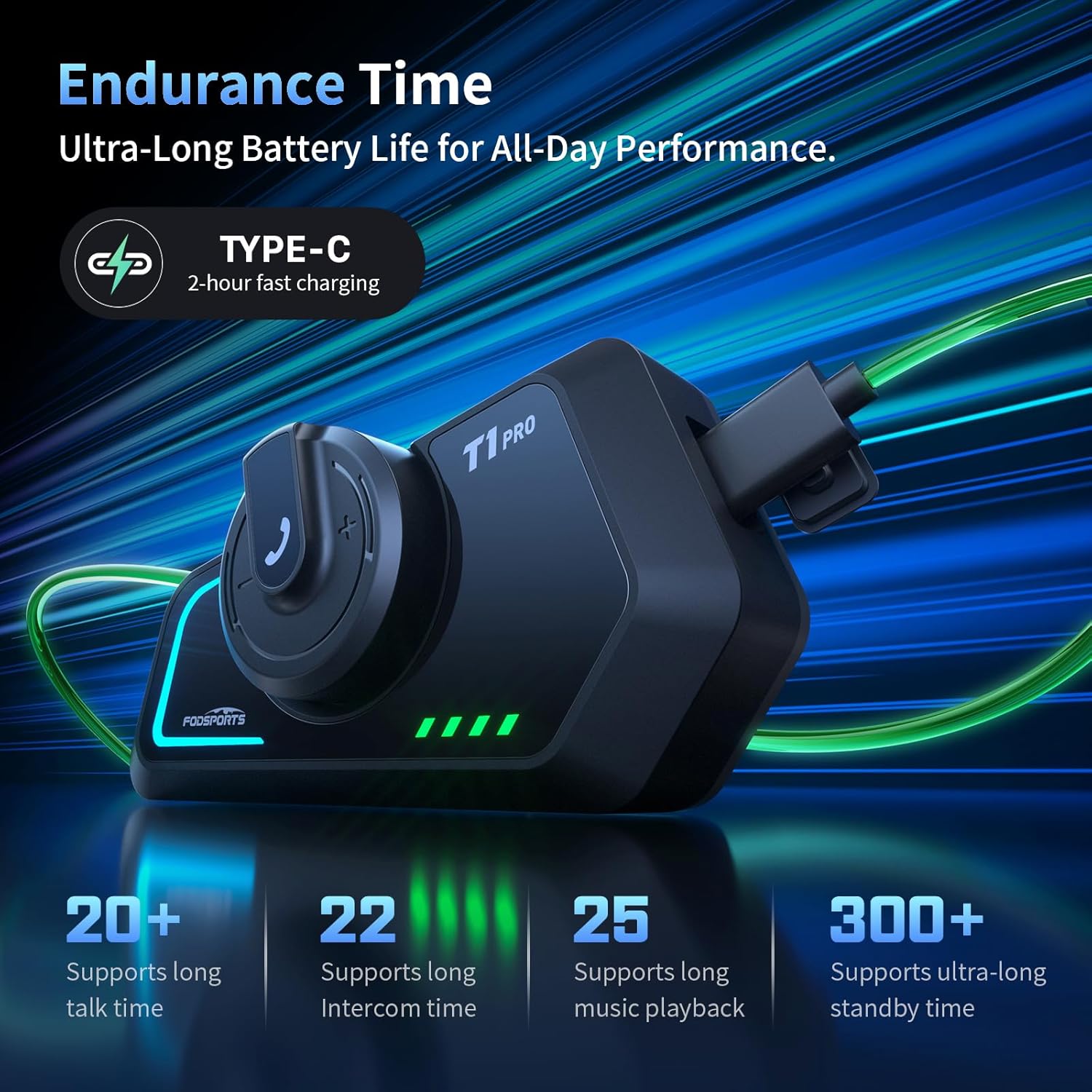
Image: The Fodsports T1 PRO unit connected to a USB-C charging cable, illustrating its fast charging capability and ultra-long battery life for talk, intercom, music, and standby times.
2. Choosing and Installing the Microphone
The T1 PRO comes with two microphone options:
- Hard Tube Microphone: Recommended for open-face or modular helmets.
- Button Microphone: Recommended for full-face helmets.
Attach the chosen microphone to the helmet using the provided Velcro pads. Ensure the microphone is positioned close to your mouth for optimal voice pickup.
Image: A visual guide demonstrating the two microphone types (hard tube and button) and their recommended helmet compatibility for open-face, modular, and full-face helmets.
3. Installing the Intercom Unit on Your Helmet
There are two primary methods for mounting the T1 PRO unit:
Method 1: Clamp Mount
- Use the screwdriver to loosen the screw on the back of the clamp.
- Attach the clamp to the edge of your helmet, ensuring it is securely fastened.
- Tighten the screw on the back of the clamp.
- Slide the main unit onto the clamp until it clicks into place.
Method 2: 3M Tape Clamp Mount
- Peel off the protective film from the 3M adhesive on the back of the clamp.
- Firmly attach the clamp to a clean, flat surface on your helmet. Press for at least 30 seconds to ensure adhesion.
- Slide the main unit onto the clamp until it clicks into place.
Image: Step-by-step diagrams detailing both the clamp mount and 3M tape clamp mount installation methods for the Fodsports T1 PRO on a motorcycle helmet.
4. Applying Interchangeable Stickers
The T1 PRO includes five interchangeable sticker skins for personalization. Ensure the surface of the intercom unit is clean and dry before applying the sticker for optimal adhesion.

Image: Multiple Fodsports T1 PRO units displayed with various interchangeable sticker designs, highlighting the customization options.
Operating Instructions
1. Power On/Off
- Power On: Press and hold the Power button until the indicator light turns on.
- Power Off: Press and hold the Power button until the indicator light turns off.
2. Bluetooth Pairing
The T1 PRO features universal Bluetooth compatibility (V5.4) for seamless pairing with mobile phones, GPS navigators, and most major brand intercoms/headsets.
- Pairing Mode: Refer to the user manual for specific button combinations to enter pairing mode.
- Connecting to Phone/GPS: Once in pairing mode, search for "Fodsports T1 PRO" on your device's Bluetooth settings and connect.
- Universal Pairing: For connecting with other brand intercoms, ensure both devices are in their respective universal pairing modes. The maximum range may be limited by the weaker device.

Image: A visual representation of the Fodsports T1 PRO's universal pairing capability, showing connections to other intercom brands, mobile phones, and GPS navigators.
3. Functional Modes and Switching
The T1 PRO allows for one-click switching between four functional modes:
- Bluetooth Intercom Mode: For direct rider-to-rider communication.
- Group Intercom Mode: Supports communication for up to 6 riders within a 2000m range. Automatic reconnection occurs if connection is lost within range. If disconnected for over 3 minutes, press the intercom button to reconnect.
- Universal Pairing Mode: For connecting with non-Fodsports devices.
- Music Sharing Mode: Allows two T1 PRO units to share music simultaneously.

Image: A circular diagram illustrating the one-click mode switching feature of the Fodsports T1 PRO, highlighting Bluetooth Intercom, Group Intercom, Universal Pairing, and Music Sharing modes.

Image: An illustration depicting six motorcycles on a winding road, connected by wireless signals, demonstrating the 6-way group intercom capability of the T1 PRO over a 2km range.

Image: Two motorcyclists riding on a scenic road with musical notes flowing between them, visually representing the music sharing feature of the T1 PRO units.
4. FM Radio
The T1 PRO includes a built-in FM radio. You can tune into various stations within the 76-108MHz frequency band to stay updated on weather, traffic, or enjoy music.
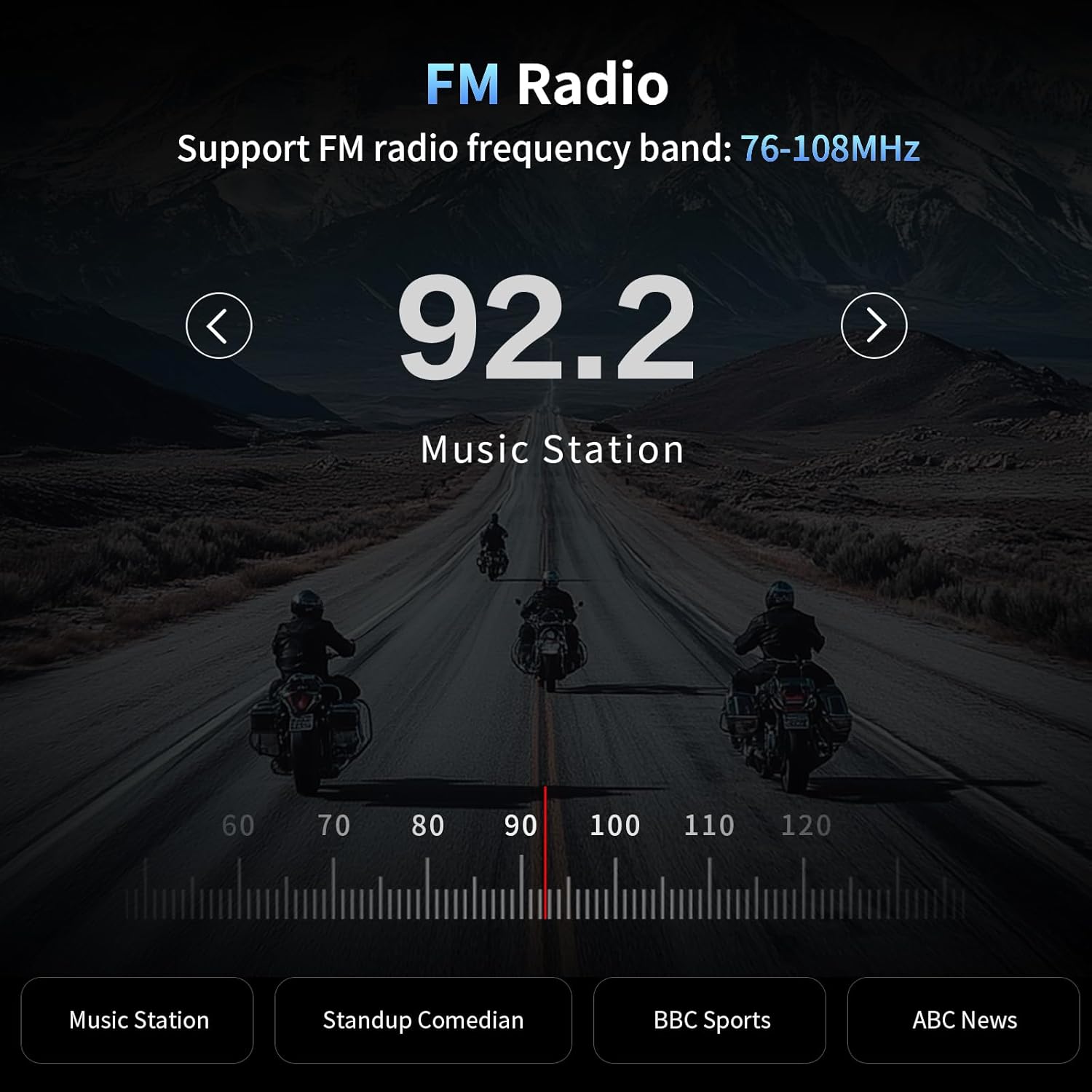
Image: A digital display showing an FM radio frequency of 92.2 MHz, with options for different music stations, standup comedy, BBC Sports, and ABC News, indicating the built-in FM radio function.
5. Call Management
- Auto-Answer Calls: Incoming calls are automatically answered within 12 seconds.
- Reject Calls: Tap the designated button once to reject an incoming call.
- Microphone Mute: The microphone mute function allows you to disable the mic during intercom calls or phone conversations for privacy.

Image: A motorcyclist riding with an overlay indicating the auto-answer call feature, showing a 12-second countdown for automatic answering and an option to reject calls with a single tap.
6. Voice Assistant
Activate your phone's voice assistant (Siri, Google Assistant) with a single touch for hands-free control of calls, music playback, and GPS navigation.

Image: A close-up of a motorcyclist's helmet with speech bubbles indicating voice commands like "Previous song," "Open the GPS," "Hey Siri, call Tanaka," and "Next song," demonstrating the voice assistant feature.
7. Controls
The T1 PRO features an innovative tactile scroll wheel design, enabling easy blind operation even while wearing gloves. Refer to the full user manual for detailed button functions and combinations for volume control, track skipping, and mode switching.
Maintenance
- Cleaning: Wipe the unit with a soft, damp cloth. Do not use harsh chemicals or abrasive cleaners.
- Storage: Store the device in a cool, dry place away from direct sunlight and extreme temperatures.
- Water Resistance: The T1 PRO has an IP67 waterproof rating, meaning it is completely resistant to rain. However, avoid submerging the device in water for extended periods.
- Battery Care: For optimal battery life, avoid fully discharging the battery frequently. Charge the device regularly, especially if storing for long periods.

Image: The Fodsports T1 PRO unit being splashed with water, illustrating its IP67 waterproof rating and resistance to rain.
Troubleshooting
If you encounter issues with your T1 PRO, try the following solutions:
| Problem | Possible Cause | Solution |
|---|---|---|
| Device does not power on | Low battery; Device frozen | Charge the device fully. Perform a hard reset (refer to full manual for specific steps). |
| Cannot pair with phone/intercom | Not in pairing mode; Device too far; Interference | Ensure device is in pairing mode. Move devices closer. Turn off other Bluetooth devices. Clear previous pairings and try again. |
| Poor audio quality/noise | Microphone placement; Environmental noise; Speaker position | Adjust microphone closer to mouth. Ensure speakers are aligned with ears. Verify noise cancellation is active. |
| Intercom connection drops frequently | Out of range; Obstructions; Battery low | Stay within the specified intercom range (2000m). Reduce obstructions. Ensure all units are sufficiently charged. |
| Buttons unresponsive | Device frozen; Water ingress | Perform a hard reset. Ensure device is dry. |
For more detailed troubleshooting steps, please refer to the complete user manual provided with your product or visit the Fodsports official website.
Specifications
| Feature | Detail |
|---|---|
| Model Name | T1 PRO |
| Brand | Fodsports |
| Connectivity Technology | Wireless (Bluetooth V5.4) |
| Noise Control | Hybrid Noise Cancellation (DSP/CVC/built-in mics) |
| Intercom Range | Up to 2000m (6 riders group intercom) |
| Functional Modes | Group Intercom, Rider-to-Rider Intercom, Universal Pairing, Music Sharing |
| Speakers | 40mm Hi-Fi Stereo Speakers |
| FM Radio Frequency | 76-108MHz |
| Charging Port | USB Type-C |
| Water Resistance Level | IP67 (Completely resistant to rain) |
| Product Dimensions | 3.19 x 1.61 x 0.98 inches |
| Item Weight | 9.1 ounces |
| Batteries | 1 Nonstandard Battery (included) |
| Included Components | Cable, User Manual |
| Color | Black |
| Impedance | 32 Ohm |

Image: A detailed view of the Qualcomm Bluetooth 5.4 chip, highlighting the advanced technology that provides stable signals, longer range, and ultra-low latency for the T1 PRO.

Image: An exploded view diagram of the 40mm Hi-Fi speaker components, illustrating the design that delivers rich, dynamic stereo sound for an immersive audio experience.

Image: A graph demonstrating the effectiveness of the T1 PRO's triple noise cancellation technology (CVC & DSP), showing a significant reduction in ambient noise for clearer calls and audio before and after noise reduction is applied.
Warranty and Support
Information regarding product warranty and specific customer support contacts was not provided in the available data. Please refer to the warranty card included with your product or visit the official Fodsports website for the most current warranty terms and support options.
For further assistance, you may also contact the seller directly through the platform where the product was purchased.


