
1. Product Overview
The KINMRIS X9 Pro Retro Game Stick 4K is a compact, plug-and-play gaming console designed to deliver a rich retro gaming experience. It comes preloaded with a vast library of classic games and supports multiple emulators, offering high-definition output for modern displays.
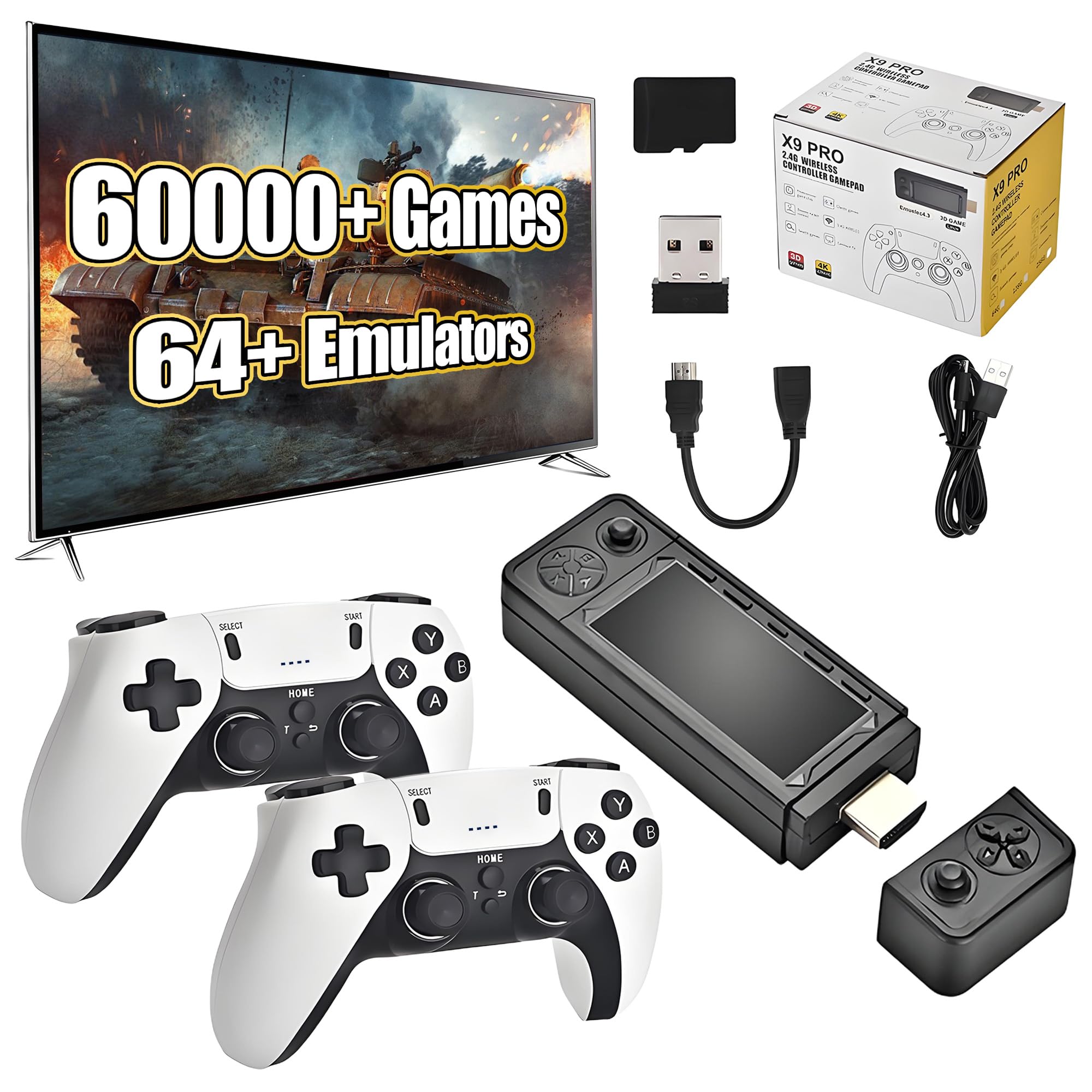
Image: Overview of the KINMRIS X9 Pro Retro Game Stick 4K, showing the game stick, two wireless controllers, a memory card, USB receiver, cables, and a TV displaying game content.
2. What's in the Box
Verify that all components are present in the package:
- TV Stick (Game Stick)
- TF card (256GB, preloaded with games)
- 2 x Wireless Controllers
- HD cable & User Manual
- Charging Cable & USB Receiver
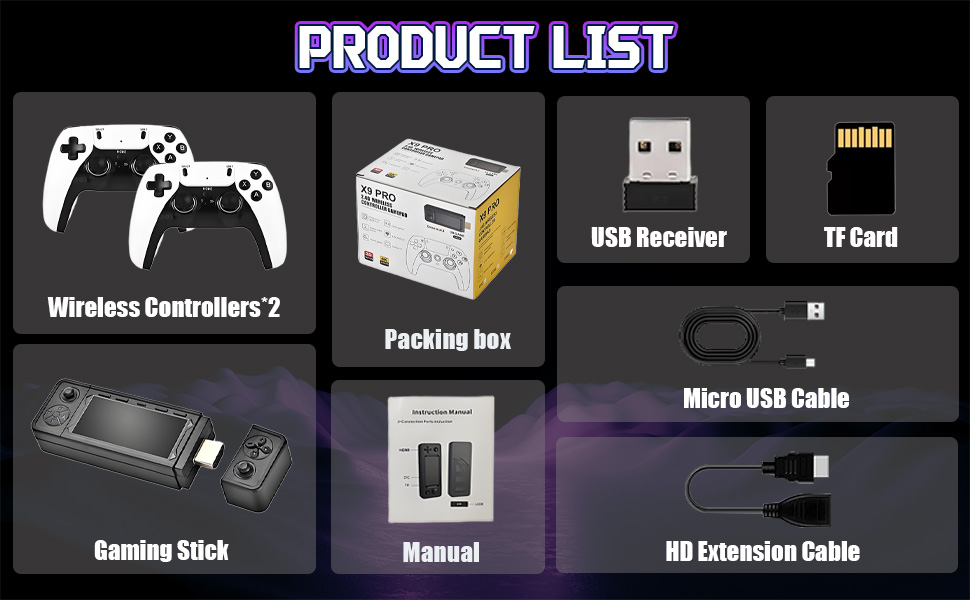
Image: Detailed product list diagram illustrating the game stick, two wireless controllers, TF card, USB receiver, micro USB cable, HD extension cable, and the instruction manual.
3. Setup Instructions
Follow these steps to set up your KINMRIS X9 Pro Retro Game Stick 4K:
- Insert TF Card: Ensure the preloaded TF card (256GB) is securely inserted into the game stick.
- Connect USB Receiver: Plug the 2.4GHz USB receiver into the USB port on the game stick. This enables wireless communication with the controllers.
- Connect Power Cable: Connect the micro USB charging cable to the game stick and then to a 5V1A power adapter (not included) or a USB power source on your TV.
- Connect to TV: Plug the game stick directly into an available HDMI port on your television or monitor. If space is limited, use the provided HD extension cable.
- Select Input: Switch your TV's input source to the corresponding HDMI channel where the game stick is connected.
- Power On Controllers: Ensure your wireless controllers are charged and powered on. They should automatically pair with the USB receiver.
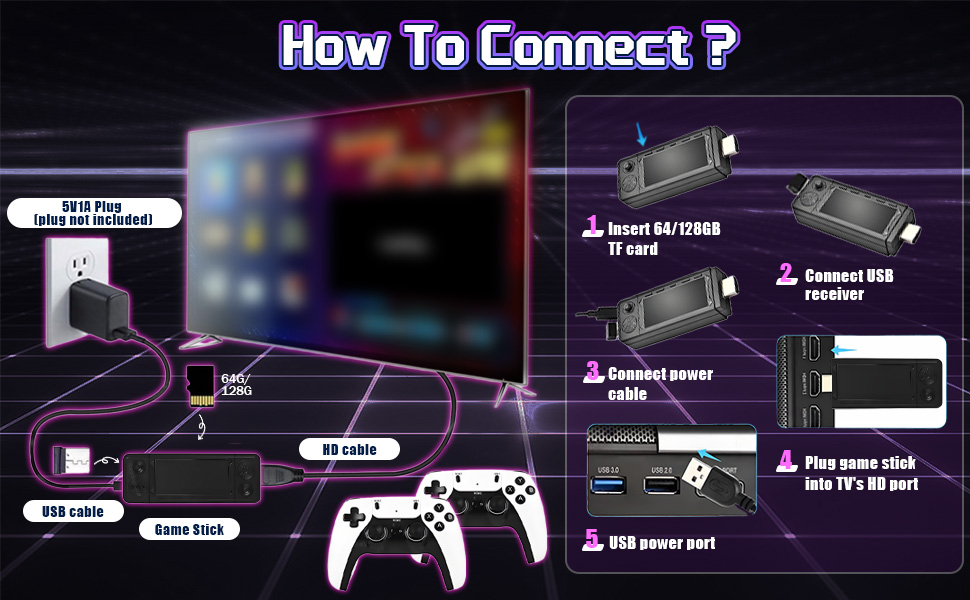
Image: Step-by-step connection guide showing how to insert the TF card, connect the USB receiver, power cable, and plug the game stick into the TV's HDMI port.
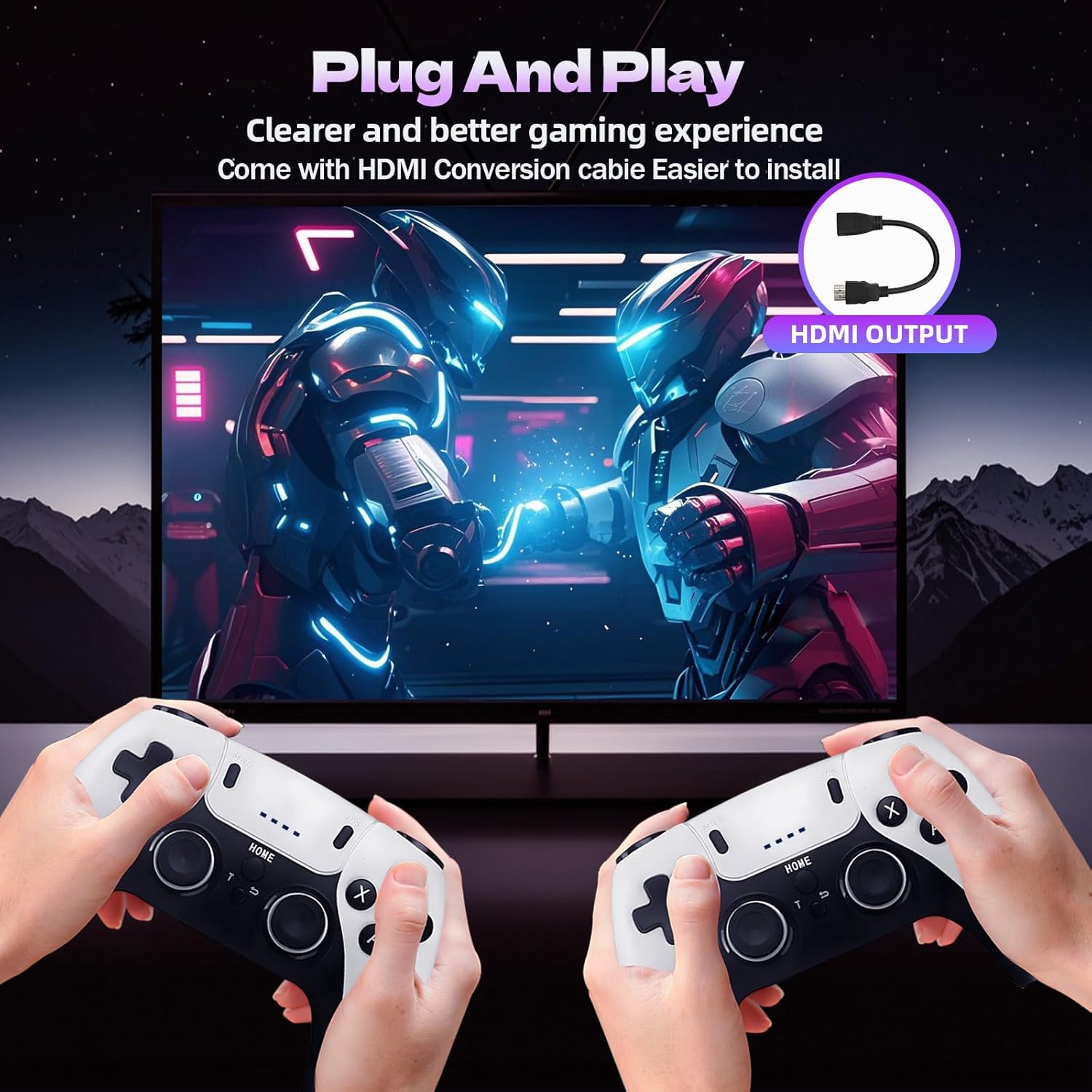
Image: Illustration of the "Plug and Play" functionality, highlighting the HDMI output and ease of installation with an HDMI conversion cable.
4. Operating Instructions
Once the game stick is connected and powered on, the main menu will appear on your TV screen.
4.1 Navigating the Menu
- Use the directional pad (D-pad) or left joystick on your wireless controller to navigate through game categories and options.
- Press the A button (or equivalent action button) to select an option or launch a game.
- Press the B button (or equivalent back button) to return to the previous menu.
- The HOME button typically returns you to the main menu.
4.2 Playing Games
- The 256GB TF card contains over 60,000 games across more than 64 emulators. Browse through the categories to find your desired game.
- To exit a game, typically press a combination of buttons (e.g., SELECT + START simultaneously) or refer to the in-game menu options.
- The system supports 4K ultra-high definition output, providing clear and smooth picture quality on compatible displays.
4.3 Adding Games
To add more games:
- Carefully remove the TF card from the game stick.
- Insert the TF card into a card reader and connect it to your computer.
- Copy compatible game ROMs into the appropriate emulator folders on the TF card. Ensure the ROMs are in the correct format for the respective emulators.
- Safely eject the TF card from your computer and reinsert it into the game stick.
- The new games should appear in the relevant emulator sections after the system reboots.

Image: Two hands holding the wireless controllers, demonstrating gameplay on a large 4K high-definition screen, emphasizing the visual experience.

Image: The X9 Pro game console displayed alongside icons that highlight its key features: professional game chip, dual rocker control, 2.4G wireless connectivity, classic games, TV connection, game search function, and multiplayer support.
5. Maintenance
Proper maintenance ensures the longevity and optimal performance of your game stick and controllers.
- Cleaning: Use a soft, dry cloth to clean the game stick and controllers. Avoid liquid cleaners or abrasive materials.
- Storage: Store the device in a cool, dry place away from direct sunlight and extreme temperatures.
- Handle with Care: Avoid dropping the game stick or controllers, as this can cause internal damage.
- TF Card: Handle the TF card carefully to prevent data corruption or physical damage. Always safely eject it from your computer.
6. Troubleshooting
If you encounter issues, refer to the following common troubleshooting steps:
| Problem | Solution |
|---|---|
| No display on TV: |
|
| Controllers not responding: |
|
| Main menu displays multiple images/glitches: |
|
| Games not loading or freezing: |
|
7. Specifications
Key technical specifications of the KINMRIS X9 Pro Retro Game Stick 4K:
- Model: X9 Pro Retro Game Stick 4K
- Memory Storage Capacity: 256 GB (TF card)
- Controller Type: Joystick (2.4G Wireless)
- Power Source: Battery Powered (for controllers), USB Powered (for game stick)
- Display Type: Digital (output)
- Material: Acrylic
- Product Dimensions: 6.69 x 4.72 x 5.12 inches
- Item Weight: 13.3 ounces
- Output: 4K Ultra-High Definition HDMI
- Preloaded Games: 60,000+
- Supported Emulators: 64+
- Manufacturer: KINMRIS
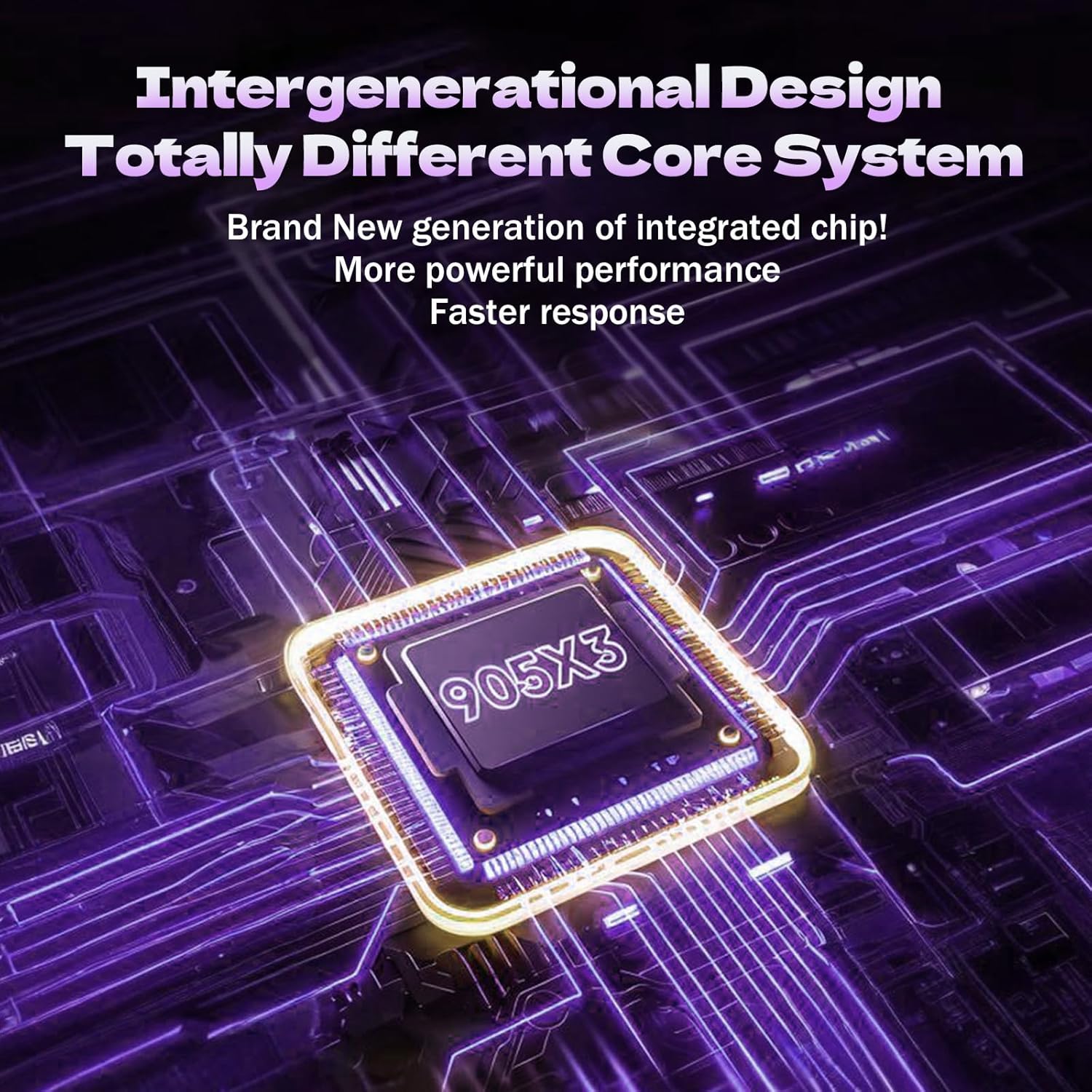
Image: Close-up view of the game stick's internal components, highlighting the 905X3 integrated chip, which contributes to its performance.
8. Warranty and Support
For warranty information, please refer to the documentation included with your product packaging or contact the retailer where the product was purchased. KINMRIS products typically come with a standard manufacturer's warranty covering defects in materials and workmanship.
For further assistance, technical support, or to explore other KINMRIS products, please visit the official KINMRIS store:


