1. Introduction
This manual provides detailed instructions for the installation, operation, and maintenance of your Inefala 7-inch 2-DIN DAB/DAB+ Car Stereo. Please read this manual thoroughly before using the product to ensure proper function and to prevent damage. Keep this manual for future reference.

Image 1.1: Front view of the Inefala 7-inch 2-DIN Car Stereo, highlighting DAB+ functionality and various application icons on the touchscreen interface. The image also shows a smartphone with CarPlay/Android Auto logos and a rearview camera.
2. Safety Information
To ensure safe operation and prevent injury or damage, observe the following precautions:
- Do not operate the device while driving. Always pull over to a safe location before making adjustments or using features that require visual attention.
- Ensure all wiring is correctly connected according to the wiring diagram to prevent short circuits or electrical hazards.
- Avoid exposing the unit to extreme temperatures, direct sunlight for prolonged periods, or excessive moisture.
- Do not attempt to disassemble or modify the unit. Refer all servicing to qualified personnel.
- Keep the volume at a level that allows you to hear outside traffic sounds.
3. Package Contents
Verify that all items are present in the package:
- 1 x Car MP5 Player (Main Unit)
- 1 x Power Cable
- 1 x Horn Cable
- 1 x DAB Antenna
- 1 x User Manual
- 1 x Mounting Bracket Set
- 1 x Rear Camera

Image 3.1: Diagram illustrating the dimensions of the car stereo unit and a visual representation of all included accessories in the package, such as cables, DAB antenna, user manual, mounting brackets, and rearview camera.
4. Product Overview
The Inefala 7-inch 2-DIN Car Stereo is designed to enhance your in-car entertainment and connectivity. It features a responsive touchscreen, DAB/DAB+ digital radio, wireless Apple CarPlay and Android Auto, Bluetooth 5.2, FM radio, video output, and support for steering wheel controls and a rearview camera.
4.1 Key Features
- 7-inch Touchscreen Display: Intuitive interface for easy navigation.
- DAB/DAB+ Digital Radio: Superior sound quality and access to digital radio stations.
- Wireless Apple CarPlay & Android Auto: Seamless smartphone integration for navigation, music, calls, and messaging.
- Bluetooth 5.2: Hands-free calling and audio streaming.
- FM Radio: Standard radio reception.
- Video Output: Mirror content to external displays (e.g., headrest monitors).
- Steering Wheel Control (SWC) Support: Retain factory steering wheel controls.
- Rearview Camera Input: Enhanced safety for parking and reversing.
- Multiple Interfaces: USB, TF Card, AUX input for various media sources.
5. Setup and Installation
Professional installation is recommended. Ensure the vehicle's power is disconnected before beginning installation.
5.1 Wiring Diagram
Refer to the following diagrams for correct wiring connections. Incorrect wiring can damage the unit or vehicle electrical system.

Image 5.1: Detailed wiring diagram for connecting the rearview camera to the car stereo, showing connections for reverse video input, power, and ground.

Image 5.2: Comprehensive wiring diagram for the main power, speaker, and auxiliary connections of the car stereo, including labels for each wire function.
5.2 Rearview Camera Connection
- Connect the camera's video output cable to the 'Reverse Video Input' (usually a yellow RCA jack) on the car stereo.
- Connect the camera's power cable to the vehicle's reverse light power source (red wire to +12V reversing lamp) and ground (black wire to GND).
- Ensure the 'Reverse' trigger wire from the stereo (often pink) is connected to the vehicle's reverse light signal.
6. Operating Instructions
6.1 Basic Operations
- Power On/Off: Press the power button (usually a knob or dedicated button) to turn the unit on or off.
- Volume Control: Rotate the volume knob or use the '+' and '-' buttons on the panel/steering wheel to adjust the volume.
- Home Screen: Tap the home icon on the touchscreen to return to the main menu.
6.2 DAB/DAB+ Radio
Access the DAB/DAB+ application from the main menu.
- Ensure the DAB antenna is properly connected and positioned.
- Select 'Scan' to search for available digital radio stations.
- Browse the list of found stations and tap to select your desired station.

Image 6.1: Screenshot of the DAB Radio interface, showing station frequency, signal strength, and a list of available digital radio channels.
6.3 FM Radio
Select the FM Radio application from the main menu.
- Tap 'Scan' to automatically search and save available FM stations.
- Use the 'Next'/'Previous' buttons to cycle through saved stations or manually tune using the frequency display.

Image 6.2: Displays the user interfaces for FM Radio, Bluetooth connectivity, and Equalizer (EQ) settings, showing various options for audio customization and wireless communication.
6.4 Bluetooth Function
Pair your smartphone via Bluetooth for hands-free calls and audio streaming.
- Go to the Bluetooth menu on the car stereo.
- Enable Bluetooth on your smartphone and search for available devices.
- Select the car stereo's Bluetooth name (e.g., 'Inefala Car Stereo') from your phone's list and confirm pairing.
- Once connected, you can make/receive calls and play music wirelessly.
6.5 Wireless Apple CarPlay & Android Auto
Connect your smartphone wirelessly for an integrated experience.
- Ensure your phone's Wi-Fi and Bluetooth are enabled.
- On the car stereo, select the CarPlay or Android Auto icon.
- Follow the on-screen prompts to connect your device. For first-time connection, you may need to confirm pairing on your phone.
- Once connected, your phone's compatible apps will appear on the stereo display.
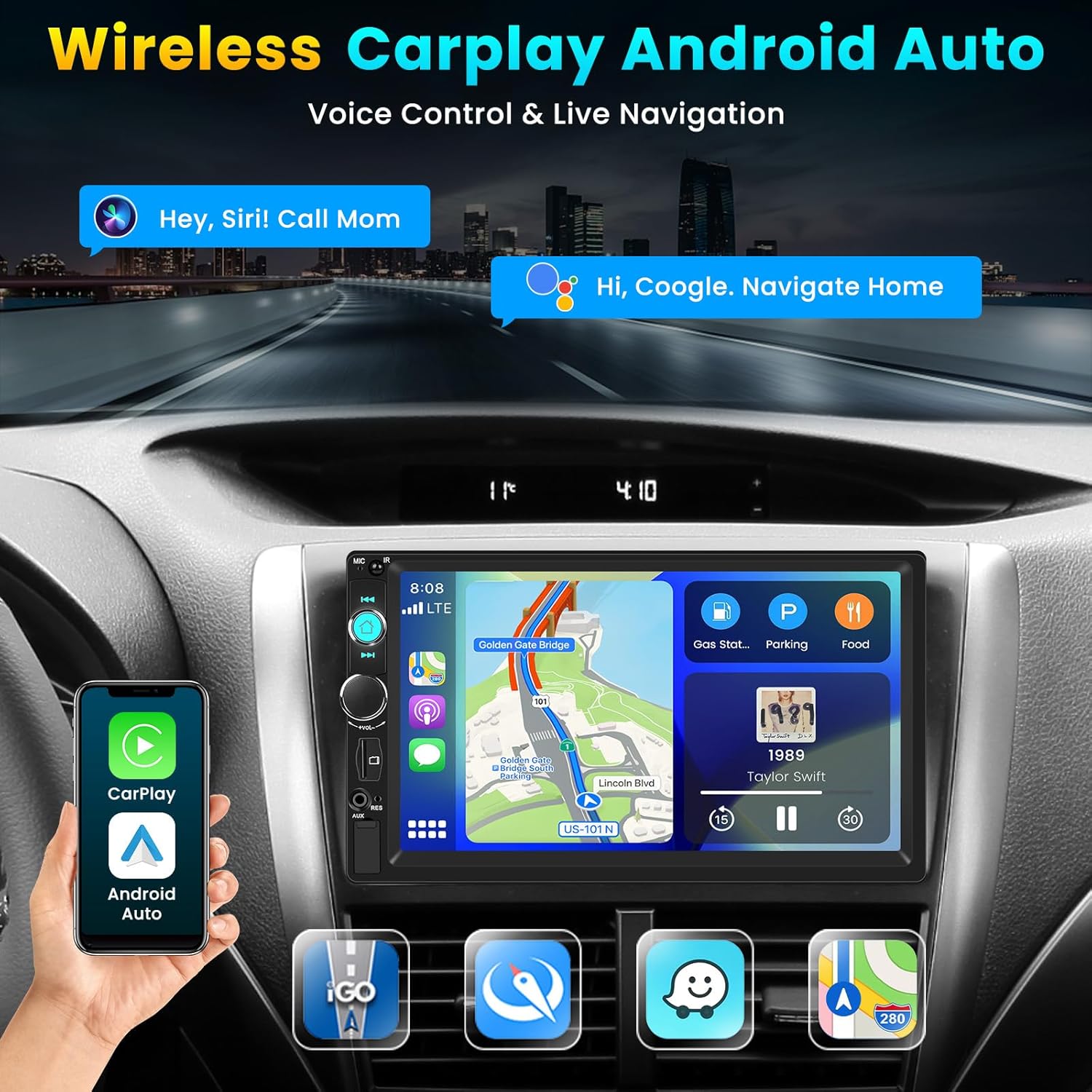
Image 6.3: Illustrates the wireless CarPlay and Android Auto functionality, showing a smartphone connected to the car stereo display with navigation and voice control features.
6.6 Video Output
The video output function allows you to mirror the stereo's display to external monitors, such as headrest screens.
- Connect external monitors to the video output ports (V2OUT) on the rear of the stereo.
- The content displayed on the main unit will be simultaneously shown on the connected monitors.

Image 6.4: Depicts the video output feature, showing the car stereo's display mirrored onto two headrest monitors for rear passengers.
6.7 Steering Wheel Control (SWC)
Configure the steering wheel controls to operate the car stereo.
- Navigate to the 'Steering Wheel Control' settings in the system menu.
- Follow the on-screen instructions to program each button on your steering wheel to the corresponding function on the stereo (e.g., Volume Up, Next Track).

Image 6.5: Shows the car stereo's interface for setting up steering wheel controls, allowing users to map vehicle buttons to stereo functions.
6.8 EQ Settings
Adjust audio equalization to customize your listening experience.
- Access the 'EQ Settings' from the audio menu.
- Choose from preset equalizer modes (e.g., Pop, Rock, Classic) or manually adjust bass, treble, and mid-range frequencies.
6.9 USB, TF Card, and AUX Input
The unit supports various external media sources.
- USB: Insert a USB drive into the USB port to play audio or video files.
- TF Card: Insert a TF (MicroSD) card into the designated slot to access media.
- AUX: Connect external audio devices (e.g., MP3 players) using a 3.5mm AUX cable.

Image 6.6: Diagram illustrating the various input interfaces available on the car stereo, including TF Card slot, AUX cable input, and USB cable input.
7. Maintenance
Proper maintenance ensures the longevity and optimal performance of your car stereo.
- Cleaning the Screen: Use a soft, lint-free cloth to gently wipe the touchscreen. Do not use abrasive cleaners or solvents.
- General Cleaning: Keep the unit free from dust and debris. Use a soft brush or compressed air for hard-to-reach areas.
- Software Updates: Check the manufacturer's website periodically for any available software updates to improve performance and add features.
8. Troubleshooting
If you encounter issues, refer to the following common problems and solutions:
| Problem | Possible Cause | Solution |
|---|---|---|
| No power | Incorrect wiring, blown fuse | Check power cable connections. Inspect and replace fuses if necessary. |
| No sound | Speaker wires disconnected, volume too low, mute activated | Verify speaker connections. Increase volume. Check if mute function is active. |
| Bluetooth not connecting | Bluetooth not enabled, device not in pairing mode, interference | Ensure Bluetooth is on for both devices. Restart both devices. Try pairing again. |
| CarPlay/Android Auto not working | Incorrect connection, phone software issue, incompatible phone | Ensure Wi-Fi and Bluetooth are on. Restart phone and stereo. Check phone compatibility. |
| Rearview camera not displaying | Camera wiring issue, reverse trigger not connected | Check camera power and video input connections. Verify reverse trigger wire connection. |
9. Specifications
- Brand: Inefala
- Model Number: Inefala Dab/Dab+ Autoradio
- Display: 7-inch Touchscreen
- Connectivity: Bluetooth 5.2, USB, TF Card, AUX, RCA
- Special Features: Android Auto, Apple CarPlay, DAB/DAB+ Radio, FM Radio, Video Output, Steering Wheel Control
- Compatible Devices: Smartphone
- Audio Output Mode: Stereo
- Surround Sound Channel Configuration: 4
- Video Encoding: AVI
- Color: Black
10. Warranty and Support
Inefala provides online customer support for 24 months, with responses typically within 24 hours.
For technical assistance or warranty claims, please contact Inefala customer support directly. Refer to the contact information provided at the point of purchase or on the official Inefala website.

Image 10.1: Information regarding customer support, including warranty period and response time.


