
1. Introduction
The ZHOUCE NF-8209S is a professional network cable tester designed for assessing the performance and condition of various network cables. This tool provides essential functions for cable connectivity verification, fault location, and performance parameter testing. It is suitable for network engineers, cabling installers, IT operations personnel, and home users for network installation, maintenance, and troubleshooting.
Key capabilities include rapid determination of cable continuity, precise location of faults such as short circuits, open circuits, and crossed wires, and advanced testing for Power over Ethernet (PoE), Non-Contact Voltage (NCV), and cable length measurement.
2. Product Overview
The NF-8209S consists of a main tester unit and a receiver unit, along with necessary accessories for various testing scenarios.

Image 2.1: The NF-8209S Network Cable Tester package includes the main tester, receiver, RJ45 cables, USB charging cable, and a carrying case.
2.1 Main Features
- 3 Tracking Modes: Supports analog, digital, and anti-interference tracking for diverse LAN environments.
- Multifunctionality: Integrates PoE testing (af/at standards), NCV detection, continuity testing (CONT), port flashing, and LED illumination.
- Precision Length Testing: Measures cable lengths from 2.5m to 200m with high accuracy and fault location.
- QC Crimp Testing: Verifies RJ45 connector crimp quality for stable network signal transmission.
- Compatibility: Works with CAT5, CAT5e, CAT6, CAT6a, and CAT7 STP/UTP cables.
- Rechargeable Battery: Built-in 1400mAh lithium battery for extended operation.

Image 2.2: Close-up view highlighting the high-standard RJ45 interface, condenser lens LED flashlight, and adjustable sensitivity knob on the receiver unit.
3. Setup
3.1 Charging the Device
The NF-8209S features a built-in 1400mAh lithium battery. Before first use, or when the battery indicator shows low power, charge the device using the provided USB Type-C cable. Connect the cable to the charging port on the main unit and a standard USB power adapter (not included).

Image 3.1: The main unit being charged via its Type-C port. It is recommended to fully charge the device upon receipt.
3.2 Power On/Off
Press and hold the power button on the main unit to turn it on or off. The receiver unit typically has a rotary switch for power and mode selection.
4. Operating Instructions
The NF-8209S offers multiple testing modes accessible via the main unit's interface and the receiver's functions.
4.1 Cable Tracking (Scan Mode)
This function helps locate specific cables within a bundle. The NF-8209S supports three tracking modes: analog, digital, and anti-interference.
- Connect one end of the network cable to the RJ45 port on the main tester unit.
- Select the desired tracking mode (Analog/Digital/Anti-interference) on the main unit.
- Use the receiver unit to scan the cables. The receiver will emit an audible tone when it detects the signal from the connected cable. Adjust the sensitivity knob on the receiver for optimal detection.
4.2 Continuity Testing (CONT)
Continuity testing checks for open circuits, short circuits, and miswired pairs in network cables.
- Connect one end of the network cable to the RJ45 port on the main tester unit.
- Connect the other end of the cable to the remote unit (if applicable for full cable testing) or leave it open for basic continuity.
- Select the 'CONT' function on the main unit. The screen will display the wiring status, indicating any faults.

Image 4.1: The main unit showing continuity test results, indicating normal crimping or an open circuit on wire 7.
4.3 Cable Length Testing
This function measures the length of a network cable and can pinpoint the location of faults.
- Ensure the cable is disconnected from any network devices.
- Connect one end of the network cable to the RJ45 port on the main tester unit.
- Select the 'Length' function on the main unit. The tester will automatically measure the cable length (2.5m to 200m) and display it on the screen. If a fault is detected, its distance from the tester will also be shown.
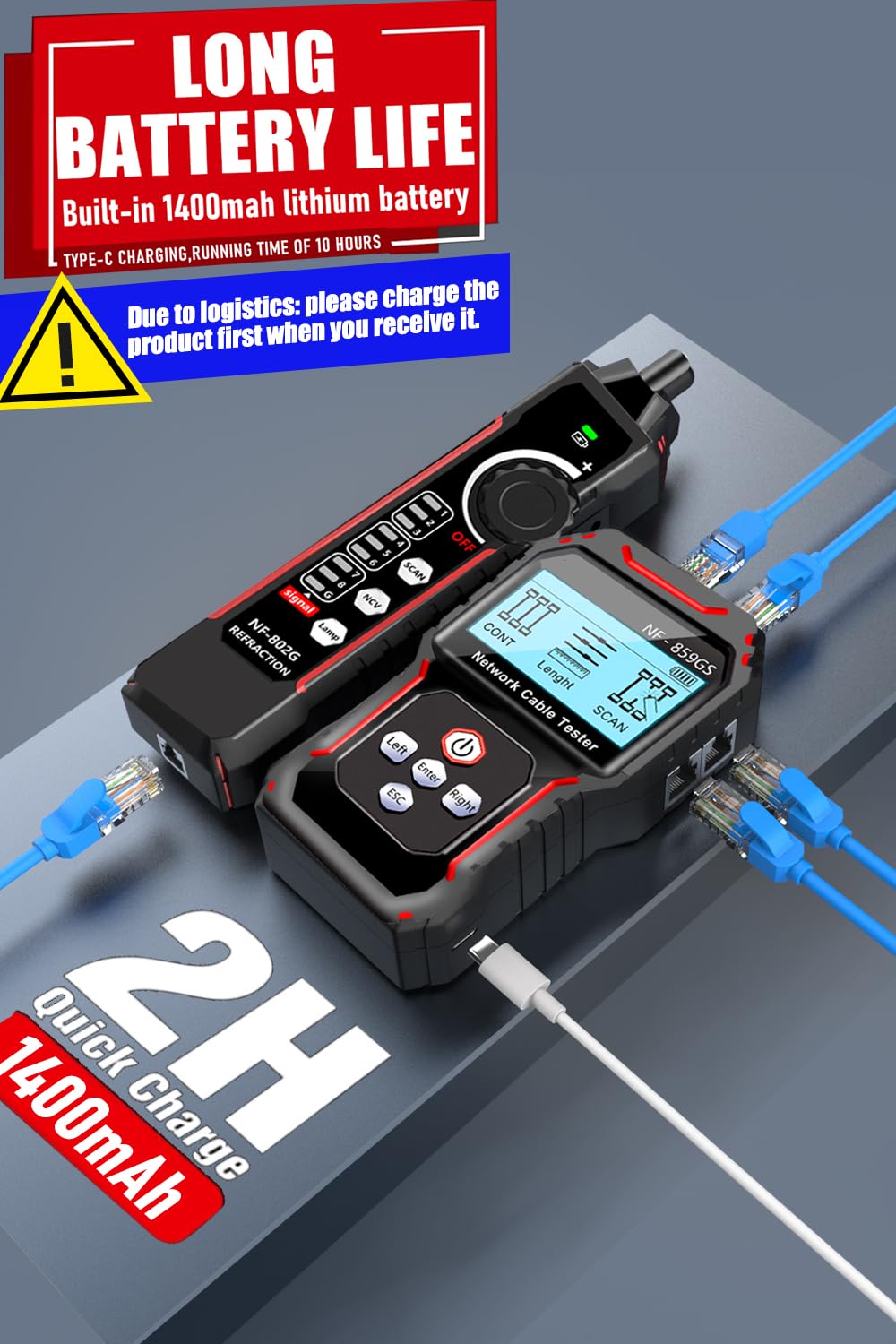
Image 4.2: The main unit displaying a cable length measurement of 2.5m to 200m.
4.4 PoE Testing
The PoE testing function identifies Power over Ethernet devices and checks their standards (af/at).
- Connect a network cable from the PoE device (e.g., PoE switch) to the RJ45 port on the main tester unit.
- Select the 'PoE' function. The tester will automatically detect if the device is a standard PoE device, display the number of power supply cores, voltage, and equipment standards (802.3af/at).

Image 4.3: The NF-8209S main unit performing a PoE test, showing support for 802.3at and 802.3af standards.
4.5 Port Flashing (Link Test)
This feature helps locate the corresponding port on a hub or switch by making its indicator light flash.
- Connect the network cable from the main tester unit to a port on the network switch or router.
- Select the 'Flash' function on the main unit. The tester will send a signal that causes the corresponding port's LED on the connected hub/switch to blink.
- The screen will display the rate (10M/100M/1000M), duplex status (FDX/HDX), and auto-negotiation status.

Image 4.4: The main unit displaying port flashing status and potential error prompts for link testing.
4.6 QC Crimp Testing
This function verifies the quality of RJ45 connector crimps.
- Insert the crimped RJ45 connector into the 'QC' port on the main tester unit.
- The tester will analyze the crimp and display whether it is normal or improper. A '✓' indicates a normal crimp, while an 'X' indicates an improper crimp.

Image 4.5: The main unit displaying the results of a QC crimping test, showing if the crimp is normal or improper.
4.7 NCV (Non-Contact Voltage) Detection
The receiver unit includes an NCV function to detect live AC voltage without direct contact, enhancing safety.
- Turn on the receiver unit and select the NCV mode.
- Bring the tip of the receiver close to an AC power source or live wire. The receiver will indicate the presence of voltage through visual (LED) and/or audible alerts.
4.8 LED Illumination
The receiver unit is equipped with an LED flashlight for working in low-light conditions.
- Activate the LED light on the receiver unit using its dedicated button or switch.
5. Maintenance
5.1 Cleaning
Wipe the device with a soft, dry cloth. Do not use abrasive cleaners or solvents. Ensure no liquids enter the device.
5.2 Storage
Store the NF-8209S in a cool, dry place, away from direct sunlight and extreme temperatures. Use the provided carrying case for protection during transport and storage.
5.3 Battery Care
To prolong battery life, avoid fully discharging the device frequently. If storing for an extended period, charge the battery to approximately 50% every few months.
6. Troubleshooting
6.1 Port Flashing Test Timeout
If the port flashing function results in a 'Test timeout' error, consider the following:
- Verify that the operation steps are correct.
- Ensure the network line is connected properly and is not faulty.
- Check if the instrument itself is faulty.
- Confirm that the switch or router port is not faulty or incompatible with the instrument.
6.2 Inaccurate Length Measurement
If cable length measurements appear inaccurate:
- Ensure the cable is completely disconnected from all network devices before testing.
- Verify that the cable type (CAT5, CAT6, etc.) is correctly supported by the tester.
- Check for any physical damage to the cable or connectors.
6.3 No Signal During Cable Tracking
If the receiver does not detect a signal during cable tracking:
- Ensure the main unit is powered on and the tracking function is activated.
- Adjust the sensitivity knob on the receiver to a higher setting.
- Verify the cable is properly connected to the main unit.
- Check the battery level of both the main unit and receiver.
7. Specifications
| Feature | Specification |
|---|---|
| Model Number | ZC-8209S |
| Cable Types Supported | CAT5, CAT5e, CAT6, CAT6a, CAT7 (STP/UTP) |
| Cable Length Measurement Range | 2.5 meters to 200 meters (8 feet to 650 feet) |
| Length Measurement Accuracy | 99% (dynamic calibration) |
| Tracking Modes | Analog, Digital, Anti-interference |
| PoE Standards Supported | IEEE 802.3af/at |
| Battery Type | Built-in 1400mAh Lithium Battery |
| Charging Port | Type-C USB |
| Dimensions (Package) | 10.71 x 6.5 x 1.85 inches |
| Weight (Package) | 1.17 Pounds |
| Manufacturer | ZHOUCE |
8. Warranty and Support
The ZHOUCE NF-8209S Network Cable Tester comes with dedicated customer support. If you have any questions regarding PoE testing, cable length measurement, or any other function, please contact our support team. We aim to respond to inquiries within 24 hours to ensure smooth operation and user satisfaction.
For specific warranty details, please refer to the documentation included with your purchase or contact the seller directly.