
JWQPO TCP2112-W30V
JWQPO Indoor Camera Instruction Manual
Model: TCP2112-W30V
1. Introduction
This manual provides detailed instructions for the installation, operation, and maintenance of your JWQPO Indoor Camera. Please read this manual thoroughly before using the product to ensure proper functionality and safety. This camera is designed for indoor home security, offering advanced features such as dual-band Wi-Fi connectivity, 360° pan/tilt, AI motion detection, and 2K full-color night vision.

Image 1.1: JWQPO Indoor Cameras with live view on a smartphone, highlighting 5G connectivity and emergency alert feature.
2. Product Components
The JWQPO Indoor Camera package typically includes the following items:
- JWQPO Indoor Camera Unit(s)
- Power Adapter
- Mounting Accessories (screws, wall anchors)
- Instruction Manual (this document)
Please inspect all components upon unboxing. If any items are missing or damaged, contact customer support.
3. Setup Guide
3.1. App Download and Installation
- Download the InstaVision App: Search for "InstaVision" in your smartphone's app store or scan the QR codes below.
- Create an Account: Open the InstaVision app and follow the on-screen instructions to register a new account.

Image 3.1: Visual guide for app download and initial camera connection steps.
3.2. Camera Connection
- Power On: Connect the camera to a power outlet using the provided power adapter. The camera will initiate its startup sequence.
- Connect to Wi-Fi: Ensure your smartphone is connected to your home's 2.4GHz or 5GHz Wi-Fi network. The JWQPO camera supports both bands for stable connectivity.
- Add Device: In the InstaVision app, tap the "+" icon to add a new device. Select the appropriate camera model (e.g., "2111" or similar identifier).
- Scan QR Code: The app will display a QR code. Position your camera to scan this QR code from your phone screen. Once scanned successfully, the camera will confirm connection.
- Name Your Camera: Assign a name to your camera (e.g., "Living Room Camera," "Baby's Room").
3.3. Mounting the Camera
The camera can be placed on a flat surface or mounted to a wall or ceiling. For wall mounting:
- Choose a suitable location with a clear view and within Wi-Fi range.
- Use the provided mounting bracket as a template to mark screw holes.
- Drill pilot holes and insert wall anchors if necessary.
- Secure the mounting bracket with screws.
- Attach the camera to the mounting bracket, ensuring it is securely fastened.
4. Operating Instructions
4.1. Live View and Pan/Tilt Control
Once connected, open the InstaVision app to access the live video feed. You can control the camera's viewing angle:
- Pan: Swipe horizontally on the live view screen to rotate the camera 355° horizontally.
- Tilt: Swipe vertically on the live view screen to adjust the camera 90° vertically.
This provides 360° coverage with no blind spots.

Image 4.1: The camera's pan and tilt capabilities for comprehensive room coverage.
4.2. Two-Way Audio
The camera features a built-in microphone and speaker, enabling two-way communication. Tap the microphone icon in the app to speak through the camera, and listen to audio from the camera's environment.
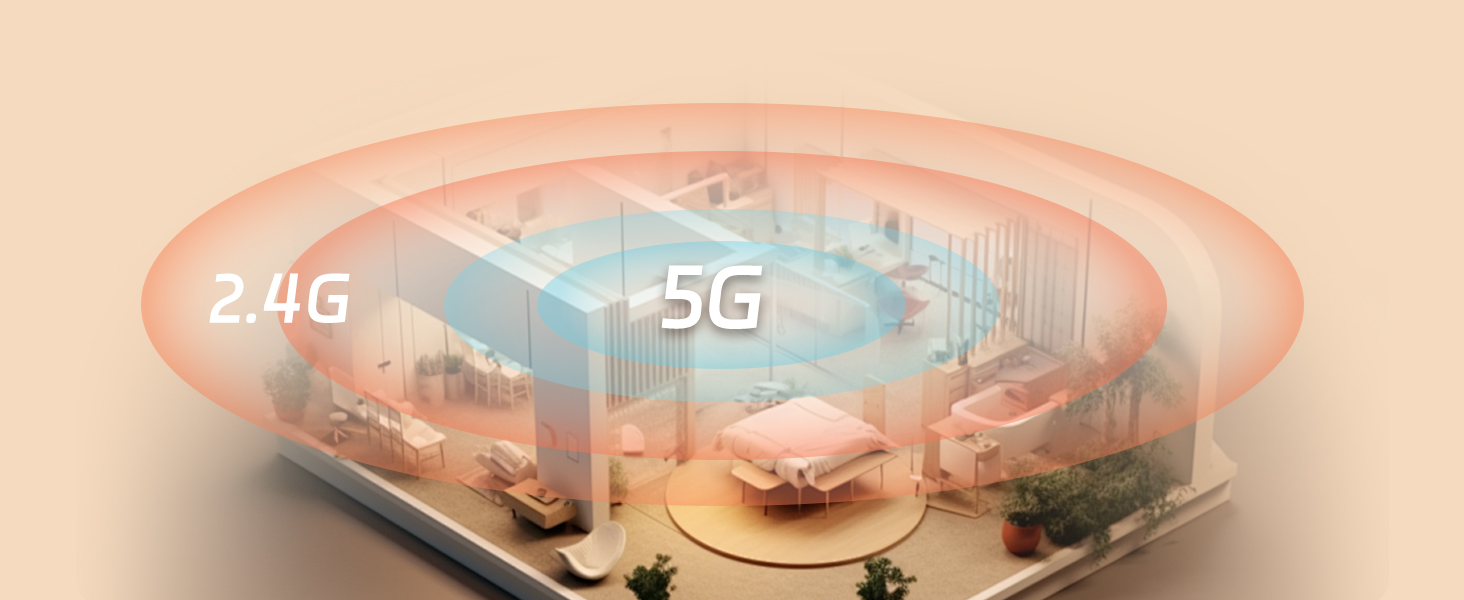
Image 4.2: Two-way audio functionality for communication through the camera.
4.3. Motion Detection and AI Recognition
The camera is equipped with high-precision sensors and AI recognition to detect movement and identify specific subjects:
- Motion Alerts: Receive instant notifications on your phone when motion is detected.
- AI Recognition: The camera can distinguish between humans, pets, and vehicles, reducing false alarms and providing more relevant alerts.
- 911 Emergency Call: With a cloud storage subscription, the app allows one-click direct dialing to 911 during emergencies, automatically sending your location and real-time video footage.

Image 4.3: AI recognition feature detecting a pet and sending an alert.

Image 4.4: Smarter detection for more accurate alerts, distinguishing between different types of movement.
4.4. Night Vision
The camera provides clear surveillance even in low-light conditions:
- 2K Full-Color Night Vision: Utilizes built-in fill lights to provide high-definition color footage in dark environments.
- Infrared Night Vision: Automatically switches to infrared mode in complete darkness for clear black-and-white images.

Image 4.5: Demonstration of full-color night vision versus traditional infrared night vision.
4.5. Storage Options
The camera offers flexible storage solutions for your video recordings:
- Local Storage (TF Card): Supports up to a 128GB Micro SD card (sold separately) for local recording.
- Cloud Storage: A paid subscription service that stores all security camera data securely in the United States, ensuring data privacy and accessibility.

Image 4.6: Overview of flexible storage options: Micro SD card and cloud storage.

Image 4.7: Detailed explanation of cloud storage (paid subscription) and SD card storage options.
4.6. Multi-User Sharing
You can share access to your camera's live feed and recorded playback with family members or trusted individuals through the InstaVision app. This allows multiple users to monitor the home simultaneously.

Image 4.8: The multi-user sharing and playback feature, allowing family members to view the camera feed.
5. Maintenance
To ensure optimal performance and longevity of your JWQPO Indoor Camera, follow these maintenance guidelines:
- Cleaning: Gently wipe the camera lens and body with a soft, dry cloth. Avoid using harsh chemicals or abrasive materials that could scratch the lens or damage the finish.
- Firmware Updates: Regularly check the InstaVision app for available firmware updates. Installing updates ensures your camera has the latest features, security patches, and performance improvements.
- Power Supply: Use only the original power adapter provided with the camera. Ensure the power cable is not pinched or damaged.
- Environmental Conditions: Keep the camera in a dry environment and avoid extreme temperatures. Do not expose it to direct sunlight for prolonged periods or place it near heat sources.
6. Troubleshooting
If you encounter issues with your JWQPO Indoor Camera, refer to the following common problems and solutions:
| Problem | Possible Cause | Solution |
|---|---|---|
| Camera offline/Cannot connect | No power; Wi-Fi signal weak or disconnected; Incorrect Wi-Fi password. | Check power connection; Ensure camera is within Wi-Fi range; Verify Wi-Fi password in app; Restart camera and router. |
| Poor video quality | Weak Wi-Fi signal; Dirty lens; Insufficient lighting. | Move camera closer to router; Clean the camera lens; Ensure adequate lighting or enable night vision. |
| No motion detection alerts | Motion detection disabled; App notifications off; Incorrect sensitivity settings. | Enable motion detection in app settings; Allow notifications for InstaVision app; Adjust motion sensitivity. |
| Two-way audio not working | Microphone/speaker muted in app; App permissions denied. | Check audio settings in InstaVision app; Grant microphone permissions to the app in phone settings. |
| SD card not recording | SD card full or corrupted; Incorrect formatting; SD card not inserted properly. | Format SD card via app; Replace with a new SD card if corrupted; Reinsert SD card correctly. |
If the problem persists, please contact JWQPO customer support for further assistance.
7. Specifications
| Feature | Detail |
|---|---|
| Model Name | TCP2112-W30V |
| Connectivity Technology | Wireless (2.4GHz & 5GHz Wi-Fi) |
| Video Capture Resolution | 2K |
| Pan/Tilt Range | Horizontal 355°, Vertical 90° |
| Special Features | Night Vision (Full-Color & Infrared), AI Motion Detection (Human/Pet/Vehicle), Two-Way Audio, 911 Alert (with Cloud Subscription) |
| Storage Options | Micro SD Card (up to 128GB, not included), Cloud Storage (subscription required) |
| Power Source | Corded Electric |
| Mounting Type | Wall Mount |
| Compatible Devices | Smartphone (iOS, Android) |
| Dimensions | 1 x 1 x 1 inches (approximate) |
| Item Weight | 1.3 pounds (approximate) |
8. Warranty and Support
8.1. Warranty Information
For detailed warranty information, please refer to the product packaging or visit the official JWQPO website. Keep your purchase receipt as proof of purchase for warranty claims.
8.2. Customer Support
If you require further assistance, have questions, or encounter issues not covered in this manual, please contact JWQPO customer support. Contact details can typically be found on the product packaging, the official JWQPO website, or within the InstaVision app's 'Help' section.
Ask a question about this manual
Ask about setup, troubleshooting, compatibility, parts, safety, or missing instructions. Manuals+ will review the question and use this page’s manual context to help answer it.