
1. Introduction
Welcome to the user manual for your Tedupee K7 PRO C 7-inch Kids Tablet. This guide provides essential information on setting up, operating, maintaining, and troubleshooting your device. Please read this manual thoroughly to ensure optimal performance and a safe user experience.
2. Package Contents
Please verify that all items are present in your package:
- Tedupee K7 PRO C 7-inch Kids Tablet
Based on the provided data, the package includes the tablet. Please check your packaging for other accessories such as a charging cable or power adapter.
3. Product Overview
Familiarize yourself with the physical components and key features of your Tedupee K7 PRO C tablet.
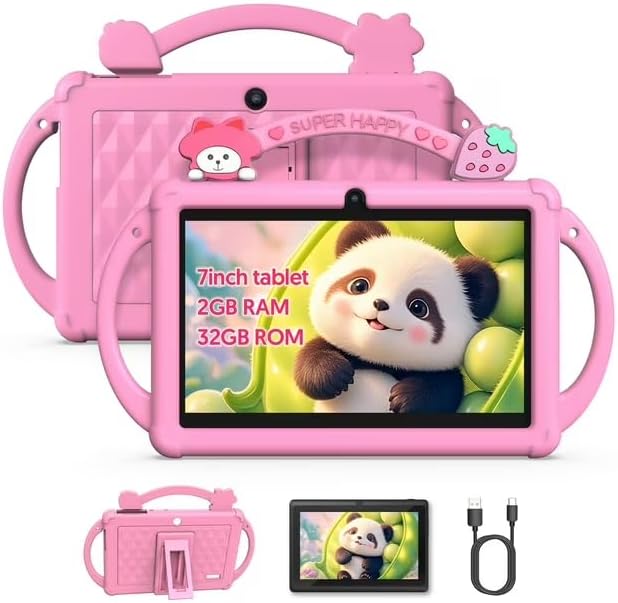
Figure 3.1: Front and back view of the Tedupee K7 PRO C Kids Tablet, showcasing its protective case and screen.
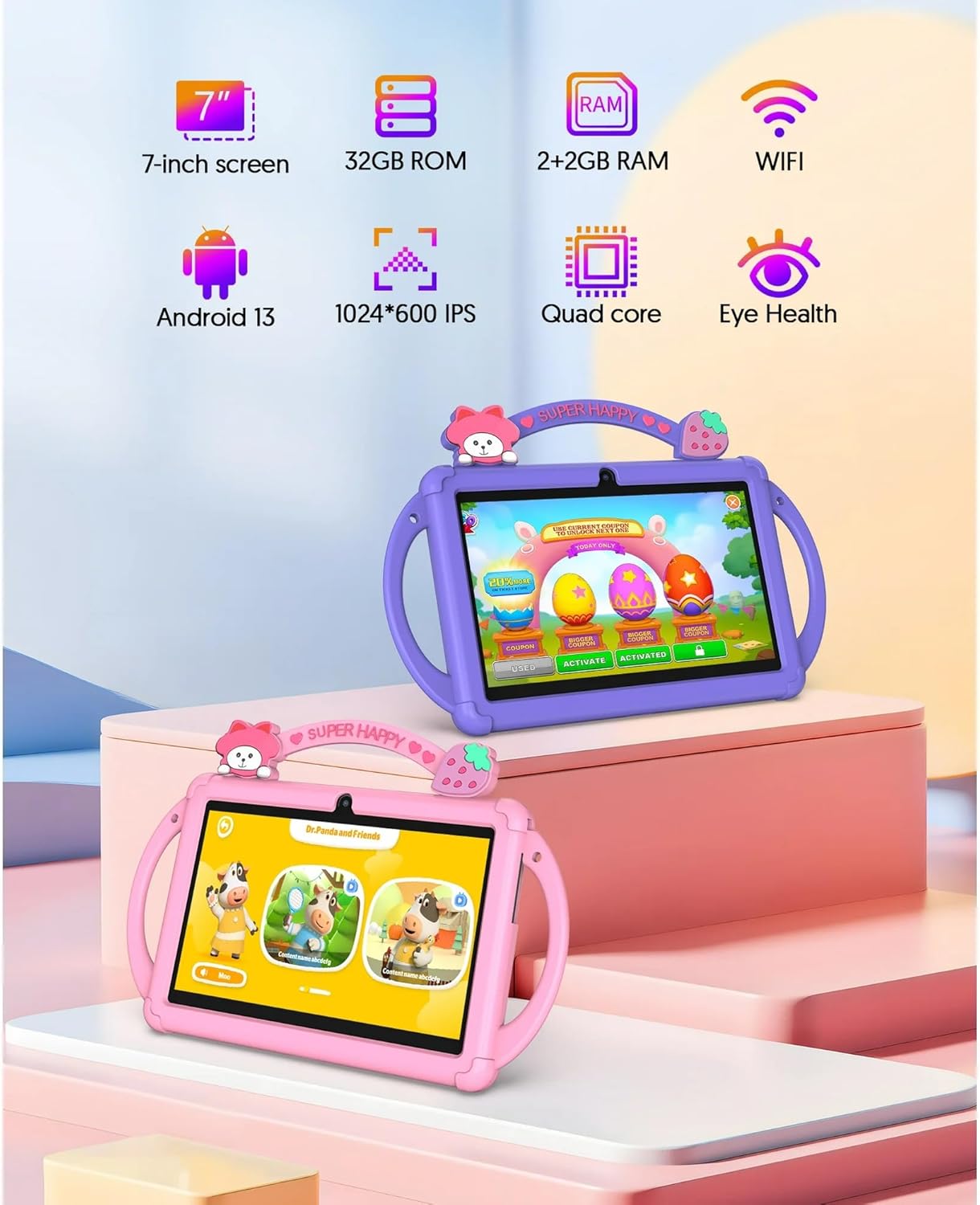
Figure 3.2: Visual representation of the tablet's key features, including screen size, storage, RAM, operating system, and display resolution.
The tablet features a 7-inch IPS display with 1024x600 resolution, a 1.3 GHz quad-core processor, and runs on Android 13. It is designed with a durable casing, suitable for children's use, and includes features for eye health.
4. Setup
4.1 Initial Charging
Before first use, fully charge the tablet. Connect the provided charging cable to the tablet's charging port and the other end to a compatible power adapter or a USB port. The charging indicator on the screen will show the charging status.
4.2 Powering On/Off
- To Power On: Press and hold the Power button until the screen lights up.
- To Power Off: Press and hold the Power button, then select "Power off" from the options on the screen.
4.3 Initial Configuration
Upon first startup, follow the on-screen prompts to configure your tablet:
- Select your preferred language.
- Connect to a Wi-Fi network.
- Set up your Google account or create a new one.
- Review and accept the terms and conditions.
5. Operating Instructions
5.1 Basic Navigation
The tablet uses touch gestures for navigation:
- Tap: Select an item or open an application.
- Swipe: Scroll through screens or lists.
- Pinch: Zoom in or out on images and web pages.
- Long Press: Access contextual menus or move icons.
5.2 Wi-Fi Connection
To connect to a Wi-Fi network:
- Go to Settings > Network & internet > Wi-Fi.
- Toggle Wi-Fi On.
- Select your desired network from the list.
- Enter the password if prompted, then tap Connect.
5.3 Bluetooth Pairing
To pair with a Bluetooth device:
- Go to Settings > Connected devices > Bluetooth.
- Toggle Bluetooth On.
- Ensure the other device is in pairing mode.
- Select the device from the list and follow any on-screen prompts.
5.4 Storage Management
The tablet comes with 32GB of internal storage and supports Micro SD cards up to 1TB (not included). To manage storage:
- Insert a Micro SD card into the designated slot to expand storage.
- Go to Settings > Storage to view storage usage and manage files.
6. Parental Control Features
The Tedupee K7 PRO C tablet includes preloaded educational content and a parental control mode to help manage usage. This feature allows parents to monitor usage patterns, manage screen time, and restrict access to certain applications or content.
- Access parental controls through the dedicated application or within the tablet's settings menu.
- Set time limits for daily use.
- Filter web content and restrict app downloads.
- Create profiles for different users with customized access.
Refer to the on-screen instructions within the parental control application for detailed setup and management.
7. Maintenance
7.1 Cleaning
Use a soft, lint-free cloth to clean the screen and body of the tablet. Avoid using harsh chemicals or abrasive materials.
7.2 Software Updates
Regularly check for and install software updates to ensure optimal performance and security. Go to Settings > System > System update.
7.3 Battery Care
To prolong battery life:
- Avoid extreme temperatures.
- Do not let the battery fully discharge frequently.
- Use the recommended charger.
8. Troubleshooting
| Problem | Possible Solution |
|---|---|
| Tablet does not power on. | Ensure the tablet is charged. Connect to a charger and try again. If unresponsive, perform a hard reset by holding the power button for 10-15 seconds. |
| Wi-Fi connection issues. | Check if Wi-Fi is enabled in settings. Restart your router and the tablet. Ensure you are entering the correct password. |
| Slow performance. | Close unused applications. Clear cache from apps. Check for available software updates. Consider uninstalling unnecessary apps. |
| Screen is unresponsive. | Restart the tablet. Ensure the screen is clean and free of debris. |
9. Specifications
| Feature | Detail |
|---|---|
| Brand | Tedupee |
| Model Name | K7 PRO C |
| Operating System | Android 13 |
| Processor | 1.3 GHz Quad-core (ARM) |
| RAM | 4GB (2GB + 2GB Virtual) |
| Internal Storage | 32GB ROM |
| Expandable Storage | Micro SD up to 1TB (not included) |
| Screen Size | 7 inches |
| Display Resolution | 1024 x 600 IPS |
| Connectivity | Wi-Fi, Bluetooth |
| Product Dimensions | 7.1 x 0.4 x 4.8 inches |
| Battery | 1 x 12V battery (included) |
10. Warranty and Support
For warranty information and technical support, please refer to the documentation included with your purchase or visit the official Tedupee website. Keep your proof of purchase for warranty claims.
For further assistance, you may contact Tedupee customer service through their official channels.