
1. Introduction
The Sitrunda S8 14.2-inch Dual Portable Laptop Screen Extender is designed to enhance your productivity by providing additional display space for your laptop. This ultra-thin and lightweight device offers a full HD viewing experience and broad compatibility, making it ideal for various work and leisure environments.
2. What's Included
Upon unboxing your Sitrunda S8, you will find the following items:
- 1 x Sitrunda S8 Dual Portable Screen Extender
- 1 x USB-C to USB-C Cable (for video and power)
- 1 x HDMI to USB-C Cable (for video)
- 1 x USB-A to USB-C Power Supply Cable (for power)
- 1 x Power Adapter
- 1 x User Manual (this document)
- 1 x Quick Guide
- 1 x Carrying Bag

Figure 2.1: Package contents of the Sitrunda S8 Dual Portable Laptop Screen Extender.
3. Product Overview
The Sitrunda S8 is engineered for portability and performance. It features a durable aluminum alloy shell for superior heat dissipation and a premium feel. The dual 14.2-inch IPS panels deliver a 1920x1080P Full HD resolution with a 1000:1 contrast ratio and 300 nits brightness, ensuring clear and vibrant visuals.
3.1 Design and Portability
Weighing approximately 1.3 lbs and measuring just 4.5mm thick, the S8 is designed to be ultra-thin and lightweight, fitting easily into your laptop bag. The integrated kickstand and adjustable clips ensure a secure and stable attachment to laptops ranging from 13 to 17 inches.

Figure 3.1: The ultra-thin design and integrated kickstand of the Sitrunda S8.
3.2 Display Quality
Each 14.2-inch screen provides a 1080P Full HD display with 100% sRGB color gamut, offering excellent visual clarity for various applications, from detailed spreadsheets to multimedia content.

Figure 3.2: Key display specifications of the Sitrunda S8.
4. Setup Guide
The Sitrunda S8 offers plug-and-play functionality with multiple connection options. Ensure your laptop has the necessary ports for optimal performance.
4.1 Attaching the Extender to Your Laptop
- Carefully unfold the screen extender.
- Extend the kickstand to the desired length to provide stable support. The kickstand rotates up to 90 degrees.
- Position the extender over your laptop screen, ensuring the top clips securely hold the extender in place.

Figure 4.1: Adjusting the kickstand and rotation of the screen extender.
4.2 Connection Modes
The S8 supports two primary connection methods:
4.2.1 Single USB-C Connection (Recommended)
If your laptop has a full-featured USB-C port (supporting both video and power delivery, e.g., Thunderbolt 3/4 or DisplayPort Alt Mode):
- Connect one end of the provided USB-C to USB-C cable to your laptop's full-featured USB-C port.
- Connect the L-shaped end of the same USB-C to USB-C cable into the first port (TYPE-C1) of the screen extender.
- The screens should automatically detect and display.
Video 4.1: Demonstrates connecting the Sitrunda S8 to a laptop using a single USB-C cable for Windows and Mac OS systems.
4.2.2 HDMI and USB-A Connection
If your laptop does not have a full-featured USB-C port, you can use the HDMI and USB-A cables:
- Connect the HDMI end of the HDMI to USB-C cable to your laptop's HDMI port.
- Connect the USB-C end of the HDMI to USB-C cable into the third port (TYPE-C3) of the screen extender.
- Connect the USB-A end of the USB-A to USB-C power supply cable to your laptop's USB-A port or a power adapter.
- Connect the USB-C end of the USB-A to USB-C power supply cable into the first or second port (TYPE-C1/2) of the screen extender for power.
- The screens should automatically detect and display.
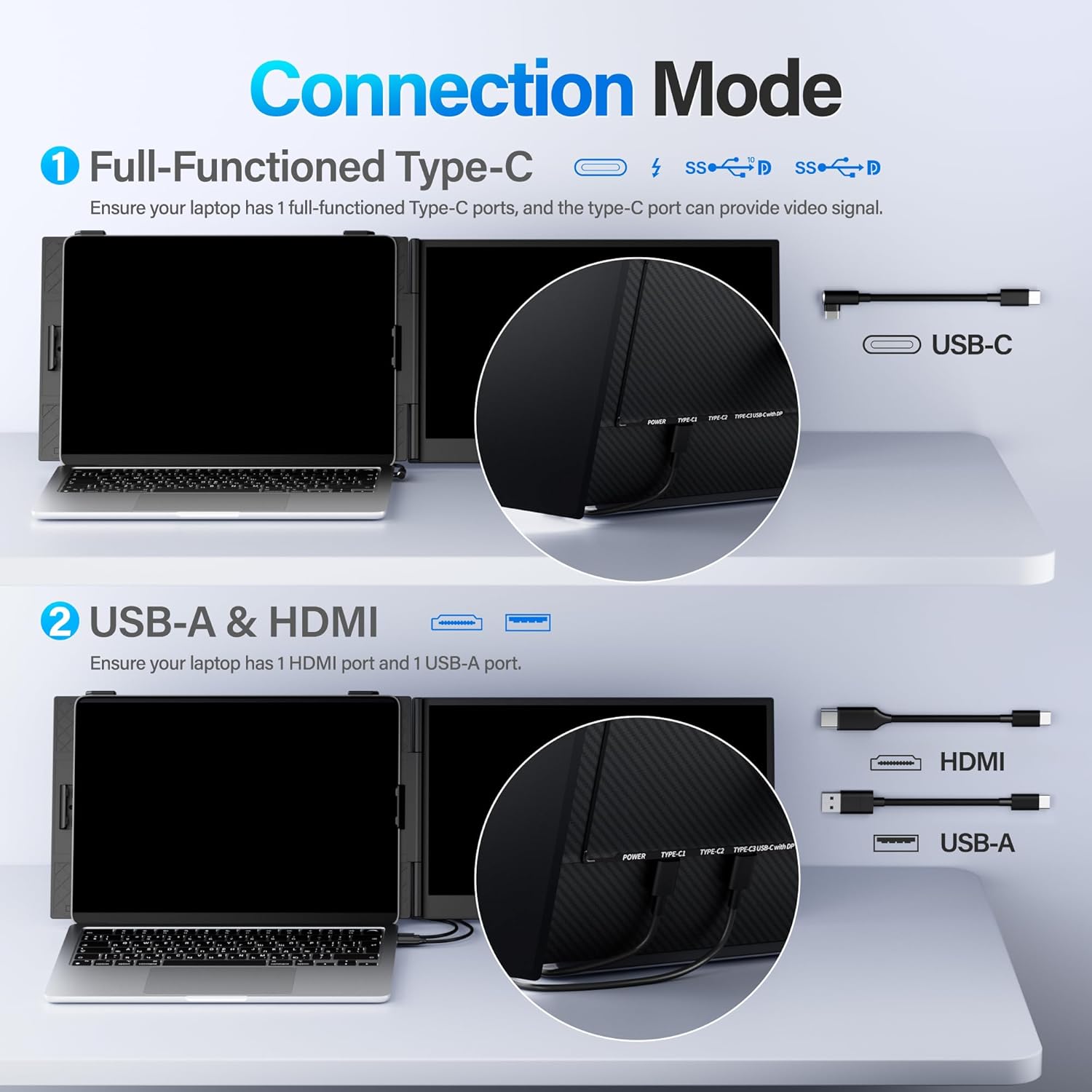
Figure 4.2: Illustration of the two main connection modes for the Sitrunda S8.
5. Operating Instructions
The Sitrunda S8 offers flexible display modes and broad compatibility to suit your needs.
5.1 Display Modes
You can configure the screens in various ways:
- Extended Mode: Each screen acts as an independent display, allowing you to spread your workspace across three monitors (laptop + two extenders).
- Mirror Mode: The extender screens duplicate your laptop's display, useful for presentations.
- Portrait Mode: The screens can be rotated 90 degrees to a vertical orientation, ideal for viewing long documents, code, or social media feeds.
Video 5.1: A short preview demonstrating the setup and various display modes of the Sitrunda S8.
5.2 Compatibility
The Sitrunda S8 is compatible with a wide range of operating systems and devices, including:
- Windows (10/11)
- macOS
- Chrome OS
- Android
- Nintendo Switch
- Xbox

Figure 5.2: The Sitrunda S8 offers wide compatibility with various operating systems and gaming consoles.
6. Maintenance
To ensure the longevity and optimal performance of your Sitrunda S8, follow these maintenance guidelines:
- Cleaning: Use a soft, lint-free cloth to gently wipe the screens. For stubborn smudges, slightly dampen the cloth with water or a screen-safe cleaner. Avoid harsh chemicals.
- Storage: When not in use, fold the extender compactly and store it in the provided carrying bag to protect it from dust and scratches.
- Handling: Avoid applying excessive force to the screens or hinges. Always handle the device carefully, especially when attaching or detaching it from your laptop.
- Cable Care: Do not bend or crimp the cables excessively. Store them neatly to prevent damage.
7. Troubleshooting
If you encounter issues with your Sitrunda S8, refer to the following common solutions:
- No Display:
- Ensure all cables are securely connected to both the laptop and the extender.
- Verify that your laptop's USB-C port supports video output (DisplayPort Alt Mode) if using a single USB-C cable.
- Check your laptop's display settings to ensure the external monitors are detected and configured correctly (e.g., extended or mirrored).
- Try using a different cable or port on your laptop if available.
- Flickering Screen:
- Ensure sufficient power is supplied to the extender. Use the provided power adapter if necessary.
- Check cable connections for looseness or damage.
- Update your laptop's graphics drivers.
- Incorrect Resolution/Orientation:
- Adjust the display settings in your operating system (Windows Display Settings or macOS System Settings > Displays) to set the preferred resolution and orientation for each screen.
- Screens Not Stable:
- Ensure the kickstand is fully extended and properly positioned.
- Verify that the top clips are securely attached to your laptop screen.
If these steps do not resolve the issue, please contact customer support for further assistance.
8. Specifications
| Feature | Specification |
|---|---|
| Product Dimensions | 0.71 x 13.4 x 7.87 inches |
| Item Weight | 3.87 pounds |
| Item Model Number | S8 |
| Standing Screen Display Size | 14.2 Inches |
| Aspect Ratio | 16:9 |
| Resolution | 1920 x 1080 Pixels (FHD 1080p) |
| Screen Surface Description | Glossy |
| Manufacturer | Sitrunda |
| Date First Available | June 25, 2025 |
9. Warranty and Support
Sitrunda offers professional customer service to assist with any questions or issues regarding your product. Please refer to the Quick Guide or contact customer service for warranty details and support within 24 hours.


