
1. Introduction
The Cawevon Vlog Selfie Monitor Screen is designed to enhance your mobile content creation experience. It provides real-time, zero-delay screen mirroring from your smartphone, allowing you to utilize your phone's higher-quality rear camera for vlogging, live streaming, and selfies. Key features include three levels of brightness adjustment, a widescreen mode, and a 180° rotatable display. The device is equipped with a 1500mAh battery for extended use and includes a Bluetooth remote control for convenient operation.
This manual provides instructions for setup, operation, and maintenance of your Vlog Selfie Monitor Screen.
2. Package Contents
Verify that all items are present in the package:
- 1 x Selfie Monitor Screen
- 1 x Bluetooth Controller
- 1 x Type-C Cable
- 1 x User Manual (this document)
- 2 x Magnetic Rings
3. Product Overview
3.1. Features
- Real-time Screen Mirroring: Zero-delay display of your phone's screen.
- Adjustable Brightness: Three levels of brightness for various lighting conditions.
- 180° Screen Rotation: Easily flip the image for optimal viewing.
- Long Battery Life: Built-in 1500mAh battery for extended shooting.
- Bluetooth Remote Control: Wireless control for photo/video capture up to 33 feet.
- Magnetic Design: Secure attachment to compatible smartphones.
- 4K 60fps Support: Supports high-resolution recording with compatible devices.
3.2. Components and Controls
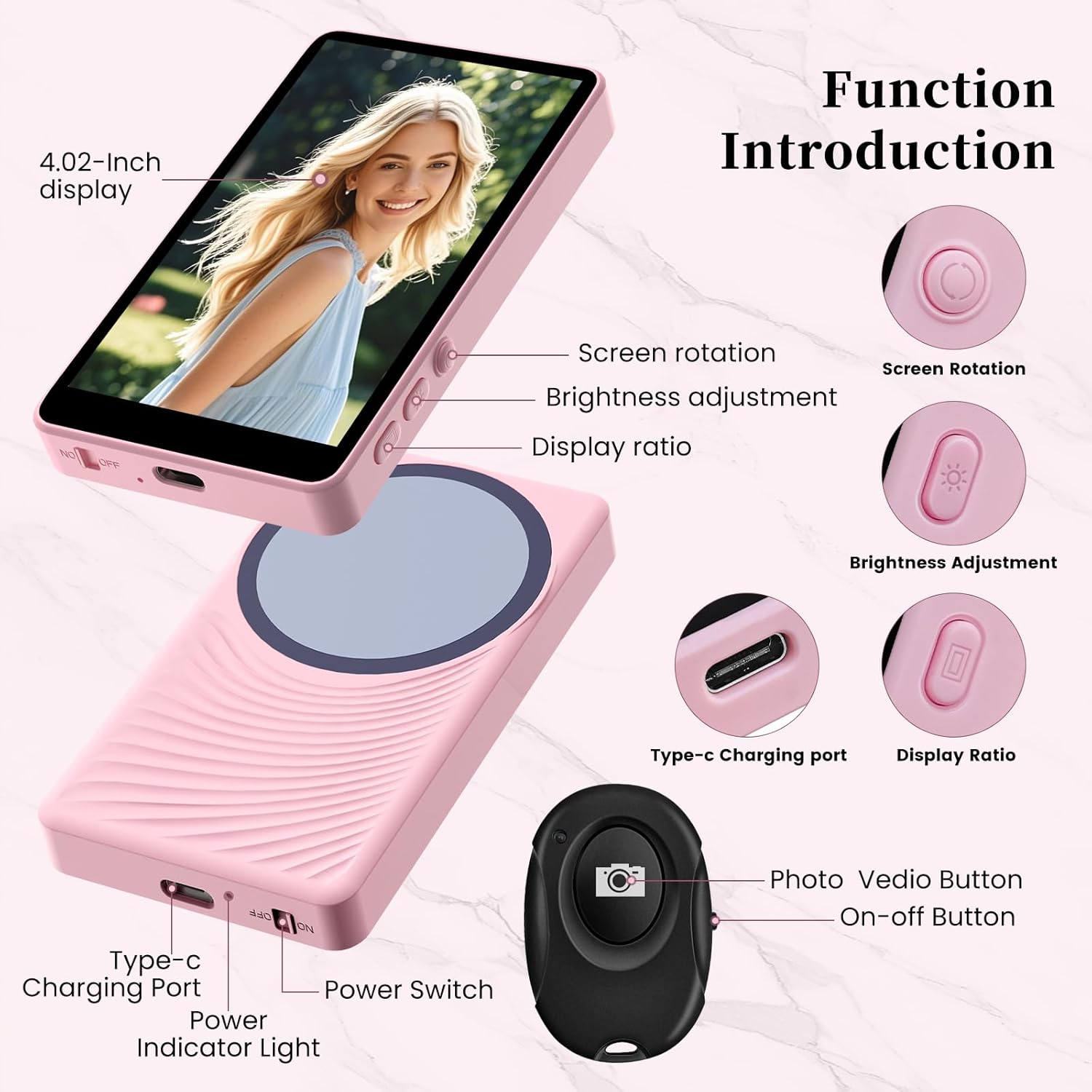
Figure 1: Monitor and Remote Control Components
The monitor features a 4.02-inch display. On the side, you will find buttons for Screen Rotation, Brightness Adjustment, and Display Ratio. A Type-C Charging Port is located at the bottom. The Power Switch and Power Indicator Light are also present. The included Bluetooth remote control has a Photo/Video Button and an On-off Button.
4. Setup
4.1. Charging the Bluetooth Remote Control
It is recommended to charge the Bluetooth remote control when it is turned off. Use the provided Type-C cable to connect the remote to a power source.
4.2. Attaching the Monitor to Your Phone

Figure 2: Magnetic Attachment
The monitor features a magnetic design for quick and secure attachment. For iPhone 12 series and above, the monitor can directly attach to the MagSafe area. For non-MagSafe phones, use one of the included magnetic rings. Peel the adhesive backing from a magnetic ring and center it on the back of your phone or phone case. Then, align the monitor with the magnetic ring for a secure connection.
4.3. Connecting the Monitor to Your Phone (Screen Projection)
- On your smartphone, locate and activate the screen projection function. This is typically found in your phone's settings or quick settings panel. For Apple phones, this is 'Screen Mirroring'. For Android phones, it is often labeled 'Wireless Projection' or 'Cast'.
- In the search list of available devices, find and select "EBPSI-C90".
- For the initial connection, you will be prompted to enter a verification code. Enter "1234".
- Once connected, your phone's screen will be mirrored to the monitor.
4.4. Connecting the Bluetooth Remote Control
- Turn on the Bluetooth remote control switch. The blue indicator light will flash.
- On your mobile phone, enable Bluetooth and search for available devices.
- Select and connect to "ABShutter3".
- Upon successful connection, the blue light on the remote will stop flashing, indicating that the phone and remote are paired.
5. Operating Instructions
5.1. Using the Rear Camera for Selfies/Vlogging

Figure 3: Utilizing the Rear Camera for Improved Quality
Once the monitor is connected and mirroring your phone's screen, open your phone's camera application. Switch to the rear camera. The monitor will display the rear camera's feed, allowing you to frame your shots accurately while facing the camera.
5.2. Adjusting Screen Brightness
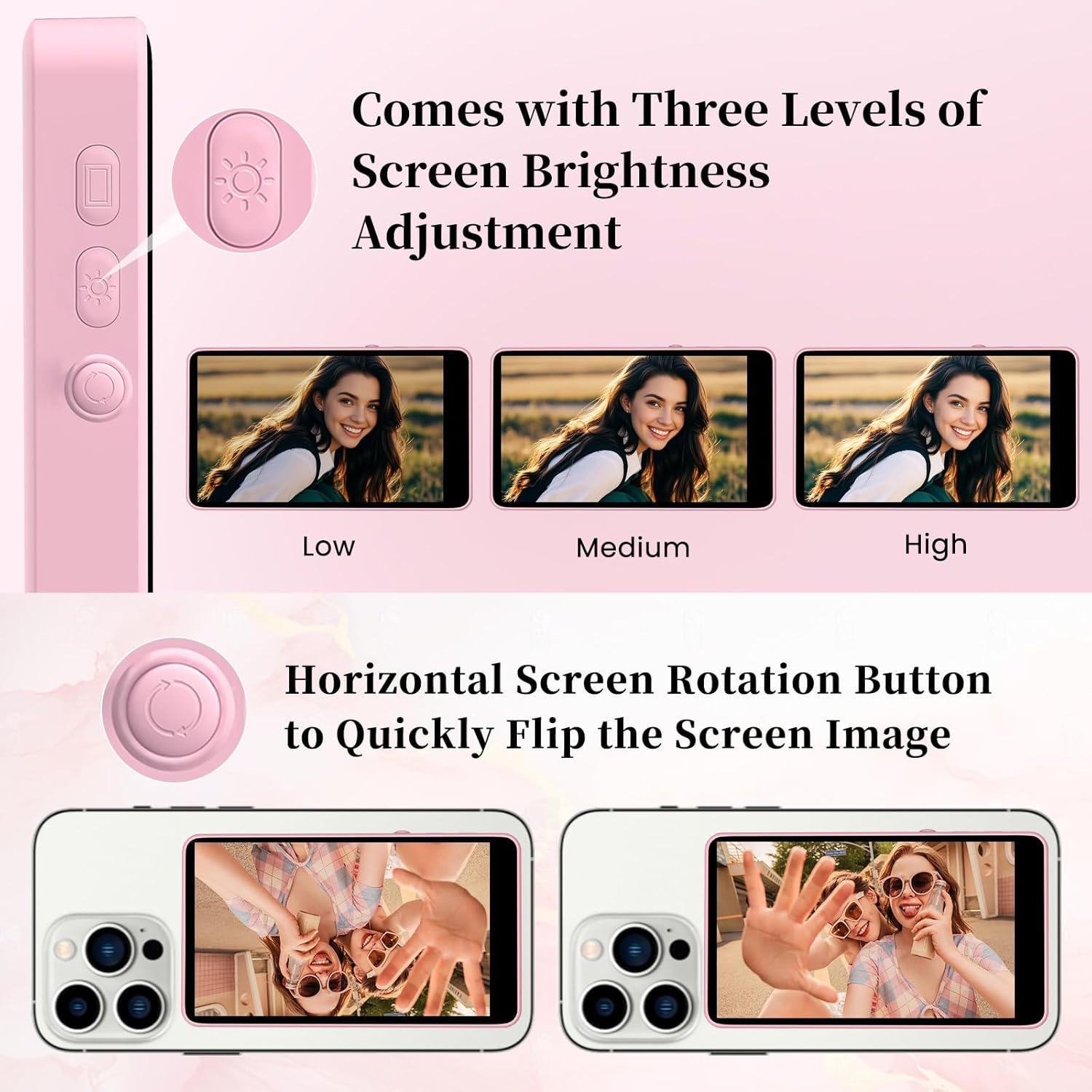
Figure 4: Brightness Adjustment and Screen Rotation
The monitor offers three levels of brightness (Low, Medium, High). Use the Brightness Adjustment button on the side of the monitor (refer to Figure 1) to cycle through these settings and optimize visibility for your current lighting conditions.
5.3. Rotating the Screen Image
To quickly flip the screen image 180°, press the Screen Rotation button on the side of the monitor (refer to Figure 1 and Figure 4). This is useful for adjusting the orientation without physically moving the monitor or phone.
5.4. Remote Control Shooting

Figure 5: Remote Control in Use
After successfully pairing the Bluetooth remote control with your phone, open your phone's camera app. You can then use the Photo/Video Button on the remote control to remotely capture photos or start/stop video recording. This allows for hands-free operation up to 33 feet away.
6. Compatibility

Figure 6: Device Compatibility
- Operating Systems: Compatible with iOS system 9.0 or above, Android 2.0 or above, HarmonyOS system 3.0 or above, and MagicOS system 4.0 or above.
- Magnetic Attachment: Directly compatible with iPhone 12 series and above. For other phones, use the provided magnetic rings.
- 4K Recording: Supports 4K 24fps, 30fps, 60fps recording with iPhone 12 series and above. Android devices natively support 4K camera recording.
- Note for Apple Devices and 4K: Apple devices do not natively support 4K camera recording through screen mirroring. If you need to record in 4K resolution using an Apple device, it is recommended to download the Blackmagic Camera app from the Apple App Store.
- Incompatibility: Not compatible with Google Pixel series phones.
7. Troubleshooting
- Monitor Not Connecting: Ensure your phone's screen projection (Screen Mirroring/Wireless Projection) is enabled. Double-check that you are selecting "EBPSI-C90" from the device list. For the first connection, remember to enter the verification code "1234".
- Bluetooth Remote Not Connecting: Ensure the remote control is powered on and its blue light is flashing. On your phone, verify Bluetooth is enabled and you are selecting "ABShutter3" from the available devices. If the remote was previously paired, try unpairing and re-pairing.
- No Image on Monitor: Confirm that your phone's screen projection is active and successfully connected. Check the monitor's power status.
- Image Orientation Incorrect: Use the Screen Rotation button on the monitor to adjust the image orientation.
- Poor Image Quality: Ensure your phone's camera settings are optimized for resolution. Check the monitor's brightness settings.
8. Specifications
| Feature | Detail |
|---|---|
| Model Number | camera vlog |
| Display Features | Wireless |
| Battery Type | 1 Lithium Polymer battery (included) |
| Item Weight | 159 g |
| Package Dimensions | 12.7 x 12.19 x 1.9 cm |
9. Maintenance
- Cleaning: Use a soft, dry cloth to clean the monitor screen and body. Avoid using abrasive cleaners or solvents.
- Storage: Store the device in a cool, dry place away from direct sunlight and extreme temperatures.
- Battery Care: To prolong battery life, avoid fully discharging the monitor and remote control frequently. Charge regularly, even if not in use for extended periods.
10. Warranty and Support
Specific warranty details are not provided in the product information. For warranty claims, technical support, or further assistance, please contact the manufacturer or your point of purchase. Keep your purchase receipt as proof of purchase.