
1. Product Overview
The RUSFEIDA 4K 4CH Network Video Recorder (NVR) is designed for security camera systems, supporting 4K, 5MP, 4MP, 3MP, and 1080P PoE IP cameras. This NVR features face detection capabilities and supports 24/7 recording, providing a robust solution for your surveillance needs. Please note that a Hard Disk Drive (HDD) is not included and must be purchased separately for recording functionality.
Key Features
- Plug and Play PoE: Simplifies installation with a single Ethernet cable for both power and data transmission to PoE cameras (up to 330 feet). Supports all ONVIF protocol PoE cameras.
- 4-Channel 4K Recording: Features 4 built-in PoE ports, capable of powering up to 4 PoE cameras simultaneously and supporting live view with up to 8MP/4K resolution.
- Expandable Storage: Supports up to a 14TB HDD (not included) for extensive video storage.
- Face Detection: Activates smart alerts via app, email, and NVR upon face detection. (Note: This feature is supported only by RUSFEIDA PoE cameras.)
- 24/7 Recording & Remote Access: Records continuously and allows remote viewing via the free XMEYE PRO APP (App Store/Google Play) or VMS software (computer/tablet).
2. Setup Guide
2.1 Package Contents
Verify that your package contains the following items:
- RUSFEIDA 4K 4CH NVR Unit
- Power Adapter
- USB Mouse
- Quick Start Guide
2.2 Hardware Installation
Before powering on the NVR, install a compatible Hard Disk Drive (HDD) for video recording. The NVR supports both 2.5" and 3.5" HDDs up to 14TB.
- Install HDD: Open the NVR casing. Securely mount your 2.5" or 3.5" HDD into the designated position and connect the SATA data and power cables.
- Connect Power: Connect the provided power adapter to the NVR's DC 52V/48V input port.
- Connect Monitor: Connect a monitor to the NVR using either the VGA or HD-port (HDMI) output.
- Connect Mouse: Plug the USB mouse into one of the NVR's USB ports.
- Connect Cameras: Connect your PoE IP cameras to the NVR's PoE ports (labeled 1-4) using Ethernet cables. For non-PoE cameras or cameras not directly connected to the NVR's PoE ports, ensure they are on the same local network as the NVR.
- Connect to Network (Optional): For remote access and network features, connect the NVR's LAN port to your router or network switch using an Ethernet cable.

Figure 2.1: Front and Rear Panels of the RUSFEIDA NVR, showing power input, PoE ports, LAN, video outputs (VGA, HD-port), and USB ports.
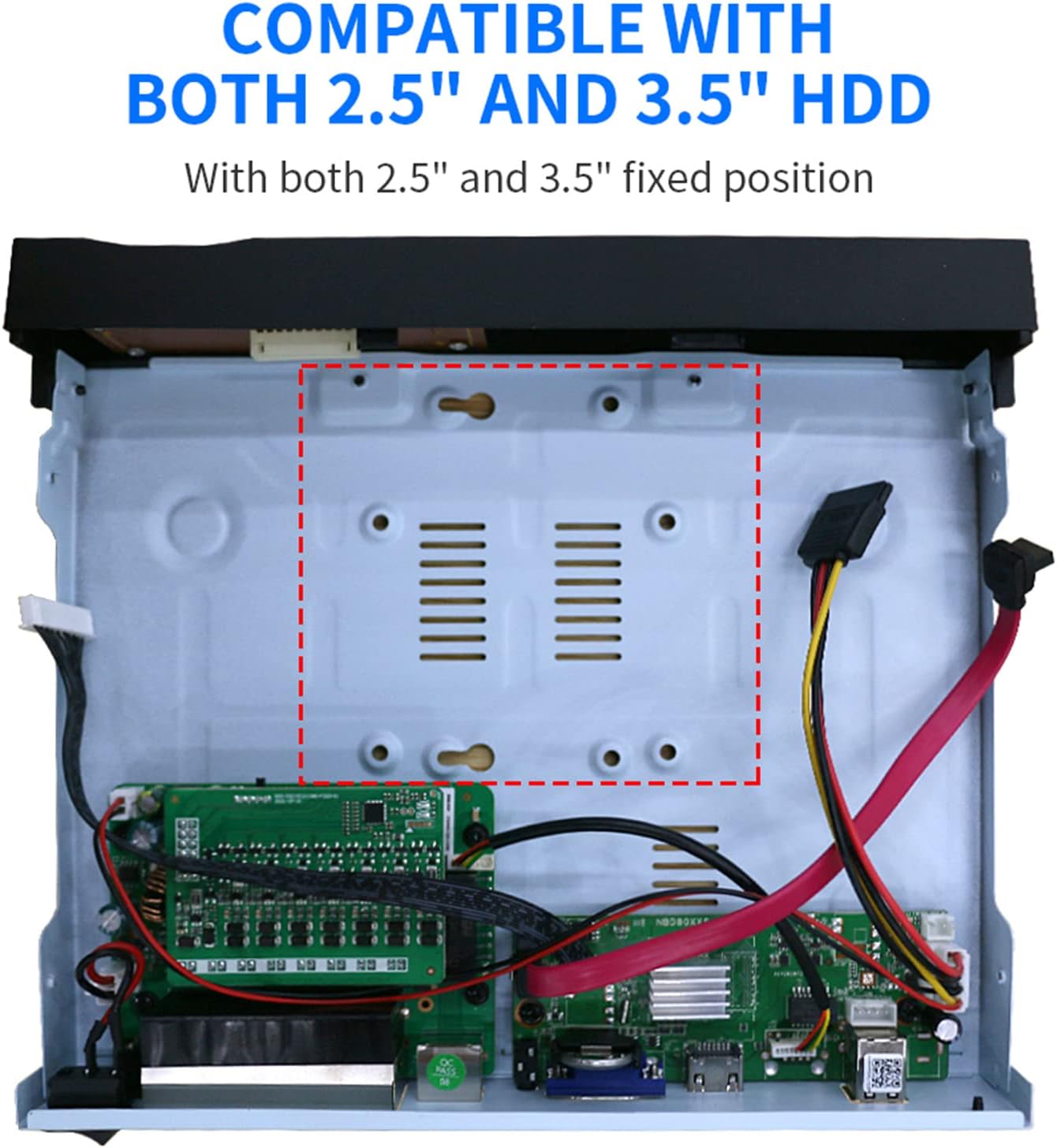
Figure 2.2: Internal view of the NVR, illustrating compatibility with both 2.5" and 3.5" HDDs for storage expansion.

Figure 2.3: The NVR supports ONVIF protocol, allowing compatibility with various brands of PoE cameras.
3. Operation Instructions
3.1 Initial Setup and Network Configuration
- Power On: After connecting all hardware, press the power button on the NVR.
- First Boot: Follow the on-screen prompts for initial setup, including language selection, time zone, and creating an administrator password.
- HDD Initialization: If an HDD is installed, navigate to the storage settings in the NVR menu to format and initialize the HDD for recording.
- Network Settings: Configure network settings (DHCP or static IP) to enable remote access and online features.
3.2 Mobile App and Software Access
The NVR supports remote viewing via the XMEYE PRO mobile app and VMS software for computers.
- Download App: Download the free XMEYE PRO APP from the App Store (iOS) or Google Play (Android).
- Register/Login: Open the app, register a new account, and log in.
- Add Device: Add your NVR to the app by scanning the device's QR code or manually entering its serial number. Ensure the NVR is connected to the internet.
- View Live Video: Once added, you can view live video feeds from your cameras remotely.

Figure 3.1: Steps for connecting to your NVR and viewing video remotely using the XMeye app.

Figure 3.2: The VMS software provides comprehensive monitoring and management capabilities on various devices, including computers and tablets.
3.3 Recording and Monitoring
- 24/7 Recording: The NVR is configured for continuous 24/7 recording once an HDD is installed and initialized.
- Playback: Access recorded footage through the NVR's local interface or via the XMEYE PRO app/VMS software.
- H.265 Compression: The NVR utilizes H.265 video compression, which significantly reduces storage space and bandwidth requirements compared to H.264, while maintaining video quality.

Figure 3.3: H.265 compression offers improved efficiency, reducing hard disk usage and enhancing loading and playback speeds compared to H.264.
3.4 Smart Features
- Face Detection: Enable face detection in the NVR's menu. When a face is detected by a compatible RUSFEIDA PoE camera, the system triggers an instant alert via the app, email, and NVR, and uploads the event to the NVR.

Figure 3.4: The NVR's face recognition feature identifies and highlights faces in the surveillance feed, enhancing security monitoring.
4. Maintenance
Regular maintenance ensures optimal performance and longevity of your NVR system.
- Dust Removal: Periodically clean the NVR's exterior and ventilation openings to prevent dust buildup, which can lead to overheating. Use a soft, dry cloth.
- Firmware Updates: Check the RUSFEIDA official website or contact support for available firmware updates. Keeping your NVR's firmware up-to-date can improve performance, add new features, and enhance security.
- Data Backup: Regularly back up important recorded footage to an external storage device or cloud service to prevent data loss.
- Password Security: Change your NVR and app passwords periodically to maintain system security.
5. Troubleshooting
This section addresses common issues you might encounter with your RUSFEIDA NVR.
- No Video Output:
- Ensure the NVR is powered on and the power adapter is securely connected.
- Verify that the monitor is correctly connected to the NVR's VGA or HD-port and is set to the correct input source.
- Try a different monitor or cable to rule out display issues.
- Cameras Not Displaying:
- Check if the PoE cameras are properly connected to the NVR's PoE ports.
- Ensure the Ethernet cables are functional.
- Verify that the cameras are powered on.
- For non-PoE or network cameras, ensure they are on the same local network as the NVR and their IP addresses are correctly configured.
- No Recording:
- Confirm that an HDD is installed and has been initialized/formatted in the NVR's settings.
- Check the recording schedule in the NVR's menu to ensure continuous recording is enabled.
- Verify that cameras are properly connected and displaying live video.
- Remote Access Issues:
- Ensure the NVR is connected to the internet via its LAN port.
- Verify your mobile device has an active internet connection.
- Check if the NVR is correctly added to the XMEYE PRO app and its status is online.
- Ensure your router's firewall is not blocking the NVR's connection.
If you encounter issues not covered here, please refer to the Support section for assistance.
6. Technical Specifications
| Feature | Specification |
|---|---|
| Model Number | 6504 |
| Brand | RUSFEIDA |
| Connectivity Technology | Ethernet |
| Compatible Devices | PoE IP Cameras (ONVIF protocol) |
| Video Input | 4-Channel PoE |
| Video Resolution Support | 4K/8MP, 5MP, 4MP, 3MP, 1080P |
| Video Compression | H.265 |
| Hard Disk Support | Up to 14TB (2.5" or 3.5" HDD, not included) |
| Video Output | VGA, HD-port (HDMI) |
| Item Weight | 3.03 pounds |
| Package Dimensions | 13.94 x 11.42 x 3.07 inches |
| Manufacturer | HangZhou XiongMai Technology CO., LTD |
7. Support and Warranty
RUSFEIDA is committed to providing excellent customer support for your NVR system.
- Technical Support: We offer lifetime technical support for our products. If you have any questions or require assistance, please contact the RUSFEIDA customer service team.
- Contact Information: For support inquiries, please refer to the contact details provided with your product packaging or visit the official RUSFEIDA website. Our team aims to respond within 24 hours to help resolve any issues.
- Warranty: Please refer to your purchase documentation for specific warranty terms and conditions.


