
1. Introduction
Thank you for choosing the MOMILLA Sunrise Alarm Clock, Smart Version. This device is designed to enhance your daily routine with its innovative features, including a simulated sunrise and sunset, wireless charging, Bluetooth speaker, and smart control capabilities. Please read this manual carefully to ensure proper use and optimal performance of your new alarm clock.
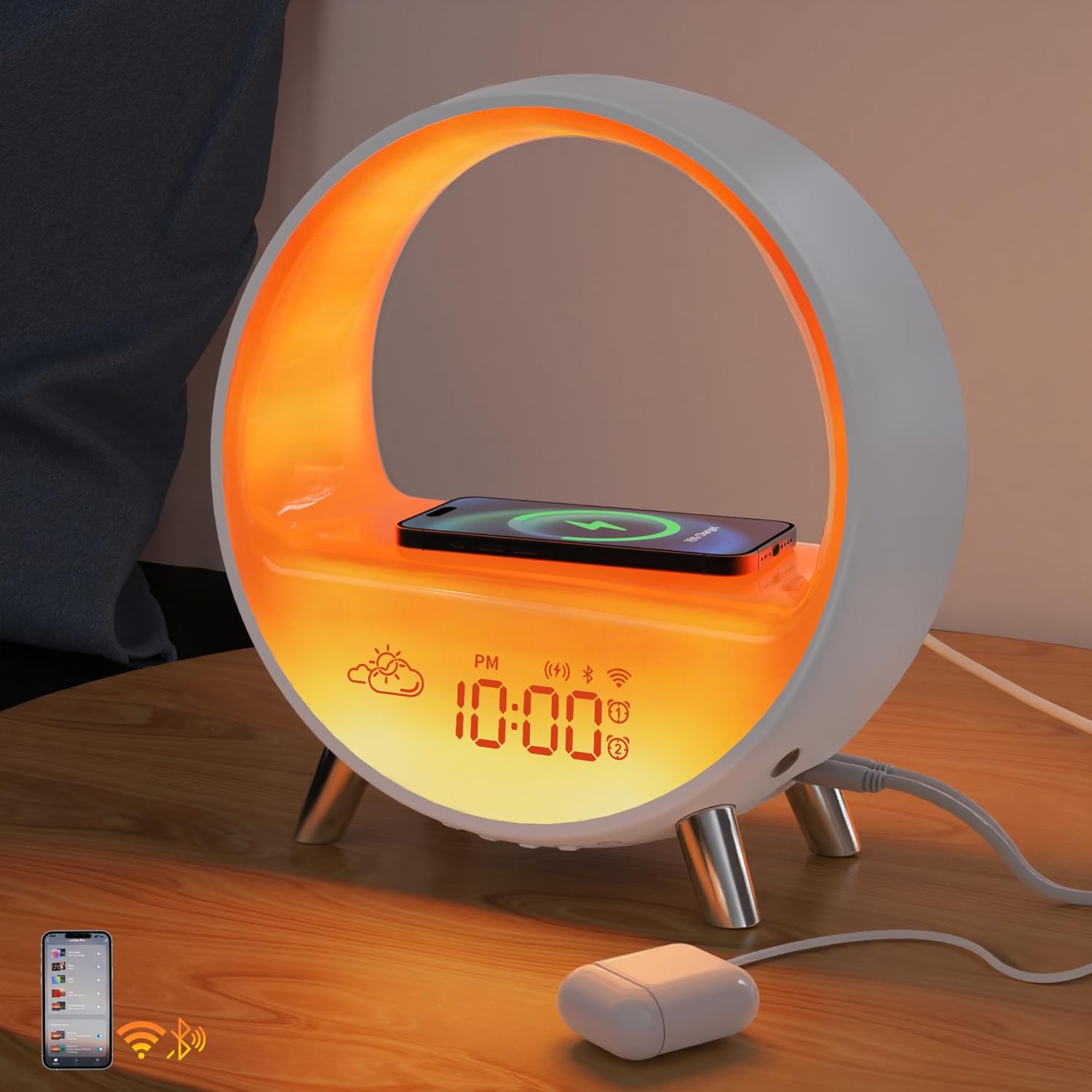
Figure 1.1: The MOMILLA Sunrise Alarm Clock, Smart Version, showcasing its circular design with an integrated display and wireless charging pad.
2. Product Features
- All-in-One Functionality: Combines a sunrise wake-up light, Bluetooth speaker, wireless charging station, and atmosphere lamp into a single device.
- Gentle Wake-up and Sleep Aid: Simulates sunrise with customizable duration (5 to 120 minutes) and offers a sunset night light with white noise for peaceful sleep.
- Smart Control: Remote control via the Smart Life App (requires 2.4G WiFi) and compatibility with Alexa and Google Assistant for voice control.
- Wireless Charging: Integrated wireless charging pad for compatible smartphones (e.g., iPhone, Samsung Galaxy) and wireless earbuds (e.g., AirPods). An additional Type-C port is available for a second device.
- Bluetooth Speaker: Enjoy audio playback with 11 lighting modes, including a dynamic mode that syncs with your music.
- Dual Alarm & Snooze: Set up to two independent alarms with customizable sounds and snooze duration (5-20 minutes, up to 6 times).
- Versatile Lighting: Features 11 light effects and 15 natural sounds to create various emotional experiences and comfort.
3. Setup
3.1 Unpacking and Placement
- Carefully remove all components from the packaging.
- Place the alarm clock on a stable, flat surface, such as a bedside table or desk. Ensure it is within reach of a power outlet.
- For optimal wireless charging performance, ensure no metallic objects are placed between the device and the charging pad.
3.2 Power Connection
- Connect the provided power adapter to the DC input port on the back of the alarm clock.
- Plug the adapter into a standard wall outlet. The display will illuminate, indicating the device is powered on.
3.3 Initial Configuration (Time Setting)
Upon first power-up, you may need to set the current time. Refer to the 'Operating Instructions' section for manual time adjustment or connect to the Smart Life App for automatic synchronization.
4. Operating Instructions
4.1 Button Controls
The device features intuitive button controls located on the unit. Specific functions include:
- Time/Alarm Set Button: Press to enter time/alarm setting mode.
- +/- Buttons: Adjust values (time, brightness, volume) up or down.
- Light Mode Button: Cycle through different light effects.
- Sound Mode Button: Cycle through different natural sounds or radio.
- Snooze Button: Located on top, press to snooze an active alarm.

Figure 4.1: The top of the alarm clock showing the snooze button, which can be tapped to activate snooze during an alarm.
4.2 Smart App and Voice Control
For advanced control and customization, download the Smart Life App from your device's app store. The app allows you to:
- Set dual alarms with specific days, sounds, and light effects.
- Adjust snooze duration (5-20 minutes, up to 6 times).
- Control light brightness, color, and effects.
- Manage sound machine settings and volume.
- Integrate with Amazon Alexa or Google Assistant for voice commands (requires 2.4G WiFi connection).

Figure 4.2: Illustration of the Smart Life App and voice control compatibility with Amazon Alexa and Google Assistant.
5. Wireless Charging
The MOMILLA Sunrise Alarm Clock features a built-in wireless charging pad for compatible devices.
5.1 Compatible Devices
- Smartphones: iPhone 15/14/13/12/mini/Plus/Pro/Pro Max/X/XS/XS Max/XR/8/8 Plus, Samsung Galaxy S22/S21/S20/S10 Ultra/Plus, and other QI-enabled wireless charging smartphones.
- Wireless Earbuds: AirPods 3/2/Pro.
5.2 How to Use
- Place your compatible device directly onto the wireless charging pad located on the top surface of the alarm clock.
- Ensure the device is centered on the charging pad for optimal connection.
- A charging indicator (usually on your device's screen) will confirm that charging has begun.
- An additional Type-C port is available on the side for charging a second device via cable.
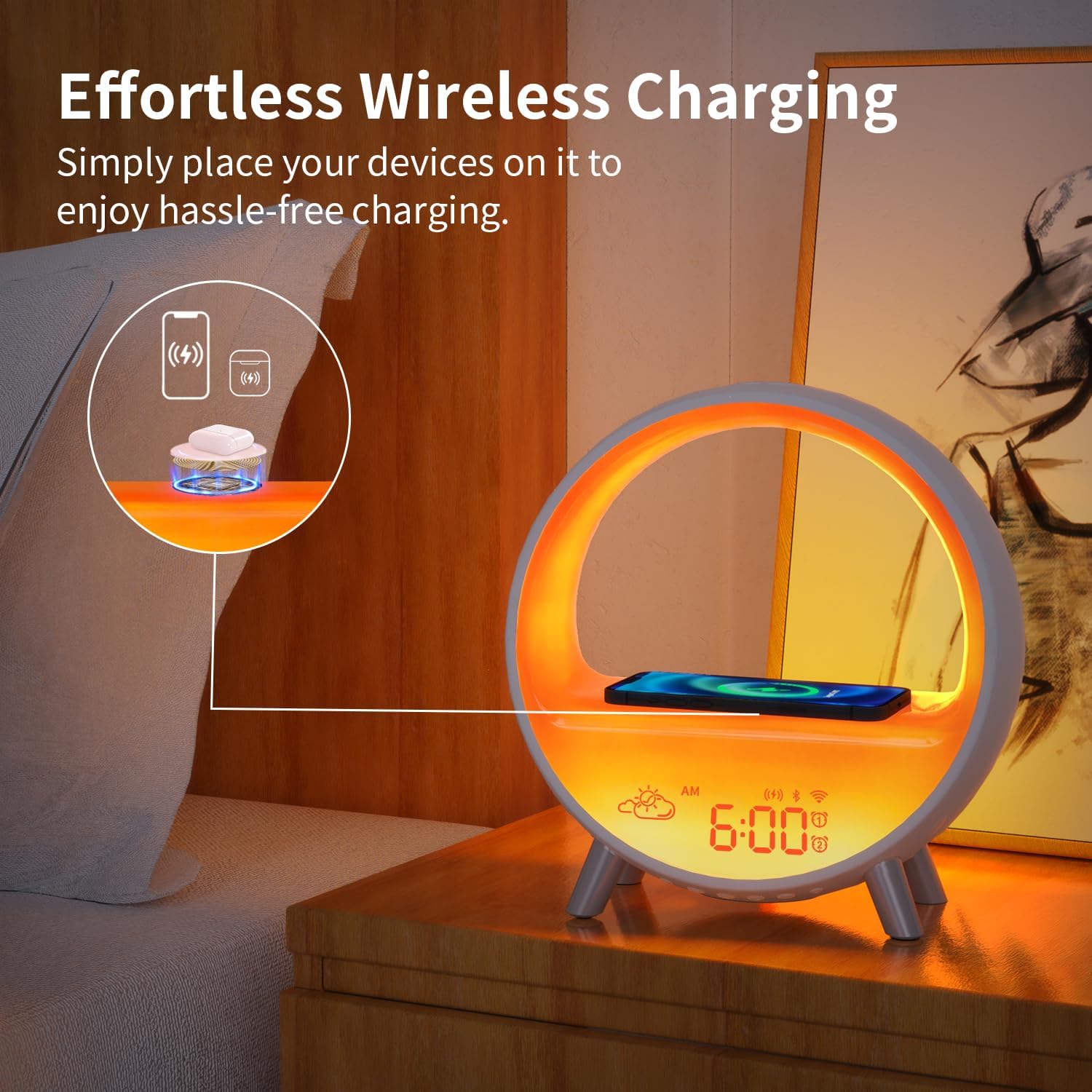
Figure 5.1: A smartphone being wirelessly charged on the MOMILLA Sunrise Alarm Clock's integrated charging pad.
6. Bluetooth Speaker Functionality
The integrated Bluetooth speaker allows you to stream audio from your smartphone or other Bluetooth-enabled devices.
6.1 Pairing Your Device
- Ensure the alarm clock is powered on.
- Activate Bluetooth on your smartphone or audio device.
- Search for available Bluetooth devices and select "MOMILLA SAC" (or similar name) from the list.
- Once paired, you can play audio through the alarm clock's speaker.
6.2 Music-Synced Lights
When playing music via Bluetooth, you can activate a dynamic lighting mode that syncs with the audio. Use the Light Mode button or the Smart Life App to select this effect.
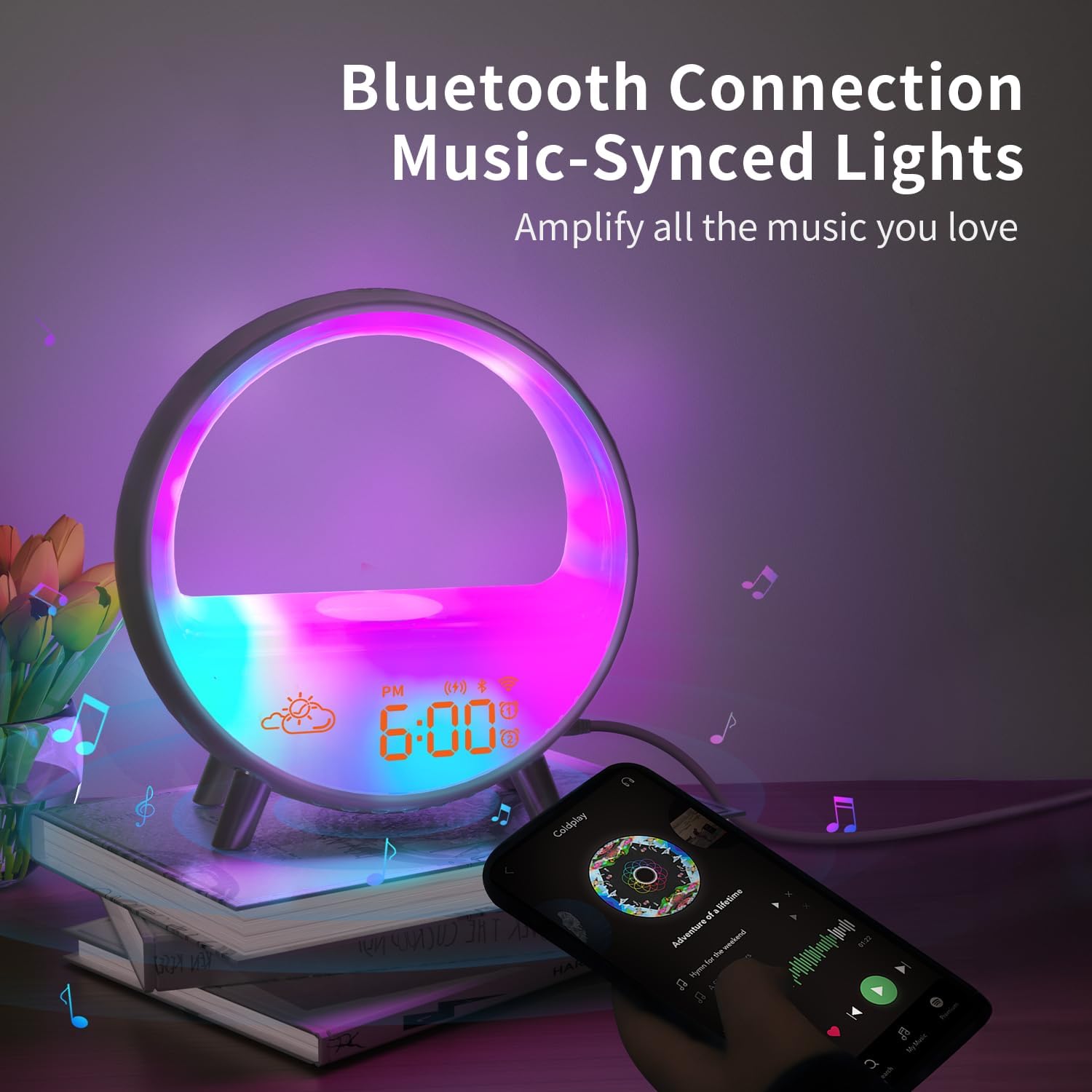
Figure 6.1: The alarm clock displaying vibrant, music-synced lighting effects while connected to a smartphone via Bluetooth.
7. Sunrise and Sunset Simulation
The MOMILLA Sunrise Alarm Clock is designed to gently wake you up and help you fall asleep using light simulation.
7.1 Sunrise Simulation (Wake-up Light)
- The light gradually brightens from a dim red to a bright white/yellow over a customizable duration (5 to 120 minutes) before your set alarm time.
- This simulates a natural sunrise, promoting a more natural awakening.
- Adjust the duration and final brightness level via the Smart Life App or device buttons.

Figure 7.1: Visual representation of the sunrise simulation, showing the light transitioning from dim to bright over time.
7.2 Sunset Simulation (Sleep Aid)
- Before your desired sleep time, the light will gradually dim over a customizable duration (5 to 120 minutes).
- This can be paired with white noise or natural sounds to create a calming environment conducive to sleep.
- Adjust duration, light effect, and sound settings via the Smart Life App or device buttons.

Figure 7.2: The alarm clock providing a dimming light effect for sleep aid, simulating a sunset.
8. Alarm and Snooze Functions
8.1 Setting Alarms
You can set up to two independent alarms. This is best managed through the Smart Life App for comprehensive customization.
- Open the Smart Life App and navigate to your MOMILLA device.
- Select the 'Alarm' section.
- Set the desired time, days of the week, alarm sound (from 7 natural sounds or FM radio), and sunrise simulation duration.
- Save your settings.
8.2 Snooze Function
- When an alarm sounds, tap the large snooze button on the top of the device.
- The alarm will pause for a preset duration (default 9 minutes, customizable 5-20 minutes via app).
- You can snooze the alarm up to 6 times.
- To turn off the alarm completely, press any other button on the device or disable it via the app.
9. Light Effects and Sounds
The alarm clock offers a variety of lighting and sound options to suit your mood and needs.
9.1 Lighting Modes
- There are 11 distinct lighting modes available, including static colors, color cycles, and dynamic effects.
- One dynamic mode specifically syncs with music played through the Bluetooth speaker.
- Adjust brightness levels for all modes.
9.2 Natural Sounds and White Noise
- Choose from 15 natural sounds for alarms, sleep aid, or ambient background noise.
- Includes white noise options for relaxation and improved sleep.
- Volume levels are adjustable.

Figure 9.1: Examples of the 11 light effects and 15 sounds, illustrating how they can enhance different environments.
10. Maintenance
To ensure the longevity and optimal performance of your MOMILLA Sunrise Alarm Clock, follow these maintenance guidelines:
- Cleaning: Disconnect the power before cleaning. Use a soft, dry cloth to wipe the surface of the device. Do not use abrasive cleaners, solvents, or harsh chemicals, as these can damage the finish.
- Avoid Water: This device is not waterproof. Do not expose it to water or excessive moisture.
- Placement: Keep the device away from direct sunlight, heat sources, and areas with high humidity.
- Battery: The device includes a CR2032 battery (for memory backup). If the time settings are frequently lost after power outages, the battery may need replacement. Consult a professional for battery replacement.
11. Troubleshooting
If you encounter any issues with your MOMILLA Sunrise Alarm Clock, please refer to the following troubleshooting tips:
| Problem | Possible Cause | Solution |
|---|---|---|
| Device does not power on. | Power adapter not connected or faulty. | Ensure the power adapter is securely plugged into the device and a working wall outlet. Try a different outlet. |
| Wireless charging not working. | Device not compatible or not placed correctly. | Verify your device is QI-enabled. Ensure the device is centered on the charging pad. Remove any thick cases or metallic objects. |
| Bluetooth pairing fails. | Bluetooth not enabled or device too far. | Ensure Bluetooth is enabled on your audio device. Keep devices within 10 meters. Restart both devices and try again. |
| Smart Life App cannot connect. | Incorrect WiFi network or signal issues. | Ensure your router is broadcasting a 2.4G WiFi signal. Check WiFi signal strength. Restart your router and the alarm clock. |
| Alarm does not sound or light up. | Alarm not set correctly or volume too low. | Verify alarm settings (time, days, enabled status) in the app or via buttons. Increase alarm volume. |
12. Specifications
| Feature | Specification |
|---|---|
| Brand | MOMILLA |
| Model Name | SAC |
| Style | Smart Version |
| Color | White |
| Special Features | Bluetooth Speaker, Night light, Sound Machine, Sunrise Alarm Clock with Wireless Charger |
| Light Source Type | LED |
| Power Source | Corded Electric |
| Connectivity Protocol | Wi-Fi (2.4G) |
| Product Dimensions | 4 x 1.5 x 9.3 inches |
| Item Weight | 2 pounds |
| Batteries | 1 CR2032 battery (included, for memory backup) |
| Number of Light Sources | 11 (Light Effects) |
| Number of Sounds | 15 (Natural Sounds) |
13. Warranty and Support
MOMILLA is committed to providing high-quality products. For warranty information, technical support, or customer service inquiries, please refer to the contact information provided with your purchase or visit the official MOMILLA website. Please retain your proof of purchase for any warranty claims.


