
1. Introduction
1.1 Product Overview
The Generic Portable Digital Wall Clock is a versatile device designed to provide accurate time, temperature, and humidity readings. Its ultra-thin design allows for flexible placement, and the clear LCD ensures easy readability. Key features include:
- Clear Digital Display: Provides quick and accurate time display with easily readable digits.
- Temperature Gauge: Displays real-time room temperature in Celsius.
- Humidity Monitor: Shows accurate humidity percentage to help maintain optimal air quality.
- Flexible Alarm: Offers a range of alarm features, including silent mode and visual indicators.
- Compact and Versatile: Ultra-thin design with mounting and strong attachment options for portability and various uses.

Figure 1: Front view of the Generic Portable Digital Wall Clock, showing the time, temperature, and humidity readings.
1.2 What's in the Box
Upon opening the package, please ensure all components are present and undamaged:
- Small Digital Wall Clock x 1

Figure 2: The digital wall clock as it appears when unboxed.
2. Setup
2.1 Battery Installation
- Locate the battery compartment on the back of the clock.
- Open the battery compartment cover.
- Insert the required batteries (typically AAA or button cell, refer to the compartment label for exact type) ensuring correct polarity (+ and -).
- Close the battery compartment cover securely.
2.2 Initial Power On
Once batteries are installed, the clock should automatically power on and display default time and readings. If the display remains blank, check battery installation or replace with fresh batteries.

Figure 3: The clock's dimensions, illustrating its compact size and potential location for battery access on the rear.
3. Operating Instructions
The clock features several buttons, usually located on the back or side, for setting and adjusting functions. Refer to the labels on your specific unit.
3.1 Time Setting
- Press the 'MODE' or 'SET' button once to enter time setting mode. The hour digits will typically flash.
- Use the 'UP' or 'ADJUST' button to change the hour.
- Press 'MODE' or 'SET' again to move to minute setting. Use 'UP' or 'ADJUST' to change minutes.
- Continue pressing 'MODE' or 'SET' to cycle through 12/24-hour format (if available) and confirm settings.
3.2 Alarm Setting
- Press the 'MODE' or 'SET' button multiple times until the alarm time is displayed (often indicated by an alarm icon).
- Press and hold 'MODE' or 'SET' to enter alarm setting mode. The alarm hour digits will flash.
- Use 'UP' or 'ADJUST' to set the alarm hour.
- Press 'MODE' or 'SET' to move to alarm minute setting. Use 'UP' or 'ADJUST' to set minutes.
- Press 'MODE' or 'SET' to confirm.
- To activate/deactivate the alarm, press the 'ALARM ON/OFF' button (or a dedicated button with an alarm icon). An alarm icon on the display indicates it is active.
3.3 Temperature and Humidity Display
The clock continuously monitors and displays the ambient temperature and humidity. No manual adjustment is typically required for these readings.
3.4 Unit Switching (Celsius/Fahrenheit)
Some models allow switching between Celsius and Fahrenheit. Look for a dedicated 'C/F' button or a combination press of existing buttons (e.g., 'UP' button during time display) to toggle the temperature unit.

Figure 4: Detailed view of the clock's LCD display, highlighting the time, temperature, and humidity readouts.
4. Maintenance
4.1 Cleaning
To clean the clock, gently wipe the surface with a soft, dry cloth. For stubborn marks, a slightly damp cloth can be used, followed by immediate drying. Avoid using abrasive cleaners, solvents, or chemical sprays, as these can damage the display or casing.
4.2 Storage
If the clock will not be used for an extended period, remove the batteries to prevent leakage and corrosion. Store the clock in a cool, dry place away from direct sunlight and extreme temperatures.
5. Troubleshooting
| Problem | Possible Cause | Solution |
|---|---|---|
| Display is blank or dim. | Low or dead batteries; incorrect battery installation. | Replace batteries with new ones; ensure correct polarity. |
| Incorrect time displayed. | Time not set correctly after battery installation or power interruption. | Follow the 'Time Setting' instructions in Section 3.1. |
| Alarm does not sound. | Alarm not activated; alarm time set incorrectly. | Ensure the alarm icon is visible on the display; verify alarm time settings as per Section 3.2. |
| Temperature/Humidity readings seem inaccurate. | Clock placed near heat/cold sources or in an area with poor air circulation. | Relocate the clock to a central area away from direct sunlight, vents, or appliances. Allow time for readings to stabilize. |
6. Specifications
- Product Dimensions: 3.6 x 2.87 x 1.97 inches; 3.53 ounces
- Color: White
- Material: Plastic
- Display Type: LCD
- Functions: Time, Temperature (Celsius), Humidity, Alarm
- Power Source: Battery (type not specified, refer to device for details)
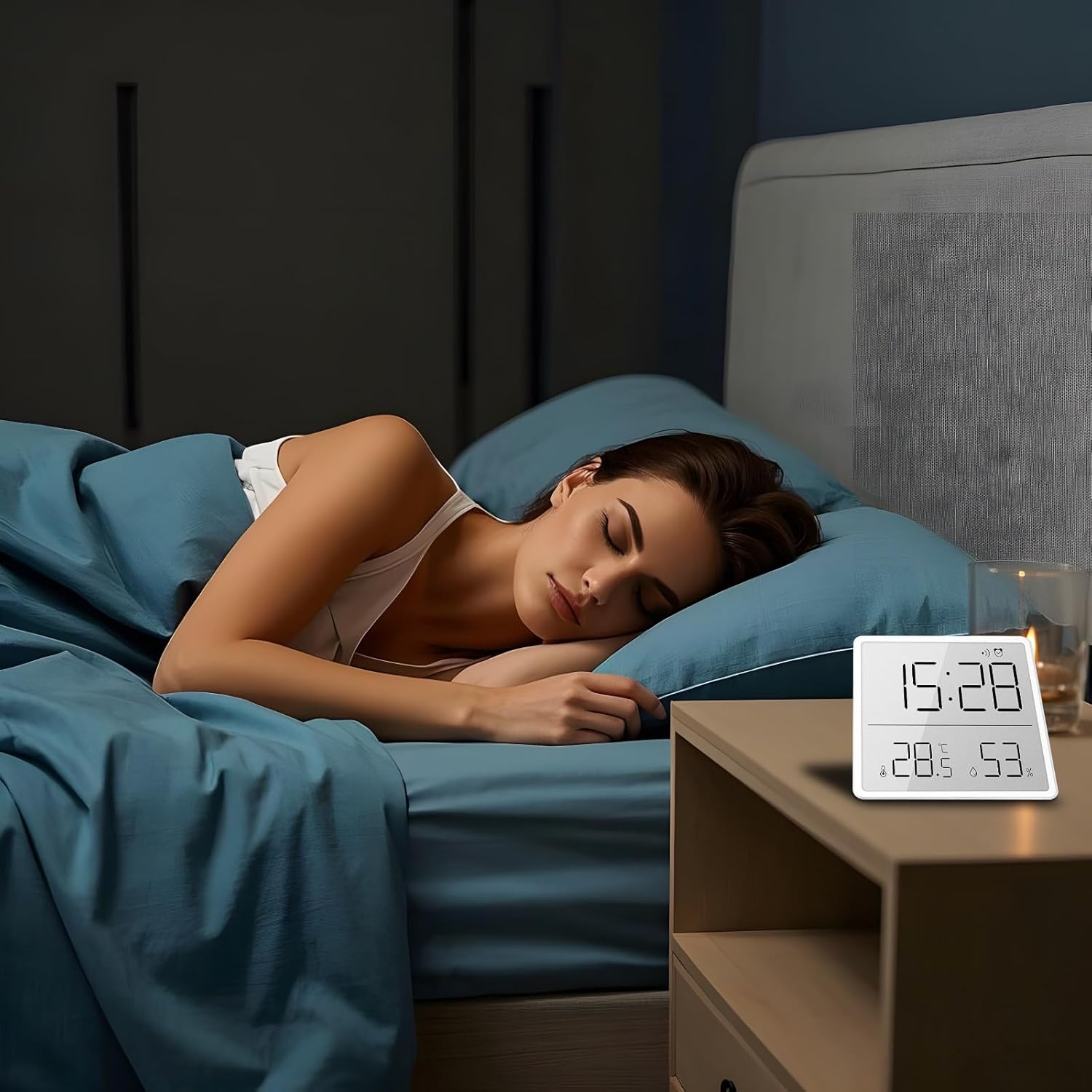
Figure 5: The digital clock positioned on a nightstand, demonstrating its compact size and suitability for various environments.
7. Warranty and Support
This product is sold by Generic. For warranty information or technical support, please refer to the documentation provided at the time of purchase or contact the seller directly through the platform where the product was acquired. Keep your purchase receipt as proof of purchase.