Hikity Android 15 Car Radio User Manual
Model: A7643A3755H1MI2-EU20 for Fiat 500L (2012-2017)
1. Introduction
Thank you for choosing the Hikity Android 15 Car Radio. This manual provides comprehensive instructions for the installation, operation, and maintenance of your new car multimedia system. Please read this manual thoroughly before installation and use to ensure proper functionality and safety. This unit is specifically designed for Fiat 500L models from 2012 to 2017.
2. Product Overview & Key Features
The Hikity Android 15 Car Radio is a state-of-the-art multimedia system featuring a 10.1-inch touchscreen, designed to enhance your driving experience with advanced connectivity and entertainment options.
Key Features:
- System: Android 15 with 4GB RAM + 64GB ROM for smooth operation.
- Display: 10.1-inch 1280x720 IPS Touch Screen for clear visuals.
- Connectivity: Wireless Carplay & Android Auto, Bluetooth 5.0, WiFi, USB.
- Navigation: Built-in GPS receiver with support for online and offline maps.
- Audio: FM/RDS radio, 32-band EQ setting, 4x45W output power.
- Safety & Convenience: Supports AHD/CVBS rear view camera input, Steering Wheel Control (SWC), Split Screen function.
- Compatibility: Plug-and-play design for Fiat 500L (2012-2017).
3. Package Contents
Please verify that all items are present in the package:
- 1 x Android Car Radio
- 1 x Power Cable
- 1 x GPS Antenna
- 1 x Rear View Camera Connection Cable
- 1 x AHD Rear View Camera
- 1 x Microphone
- 1 x Installation Tool
- 1 x User Manual
- 1 x Canbus Decoder
4. Installation Guide
Professional installation is recommended. Ensure the vehicle's ignition is off and the battery is disconnected before starting installation.
4.1 Vehicle Compatibility
This car radio is designed for Fiat 500L models manufactured between 2012 and 2017. The plug-and-play wiring harness simplifies integration with your vehicle's existing electrical system.
4.2 Unit Dimensions and Back Interface
Familiarize yourself with the unit's dimensions and the layout of its rear connections before proceeding with installation.
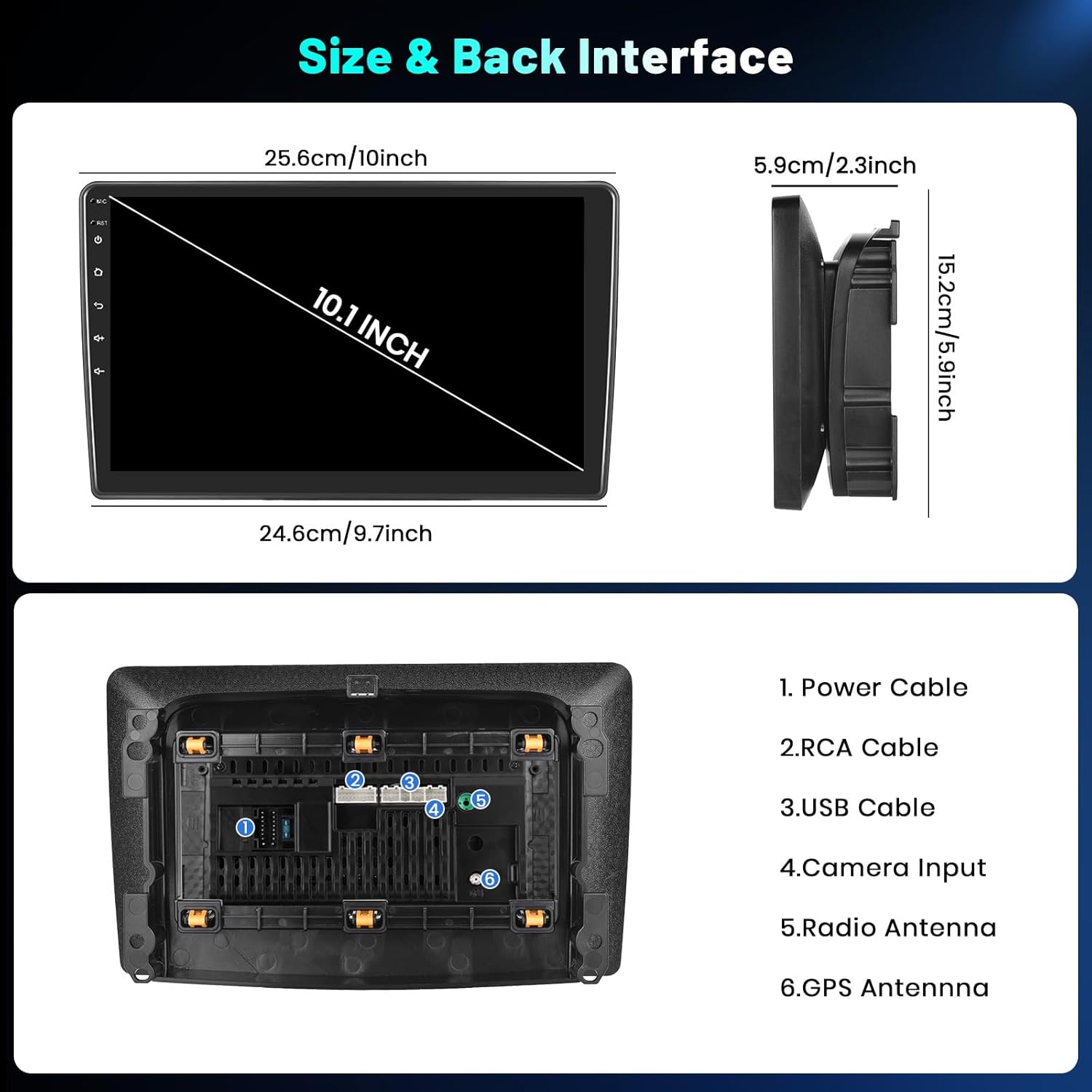
Image: Unit dimensions and rear interface. This image illustrates the physical size of the 10.1-inch display and the various connection ports on the back of the unit, including power, RCA, USB, camera input, radio antenna, and GPS antenna.
4.3 Installation Steps
- Preparation: Disconnect the car battery. Remove the original car radio and trim panels carefully using the provided installation tool.
- Wiring: Connect the power cable, GPS antenna, rear view camera cable, and other necessary cables to the corresponding ports on the new Android radio. Ensure all connections are secure.
- Canbus Connection: Connect the Canbus decoder as per the wiring diagram to ensure proper communication with the vehicle's systems, especially for steering wheel controls.
- Mounting: Carefully insert the new car radio into the dashboard opening. Secure it using the appropriate mounting brackets and screws.
- Testing: Reconnect the car battery. Turn on the ignition and test all functions of the radio, including audio, touchscreen, GPS, Bluetooth, and camera input.
- Final Assembly: Once all functions are verified, reattach any removed trim panels.
Observe the transformation of your car's interior with the new Hikity Android Car Radio:

Image: Before and After Installation. This image displays the car's dashboard with the original radio and then with the Hikity Android 15 Car Radio installed, highlighting the larger screen and integrated appearance.
5. Operating Instructions
5.1 Power On/Off
- Power On: The unit will power on automatically when the car's ignition is turned on.
- Power Off: The unit will power off automatically when the car's ignition is turned off. A long press on the power button (if available) may also manually turn off the screen or unit.
5.2 Basic Touchscreen Operation
The 10.1-inch IPS touchscreen offers a responsive and vibrant interface. Use gestures like tap, swipe, and pinch-to-zoom for navigation and control.

Image: 1280*720 IPS Touch Screen. This image highlights the high resolution, wide color gamut, and durability features like high temperature protection, accurate color reproduction, scratch-resistance, and anti-knock properties of the display.
5.3 Wireless Carplay & Android Auto
Connect your smartphone wirelessly to access Carplay or Android Auto. This allows for seamless integration of phone functions like navigation, calls, messages, and music directly on the car radio screen.

Image: Wireless Carplay / Android Auto. This image demonstrates the wireless connection capability for both Carplay and Android Auto, showing the phone's interface mirrored on the car radio screen, enabling access to apps, contacts, and navigation.
5.4 GPS Navigation & WiFi
The unit features a built-in GPS receiver. You can use pre-installed offline maps or connect to WiFi to download additional maps and access online navigation services. The 5G WiFi capability ensures faster data transfer and real-time map updates.

Image: More In-car Entertainment with 5G WiFi. This image shows the navigation interface on the car radio, along with various social media and entertainment app icons, emphasizing the enhanced connectivity and faster data transfer provided by 5G WiFi.
5.5 Bluetooth 5.0
Pair your mobile phone via Bluetooth 5.0 for hands-free calling, phonebook synchronization, and wireless audio streaming. Enjoy stable and high-quality audio connections.

Image: BT 5.0, EQ, FM RDS, Subwoofer. This composite image displays the Bluetooth 5.0 connection screen, the detailed 32-band equalizer settings, the FM radio interface with RDS information, and controls for an external subwoofer, showcasing the audio customization options.
5.6 FM/RDS Radio
Tune into your favorite radio stations. The RDS (Radio Data System) feature displays station information, song titles, and other relevant data where available.
5.7 Rear View Camera
The included AHD rear view camera provides a clear view of the area behind your vehicle. When reverse gear is engaged, the camera feed automatically displays on the car radio screen, assisting with parking and maneuvering.

Image: AHD Backup Camera, Mirror Link, Steering Wheel Control, GPS Navigation. This image shows the wide-angle, HD, IP69 waterproof, and night vision capabilities of the AHD backup camera, along with the Mirror Link function, steering wheel control configuration, and GPS navigation display.
5.8 Steering Wheel Control (SWC)
Utilize your vehicle's existing steering wheel controls to manage the car radio functions, such as volume adjustment, track skipping, and answering calls, without taking your hands off the wheel. This enhances driving safety.
5.9 Homepage Customization & Split Screen
Personalize your car radio's homepage with a three-panel display, custom boot logos, and wallpapers. The split-screen function allows you to run two applications simultaneously, such as navigation and music, for enhanced multitasking.

Image: Three-Panel Homepage Display, Split Screen. This image illustrates the customizable homepage layout, the convenience of split-screen operation for simultaneous app usage, and options for setting a custom boot logo and wallpaper.
5.10 Audio Equalizer (EQ) & Subwoofer
Fine-tune your audio experience with the built-in 32-band equalizer. Adjust frequencies to match your preferred sound profile. The unit also supports external subwoofer output for enhanced bass.
5.11 Mirror Link
Wirelessly mirror your smartphone's screen onto the car radio display using the Mirror Link function. This allows you to view content from your phone directly on the larger screen.
5.12 Voice Control
Utilize voice commands through Siri or Google Assistant (when connected via Carplay/Android Auto) to perform various tasks, such as making calls, playing music, or getting directions, for a hands-free experience.
Image: Voice Control. This image visually represents the voice control feature, showing how users can interact with the system using commands like 'Hey Google' or 'Hey Siri' to manage functions hands-free.
6. Maintenance
To ensure the longevity and optimal performance of your Hikity car radio, follow these maintenance guidelines:
- Cleaning the Screen: Use a soft, lint-free cloth to gently wipe the touchscreen. For stubborn smudges, slightly dampen the cloth with water or a screen-safe cleaner. Avoid harsh chemicals or abrasive materials.
- General Cleaning: Keep the unit and surrounding dashboard area free from dust and debris. Use a soft brush or compressed air for hard-to-reach areas.
- Software Updates: Periodically check for software updates to ensure you have the latest features and bug fixes. Follow the on-screen instructions for any available updates.
- Avoid Extreme Temperatures: While the unit is designed for automotive environments, prolonged exposure to extreme heat or cold can affect its performance.
7. Troubleshooting
If you encounter any issues with your car radio, refer to the following troubleshooting table. If the problem persists, contact customer support.
| Problem | Possible Cause | Solution |
|---|---|---|
| Unit does not power on | Loose power connection, blown fuse, incorrect wiring. | Check power cable connections. Inspect vehicle's fuse box for blown fuses. Verify wiring against the installation diagram. |
| No sound | Volume too low, mute activated, speaker wiring issue, incorrect audio output settings. | Increase volume. Check if mute is active. Verify speaker connections. Adjust audio settings in the system menu. |
| GPS not working or inaccurate | GPS antenna not connected, poor satellite signal, outdated maps. | Ensure GPS antenna is properly connected and has a clear view of the sky. Update maps if necessary. |
| Bluetooth connection issues | Bluetooth not enabled, device not discoverable, interference. | Ensure Bluetooth is enabled on both the car radio and your device. Make your device discoverable. Try re-pairing. |
| Rear view camera not displaying | Camera cable loose, incorrect camera input setting, faulty camera. | Check camera connection cable. Verify camera input settings in the system menu. |
| Steering Wheel Controls not working | Canbus not connected, SWC settings not configured. | Ensure Canbus is correctly installed. Configure SWC settings in the system menu. |
8. Technical Specifications
| Feature | Specification |
|---|---|
| Manufacturer | Hikity |
| Item Model Number | A7643A3755H1MI2-EU20 |
| Product Dimensions | 26 x 15.5 x 7 cm; 1.69 Kilograms |
| System | Android 15 |
| CPU | RK3326S, 4 Cores |
| Memory | 4 GB (RAM) + 64 GB (ROM) |
| Screen Size | 10.1 inches |
| Screen Resolution | 1280 x 720 |
| Radio Chip | UMW2652 |
| Output Power | 4 x 45 W |
| Bluetooth Version | 5.0 |
| Working Temperature | -20℃ to 75℃ |
| Steering Wheel Control | Support |
| Power Amplifier Chip | YD7388 |
| Radio Band | FM/RDS |
| Reverse Driver Input | AHD/CVBS |
| External Microphone | Support |
| Split Screen | Support |
| Maps | Built-in offline maps (Internet required for data download) |
| WiFi | Support |
| Carplay/Android Auto | Wireless connection only |
| Mirror Link | Wireless connection only |
| USB | Double USB interface |
| Audio Format | APE/FLAC/WAV/MP3/WMA etc. |
| Video Format | MKV/RMVB/AVI/MP4/MDV etc. |
| Image Format | PNG/JPEG/JPG/GIF/WBMP/BNP etc. |
| Factory Default Keyword | 8317 |
| Supported Languages | Chinese/English/French/Italian/Korean/Japanese/Arabic/Spanish/Portuguese/Russian/Turkish/Vietnamese/Hebrew/Polish/German |
| Connectivity Technology | Bluetooth, FM RDS, USB, Wi-Fi |
| Controller Type | Android |
| Special Feature | 4+64G, touchscreen, carplay, Android car, Bluetooth 5.0, GPS navigation, FM RDS, HiFi, customise homepage app |
| Compatible Devices | Smartphone |
| Connector Type | Power connector, camera input, USB |
| Audio Output Mode | Stereo |
| Color | Black |
9. Warranty and Support
Your Hikity Android 15 Car Radio comes with a standard manufacturer's warranty. Please refer to the warranty card included in your package for specific terms and conditions, including the warranty period and coverage details.
For technical support, troubleshooting assistance, or warranty claims, please contact Hikity customer service through the retailer where you purchased the product or visit the official Hikity website for contact information. Please have your model number (A7643A3755H1MI2-EU20) and purchase details ready when contacting support.


