
Introduction
Thank you for purchasing the Xiaoya W5 Outdoor Projector. This manual provides essential information for setting up, operating, and maintaining your projector to ensure optimal performance and longevity. Please read this manual thoroughly before using the product.
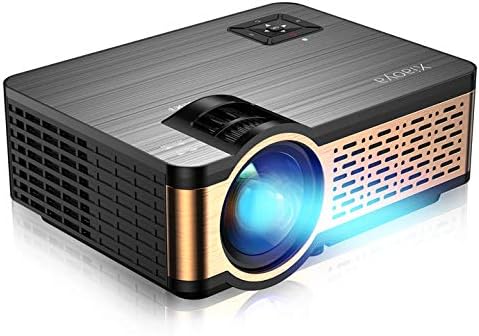
Image: The Xiaoya W5 Outdoor Projector, a compact and portable device designed for home and outdoor entertainment.
1. Setup Guide
1.1 Placement
Choose a flat, stable surface for your projector. Ensure there is adequate ventilation around the unit. For optimal viewing, position the projector directly in front of your projection surface (wall or screen).

Image: Diagram illustrating various projection sizes (40-150 inches) achievable with the projector at different distances (4-13 feet).
1.2 Power Connection
- Connect the power cable to the projector's power input port.
- Plug the other end of the power cable into a standard electrical outlet.
1.3 Initial Focus & Keystone Adjustment
After powering on, adjust the focus and keystone correction for a clear, rectangular image.

Image: Close-up of the projector's manual focus and keystone adjustment dials located on the top of the unit.
- Focus: Rotate the FOCUS dial until the projected image is sharp and clear.
- Keystone: Rotate the KEYSTONE dial to correct any trapezoidal distortion, ensuring the image is rectangular. The projector supports ±15° keystone correction.
2. Operating Instructions
2.1 Power On/Off
- Power On: Press the power button on the projector or the remote control.
- Power Off: Press the power button again. The projector will enter standby mode.
2.2 Source Selection
The projector offers multiple input options for various devices.

Image: Diagram showing the various connection ports on the projector, including 3.5mm audio, AV, SD, HDMI, USB, and VGA.
- Connect your desired device (PC, laptop, TV stick, game console, USB drive, SD card) to the corresponding port on the projector.
- Press the 'Source' button on the projector or remote control to cycle through available input sources (HDMI 1, HDMI 2, VGA, AV, USB, SD).
- Select the correct input source for your connected device.
2.3 Audio Output
The projector features built-in HiFi stereo speakers. For enhanced audio experience, you can connect external speakers or headphones.
- Connect your external audio device to the 3.5mm audio output jack on the projector.
- Adjust the volume using the projector's controls or remote.
3. Maintenance
3.1 Cleaning
- Lens: Use a professional lens cleaning cloth and solution. Avoid abrasive materials.
- Body: Wipe the projector body with a soft, dry cloth. Do not use liquid cleaners or solvents.
- Ventilation: Regularly check and clean the ventilation vents to prevent dust buildup, which can affect performance and lifespan.
3.2 Storage
When not in use for extended periods, store the projector in a cool, dry place, away from direct sunlight and extreme temperatures. Use the original packaging or a protective case to prevent dust and damage.
4. Troubleshooting
| Problem | Possible Cause | Solution |
|---|---|---|
| No image projected | Incorrect input source selected; Loose cable connection; Device not powered on. | Select correct input source; Check all cable connections; Ensure connected device is powered on. |
| No sound | Volume too low; Muted; Incorrect audio output setting on source device; Dolby Digital audio not supported. | Increase volume; Unmute; Adjust audio output on source device (e.g., turn off Dolby Digital on Fire TV Stick); Connect external speakers. |
| Blurry image | Focus not adjusted; Projector too far/close; Keystone not adjusted. | Adjust FOCUS dial; Adjust projection distance; Adjust KEYSTONE dial. |
| Remote control not working | Batteries low/dead; Obstruction between remote and projector; Remote sensor blocked. | Replace batteries; Remove obstructions; Ensure remote is pointed at the projector's IR sensor. |
5. Product Specifications
| Feature | Detail |
|---|---|
| Brand | Xiaoya |
| Model Number | W5 |
| Display Resolution | Native 1280 x 720 (Supports 1080P) |
| Brightness | 4000 Lumens |
| Connectivity Technology | USB, HDMI (x2), VGA, AV, SD Card, IR |
| Speaker Type | Built-In HiFi Stereo |
| Item Weight | 3 pounds |
| Package Dimensions | 12.83 x 8.9 x 5.08 inches |
| Special Features | Built-In Speaker, Ceiling Mount & Tripod Support |
| Color | Black |
6. Warranty and Support
Your Xiaoya W5 Outdoor Projector comes with a manufacturer's warranty. For specific warranty details, including duration and coverage, please refer to the documentation included with your purchase or contact Xiaoya customer support.
Customer Support:
If you encounter any issues or have questions regarding your projector, please contact Xiaoya customer support through the retailer's platform or the official brand website. Please have your product model number (W5) and purchase details ready when contacting support.