
1. Introduction
This manual provides essential information for the safe and efficient use of your Samsung Galaxy Tab S10 Lite. Please read it thoroughly before using your device to ensure optimal performance and longevity.
The Samsung Galaxy Tab S10 Lite is a versatile tablet featuring a 10.9-inch LCD display, an S Pen for precise input, and an Exynos 1380 processor for smooth performance. It is designed for both entertainment and productivity, offering intelligent features and seamless connectivity within the Galaxy ecosystem.

Image: The Samsung Galaxy Tab S10 Lite in Gray, shown with its S Pen, highlighting its sleek design and display.
2. What's in the Box
Verify that all items are present in your product packaging:
- Samsung Galaxy Tab S10 Lite
- S Pen
- USB-C Data Cable
- Ejection Pin
- Quick Start Guide

Image: A visual representation of the items included in the Samsung Galaxy Tab S10 Lite packaging: the tablet, S Pen, USB-C data cable, and ejection pin.
Note: A wall charger is sold separately. Use only Samsung-approved chargers and USB-C cables to avoid damage to your device.
3. Initial Setup
3.1. Charging the Device
- Connect the USB-C data cable to the tablet's charging port.
- Connect the other end of the cable to a compatible USB wall charger (sold separately).
- Allow the tablet to charge until the battery indicator shows a full charge.
3.2. Powering On/Off
- To power on: Press and hold the Power button until the Samsung logo appears.
- To power off: Press and hold the Power button, then tap 'Power off' on the screen.
- To restart: Press and hold the Power button, then tap 'Restart' on the screen.
3.3. Initial Configuration
Follow the on-screen prompts to complete the initial setup, which includes:
- Selecting your language and region.
- Connecting to a Wi-Fi network.
- Signing in with your Samsung or Google account.
- Setting up security features (PIN, pattern, password, fingerprint).
- Transferring data from a previous device (optional).
4. Operating Your Tablet
4.1. Display and Visual Experience
The Galaxy Tab S10 Lite features a vibrant 10.9-inch LCD display. The Vision Booster technology automatically adjusts screen brightness to your environment, ensuring clear visibility whether indoors or outdoors. Enjoy streaming, browsing, and reading with enhanced visual comfort.

Image: The tablet's 10.9-inch display showcasing a high-resolution image of a beach at sunset, emphasizing its visual quality.
4.2. S Pen Functionality
The included S Pen offers precise control for various tasks. Its responsive design allows for natural drawing, note-taking, and even mathematical calculations within compatible applications like Samsung Notes.
- Note-Taking: Use the S Pen to jot down notes, create lists, and annotate documents.
- Drawing & Sketching: Unleash creativity with various brush and pen tools.
- Math Solver: Solve handwritten mathematical problems directly in Samsung Notes.
- Handwriting Assist: Tidy up your handwritten notes for better readability.

Image: The S Pen being used on the tablet screen to solve a math problem and to activate handwriting assist features in Samsung Notes.
4.3. Performance and Storage
Powered by the Exynos 1380 processor, the Galaxy Tab S10 Lite handles streaming, browsing, and multitasking with ease. It comes with 128GB of internal storage, expandable by up to 2TB using a microSD card (sold separately), providing ample space for your apps, photos, and videos.
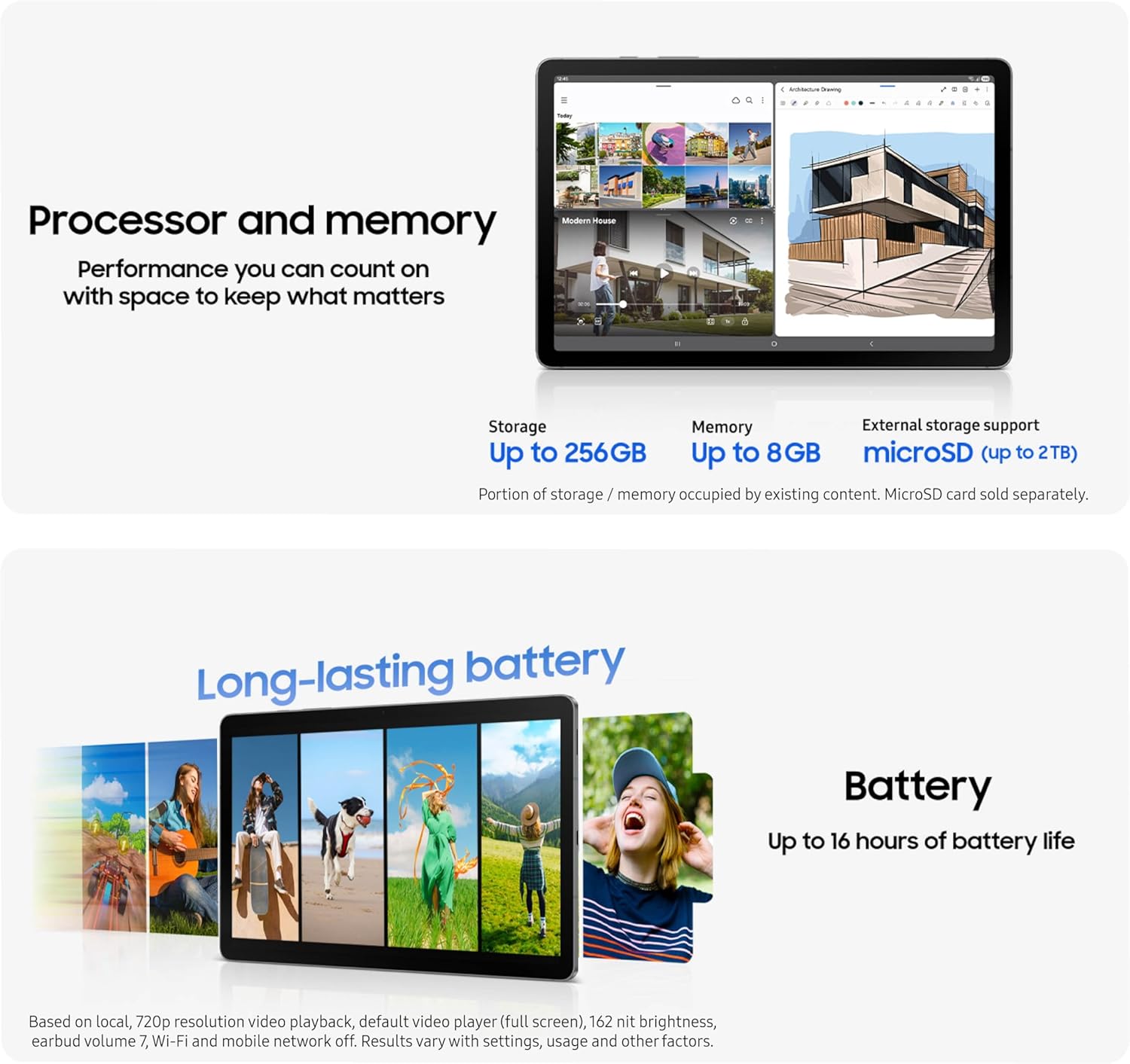
Image: A graphic illustrating the tablet's specifications including up to 256GB storage, up to 8GB memory, and microSD expansion up to 2TB, alongside battery life information.
4.4. AI Tools and Smart Features
The tablet integrates intelligent features to simplify daily tasks:
- Circle to Search: Quickly search for information on your screen by circling an object or text.
- AI Hot Key: Access AI functionalities directly from a compatible keyboard (sold separately) for web searches, scheduling, and more.
- Object Eraser: Edit photos by easily removing unwanted objects from images.

Image: The tablet connected to a keyboard accessory, highlighting the AI Hot Key for quick access to artificial intelligence features.

Image: A before-and-after comparison demonstrating the Object Eraser feature, showing an unwanted object removed from a photograph on the tablet screen.
4.5. Galaxy Ecosystem Connectivity
Your Galaxy Tab S10 Lite seamlessly connects with other Samsung Galaxy devices. You can answer calls, continue notes, and control smart home devices through SmartThings Map View directly from your tablet.

Image: The Galaxy Tab S10 Lite displayed alongside a Galaxy smartphone and earbuds, illustrating the seamless connectivity within the Samsung Galaxy ecosystem.
5. Battery Management
The Galaxy Tab S10 Lite is equipped with a long-lasting battery, providing up to 16 hours of video playback. When charging is needed, Super Fast Charging allows for a full charge in approximately two hours (with a 45W wall charger, sold separately).
- To optimize battery life, reduce screen brightness, disable unused features like Wi-Fi or Bluetooth when not needed, and close background applications.
- Avoid exposing the device to extreme temperatures, which can affect battery performance.
6. Maintenance
6.1. Cleaning Your Tablet
- Use a soft, lint-free cloth to clean the screen and body of the tablet.
- For stubborn smudges, slightly dampen the cloth with water or a screen-cleaning solution.
- Avoid using harsh chemicals, abrasive materials, or aerosol sprays directly on the device.
6.2. Software Updates
Regularly check for and install software updates to ensure your tablet has the latest features, security patches, and performance improvements. You can usually find this option in the device settings under 'Software update'.
6.3. Storage Management
Periodically review your installed applications, photos, and videos. Delete unnecessary files or transfer them to cloud storage or a microSD card to free up internal storage and maintain optimal performance.
7. Troubleshooting
If you encounter issues with your Galaxy Tab S10 Lite, try the following common troubleshooting steps:
- Device Not Responding: Press and hold the Power button and Volume Down button simultaneously for about 7 seconds to force a restart.
- App Issues: Try clearing the app's cache and data (Settings > Apps > [App Name] > Storage > Clear cache/Clear data) or uninstalling and reinstalling the app.
- Connectivity Problems: Restart your Wi-Fi router or Bluetooth device. On your tablet, toggle Wi-Fi/Bluetooth off and on.
- Slow Performance: Close unused apps, clear cache, or restart the device. Consider a factory reset as a last resort (back up your data first).
- S Pen Not Working: Ensure the S Pen is properly seated in its charging slot (if applicable) or check for any physical damage. Restart the tablet.
For more complex issues, refer to the Samsung support website or contact customer service.
8. Specifications
| Feature | Detail |
|---|---|
| Model Name | S10 Lite (SM-X400NZANXAR) |
| Display Size | 10.9 Inches |
| Display Resolution | 2112 x 1320 Pixels |
| Operating System | Android |
| RAM Memory | 6 GB |
| Storage Capacity | 128 GB (Expandable up to 2TB with microSD) |
| Processor | Exynos 1380 |
| GPU | ARM |
| Connectivity | Wi-Fi |
| Special Features | Stylus Support (S Pen included) |
| Battery Power Rating | 8000 mAh |
| Item Weight | 1.16 pounds |
| Product Dimensions | 6.53 x 10.01 x 0.26 inches |
| Color | Gray |
9. Warranty and Support
9.1. Warranty Information
Your Samsung Galaxy Tab S10 Lite comes with a limited manufacturer's warranty. Please refer to the warranty card included in your packaging or visit the official Samsung website for detailed terms and conditions, including coverage period and exclusions.
9.2. Customer Support
For technical assistance, troubleshooting, or service inquiries, please contact Samsung Customer Support:
- Online Support: Visit the official Samsung support website (samsung.com/us/support/) for FAQs, downloads, and service requests.
- Phone Support: Refer to your Quick Start Guide or the Samsung support website for regional contact numbers.
Please have your device model number (SM-X400NZANXAR) and serial number ready when contacting support.


