
1. Introduction
The ecoco T9 is a compact, rechargeable pocket Wi-Fi device designed for convenient internet access without the need for contracts or monthly fees. It operates on a prepaid system, allowing you to charge data only when needed. Featuring vSIM technology, the device automatically connects to the optimal network from major carriers (Docomo, au, SoftBank) in Japan, ensuring reliable connectivity across a wide area. Its lightweight design and long battery life make it ideal for travel, telework, and daily use.

Figure 1: The ecoco T9 Pocket Wi-Fi device, showcasing its compact design and key features like 10GB data and 365-day validity.
2. Product Features
- Contract-Free & No Monthly Fees: Enjoy internet access without long-term commitments or recurring charges.
- Prepaid Data System: Purchase and recharge data (Giga) as needed, ensuring you only pay for what you use.
- vSIM Multi-Carrier Support: Automatically selects the strongest signal from major domestic carriers (Docomo, au, SoftBank) for stable communication.
- Lightweight & Portable: Weighing approximately 100g, it's easy to carry anywhere.
- High Connectivity: Connect up to 16 devices simultaneously, perfect for families or small groups.
- Long Battery Life: Provides up to 9 hours of continuous usage on a full charge.
- Type-C Charging: Convenient and widely compatible charging port.
- Giga Data Refill: Easily add more data through the dedicated app or website when your current balance runs low.
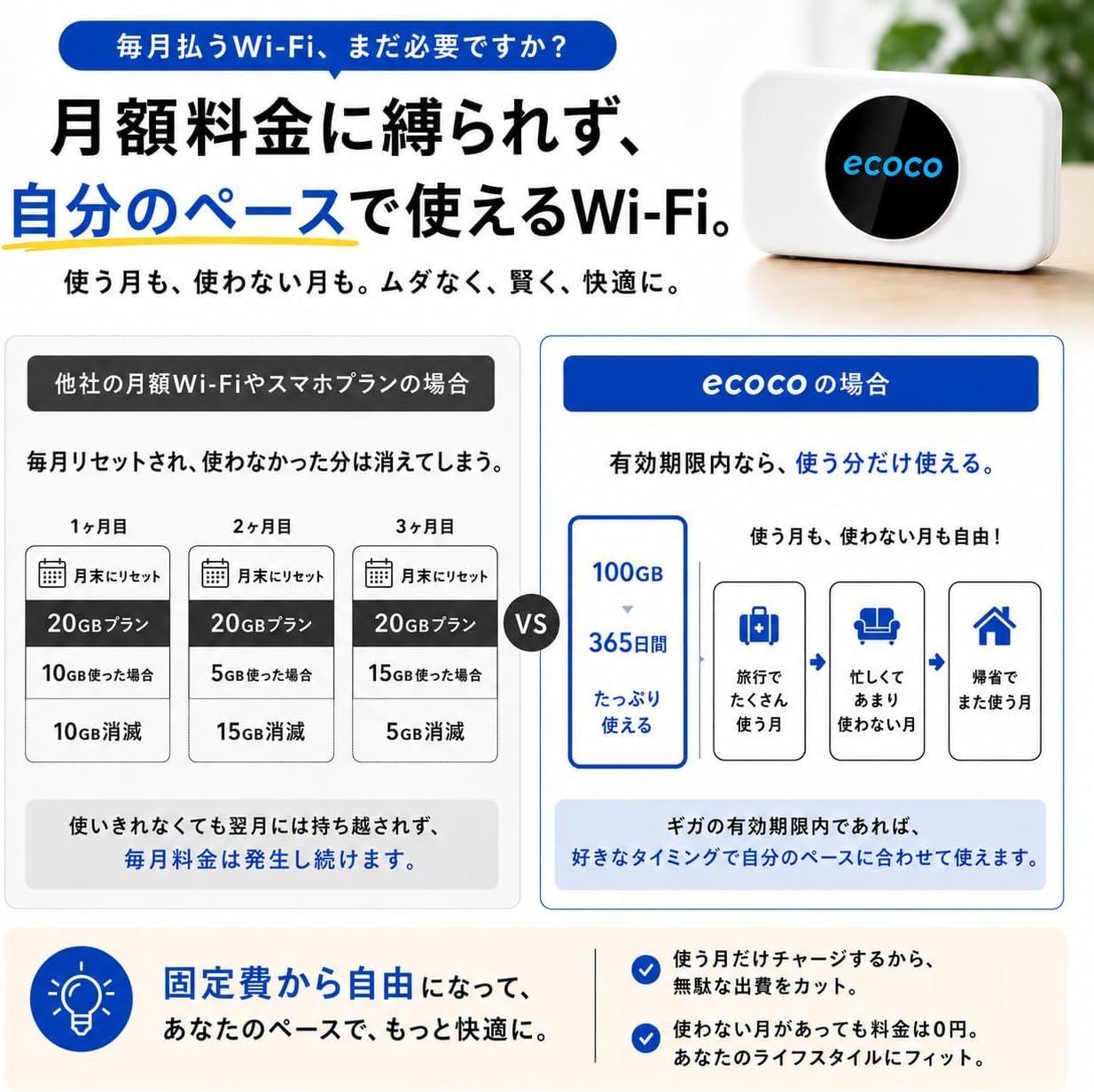
Figure 2: Diagram illustrating the ecoco T9's flexible data usage model compared to traditional monthly plans, highlighting no data loss within the validity period.

Figure 3: Collage of images demonstrating various practical usage scenarios for the ecoco T9, including travel, in-car use, telework, online meetings, video streaming, and educational purposes.
3. Package Contents
Please ensure all the following items are included in your package:
- ecoco T9 Pocket Wi-Fi Device
- User Guide
- USB Type-C Charging Cable
4. Setup Instructions
Follow these steps to set up your ecoco T9 Pocket Wi-Fi and connect to the internet:
- Step 1: Receive Your Device
Upon receiving your ecoco T9, no complicated contracts or construction work are required. - Step 2: Initial Setup (Approx. 3 minutes)
Access the dedicated website via your smartphone and enter the necessary information, including the device's Serial Number (SN). The SN can be found on the included guide. - Step 3: Connect to the Internet
On your device, select the ecoco Wi-Fi network and enter the password. You can start using the internet immediately. - Step 4: Optional Giga Refill
If you need more data, you can easily purchase additional Giga through the dedicated website or app at any time.

Figure 4: A visual guide detailing the simple four-step process for setting up the ecoco T9, from receiving the device to connecting to the internet and refilling data.
5. Operating Instructions
5.1 Power On/Off
- To Power On: Press and hold the power button until the display lights up.
- To Power Off: Press and hold the power button until the device shuts down.
5.2 Connecting Devices
To connect your smartphone, laptop, tablet, or other Wi-Fi enabled device:
- Ensure the ecoco T9 is powered on.
- On your device, open the Wi-Fi settings.
- Select the Wi-Fi network name (SSID) displayed on the ecoco T9 screen.
- Enter the Wi-Fi password (PWD) shown on the ecoco T9 screen.
- Your device should now be connected to the internet.
5.3 Checking Device Status
The ecoco T9 features a display that shows important information:
- SSID and Password: View your Wi-Fi network name and password.
- Remaining Giga (Data): Check your current data balance.
- Battery Level: Monitor the device's battery status.
- Connection Status: See if the device is connected to a network and its signal strength.
6. Giga Charge (Data Refill)
When your data balance is low or expires, you can easily purchase additional Giga (data) to continue using your ecoco T9. Data refills are available 24 hours a day, 365 days a year.
6.1 How to Refill Data
You can refill your data through the official ecoco website or the dedicated ecoco app:
- Access the ecoco official website (ecoco.cloud) or open the ecoco app on your smartphone.
- Log in to your account or register your device if you haven't already.
- Select the desired Giga plan and validity period. Various options are available, ranging from 5GB to 300GB with validity periods of 30 or 365 days.
- Complete the purchase process. Your new data will be reflected on your device shortly.

Figure 5: An overview of available Giga refill options for the ecoco T9, showing different data amounts and validity periods.

Figure 6: Screenshots of the ecoco official app, demonstrating features such as data usage confirmation, data refill, and device registration for convenient management.
7. Maintenance
7.1 Charging the Device
To charge your ecoco T9:
- Connect the provided USB Type-C charging cable to the device's charging port.
- Connect the other end of the cable to a USB power adapter (not included) or a computer's USB port.
- The charging indicator on the device will show its charging status. A full charge takes approximately 3 hours.
7.2 Cleaning and Storage
- Wipe the device with a soft, dry cloth to remove dust or smudges. Do not use liquid cleaners or abrasive materials.
- Store the device in a cool, dry place away from direct sunlight, extreme temperatures, and humidity.
- Avoid dropping the device or subjecting it to strong impacts.
8. Troubleshooting
If you encounter issues with your ecoco T9, refer to the following common problems and solutions:
- No Internet Connection:
- Check if the device is powered on and has sufficient battery.
- Verify that you have remaining Giga data. If not, perform a Giga refill.
- Check the signal strength displayed on the device. If the signal is weak, try moving to a different location.
- Restart the ecoco T9 device and your connected device. - Slow Internet Speed:
- Check the signal strength. Weak signals can lead to slower speeds.
- Reduce the number of connected devices. The T9 supports up to 16 connections, but performance may vary with many active users.
- Ensure no background applications on your connected devices are consuming excessive bandwidth. - Battery Drains Quickly:
- Ensure the device is fully charged before use.
- Reduce the number of connected devices or the duration of continuous use.
- Adjust device settings if available (e.g., screen brightness). - Cannot Connect to Wi-Fi:
- Double-check the SSID (network name) and password. Ensure correct capitalization.
- Make sure your connected device's Wi-Fi is enabled.
- Restart both the ecoco T9 and your connecting device.
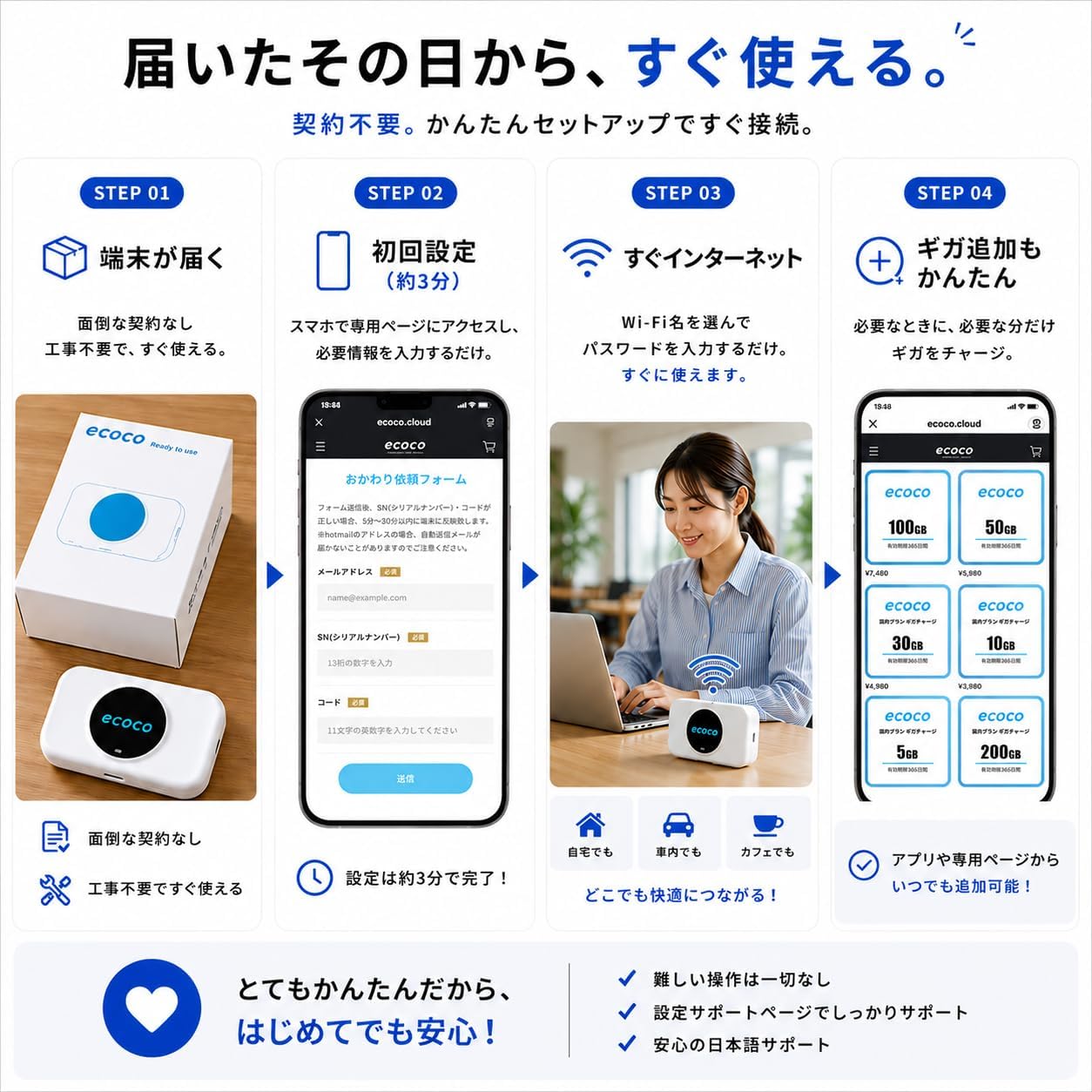
Figure 7: The ecoco T9 device being held, illustrating its compact size and portability, which can be useful for troubleshooting on the go.
9. Specifications
| Feature | Specification |
|---|---|
| Brand | ecoco |
| Model Name | T9 |
| Dimensions (L x W x H) | 9.8 x 6 x 2 cm |
| Weight | 100 grams |
| Battery Capacity | 3000 mAh |
| Charging Time | Approx. 3 hours |
| Continuous Usage Time | Approx. 9 hours |
| Charging Port | Type-C |
| Communication/Connection Interface | Wi-Fi |
| Max Communication Speed (Up/Down) | Up to 50Mbps / 150Mbps |
| Max Simultaneous Connections | 16 devices |
| Compatible Devices | Android, Nintendo Switch, iPhone, other communication-enabled electronic devices, laptops |
| Country of Origin | China |

Figure 8: Detailed specifications table for the ecoco T9 Pocket Wi-Fi, including dimensions, weight, battery life, and connectivity details.
10. Warranty and Support
10.1 Manufacturer's Warranty
The ecoco T9 comes with a 1-year manufacturer's warranty from the date of purchase. This warranty covers manufacturing defects and malfunctions under normal use.
10.2 ecoco Care Device Compensation
For devices purchased on or after September 1, 2025, ecoco offers a special device compensation service. This service allows for a one-time free replacement of your device in case of:
- Theft
- Damage
- Loss
- Water Damage
Please contact customer support for details and to initiate a claim.
10.3 Customer Support
For any questions or concerns regarding your ecoco T9, please contact our customer support team:
- Availability: 365 days a year
- Operating Hours: 10:00 AM - 5:00 PM (Japan Standard Time)
- Contact Method: Please refer to the contact information provided in the included User Guide or on the official ecoco website.

Figure 9: Information on ecoco's 1-year device compensation plan covering theft, damage, loss, and water damage, along with Japanese customer support availability and hours.
11. Safety Information
Please read and follow these safety guidelines to ensure safe and proper use of your ecoco T9 device:
- Do not attempt to disassemble, repair, or modify the device yourself. This may void the warranty and cause damage or injury.
- Keep the device away from water, moisture, and other liquids. Do not operate with wet hands.
- Avoid exposing the device to extreme temperatures (hot or cold), direct sunlight, or open flames.
- Use only the provided or recommended charging cable.
- Keep the device out of reach of children and pets.
- If the device emits smoke, unusual odors, or makes strange noises, immediately power it off and disconnect it from the power source. Contact customer support.
- Dispose of the device and its battery according to local regulations. Do not dispose of it in general household waste.