Introduction
This manual provides essential instructions for the installation, operation, and maintenance of your TOPHATTER 10.25-inch Multimedia Player for Mercedes-Benz W204 NTG4.0 systems. This device enhances your vehicle's infotainment capabilities with advanced features like Android 13, wireless CarPlay, Android Auto, and DSP audio processing.

Image: Overview of the multimedia player's key features, including Snapdragon 668S, Android 13, 4G+5G WiFi, CarPlay, Android Auto, DSP, and 1920x720 HD resolution.
Setup and Installation
The TOPHATTER Multimedia Player is designed for plug-and-play installation, integrating seamlessly with your Mercedes-Benz W204 NTG4.0 system. Professional installation is recommended to ensure proper functionality and avoid damage to your vehicle's electrical system.
Pre-Installation Checklist:
- Ensure the vehicle's ignition is off and the battery is disconnected.
- Gather necessary tools (e.g., trim removal tools, screwdrivers).
- Confirm compatibility with your specific Mercedes-Benz W204 NTG4.0 system.
Installation Steps (General):
- Carefully remove the original head unit or display following vehicle-specific guides.
- Connect the provided wiring harness to the vehicle's existing connectors.
- Mount the new 10.25-inch display into the dashboard opening.
- Secure all connections and reassemble the dashboard trim.
- Reconnect the vehicle battery and test the unit.
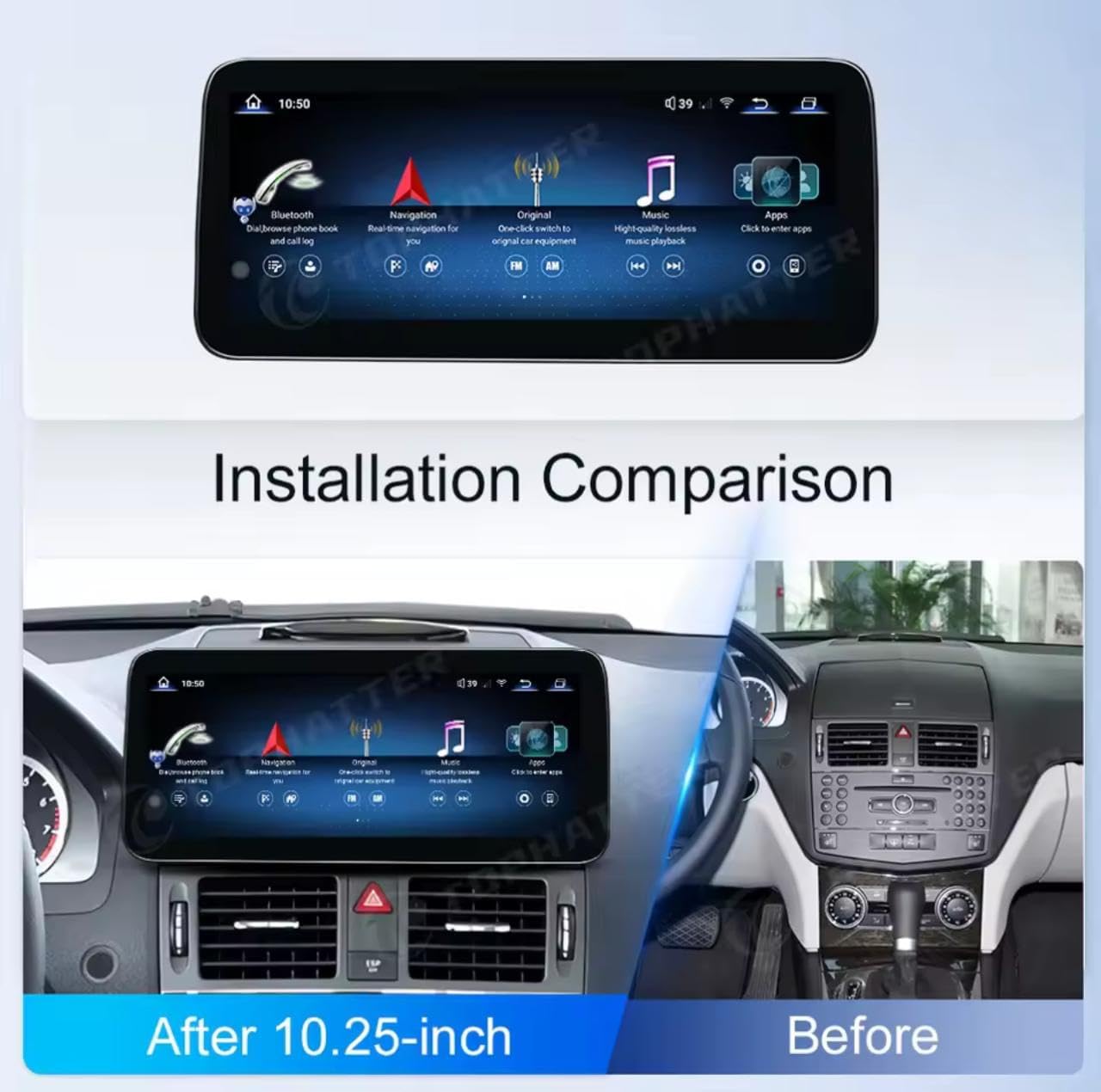
Image: A visual comparison showing the vehicle's dashboard before and after the installation of the 10.25-inch multimedia player, highlighting the integrated appearance.
Operating Instructions
This section covers the basic operation of your multimedia player, including navigation, audio, and smartphone integration.
Wireless CarPlay & Android Auto:
The unit supports wireless Apple CarPlay and Android Auto for seamless smartphone integration. To connect:
- Ensure Bluetooth and Wi-Fi are enabled on your smartphone.
- On the multimedia player, navigate to the CarPlay or Android Auto application.
- Follow the on-screen prompts to pair your device via Bluetooth.
- Once paired, the system will automatically connect for wireless CarPlay or Android Auto.
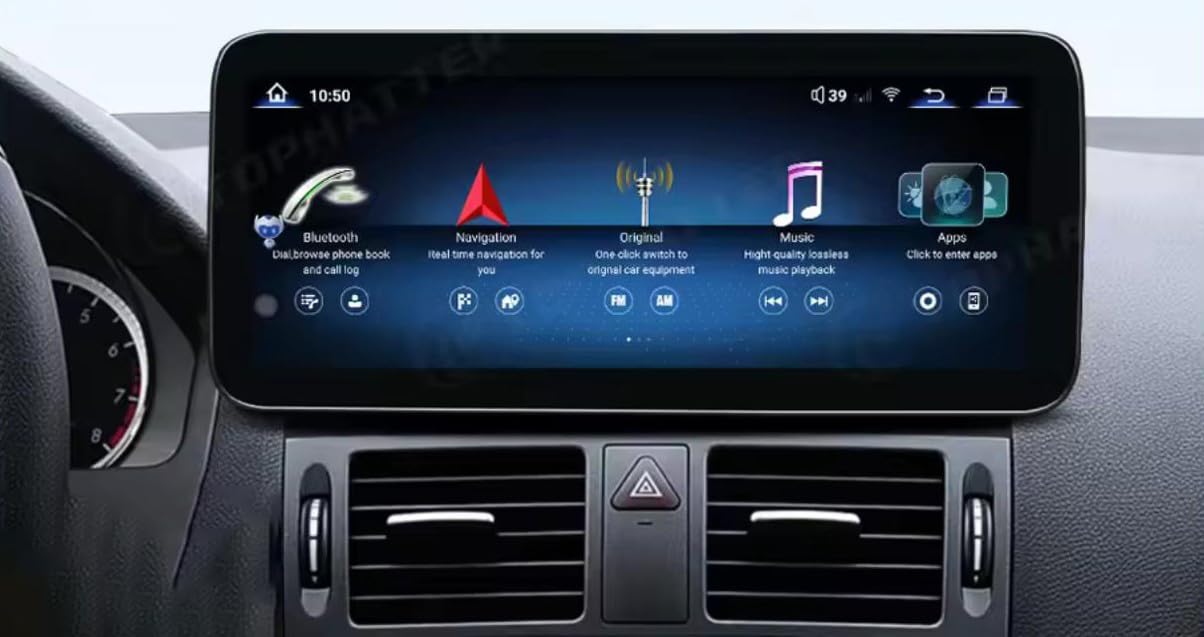
Image: A visual representation of the multimedia player's screen displaying the CarPlay and Android Auto interfaces, with a smartphone below indicating wireless connection.
DSP Audio Processing:
The built-in Digital Signal Processor (DSP) allows for advanced audio customization. Access the DSP settings through the audio menu to adjust equalizer presets, balance, fader, and other sound parameters for an optimized listening experience.
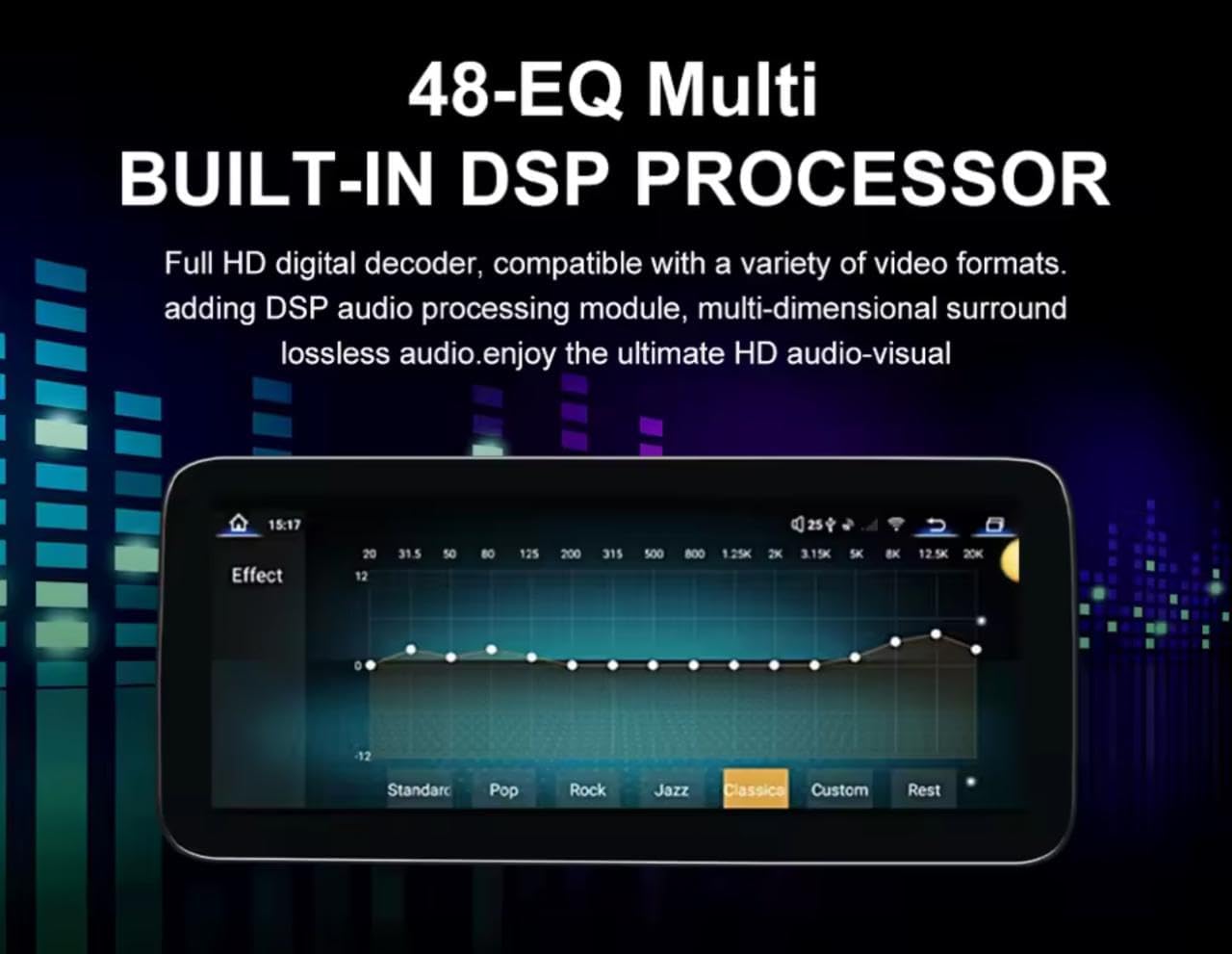
Image: The multimedia player's screen showing the 48-band equalizer interface for the built-in DSP processor, allowing users to fine-tune audio output.
Navigation and Multimedia:
Utilize the Android 13 operating system to access various navigation apps, streaming services, and other multimedia content. The 10.25-inch IPS touchscreen provides a clear and responsive interface.
Maintenance
To ensure the longevity and optimal performance of your multimedia player, follow these maintenance guidelines:
- Cleaning: Use a soft, lint-free cloth to gently wipe the screen. For stubborn smudges, slightly dampen the cloth with water or a screen-safe cleaner. Avoid harsh chemicals or abrasive materials.
- Software Updates: Periodically check for system software updates to ensure you have the latest features and security patches. Refer to the system settings for update options.
- Environmental Conditions: Avoid exposing the unit to extreme temperatures, direct sunlight for prolonged periods, or excessive moisture.
Troubleshooting
If you encounter issues with your multimedia player, refer to the following common troubleshooting steps:
- No Power: Check all power connections and ensure the vehicle's battery is properly connected and charged. Verify fuses.
- No Sound: Check volume settings on both the multimedia player and the vehicle's audio system. Ensure all audio cables are securely connected.
- CarPlay/Android Auto Not Connecting: Ensure Bluetooth and Wi-Fi are active on your phone and the unit. Try restarting both devices. Forget and re-pair the device.
- Touchscreen Unresponsive: Perform a soft reset of the unit (refer to system settings for reset options). Ensure the screen is clean and free of debris.
- System Lag/Freezing: Close unnecessary background applications. If the issue persists, a factory reset might be necessary (note: this will erase all user data).
For persistent issues, contact customer support or a qualified technician.
Specifications
Detailed technical specifications of the TOPHATTER 10.25-inch Multimedia Player:
| Feature | Description |
|---|---|
| Display Size | 10.25 inches |
| Display Type | IPS Touchscreen |
| Resolution | 1920x720 HD |
| Processor | Snapdragon 668S CPU (8-core, 2.4GHz) |
| Operating System | Android 13 |
| RAM | 12GB |
| ROM | 256GB |
| Connectivity | 4G, 5G WiFi, Bluetooth |
| Smartphone Integration | Wireless Apple CarPlay & Android Auto |
| Audio | Built-in DSP (48-EQ Multi) |
| Camera Support | 360° Panoramic Camera System (Optional Rear CAM AHD) |
| Compatibility | Mercedes NTG4.0 Systems (W204) |
| Installation | Plug & Play |
| Parcel Dimensions | 20 x 10 x 10 cm |
| Weight | 1 kg |
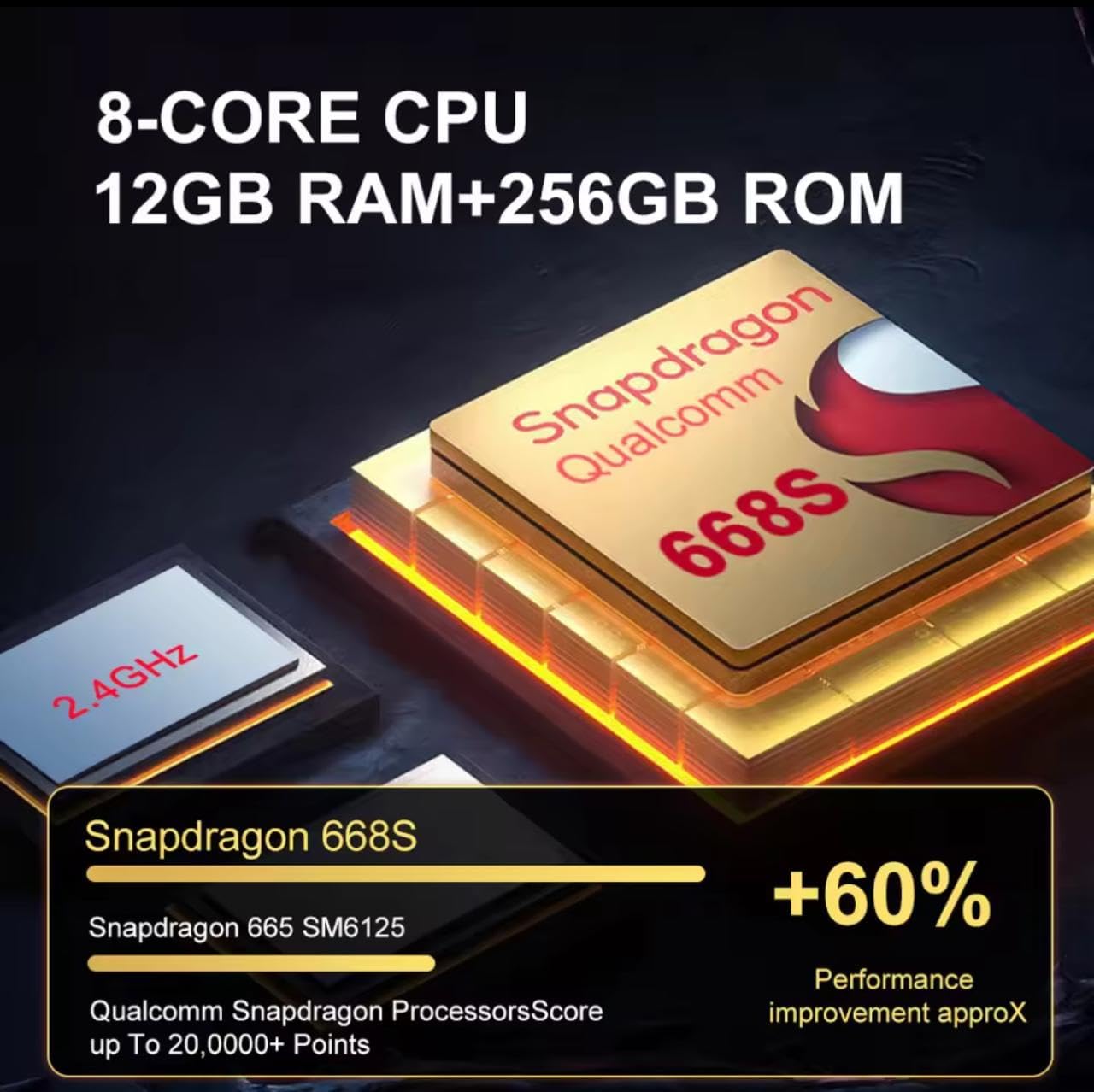
Image: Close-up view of the Snapdragon 668S processor, highlighting its 8-core CPU, 12GB RAM, 256GB ROM, and performance improvements over previous models.
Warranty and Support
For warranty information, technical support, or service inquiries, please refer to the contact details provided with your purchase documentation or visit the manufacturer's official website. Keep your proof of purchase for warranty claims.
Manufacturer: TOPHATTER
ASIN: B0FF3214KX


