
M02
M02 TOKQI AI Kit Handheld 3-Axis Gimbal Stabilizer User Manual
Model: M02 | Brand: Generic
Introduction
This manual provides comprehensive instructions for the safe and effective use of your M02 TOKQI AI Kit Handheld 3-Axis Gimbal Stabilizer. Please read this manual thoroughly before operating the device to ensure optimal performance and to prevent damage.
Product Overview

The M02 TOKQI AI Kit Handheld 3-Axis Gimbal Stabilizer, shown here with a smartphone attached, is designed to provide stable and smooth video recording and photography.

An overview of the M02 gimbal stabilizer and its included accessories, including the mini tripod, charging cable, and storage bag.
Package Contents
- 1 x Gimbal Stabilizer
- 1 x Mini Tripod
- 1 x Charging Cable (Type-C)
- 1 x Users Manual (English)
- 1 x Storage Bag
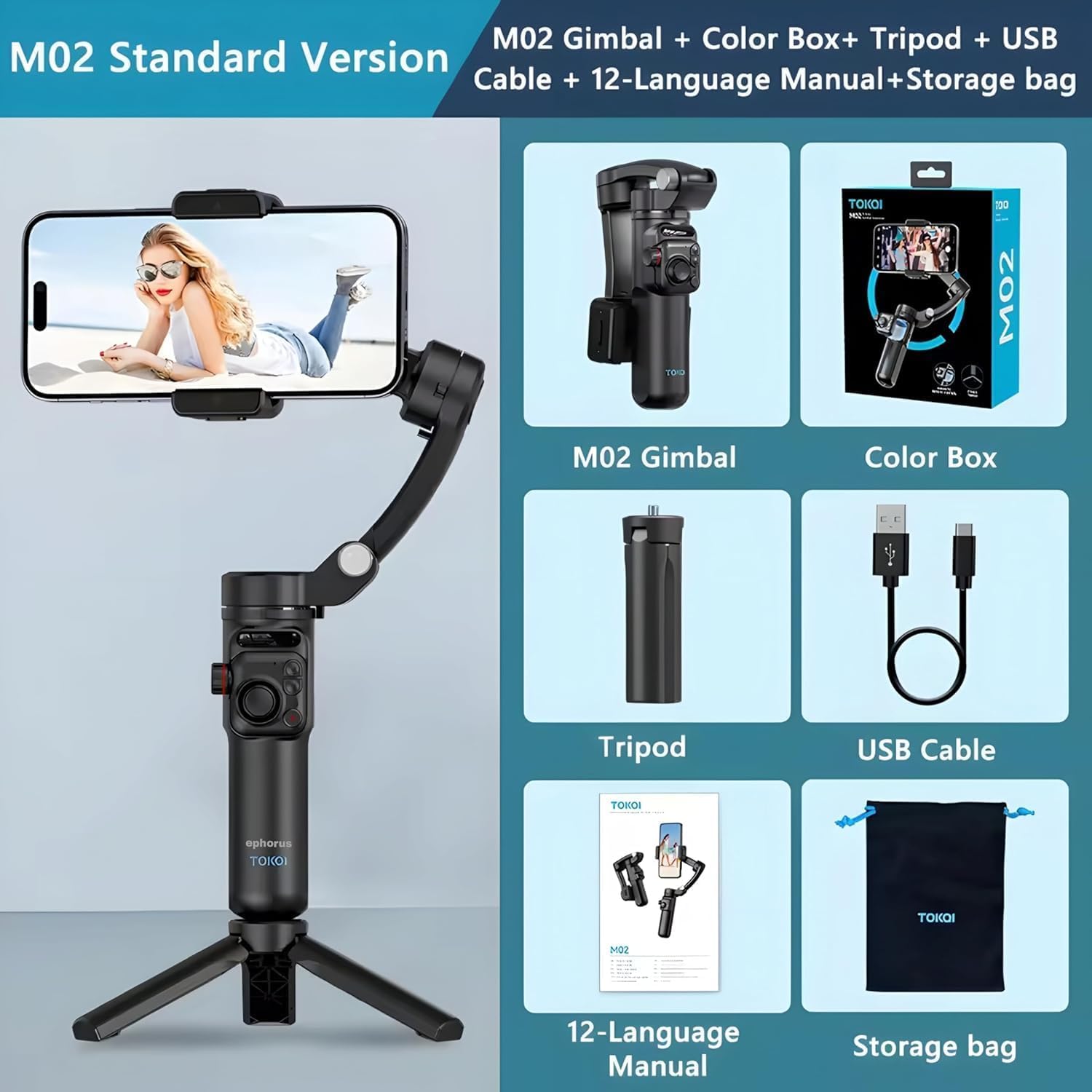
Detailed view of the M02 Standard Version package contents, illustrating each component included in the box.
Key Features
- 3-Axis Stabilization: Utilizes three motors for balance, ensuring stable pictures and smooth video recording.
- 360° Rotatable Phone Holder: Allows easy switching between horizontal and vertical modes without manual adjustment.
- Seven Gimbal Modes: Includes Semi Follow, Full Follow, Fully Locked, POV, Inception Space, Semi-Follow Go, and Full Follow Go modes.
- Large Capacity Battery: Built-in 2600mAh battery provides long working time and recharges via Type-C cable.
- Detachable Remote Control & Mini Tripod: Enables remote operation and hands-free video recording/live streaming.

Visual representation of the gimbal's smart tracking, three-axis stabilization, and wireless remote capabilities.

An explanatory diagram detailing the three axes (Horizontal, Pitch, and Heading) that contribute to the gimbal's stabilization.
Setup
1. Charging the Gimbal
Before first use, fully charge the gimbal. Connect the provided Type-C charging cable to the gimbal's charging port and a 5V 2A power adapter (not included). The battery indicator will show charging status. A full charge provides approximately 6 hours of runtime.
2. Attaching the Mini Tripod
Screw the mini tripod onto the 1/4-inch screw hole at the bottom of the gimbal handle. Ensure it is securely fastened for stable placement on flat surfaces.
3. Mounting Your Smartphone
- Unfold the gimbal to its operational position.
- Extend the phone clamp and carefully place your smartphone into the clamp.
- Ensure the phone is centered and balanced within the clamp to prevent strain on the motors. The mounting clamp supports phones with a range of 50mm-90mm width and thickness less than 11mm.
- For optimal performance, balance the phone manually before powering on the gimbal.
Operating Instructions
1. Powering On/Off
- Power On: Press and hold the power button (usually the 'M' button) for a few seconds until the indicator lights illuminate.
- Power Off: Press and hold the power button again until the indicator lights turn off.
2. Gimbal Controls

Detailed view of the gimbal's control panel, indicating the function of each button and control.
- M Button/Remote Control Power Button: Used for powering on/off and switching between front and rear lenses (if supported by the connected app).
- Lockout Button: Locks the gimbal's current orientation.
- Camera Button: Triggers photo capture or video recording in the connected app.
- Joystick: Controls the stabilizer's rotation (pan and tilt).
- Zoom/Multiplier Control Wheel: Adjusts zoom or focus, depending on the app and phone model. Note: Zoom function may not be supported for all models.
3. Gimbal Modes
The M02 gimbal supports seven distinct modes to cater to various shooting scenarios:
- Semi Follow Mode: The gimbal follows your pan movements while keeping the tilt and roll axes locked.
- Full Follow Mode: The gimbal follows both your pan and tilt movements.
- Fully Locked Mode: All three axes are locked, maintaining the camera's orientation regardless of gimbal movement.
- POV Mode (Point of View): All three axes follow your movements, providing a dynamic first-person perspective.
- Inception Space Mode: Allows for a 360° rotation along the roll axis, creating a spinning effect.
- Semi-Follow Go Mode: A faster semi-follow mode for quick transitions.
- Full Follow Go Mode: A faster full-follow mode for dynamic shots.
Refer to the specific app instructions for how to switch between these modes.
4. Detachable Remote Control

The detachable remote control allows for convenient remote operation of the gimbal, attaching magnetically to the handle.
The M02 features a detachable remote control for convenient one-handed operation from a distance of up to 10 meters. To use, ensure the remote is charged and paired with the gimbal (refer to the app's pairing instructions). The remote mirrors the main controls on the gimbal handle.
Maintenance
- Cleaning: Use a soft, dry cloth to clean the gimbal. Do not use liquid cleaners or solvents.
- Storage: When not in use, fold the gimbal to its compact size (157x106x65mm) and store it in the provided storage bag in a cool, dry place.
- Battery Care: To prolong battery life, avoid fully discharging the battery frequently. Charge the gimbal at least once every three months if not in regular use.
- Avoid Overloading: Do not exceed the maximum payload range of 280g.
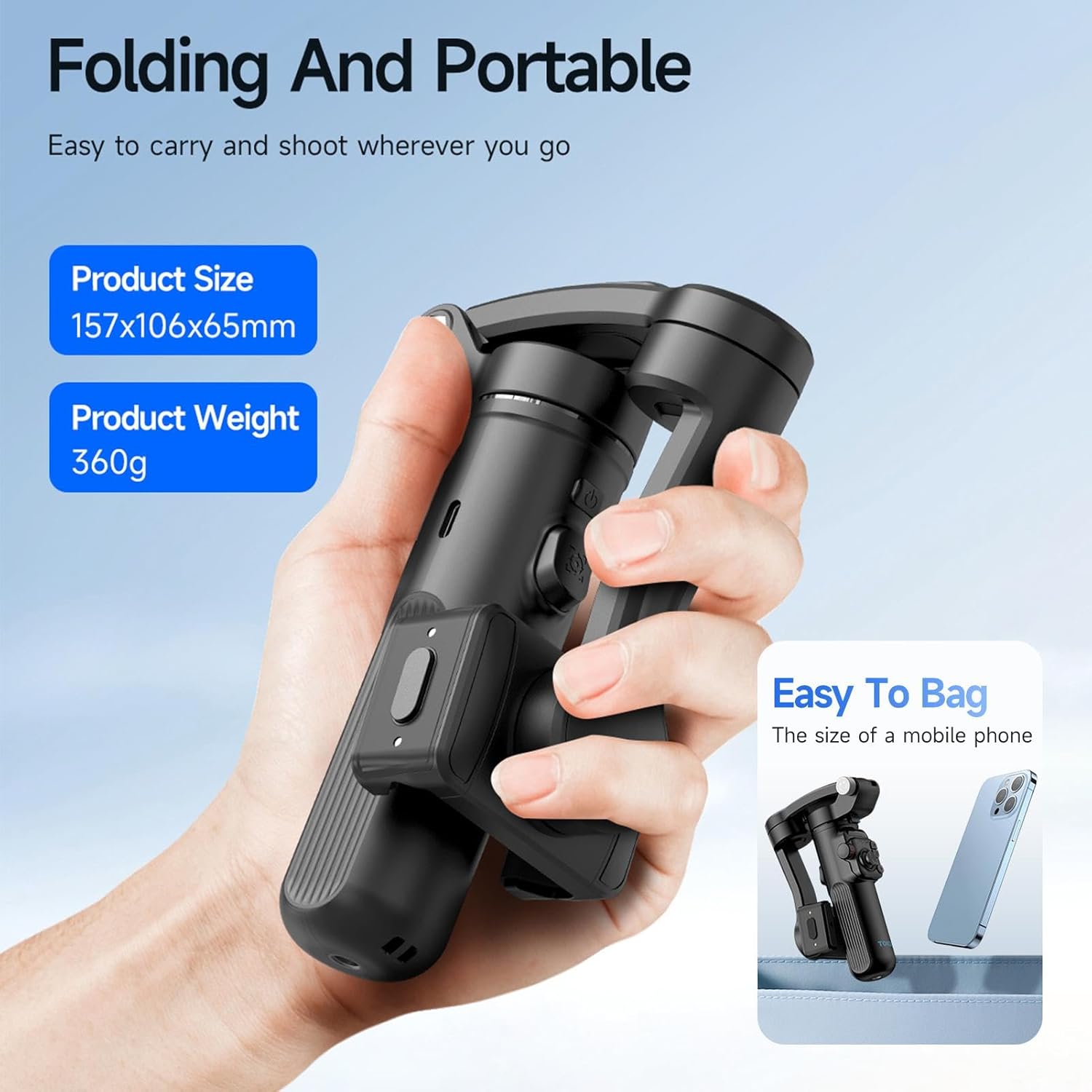
The M02 gimbal is designed to be foldable and portable, making it easy to carry and store.
Troubleshooting
| Problem | Possible Cause | Solution |
|---|---|---|
| Gimbal not powering on | Low battery; Power button not held long enough. | Charge the gimbal fully. Press and hold the power button for 3-5 seconds. |
| Gimbal vibrates or is unstable | Phone not balanced; Overloaded; Gimbal not calibrated. | Ensure phone is centered and balanced. Check phone weight (max 280g). Perform gimbal calibration via the app. |
| Remote control not responding | Remote battery low; Not paired; Out of range. | Charge the remote. Re-pair the remote with the gimbal via the app. Ensure remote is within 10m range. |
| App not connecting to gimbal | Bluetooth off; App permissions; Outdated app/firmware. | Ensure Bluetooth is enabled on your phone. Grant necessary app permissions. Update the app and gimbal firmware. |
Specifications
| Parameter | Value |
|---|---|
| Rotatable Angle (Tilt) | 320° |
| Rotatable Angle (Roll) | 345° |
| Rotatable Angle (Pan) | 320° |
| Battery Capacity | 3.7V 2600mAh |
| Battery Runtime | 6 Hours |
| Charging Input | 5V 2A |
| Remote Control Distance | 10 Meters |
| Payload Range | Up to 280g |
| Mounting Clamp Supporting Range | 50mm-90mm (width) |
| Smartphone Thickness | <11mm |
| Mobile Phone System Compatibility | Android 9.0 or above; iOS 11 or above |
| Product Size (folded) | 157x106x65mm |
| Net Weight | 360g |
| Color | Black |
| Manufacturer | Gamble |
Warranty and Support
For warranty information, technical support, or service inquiries, please refer to the manufacturer's official website or contact their customer service directly. This manual does not contain specific warranty terms or support contact details.
Ask a question about this manual
Ask about setup, troubleshooting, compatibility, parts, safety, or missing instructions. Manuals+ will review the question and use this page’s manual context to help answer it.