Introduction
This manual provides comprehensive instructions for the setup, operation, maintenance, and troubleshooting of your Generic BW9 4G Smart Watch. Please read this manual thoroughly before using your device to ensure proper function and longevity.
Package Contents
Verify that all items are present in your product packaging:
- Generic BW9 4G Smart Watch (with Orange Band)
- Charging Cable
- User Manual (this document)
- SIM Ejector Tool (if applicable)
Product Overview
The BW9 4G Smart Watch is an advanced wearable device featuring 4G cellular connectivity, a built-in camera, and comprehensive fitness tracking capabilities. It operates on an Android system and supports various applications.
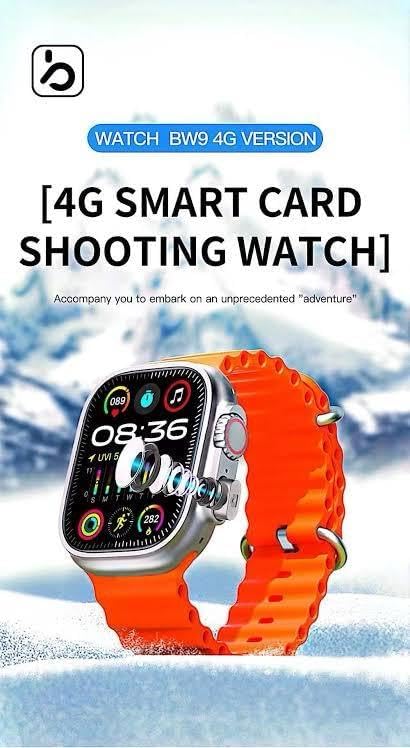
Figure 1: Generic BW9 4G Smart Watch with its distinctive orange silicone band.
Key features include:
- 4G Connectivity: Built-in SIM card slot for cellular calls, messages, and internet access.
- High-Resolution Touchscreen: Vibrant display with customizable watch faces.
- Smart Functions: Fitness tracking, heart rate monitoring, camera control, and social media notifications.
- Durable Design: Metal case with a comfortable orange silicone strap.
- App Compatibility: Supports applications like Chrome, camera functions, and Facebook.

Figure 2: Overview of BW9 4G Smart Watch features, including SIM card support, camera, and 4G connectivity.
Setup
1. Charging the Device
Before first use, fully charge your BW9 4G Smart Watch. Connect the charging cable to the watch's charging port and plug the other end into a standard USB power adapter (not included) or a computer's USB port. The watch display will indicate charging status.
2. SIM Card Installation
The BW9 4G Smart Watch supports a Nano-SIM card for 4G cellular connectivity. Ensure the watch is powered off before inserting or removing the SIM card.
- Locate the SIM card slot on the side of the watch.
- Use the provided SIM ejector tool (if applicable) or a small pin to open the SIM tray.
- Carefully place the Nano-SIM card into the tray with the gold contacts facing down and the cut corner aligned correctly.
- Gently push the SIM tray back into the slot until it clicks into place.
- Power on the watch. The device will automatically detect the SIM card.
3. Initial Power On and Pairing
- Press and hold the power button (usually on the side of the watch) until the screen lights up.
- Follow the on-screen prompts to select your language and region.
- To pair with your Android smartphone, download the recommended companion app (refer to the watch's on-screen instructions or packaging for the app name) from the Google Play Store.
- Enable Bluetooth on your smartphone and open the companion app.
- Follow the app's instructions to search for and connect to your BW9 4G Smart Watch.
- Grant necessary permissions on both your watch and smartphone for full functionality.
Operating Instructions
Basic Navigation
- Swipe Up/Down: Access quick settings or notifications.
- Swipe Left/Right: Navigate between different watch faces, widgets, and app screens.
- Tap: Select an item or open an application.
- Press Side Button: Return to the home screen or access the app drawer.
- Long Press Side Button: Power on/off or access voice assistant (if configured).
Making Calls and Sending Messages (with SIM Card)
With an active SIM card, your watch can make and receive calls and messages independently.
- Calls: Open the "Phone" app, dial a number, or select a contact.
- Messages: Open the "Messages" app to compose new messages or reply to existing ones.
Using the Camera
The BW9 4G Smart Watch features a built-in camera.
- Open the "Camera" app from the app drawer.
- Frame your shot using the watch screen as a viewfinder.
- Tap the shutter icon to take a photo or start/stop video recording.
- Access your photos and videos in the "Gallery" app.
Fitness Tracking and Health Monitoring
The watch includes sensors for tracking various health metrics.
- Steps: The pedometer automatically counts your daily steps.
- Heart Rate: Open the "Heart Rate" app to measure your current heart rate. For continuous monitoring, enable the feature in settings.
- Other Modes: Explore various sport modes (e.g., running, walking) within the fitness app to track specific activities.
Notifications and Apps
- Notifications: Swipe down from the top of the screen to view incoming notifications from your paired smartphone or directly from the watch's SIM card.
- Applications: Access pre-installed apps like Chrome, Facebook, and others from the app drawer. Additional apps may be downloadable via the watch's app store (if available) or pushed from your paired smartphone.
Maintenance
Cleaning
- Wipe the watch screen and body with a soft, lint-free cloth.
- For stubborn marks, slightly dampen the cloth with water. Avoid harsh chemicals or abrasive materials.
- Clean the charging contacts regularly to ensure efficient charging.
Care and Storage
- Avoid exposing the watch to extreme temperatures, direct sunlight for prolonged periods, or high humidity.
- While the watch may have some water resistance, avoid submerging it in water unless explicitly stated in the specifications for your specific model.
- Store the watch in a cool, dry place when not in use.
Troubleshooting
Watch Not Powering On
- Ensure the watch is fully charged. Connect it to the charger for at least 30 minutes.
- Try a different charging cable or power adapter.
- Perform a soft reset by pressing and holding the power button for 10-15 seconds.
SIM Card Not Detected / No Network
- Ensure the SIM card is correctly inserted into the tray and the tray is fully seated.
- Verify that the SIM card is active and has a valid data plan from your carrier.
- Restart the watch.
- Check network settings on the watch to ensure 4G is enabled.
Bluetooth Pairing Issues
- Ensure Bluetooth is enabled on both the watch and your smartphone.
- Make sure the watch is within range of your smartphone.
- Forget the device from your smartphone's Bluetooth settings and attempt to pair again through the companion app.
- Restart both the watch and the smartphone.
Inaccurate Fitness Tracking
- Ensure the watch is worn snugly on your wrist, but not too tight.
- Calibrate the fitness tracking features through the companion app if available.
- Ensure your personal information (height, weight, age) is accurately entered in the app.
Specifications
| Brand | Generic |
| Model Name | BW9 4G |
| Operating System | Android |
| Display Size | 1.3 Inches |
| Connectivity | 4G (SIM Card Slot), Bluetooth |
| Special Features | Fitness Tracker, Heart Rate Monitor, Camera, GPS |
| Compatible Devices | Android Smartphones |
| Shape | Rectangular |
| Color (Band) | Orange |
Warranty Information
This Generic BW9 4G Smart Watch comes with a manufacturer's warranty of 2 months from the date of purchase. This warranty covers manufacturing defects under normal use. It does not cover damage caused by misuse, accidents, unauthorized modifications, or normal wear and tear.
Please retain your proof of purchase for warranty claims. For service, refer to the support section.
Support
For technical assistance, troubleshooting beyond this manual, or warranty inquiries, please contact your retailer or the manufacturer's customer support. Refer to the product packaging or the retailer's website for specific contact details.


