
1. Overview
The Samsung Galaxy S25 5G SM-S931B/DS is a compact and powerful smartphone designed for premium performance and ease of use. It features a sleek design, advanced display technology, a high-performance processor, and a versatile camera system.
Key Features:
- Display: 6.2-inch Dynamic LTPO AMOLED 2X display with 120Hz adaptive refresh rate and 2600 nits peak brightness.
- Processor: Qualcomm Snapdragon 8 Elite (3 nm) chipset for fast and efficient performance.
- Camera: Triple rear camera system including a 50 MP main sensor, 10 MP telephoto with 3x optical zoom, and 12 MP ultrawide lens.
- Build: Glass front (Gorilla Glass Victus 2), glass back (Gorilla Glass Victus 2), aluminum frame, and IP68 dust/water resistance.
- Battery: 4000 mAh battery with support for fast wired and wireless charging.
- Operating System: Android 15 with One UI 7.
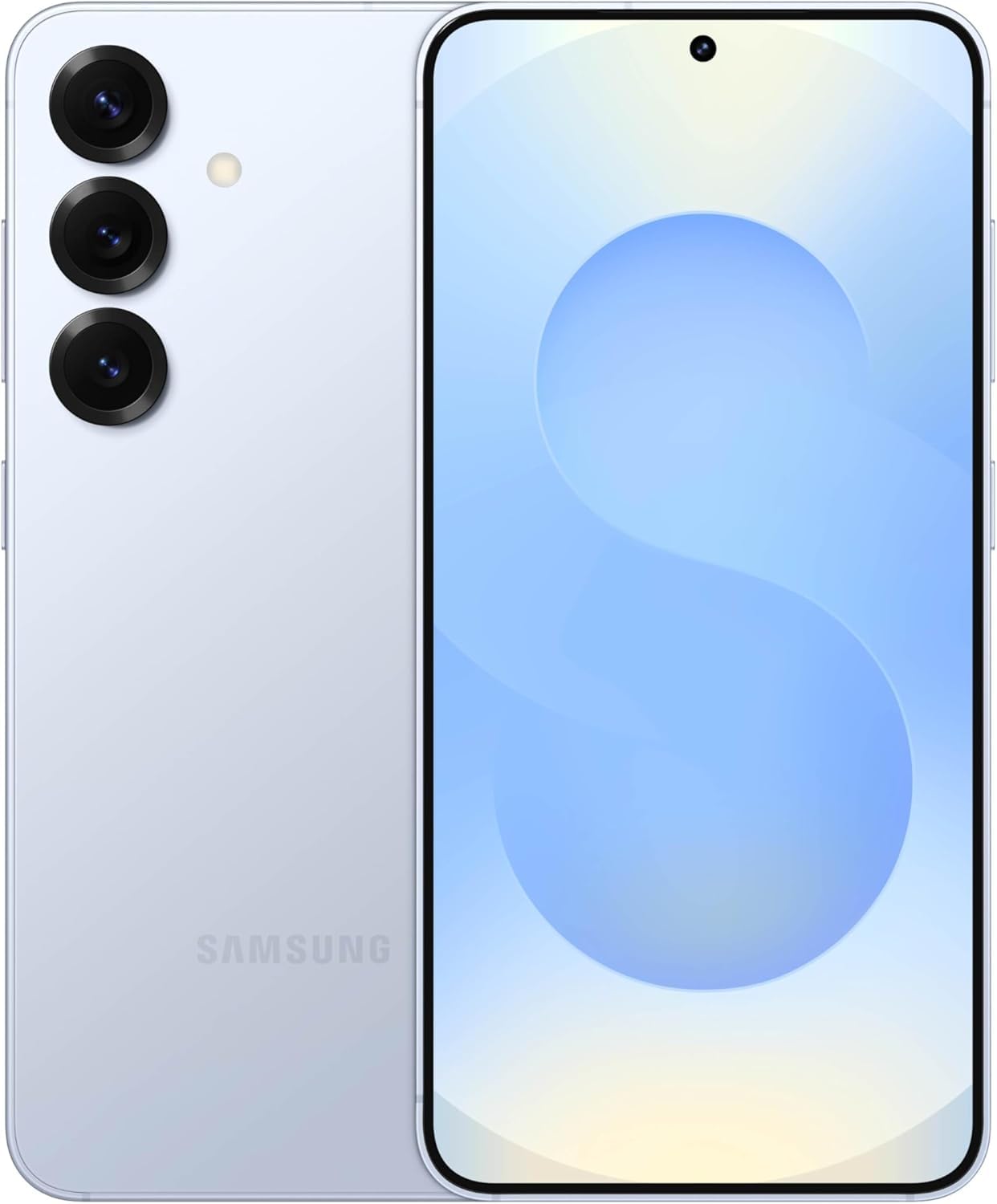
Figure 1: Samsung Galaxy S25 5G SM-S931B/DS smartphone and packaging.
2. Setup
2.1 Unboxing and Initial Inspection
Carefully remove your Samsung Galaxy S25 from its packaging. Inspect the device for any physical damage. The box typically contains the smartphone and a SIM tray ejector tool.
2.2 SIM Card Installation
- Locate the SIM card tray on the side of your device.
- Insert the provided SIM tray ejector tool into the small hole next to the tray and press firmly until the tray pops out.
- Place your Nano-SIM card(s) into the tray with the gold contacts facing down. The device supports dual Nano-SIM cards and eSIM.
- Carefully reinsert the SIM tray into the device until it clicks into place.
Note: This device is compatible with GSM networks (such as AT&T and T-Mobile) but not with CDMA carriers (such as Verizon and Sprint). Ensure your carrier supports the device's 3G, 4G, and 5G bands. A new SIM card or additional configuration may be required, and coverage may vary by location.
2.3 Powering On and Initial Configuration
- Press and hold the Power button (located on the right side) until the Samsung logo appears.
- Follow the on-screen prompts to select your language, connect to a Wi-Fi network, and set up your Google account.
- You will be guided through setting up security features like fingerprint or facial recognition, and transferring data from an old device if desired.
3. Operating Your Device
3.1 Basic Navigation
The Samsung Galaxy S25 uses Android 15 with Samsung's One UI 7, offering intuitive gesture navigation or traditional navigation buttons. Swipe up from the bottom to access the app drawer, swipe down from the top for quick settings and notifications.
3.2 Display Settings
To optimize your viewing experience, navigate to Settings > Display. Here you can adjust:
- Brightness: Manually adjust or enable Adaptive brightness for automatic adjustment based on ambient light.
- Extra brightness: Increase maximum brightness for better outdoor visibility (may consume more battery).
- Motion smoothness: Set to 'Adaptive' for a 120Hz refresh rate for smoother animations and scrolling, or 'Standard' for 60Hz to conserve battery.
- Eye comfort shield: Reduces blue light to prevent eye strain.
- Screen mode: Choose between 'Vivid' for vibrant colors or 'Natural' for more realistic tones.
3.3 Camera Usage
The triple camera system offers various modes for capturing photos and videos:
- Photo Mode: Use the 50 MP main sensor for high-resolution images. Tap the screen to focus and press the shutter button to capture.
- Zoom: Switch between 0.6x (ultrawide), 1x (main), and 3x (telephoto optical zoom) directly from the camera interface.
- Video Mode: Record stable 4K video at 30/60fps or 8K video at 24/30fps. Access resolution settings from the top bar in video mode.
- Other Modes: Explore 'Portrait', 'Pro', 'Night', and other modes for specialized photography.
3.4 Battery Management
Access battery settings via Settings > Battery and device care > Battery.
- Battery status: View current charge level and charging status.
- Battery percentage: Toggle to display the battery percentage in the status bar.
- Charging settings: Configure fast charging options.
- Wireless power sharing: Use your phone to wirelessly charge other compatible devices.
3.5 Multitasking
To switch between open applications, swipe up and hold from the bottom of the screen (if using gesture navigation) or tap the Recent Apps button (if using navigation buttons). You can close individual apps by swiping them away or tap 'Close all' to clear all recent applications.
4. Maintenance
4.1 Cleaning Your Device
To clean your Samsung Galaxy S25, use a soft, lint-free cloth. For stubborn smudges, slightly dampen the cloth with water or a screen cleaner specifically designed for electronics. Avoid harsh chemicals or abrasive materials.
4.2 Software Updates
Regularly check for software updates to ensure your device has the latest features, security patches, and performance improvements. Go to Settings > Software update > Download and install.
4.3 Battery Care
To prolong battery life:
- Avoid exposing the device to extreme temperatures.
- Do not leave the device charging for extended periods after it reaches 100%.
- Utilize power-saving modes when necessary.
4.4 Water and Dust Resistance
The Samsung Galaxy S25 has an IP68 rating, meaning it is resistant to dust and can withstand immersion in up to 1.5 meters of fresh water for up to 30 minutes. However, this resistance is not permanent and may decrease over time with normal wear. Avoid exposing the device to pressurized water, high-velocity water, or liquids other than fresh water.
5. Troubleshooting
5.1 Common Issues and Solutions
- Device not turning on: Ensure the battery is charged. Connect the device to a charger and wait a few minutes before attempting to power on again.
- Screen unresponsive: Perform a forced restart by pressing and holding the Power button and Volume Down button simultaneously for about 7-10 seconds.
- Network connectivity issues: Check if your SIM card is properly inserted. Toggle Airplane mode on and off. Restart your device. Verify your carrier settings.
- Rapid battery drain: Check battery usage in settings to identify power-hungry apps. Reduce screen brightness, disable unnecessary features like GPS or Bluetooth when not in use, and close background apps.
- Apps crashing or freezing: Clear the cache of the problematic app via Settings > Apps > [App Name] > Storage > Clear cache. If the issue persists, try reinstalling the app.
5.2 Factory Reset
If you encounter persistent software issues, a factory reset may resolve them. Warning: This will erase all data on your device. Back up important data before proceeding. Go to Settings > General management > Reset > Factory data reset.
6. Specifications
| Feature | Detail |
|---|---|
| Model Number | SM-S931B/DS |
| Operating System | Android 15, One UI 7 |
| Display Type | Dynamic LTPO AMOLED 2X, 120Hz, HDR10+ |
| Display Size | 6.2 inches |
| Display Resolution | 1080 x 2340 pixels (~416 ppi density) |
| Peak Brightness | 2600 nits |
| Display Protection | Corning Gorilla Glass Victus 2 |
| Chipset | Qualcomm SM8750-AB Snapdragon 8 Elite (3 nm) |
| CPU | Octa-core (2x4.47 GHz Oryon V2 Phoenix L + 6x3.53 GHz Oryon V2 Phoenix M) |
| GPU | Adreno 830 |
| RAM | 12 GB |
| Internal Storage | 128 GB (available in other configurations) |
| Main Camera | 50 MP (wide), f/1.8, OIS, dual pixel PDAF |
| Telephoto Camera | 10 MP, f/2.4, 3x optical zoom, OIS, PDAF |
| Ultrawide Camera | 12 MP, f/2.2, 120˚, Super Steady video |
| Video Recording | 8K@24/30fps, 4K@30/60fps, 1080p@30/60/120/240fps, HDR10+, gyro-EIS |
| Battery Capacity | 4000 mAh (typical) |
| Charging | Fast wired charging, Wireless charging, Wireless PowerShare |
| SIM Configuration | Dual SIM (Nano-SIM + Nano-SIM + eSIM) |
| Connectivity | 5G, Wi-Fi, Bluetooth, GPS |
| Water & Dust Resistance | IP68 |
| Dimensions | 146.9 x 70.5 x 7.2 mm (5.78 x 2.78 x 0.28 in) |
| Weight | 162 g (5.71 oz) |
7. Warranty and Support
This Samsung Galaxy S25 5G SM-S931B/DS is an international version. Please note that this device does not include a US warranty, as some manufacturers do not honor warranties for international items. For warranty information specific to your region or for technical support, please contact Samsung's official customer service in your country of purchase or visit their official website.
8. Product Video Overview
Video 1: A detailed review of the Samsung Galaxy S25, showcasing its design, display features, performance, camera capabilities, and battery life. This video provides a visual overview of the device's key functionalities and user interface.