1. Product Overview
The Anona Pano 4K UHD Indoor Camera is a versatile security solution designed for monitoring pets, babies, and general indoor surveillance. It features 4K Ultra HD resolution, 360° pan and 110° tilt capabilities, dual-band Wi-Fi 6 connectivity, and advanced AI detection for persons, pets, and baby crying. This manual provides detailed instructions for setting up, operating, and maintaining your Anona Pano camera.
1.1 Key Features
- Stunning 4K UHD & 8x Zoom: Captures ultra-clear videos with professional-grade lens and 8X digital zoom.
- AI Person/Pet/Crying Detection: Advanced algorithms detect and notify for human presence, pet activity, and baby crying.
- Ultra-Smooth 360° Pan & 110° Tilt: Provides comprehensive coverage with remote-controlled pan and tilt, including auto-tracking.
- Faster Dual-Band Wi-Fi 6: Ensures stable and smooth data transmission with support for both 2.4 GHz and 5 GHz Wi-Fi networks.
- Safer Local or Cloud Storage: Offers flexible storage options with support for up to 512 GB microSD card (not included) and encrypted cloud storage.
- Two-Way Audio: Enables communication through the camera.
- Privacy Mode: Allows instant cessation of recording and live view for privacy.
- Works with Alexa & Google Assistant: Integrates with smart home ecosystems for voice control and streaming.
1.2 Package Contents
Ensure all items are present in the package:
- Anona Pano Camera
- 5V2A Power Adapter (3m power cable)
- Mounting Plate
- Screws & Anchors Kit
- Quick Start Guide

Image: Anona Pano 4K UHD Indoor Camera with a smartphone showing its live feed.
2. Setup Guide
2.1 Before You Begin
- Ensure your Wi-Fi network is available (supports 2.4 GHz and 5 GHz).
- Have your Wi-Fi network name (SSID) and password ready.
- Download the Anona App from your smartphone's app store (iOS or Android).
2.2 Powering On the Camera
- Connect the provided 5V2A power adapter to the camera's power port.
- Plug the power adapter into a wall outlet.
- The camera will power on, and its indicator light will begin to flash, indicating it's ready for setup.
2.3 Connecting to Wi-Fi via Anona App
- Open the Anona App on your smartphone.
- Create an account or log in if you already have one.
- Tap the "+" icon to add a new device.
- Follow the on-screen instructions to select your camera model and connect it to your Wi-Fi network. This typically involves scanning a QR code displayed on your phone with the camera, or entering Wi-Fi credentials.
- Once connected, the camera's indicator light will turn solid, and you will see the live feed in the app.
2.4 Mounting the Camera
The Anona Pano camera can be placed on a flat surface (tabletop) or mounted to a ceiling.
Tabletop Placement:
- Place the camera on a stable, flat surface within range of your Wi-Fi signal.
- Ensure the camera has a clear line of sight to the area you wish to monitor.
Ceiling Mounting:
- Choose a suitable location on the ceiling.
- Use the provided mounting plate as a template to mark drill holes.
- Drill holes and insert the anchors if necessary.
- Secure the mounting plate to the ceiling using the provided screws.
- Attach the camera to the mounting plate by twisting it until it locks into place.
- In the Anona App settings, enable "Image Rotation" if the camera is mounted upside down.
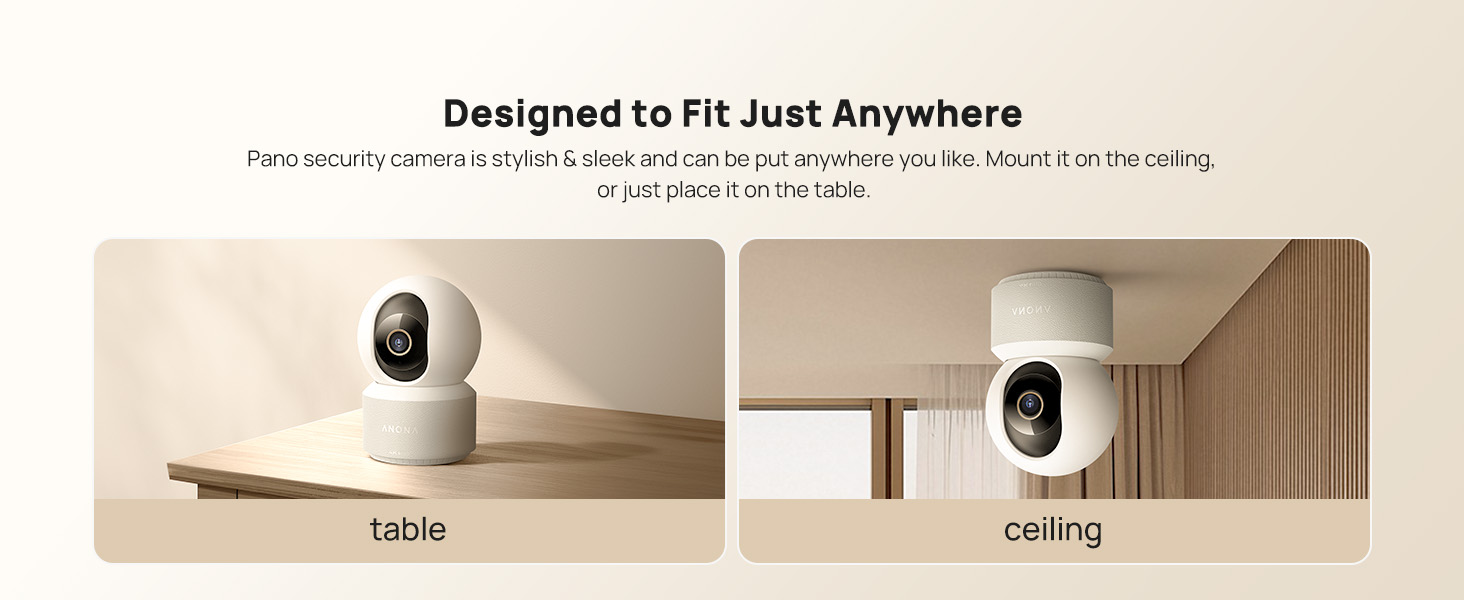
Image: The Anona Pano camera can be placed on a table or mounted to a ceiling.
3. Operating Your Camera
3.1 Live View and Pan/Tilt Control
- Open the Anona App and select your camera to view the live feed.
- Use the directional controls within the app to pan the camera horizontally (360°) and tilt it vertically (110°) to adjust the viewing angle.

Image: The Anona Pano camera offers 360° pan and 110° tilt for full room coverage.
3.2 Auto-Tracking
Enable auto-tracking in the app settings. The camera will automatically detect and follow moving objects within its field of view, ensuring continuous recording of activity.
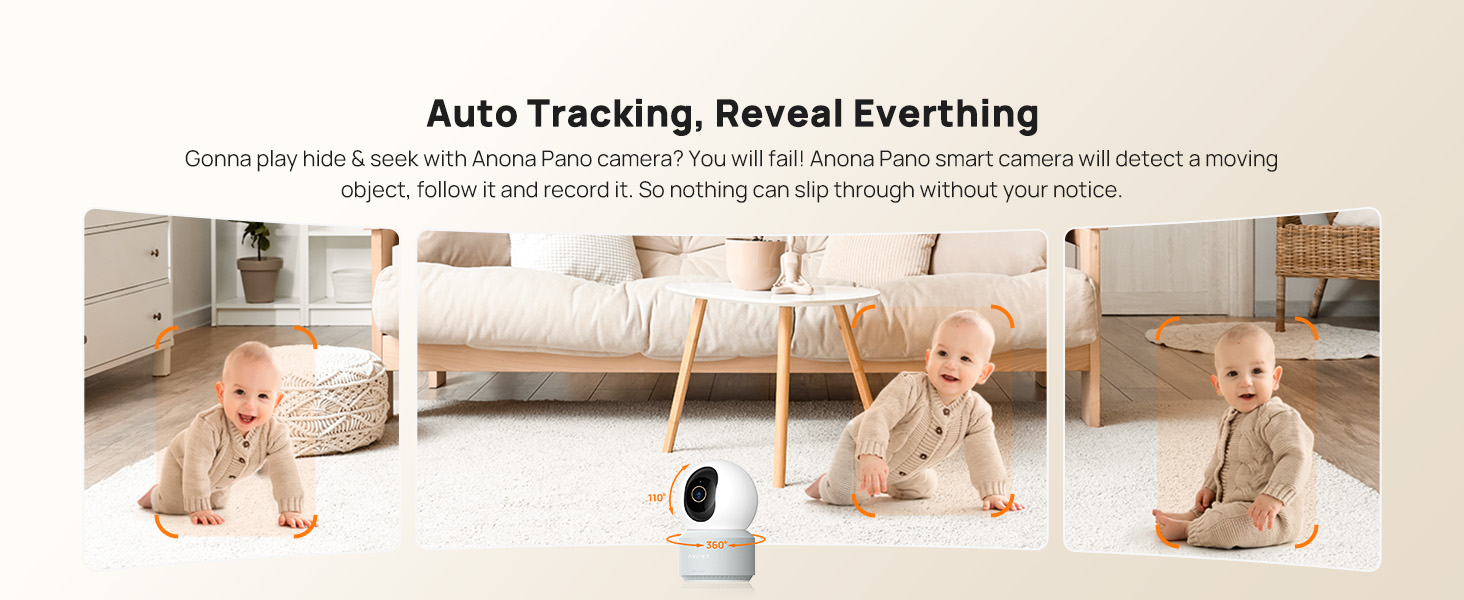
Image: The camera's auto-tracking feature follows moving subjects like a crawling baby.
3.3 AI Detection and Alerts
The Anona Pano camera utilizes AI algorithms for intelligent detection:
- Person Detection: Identifies human shapes and movements, sending real-time alerts.
- Pet Detection: Recognizes cats and dogs, alerting you to their activity.
- Baby Crying Detection: Detects the sound of a baby crying and sends immediate notifications.
Configure alert settings and notification preferences within the Anona App.
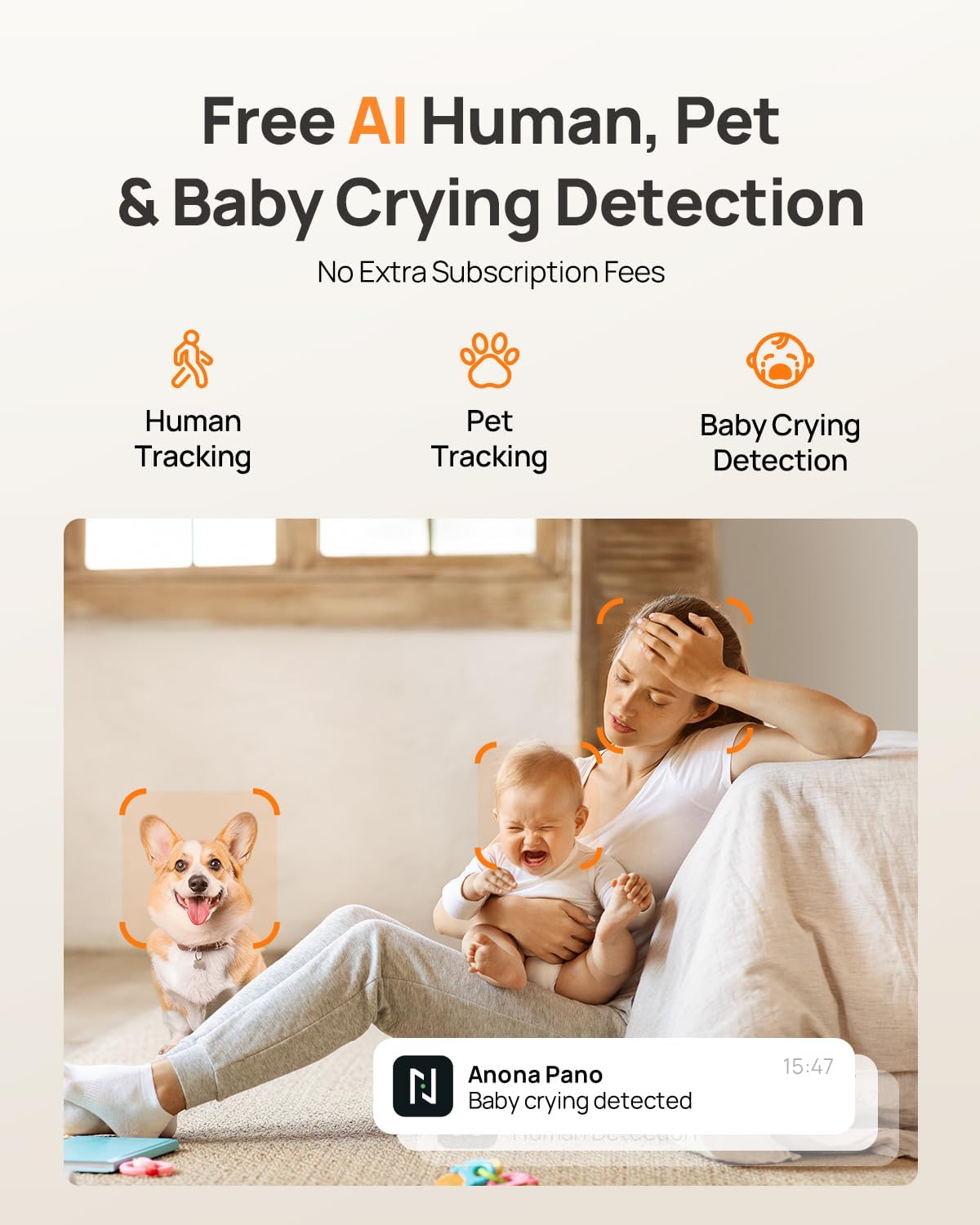
Image: AI detection for human, pet, and baby crying events, with app notification example.
3.4 Two-Way Audio
Use the two-way audio feature to communicate with individuals near the camera. Tap the microphone icon in the live view interface of the Anona App to speak, and listen through the camera's speaker.
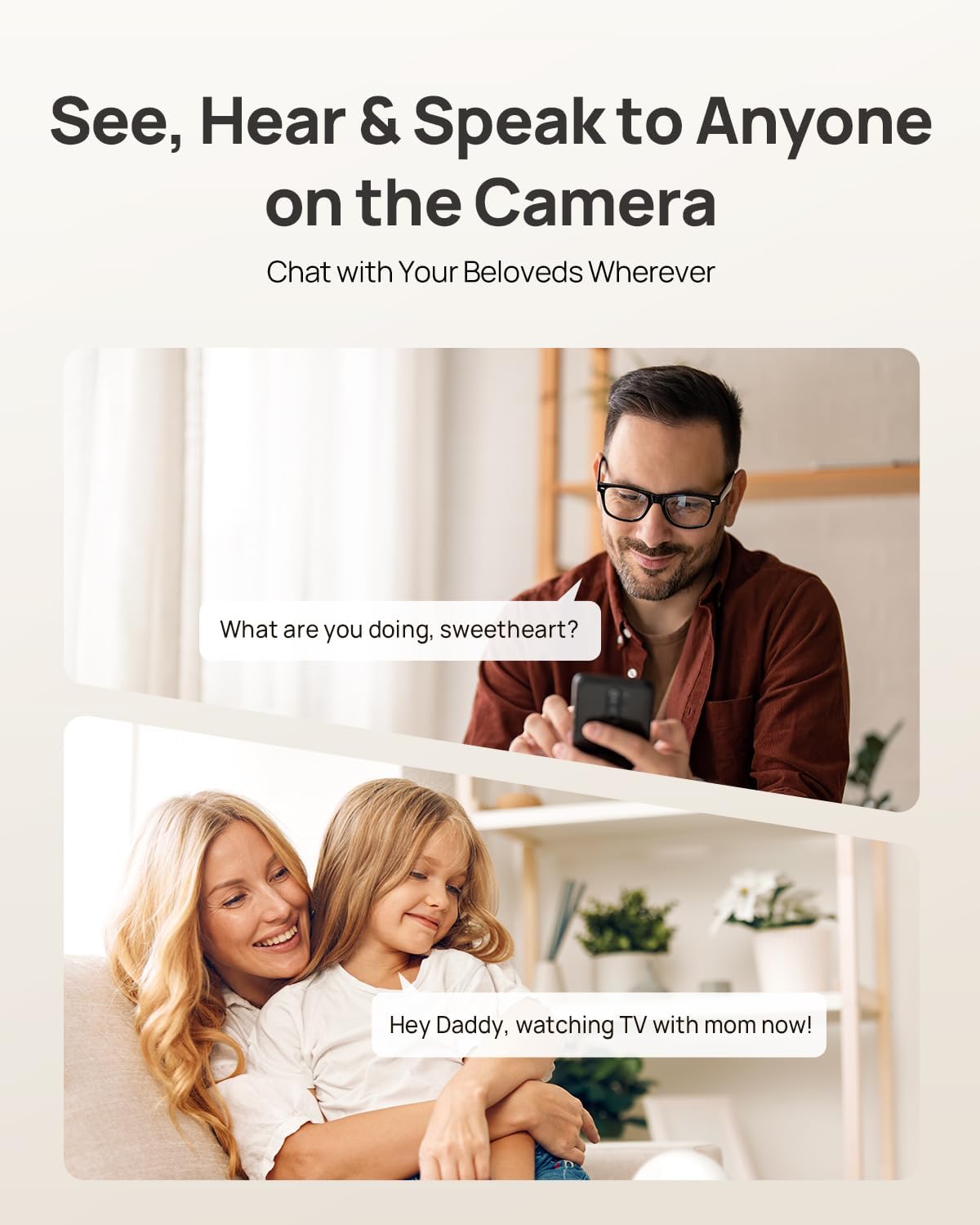
Image: Two-way audio allows communication with family members or pets via the camera.
3.5 Privacy Mode
Activate Privacy Mode via a single tap in the Anona App. This feature instantly stops live view and recording, providing privacy without needing to unplug the camera.

Image: Privacy Mode can be activated with one tap in the app, stopping recording and live view.
3.6 Storage Options
The Anona Pano camera supports two storage methods:
- Local Storage (MicroSD Card): Insert a microSD card (up to 512 GB, not included) into the camera's designated slot for local recording. This allows saving up to 150 days of motion-triggered videos or 14 days of 24/7 recordings.
- Cloud Storage: Opt for Anona Cloud service to save videos securely with AES-128 encryption. Subscription may be required for cloud services.
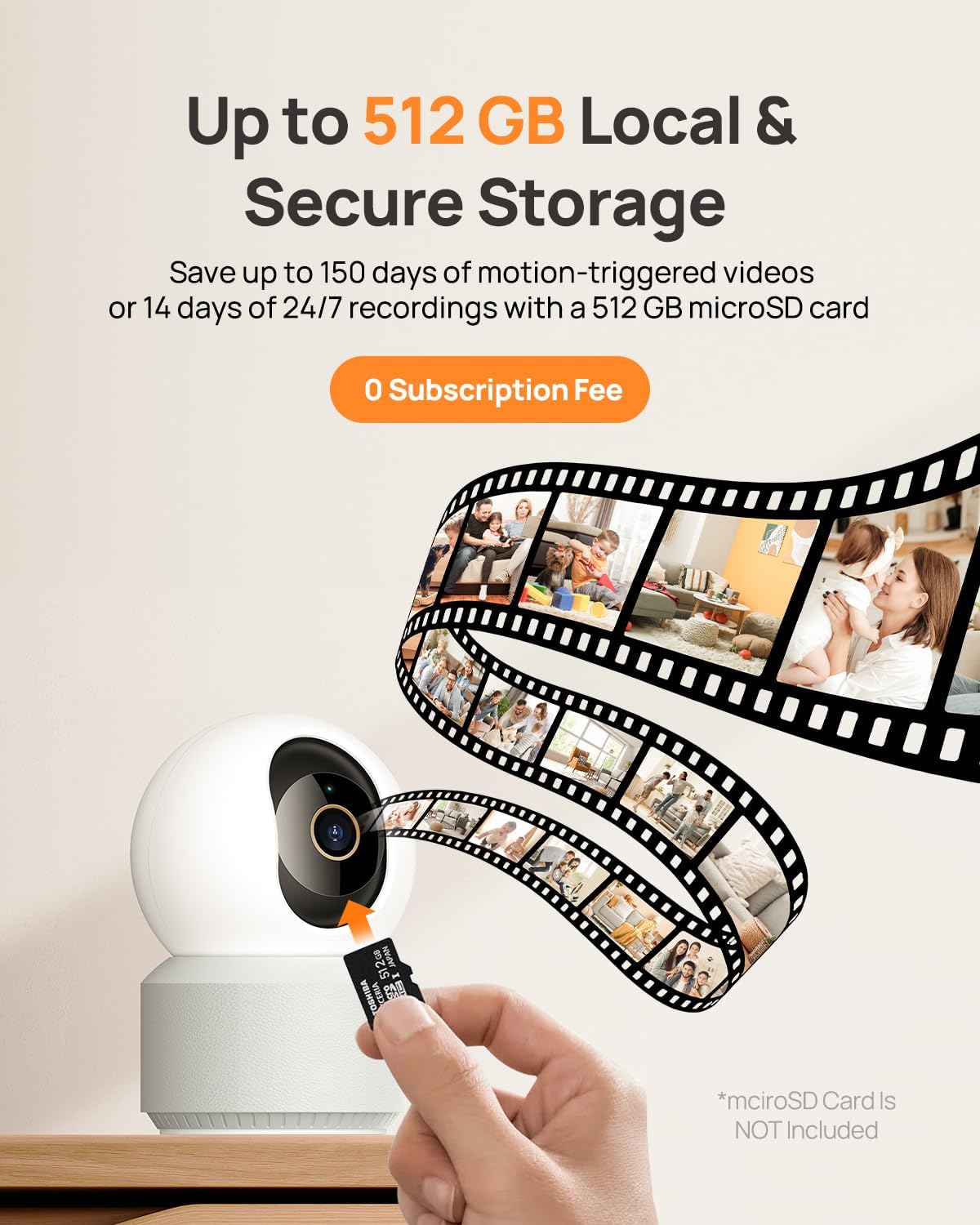
Image: The camera supports local storage via a microSD card (up to 512 GB).
3.7 Night Vision
The camera features F1.6 aperture and powerful IR LEDs for enhanced night vision, allowing clear 4K UHD footage even in low-light or pitch-black conditions up to 30 feet.
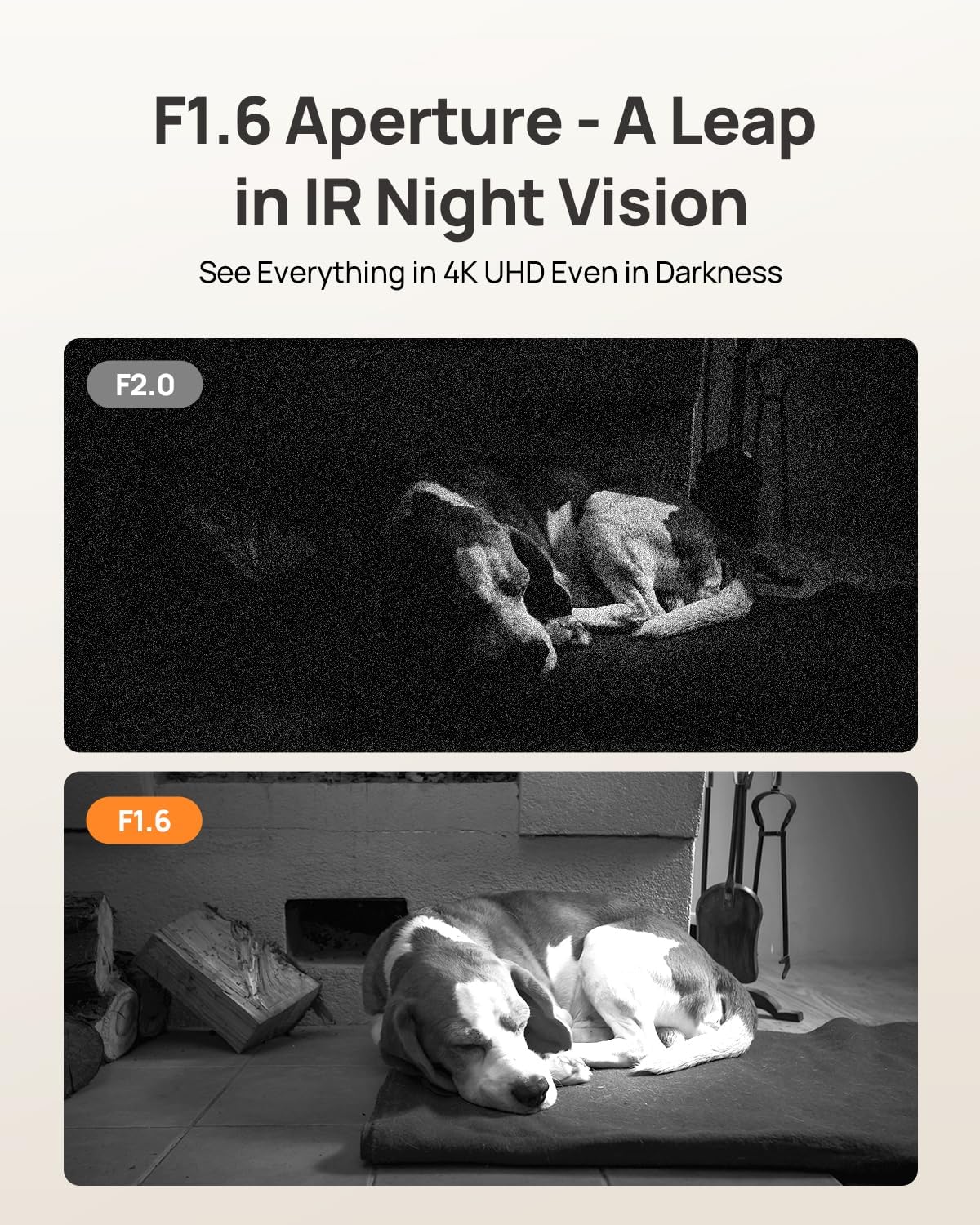
Image: F1.6 aperture provides superior night vision clarity compared to F2.0.
3.8 Smart Home Integration
The Anona Pano camera is compatible with Amazon Alexa and Google Assistant. Link your camera through the respective smart home apps to enable voice commands and stream live video to compatible smart displays.
- Example command: "Hey Alexa, show me the Anona Pano camera!"
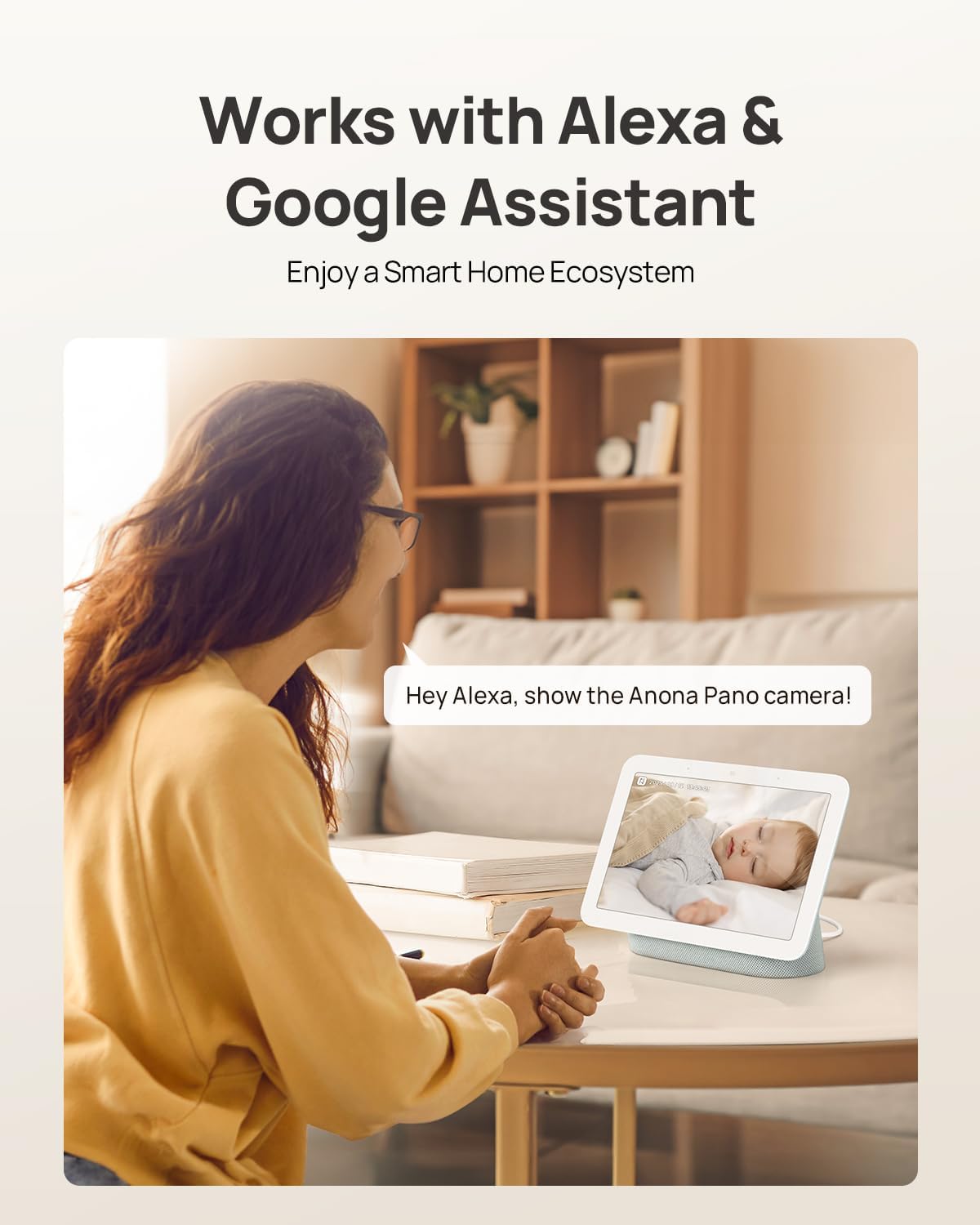
Image: The camera integrates with smart home devices like Amazon Echo Show or Google Nest Hub.
4. Maintenance
4.1 Cleaning the Camera
- Ensure the camera is powered off before cleaning.
- Use a soft, dry cloth to wipe the camera body.
- For the lens, use a lens cleaning cloth specifically designed for optics to avoid scratches. Do not use harsh chemicals or abrasive cleaners.
4.2 Firmware Updates
Regularly check for firmware updates through the Anona App. Updates often include performance improvements, new features, and security enhancements. The app will typically notify you when an update is available and guide you through the process.
4.3 Storage Management
- MicroSD Card: Periodically review and back up important recordings from your microSD card. When the card is full, older footage will typically be overwritten.
- Cloud Storage: Manage your cloud storage subscription and review stored footage directly through the Anona App.
5. Troubleshooting
5.1 Common Issues and Solutions
| Issue | Possible Cause | Solution |
|---|---|---|
| Camera not powering on | Power adapter not connected or faulty outlet. | Ensure power adapter is securely connected and try a different power outlet. |
| Unable to connect to Wi-Fi | Incorrect Wi-Fi password, camera too far from router, or network interference. | Verify Wi-Fi password, move camera closer to router, ensure router supports 2.4/5 GHz, and restart router. |
| Poor video quality | Weak Wi-Fi signal, dirty lens, or insufficient lighting. | Improve Wi-Fi signal strength, clean the camera lens, ensure adequate lighting or rely on night vision. |
| AI detection not working | Detection settings disabled in app, or objects are out of detection range/angle. | Check and enable detection settings in the Anona App. Adjust camera position for optimal coverage. |
| Two-way audio issues | Microphone/speaker muted in app, or network latency. | Ensure audio settings are enabled in the app. Check network connection for stability. |
| MicroSD card not recording | Card not inserted correctly, card full, or card not formatted. | Reinsert card, check storage status in app, format card via app if necessary. Ensure card is compatible (up to 512 GB). |
For further assistance, refer to the Anona App's help section or contact customer support.
6. Product Specifications
| Feature | Detail |
|---|---|
| Model Name | Anona Pano |
| Indoor/Outdoor Usage | Indoor |
| Video Capture Resolution | 4K (8MP) |
| Optical Zoom | 8x |
| Pan Angle | 360 Degrees |
| Tilt Angle | 110 Degrees |
| Connectivity Technology | Wireless (Wi-Fi) |
| Wireless Communication Technology | Bluetooth, Wi-Fi (Dual-Band 2.4/5 GHz Wi-Fi 6) |
| Power Source | Corded Electric (5V) |
| Controller Type | App, Remote, Voice (Amazon Alexa, Google Assistant) |
| Mounting Type | Tabletop Mount, Freestanding, Ceiling Mount |
| Night Vision Range | 30 Feet |
| Frame Rate | 15 frames per second |
| Material | Plastic |
| Item Dimensions (L x W x H) | 3.23 x 3.11 x 4.77 inches |
| Item Weight | 14.9 ounces (0.93 Pounds) |
| Flash Memory Supported Size Maximum | 512 GB (Micro SD) |
| Special Features | 2-Way Talk, 2.4/5G WiFi, 355° Pan & 110° Tilt, 4K 8MP Resolution, AI Person/Pet/Cry Detection |
7. Warranty and Support
7.1 Product Warranty
Anona products typically come with a manufacturer's warranty. Please refer to the warranty card included in your product packaging or visit the official Anona website for detailed warranty terms and conditions. Protection plans may also be available for extended coverage.
- Optional 2-Year Protection Plan
- Optional 3-Year Protection Plan
7.2 Customer Support
If you encounter any issues or have questions regarding your Anona Pano camera, please contact Anona Customer Support. You can usually find contact information (email, phone, or support portal) on the official Anona website or within the Anona App's help section.
For the latest information and support resources, please visit the Anona Store on Amazon.


