
1. Introduction
Thank you for choosing the LORPHEIR DAB/DAB+ Car Adapter Z0153. This device is designed to upgrade your car's audio system with digital radio capabilities, Bluetooth connectivity, and multiple audio playback options without complex installation. It features a 2.4-inch LCD screen for clear information display and ensures a seamless listening experience with automatic scanning and service following.

Image: The LORPHEIR DAB/DAB+ Car Adapter screen showing digital radio information, illustrating the 'DAB+ Digital CD-Quality Sound Experience'.
2. Package Contents
Please check the package for the following items:
- DAB/DAB+ Car Adapter Unit
- Power Cable (Car Charger)
- Mounting Bracket (Suction Cup Mount)
- Air Vent Clip
- USB Charging Cable
- User Manual

Image: A visual representation of the LORPHEIR DAB/DAB+ Car Adapter and its complete packing list, including the main unit, various mounts, and cables.
3. Setup Guide
The LORPHEIR DAB/DAB+ Car Adapter is designed for a plug-and-play installation, requiring no dashboard disassembly or modification of original vehicle wiring.
3.1 Mounting the Device
- Choose a suitable location on your dashboard or windshield that does not obstruct your view or interfere with driving.
- Attach the suction cup mount or air vent clip to the back of the adapter unit.
- Secure the mount to your chosen surface. Ensure it is firmly attached.
3.2 Power Connection
- Connect the power cable to the adapter's power input port.
- Plug the car charger end into your vehicle's 12V power outlet (cigarette lighter socket).
- The device will power on automatically or prompt you to turn it on.
3.3 Antenna Installation (if applicable)
If your model includes an external antenna, follow these steps:
- Connect the DAB antenna to the designated antenna port on the adapter.
- Route the antenna cable discreetly along the windshield or dashboard to avoid interference.
- Attach the antenna to a clean, non-metallic surface, typically on the windshield, ensuring good signal reception.
3.4 Initial Scan for DAB/DAB+ Stations
- Upon first power-on, the device will typically prompt you to perform an automatic scan for available DAB/DAB+ stations.
- Follow the on-screen instructions to initiate the scan. This process may take a few minutes.
- Once the scan is complete, the device will display a list of available stations.

Image: An installation diagram showing how to mount the DAB/DAB+ Car Adapter on the dashboard and connect its components.
4. Operating Instructions
The adapter features an intuitive user interface on its 2.4-inch LCD screen, allowing for easy navigation and control.
4.1 Power On/Off
- To power on, ensure the device is connected to a power source. It may turn on automatically with the car ignition.
- To power off, press and hold the power button (if available) or disconnect from the power source.
4.2 DAB/DAB+ Radio
- Navigate to the DAB/DAB+ mode using the control buttons.
- Use the navigation buttons to browse through the list of available stations.
- Select a station to begin listening. The 2.4-inch LCD screen will display station information, song titles, and broadcast data in real-time.
- The Service Following function automatically switches to the strongest available frequency for the current station, ensuring uninterrupted reception during travel.
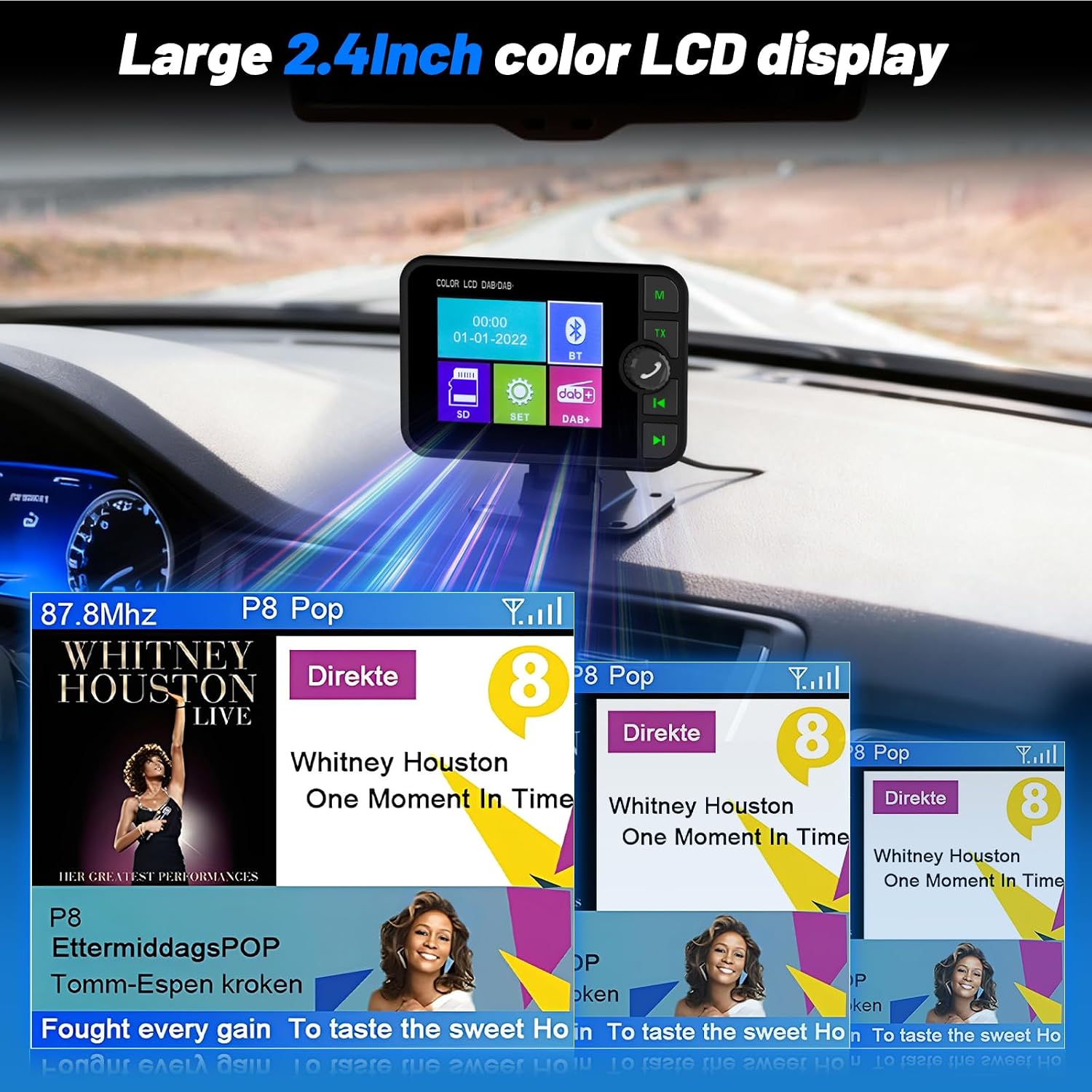
Image: The large 2.4-inch color LCD display of the adapter, showing detailed station information and album art for an enhanced user experience.
4.3 FM Transmitter
The built-in FM transmitter allows you to broadcast audio from the adapter to your car's FM radio.
- Select the FM Transmitter mode on the adapter.
- Choose an unused FM frequency on the adapter's screen. Avoid frequencies used by local radio stations to minimize interference.
- Tune your car's FM radio to the exact same frequency selected on the adapter.
- Audio from the adapter will now play through your car's speakers.
4.4 Bluetooth Connectivity
Connect your smartphone via Bluetooth for hands-free calling and wireless music streaming.
- Enable Bluetooth on your smartphone.
- On the adapter, navigate to the Bluetooth mode. The device will enter pairing mode automatically or you may need to select 'Pair New Device'.
- On your smartphone, search for Bluetooth devices and select 'LORPHEIR Z0153' (or similar name) from the list.
- Once paired, you can make/receive hands-free calls and stream music wirelessly.

Image: A driver safely engaging in a hands-free call, demonstrating the Bluetooth functionality of the LORPHEIR DAB/DAB+ Car Adapter.

Image: An illustration highlighting the safety benefits of Bluetooth 5.0 connectivity for hands-free calling, promoting safe driving practices.
4.5 AUX Input
Connect external audio devices (e.g., MP3 players, older smartphones) using a 3.5mm AUX cable.
- Connect one end of a 3.5mm AUX cable to the adapter's AUX input port.
- Connect the other end to the headphone jack of your external audio device.
- Select AUX mode on the adapter. Audio from your device will play through the adapter and then via FM transmission to your car speakers.
4.6 TF Card MP3 Player
Play music directly from a TF (MicroSD) card.
- Insert a TF card loaded with MP3, WMA, or WAV audio files into the TF card slot on the adapter.
- Select TF Card mode on the adapter.
- Use the navigation buttons to browse and select your desired tracks.

Image: A comprehensive view of the adapter's four play modes, detailing how to use FM Transmission, AUX Connection, and TF Card for audio playback.

Image: Detailed view of the AUX output and TF card slot, highlighting the adapter's support for external audio sources and local music files.
5. Maintenance
- Cleaning: Use a soft, dry cloth to clean the device. Do not use liquid cleaners or aerosols, as they may damage the unit.
- Storage: When not in use for extended periods, store the device in a cool, dry place away from direct sunlight and extreme temperatures.
- Cable Care: Avoid bending or crimping the power and antenna cables excessively to prevent damage.
6. Troubleshooting
If you encounter issues with your LORPHEIR DAB/DAB+ Car Adapter, please refer to the following common problems and solutions:
| Problem | Possible Cause | Solution |
|---|---|---|
| No power / Device not turning on | Loose power connection; Faulty car charger; Vehicle's 12V outlet not working. | Ensure the power cable is securely connected. Test the car charger in another vehicle or use a different 12V outlet. Check vehicle's fuse for the 12V outlet. |
| Poor DAB/DAB+ reception or no stations found | Weak signal area; Improper antenna placement; Interference. | Relocate the antenna to a position with better signal. Perform an automatic scan again. Move to an area with stronger DAB/DAB+ coverage. Avoid placing the antenna near other electronic devices that may cause interference. |
| FM transmission static or poor audio quality | Interference from local FM stations; Incorrect FM frequency selected. | Select a different, unused FM frequency on both the adapter and your car radio. Ensure no strong local FM stations are broadcasting on or near your chosen frequency. |
| Bluetooth pairing issues | Bluetooth not enabled on phone; Device not in pairing mode; Already paired with another device. | Ensure Bluetooth is active on your smartphone. Put the adapter into pairing mode. Forget previous pairings on your phone and try again. Restart both devices. |
| TF card not recognized or music not playing | Incorrect file format; Corrupted TF card; Improperly inserted card. | Ensure music files are in supported formats (MP3, WMA, WAV). Reinsert the TF card correctly. Try a different TF card. |
7. Specifications
| Feature | Detail |
|---|---|
| Model Number | Z0153 |
| Brand | LORPHEIR |
| Display Size | 2.4 Inch LCD |
| Connectivity Technology | AUX, Bluetooth, FM Transmission |
| Wireless Communication Standard | Bluetooth |
| Bluetooth Version | BT 5.0 (implied from A+ content) |
| DAB/DAB+ Frequency Range | 174-240 MHz |
| FM Transmit Range | 87.5-108 MHz |
| Audio Input | 3.5 mm AUX |
| Supported Media Types | Bluetooth, MP3 (via TF card) |
| Supported TF Card Formats | WMA, WAV, MP3 |
| Special Features | Automatic Scan, Service Following, Hands-free Calling |
| Power Source | Corded Electric (12V car power outlet) |
| Control Method | Touch (buttons) |
| Installation Type | Wired |

Image: The adapter's display showcasing its DAB/DAB+ frequency range, Bluetooth capabilities, and TF card support.
8. Warranty Information
This LORPHEIR product comes with a 2-year warranty from the date of purchase. This warranty covers manufacturing defects and ensures the product functions as intended under normal use. Please retain your proof of purchase for warranty claims.
9. Customer Support
For further assistance, technical support, or warranty inquiries, please contact LORPHEIR customer service through the retailer's platform or the official LORPHEIR website. Our support team is available to help you with any questions or issues you may have regarding your DAB/DAB+ Car Adapter.