
1. Product Overview
The JaeJaes Smart Hub is a compact smart gateway designed to integrate your JaeJaes Alexa Motorized Blackout Blinds (models V0005/V0006) into your smart home ecosystem. It features a highly integrated Wi-Fi module and a low-power-consuming ZigBee/Bluetooth module, enabling seamless connectivity with the "eWelLinK" app for comprehensive device management and third-party control.
This hub facilitates advanced smart home functionalities such as device adding, resetting, and group control for ZigBee/Bluetooth devices. It is essential for enabling voice control and smart automation with platforms like Alexa, Google Assistant, and SmartThings.
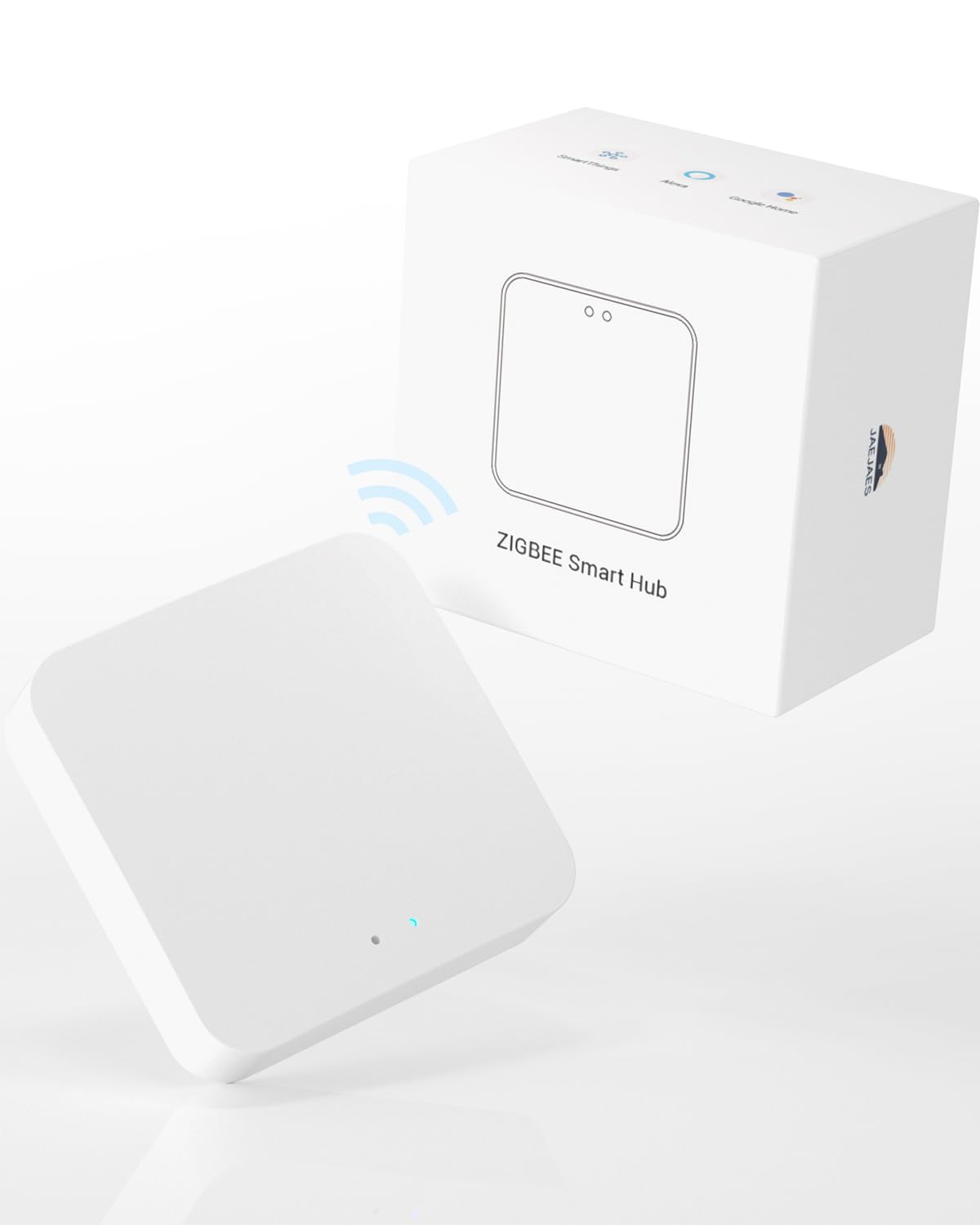
Image: The compact JaeJaes Smart Hub, a central component for smart blind control.
Key Features:
- Exclusive Compatibility: Designed specifically for JaeJaes Alexa Blinds models V0005 and V0006.
- Easy Pairing: Connects effortlessly to the "eWelLinK" app for device setup and management.
- Third-Party Control: Enables integration with popular smart home platforms including Alexa, Google Assistant, and SmartThings for voice and automated control.
- ZigBee/Bluetooth Module: Features advanced connectivity for reliable and efficient communication with smart devices.

Image: The JaeJaes Smart Hub (Zigbee 3.0, 2.4GHz WiFi) connecting to V0005 Roller Blind and V0006 Zebra Blind, with compatibility icons for Alexa, Google Home, SmartThings, and IFTTT.
2. Package Contents
Please verify that all items listed below are included in your package:
- 1 x JaeJaes Smart Hub (Smart Gateway)
- 1 x Data Cable (for power supply)
- 1 x User Manual (this document)
Video: An overview of the Zigbee Hub and its functionality with JaeJaes Motorized Shades. This video demonstrates the hub's role in smart home integration.
3. Setup Guide
3.1 Connecting the Smart Hub to the App
- Power On the Hub: Connect the provided data cable to the JaeJaes Smart Hub and plug it into a power supply. The indicator lights on the hub will activate.
- Download the App: Download and open the "eWelLinK" app from your smartphone's app store (available for iOS and Android).
- Add Device:
- Open the "eWelLinK" app and navigate to the "Home" interface.
- Click "Add Device".
- Select "Others (Zigbee)" from the "Others" tab.
- Choose "Configure Wireless Gateway".
- Connect to Wi-Fi:
- Enter your 2.4GHz Wi-Fi network name and password. (Note: 5GHz Wi-Fi networks are not supported.)
- Observe the gateway indicator light status. If it blinks quickly, select "Blink Quickly" in the app. If it blinks slowly, select "Blink Slowly".
- Follow the app's instructions to scan for devices. The app should discover "Zigbee gateway".
- Click "Done" to connect the gateway to the app.

Image: The JaeJaes Smart Hub connected to a power supply, showing its indicator lights.
Video: A step-by-step guide on how to connect a blind with the smart bridge using the eWelLinK app.
3.2 Connecting Motorized Blinds to the Smart Hub
Once your Smart Hub is successfully connected to the "eWelLinK" app, you can proceed to pair your JaeJaes Motorized Blinds (V0005/V0006 models).
- Initiate Pairing on Blind: On your motorized blind, locate the small "SET" button (often near the motor or charging port). Short press this button 5 times, then long press it for 3 seconds on the fifth press. The green indicator light on the blind will start flashing, indicating it's in pairing mode.
- Initiate Pairing on Hub: Press the button on the back of the Smart Hub. The hub's blue light will flash.
- Confirmation: The blinds will adjust up and down once, signaling successful addition to the hub.
- Add Sub-device in App: In the "eWelLinK" app, within the "Zigbee Gateway" interface, click "Add subdevice" and follow the prompts to add your motorized blind.
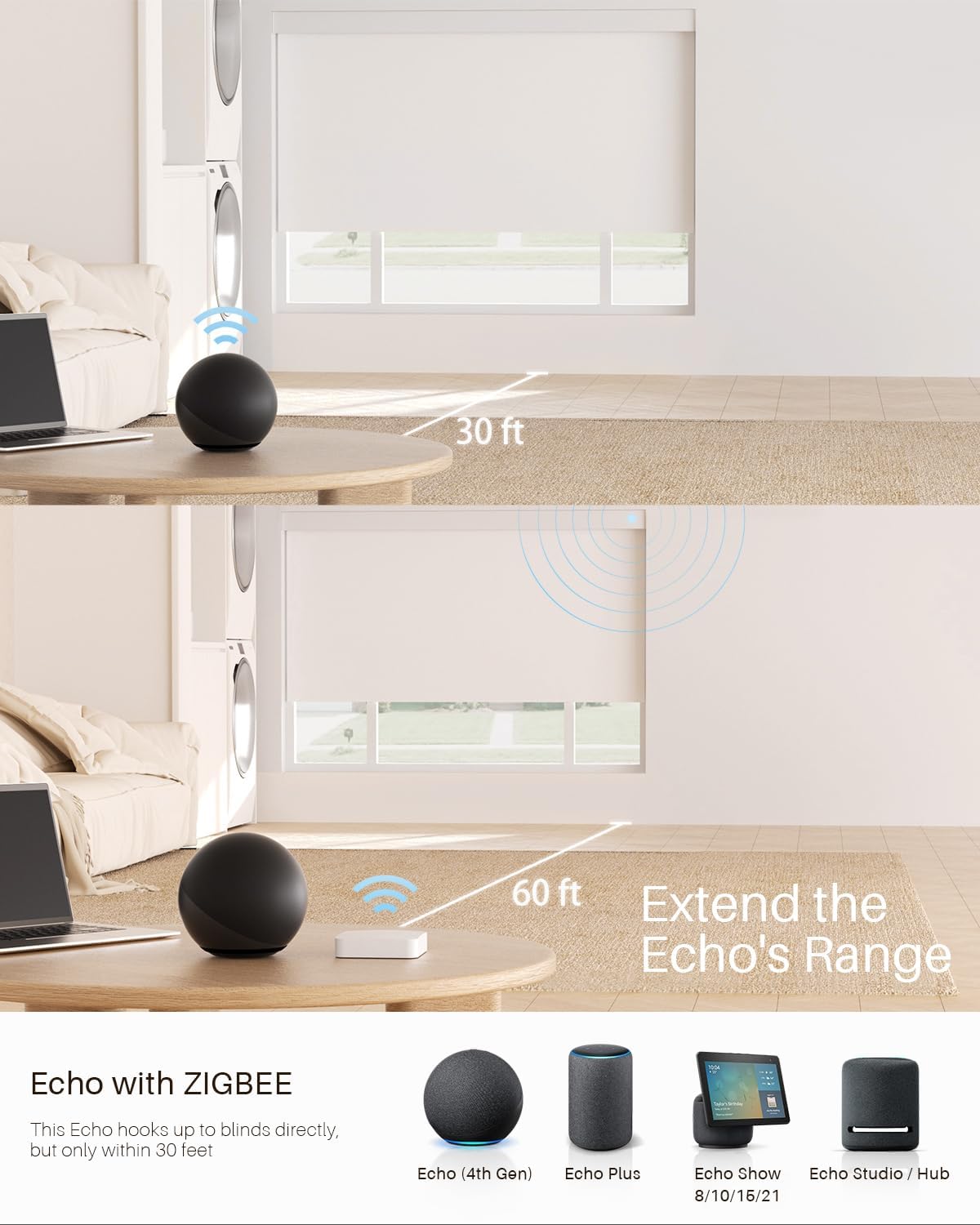
Image: The Smart Hub extending the control range for Echo devices, enabling wider coverage for motorized blinds.
4. Operating Instructions
4.1 App Control (eWelLinK)
After successfully pairing your blinds with the Smart Hub and the "eWelLinK" app, you can control them directly from your smartphone:
- Open the "eWelLinK" app.
- Select your "Zigbee Gateway" and then choose the specific blind you wish to control.
- Use the on-screen controls to open, close, or pause your blinds at any desired position.

Image: Visual representation of controlling smart blinds via the Alexa app, showing the connection path from phone to hub to blinds.
4.2 Voice Control (Alexa, Google Assistant, SmartThings)
To enable voice control, you need to link your "eWelLinK" account with your preferred smart assistant:
- Link Account:
- In the "eWelLinK" app, go to the "Me" tab.
- Select "Third-Party Services" (or similar option for linking).
- Choose your desired smart assistant (e.g., Alexa, Google Assistant, SmartThings).
- Follow the on-screen instructions to sign in and link your accounts.
- Discover Devices: Once linked, open your smart assistant's app (e.g., Alexa app) and instruct it to "Discover devices" or manually add new devices. Your JaeJaes blinds should appear.
- Voice Commands: You can now use voice commands to control your blinds. Examples:
- "Alexa, open [Blind Name]."
- "Hey Google, close [Blind Name]."
- "Alexa, set [Blind Name] to 50%."

Image: Controlling smart blinds with a non-Zigbee Echo device, highlighting the hub's role in bridging compatibility.
5. Maintenance
To ensure optimal performance and longevity of your JaeJaes Smart Hub and Motorized Blinds, follow these maintenance guidelines:
- Cleaning: Gently wipe the Smart Hub with a dry, soft cloth. Avoid using harsh chemicals or abrasive cleaners.
- Firmware Updates: Regularly check the "eWelLinK" app for any available firmware updates for your Smart Hub and blinds. Keeping the firmware updated ensures the best performance and access to new features.
- Power Supply: Ensure the Smart Hub is connected to a stable power source. Avoid frequent disconnections.
- Network Stability: Maintain a stable 2.4GHz Wi-Fi network for uninterrupted connectivity and control.
6. Troubleshooting
If you encounter issues with your JaeJaes Smart Hub or Motorized Blinds, refer to the following common troubleshooting steps:
- Device Not Responding:
- Check if the Smart Hub is powered on and connected to your 2.4GHz Wi-Fi network.
- Ensure your smartphone has a stable internet connection.
- Verify that the blinds are within the effective range of the Smart Hub.
- Try restarting the Smart Hub by unplugging it for 10 seconds and plugging it back in.
- Pairing Issues:
- Confirm that your Wi-Fi network is 2.4GHz.
- Ensure the Smart Hub and blinds are in pairing mode as described in the setup section.
- Reset the Smart Hub if necessary (refer to app instructions for reset procedure).
- Voice Control Not Working:
- Check if your "eWelLinK" account is correctly linked to Alexa, Google Assistant, or SmartThings.
- Ensure your smart assistant device (e.g., Echo, Google Home) is online and functioning correctly.
- Try rediscovering devices in your smart assistant's app.
- Use the exact device names you assigned in the "eWelLinK" app for voice commands.
- Blinds Not Moving Smoothly:
- Check for any obstructions in the blind's path.
- Ensure the blinds are properly installed and aligned.
7. Product Specifications
| Brand | JaeJaes |
| Model | Smart Hub (compatible with V0005/V0006) |
| Material | Plastic |
| Color | Snow White Hub |
| Product Dimensions | 2.3"L x 0.5"W |
| Item Weight | 1.76 ounces |
| Operation Mode | Automatic |
| Control Type | Motorized (via app/voice assistant) |
| Connectivity | 2.4GHz Wi-Fi, ZigBee, Bluetooth |
| Max Device Capacity | Up to 30 blinds per hub |

Image: Performance metrics of the Smart Hub, including response time, energy consumption, and maximum device capacity.
8. Warranty and Customer Support
JaeJaes is committed to providing high-quality products and excellent customer service. For any setup or usage issues, our dedicated customer support team is ready to assist you.
Please contact us through the customer support channels provided on our official website or through your purchase platform for prompt assistance.