
LORPHEIR 2+64G, 4 Core
LORPHEIR Android Car Radio User Manual
Model: 2+64G, 4 Core for Peugeot 307 (2002-2013)
1. Introduction
This manual provides detailed instructions for the installation, operation, and maintenance of your LORPHEIR Android Car Radio. This unit is specifically designed for Peugeot 307 models manufactured between 2002 and 2013, offering a modern upgrade to your vehicle's infotainment system with a 9-inch IPS display, wireless CarPlay and Android Auto, GPS navigation, and enhanced audio features.
Please read this manual thoroughly before installation and use to ensure proper functionality and to avoid damage to the unit or your vehicle.
2. Safety Information
- Always ensure the vehicle is turned off and the battery is disconnected before performing any installation or wiring.
- Professional installation is recommended for optimal performance and safety.
- Do not operate the device in a way that distracts you from driving. Always prioritize road safety.
- Avoid exposing the unit to extreme temperatures, direct sunlight for prolonged periods, or excessive moisture.
- Use only approved accessories and wiring harnesses.
3. Package Contents
Verify that all items are present in the package:
- LORPHEIR Android Car Radio Unit (2+64G, 4 Core)
- Custom Frame for Peugeot 307
- Power Harness and CANBUS Decoder
- GPS Antenna
- USB Cables (x2)
- AHD Backup Camera with Cable
- RCA Input/Output Cables
- Installation Tools (e.g., trim removal tool, screwdriver)
- User Manual (this document)

Image: LORPHEIR Android Car Radio unit with its custom frame and the included AHD backup camera. This image displays the main components you should find in your package.
4. Setup and Installation
4.1. Compatibility Check
This car radio is designed for Peugeot 307 models from 2002 to 2013. It is compatible with vehicles featuring the "Low configuration" dashboard (Version A), which typically does not have factory steering wheel control buttons. It is not compatible with "High configuration" (Version B) models that include factory steering wheel controls without additional adapters.

Image: Visual guide comparing the "Low configuration" (Version A) and "High configuration" (Version B) dashboards for Peugeot 307. Ensure your vehicle matches Version A for direct compatibility.
4.2. Pre-Installation Steps
- Park your vehicle on a level surface and engage the parking brake.
- Turn off the ignition and remove the key.
- Disconnect the negative terminal of the car battery to prevent electrical shorts.
- Carefully remove the existing factory radio and dashboard trim using the provided tools. Refer to your vehicle's service manual for specific trim removal instructions.
4.3. Wiring Connections
Connect the provided wiring harness to the car radio and then to the vehicle's factory wiring. Ensure all connections are secure. The CANBUS decoder should be connected as per the wiring diagram to enable communication with the vehicle's systems, including steering wheel controls if applicable (for compatible models or with additional adapters).
- Power Harness: Connect the main power harness to the car radio and the vehicle's power connector.
- CANBUS Decoder: Integrate the CANBUS decoder into the power harness as instructed. This enables features like ignition sensing and steering wheel control integration.
- GPS Antenna: Connect the GPS antenna and route it to a location with a clear view of the sky (e.g., on the dashboard or under the windshield).
- USB Cables: Connect the USB cables and route them to a convenient location, such as the glove compartment, for future use with USB devices.
- RCA Cables: Connect any necessary RCA cables for external amplifiers, subwoofers, or auxiliary video inputs/outputs.
4.4. AHD Backup Camera Installation
The included AHD backup camera enhances parking safety. Install the camera at the rear of your vehicle, typically near the license plate light. Route the video cable to the car radio's reverse camera input. Connect the camera's power wire to the vehicle's reverse light circuit so it activates automatically when reverse gear is engaged.
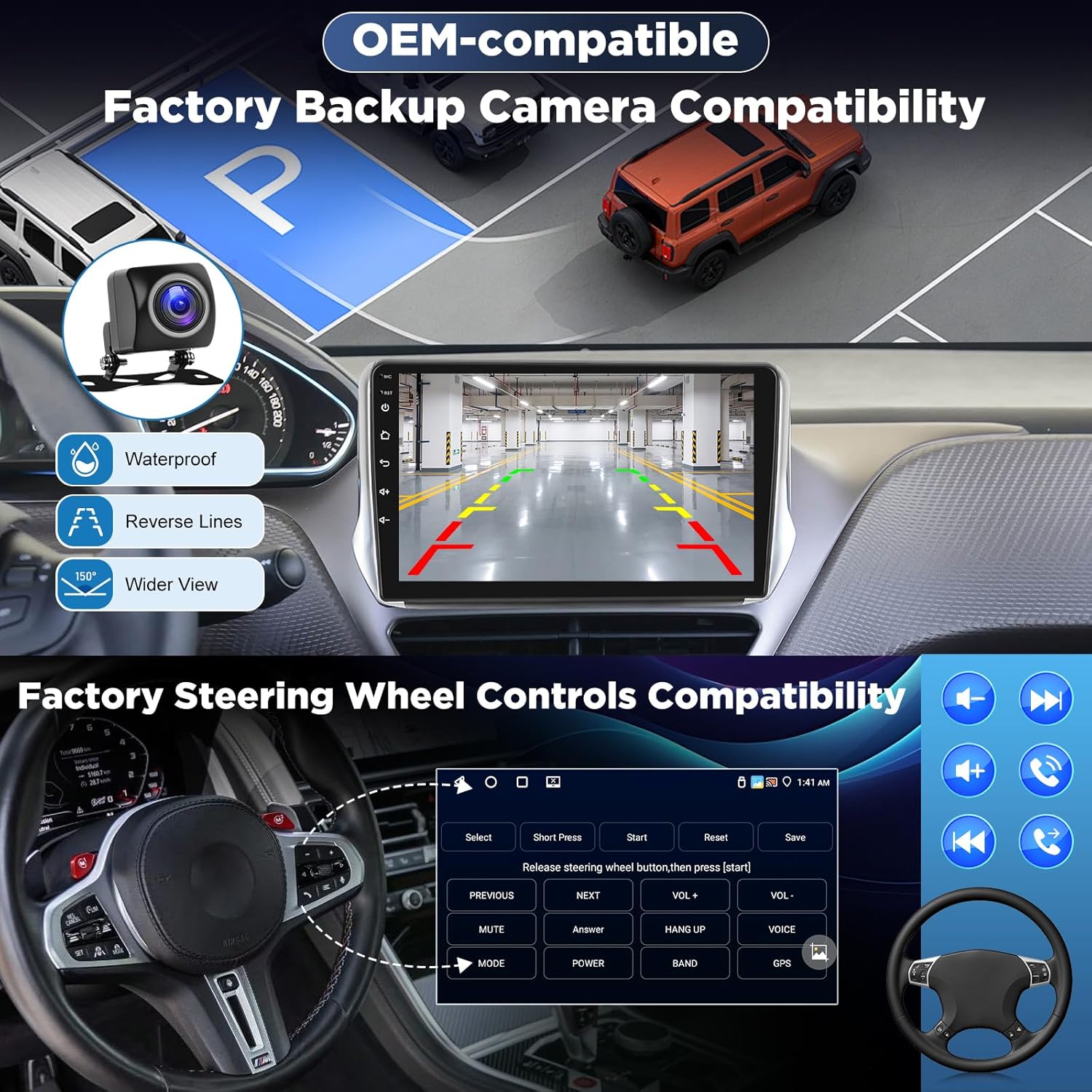
Image: Illustration of the AHD backup camera's wide-angle view and waterproof design, along with a visual representation of how steering wheel controls can be configured with the unit.
4.5. Final Assembly
- Carefully slide the car radio unit with its custom frame into the dashboard opening.
- Secure the unit using the factory mounting points or brackets.
- Reinstall any removed dashboard trim pieces.
- Reconnect the negative terminal of the car battery.
- Turn on the ignition and test the unit's functionality.

Image: A side-by-side comparison showing the original Peugeot 307 dashboard (Before) and the upgraded dashboard with the LORPHEIR Android Car Radio installed (After), demonstrating the seamless integration.
5. Operating Instructions
5.1. Basic Operation
- Power On/Off: The unit powers on automatically with the ignition. Press and hold the power button (if available) for manual power off/on.
- Touchscreen: Navigate the Android interface by tapping, swiping, and pinching on the 9-inch IPS display.
- Volume Control: Use the physical buttons on the unit or steering wheel controls (if configured) to adjust volume.
- Home Screen: Access various applications and widgets from the customizable home screen.
5.2. Wireless CarPlay & Android Auto
This unit supports wireless CarPlay for iOS devices and wireless Android Auto for Android smartphones. This feature allows seamless integration of your phone's apps, navigation, calls, and messages onto the car radio display.
- Ensure Bluetooth and Wi-Fi are enabled on your smartphone.
- On the car radio, open the "CarPlay" or "Android Auto" application.
- Search for the car radio's Bluetooth name on your phone and pair them.
- Confirm the pairing on both devices. The system will automatically establish a Wi-Fi connection for wireless CarPlay/Android Auto.
- Once connected, your phone's compatible apps will appear on the car radio screen.
Note: Wired phone mirroring is also supported via USB for additional flexibility.

Image: The car radio screen displaying the wireless CarPlay interface, featuring common applications like Phone, Music, Maps, and Messages, along with voice control activation.
5.3. WiFi Connectivity and Online Streaming
Connect the car radio to your smartphone's hotspot or a local Wi-Fi network to access online features and streaming services.
- Go to "Settings" on the car radio and select "Wi-Fi".
- Turn on Wi-Fi and select your desired network from the list.
- Enter the password if prompted and connect.
- Once connected, you can use pre-installed apps like YouTube, Netflix, Spotify, or download others from the Google Play Store.

Image: The car radio display showcasing various streaming applications like YouTube, Netflix, and Spotify, alongside the Wi-Fi settings interface for connecting to a hotspot.
5.4. GPS Navigation
The unit features a built-in GPS module with support for both online and offline navigation. Pre-installed maps or downloadable map applications provide reliable guidance.
- Online Navigation: Use apps like Google Maps, Waze, or others by ensuring the unit is connected to Wi-Fi.
- Offline Navigation: Download map data for your region to use navigation without an internet connection. Access these maps through the dedicated navigation app.
- Ensure the GPS antenna is properly installed and positioned for optimal signal reception.

Image: The car radio screen displaying GPS navigation, including real-time heading, altitude, and a detailed map view with route guidance. Icons for online and offline map options are also visible.
5.5. Audio Settings (DSP 32EQ)
The integrated Digital Sound Processor (DSP) with a 32-band equalizer allows for precise audio customization.
- Access the "EQ" or "Sound Settings" app from the main menu.
- Adjust the 32-band equalizer to fine-tune frequencies for your preferred sound profile (e.g., powerful bass, clear highs, balanced audio).
- Utilize the balance and fader controls to optimize sound distribution within the vehicle.
- The unit supports subwoofer connectivity for enhanced bass output.

Image: The car radio screen displaying the 32-band DSP equalizer interface for detailed audio adjustments and the sound balance control for speaker output optimization.
5.6. Bluetooth Functions
- Hands-Free Calling: Pair your phone via Bluetooth to make and receive calls directly from the car radio.
- Audio Streaming: Stream music from your phone to the car radio via Bluetooth Audio (A2DP).
- Access the "Bluetooth" app to manage paired devices, view call history, and access your phonebook.
5.7. FM RDS Radio
The built-in FM RDS tuner allows you to listen to your favorite radio stations with clear reception and display station information (RDS).
- Open the "Radio" app.
- Scan for available stations or manually tune to a frequency.
- Save your preferred stations as presets for quick access.
5.8. USB Ports and External Devices
The unit includes dual USB ports for connecting various devices:
- Media Playback: Connect USB drives to play audio and video files.
- Charging: Charge compatible smartphones or other USB-powered devices.
- External Devices: Support for external devices such as dash cameras (Dash cam), DAB+ digital radio tuners, and OBD (On-Board Diagnostics) scanners (additional accessories may be required).
6. Maintenance
- Screen Cleaning: Use a soft, lint-free cloth to gently wipe the touchscreen. For stubborn smudges, slightly dampen the cloth with water or a screen-safe cleaner. Avoid harsh chemicals.
- Software Updates: Periodically check for software updates through the unit's settings menu or the manufacturer's website to ensure optimal performance and access to new features.
- General Care: Keep the unit free from dust and debris. Ensure proper ventilation around the unit to prevent overheating.
7. Troubleshooting
| Problem | Possible Cause | Solution |
|---|---|---|
| Unit does not power on. | Loose power connection, blown fuse, incorrect wiring. | Check all power connections. Inspect vehicle fuses and the unit's fuse. Verify wiring according to the diagram. |
| No sound. | Volume too low, mute activated, incorrect speaker wiring, amplifier issue. | Increase volume. Check if mute is active. Verify speaker connections. Ensure external amplifier (if used) is powered on. |
| GPS signal is weak or inaccurate. | GPS antenna improperly placed, antenna fault, environmental interference. | Relocate the GPS antenna to a position with a clear view of the sky. Ensure the antenna cable is securely connected. |
| CarPlay/Android Auto not connecting wirelessly. | Bluetooth/Wi-Fi off on phone, incorrect pairing, software glitch. | Ensure Bluetooth and Wi-Fi are enabled on your phone. Delete existing pairings and re-pair. Restart both phone and car radio. |
| Steering wheel controls not working. | CANBUS not connected, incorrect CANBUS configuration, vehicle incompatibility. | Verify CANBUS decoder connection. Check the unit's settings for steering wheel control configuration. Confirm vehicle compatibility (Low configuration only). |
| Touchscreen unresponsive or slow. | System overload, temporary software issue, excessive heat. | Close unnecessary applications. Restart the unit. Ensure adequate ventilation. |
8. Specifications
| Feature | Detail |
|---|---|
| Model Number | 2+64G, 4 Core |
| Brand | LORPHEIR |
| Compatible Vehicles | Peugeot 307 (2002-2013) - Low Configuration (Version A) |
| Screen Size | 9 Inches |
| Display Type | IPS HD 2.5D Touchscreen |
| Display Resolution | 1024x600 |
| RAM | 2GB |
| Internal Storage (ROM) | 64GB |
| Processor | 4 Core |
| Operating System | Android (Latest OS) |
| Connectivity | Bluetooth, Wi-Fi, USB (x2), Auxiliary |
| Wireless Features | Wireless CarPlay, Wireless Android Auto |
| GPS | Built-in GPS (Online/Offline Maps, Multi-Satellite Signal) |
| Audio Features | DSP 32-Band Equalizer, Subwoofer Support, FM RDS Radio |
| Compatible Devices | DAB+ Tuner, Dash Cam, OBD Scanner, Mobile Phone |
| Weight | 1.4 Kilograms |
| Product Dimensions | 26L x 9W x 27H Centimeters |
9. Warranty and Support
The LORPHEIR Android Car Radio comes with a manufacturer's warranty of 2 years. Please retain your proof of purchase for warranty claims.
For technical support, troubleshooting assistance, or warranty inquiries, please contact LORPHEIR customer service through the retailer where you purchased the product or refer to the contact information provided on the official LORPHEIR website (if available).
Ask a question about this manual
Ask about setup, troubleshooting, compatibility, parts, safety, or missing instructions. Manuals+ will review the question and use this page’s manual context to help answer it.