
1. Introduction
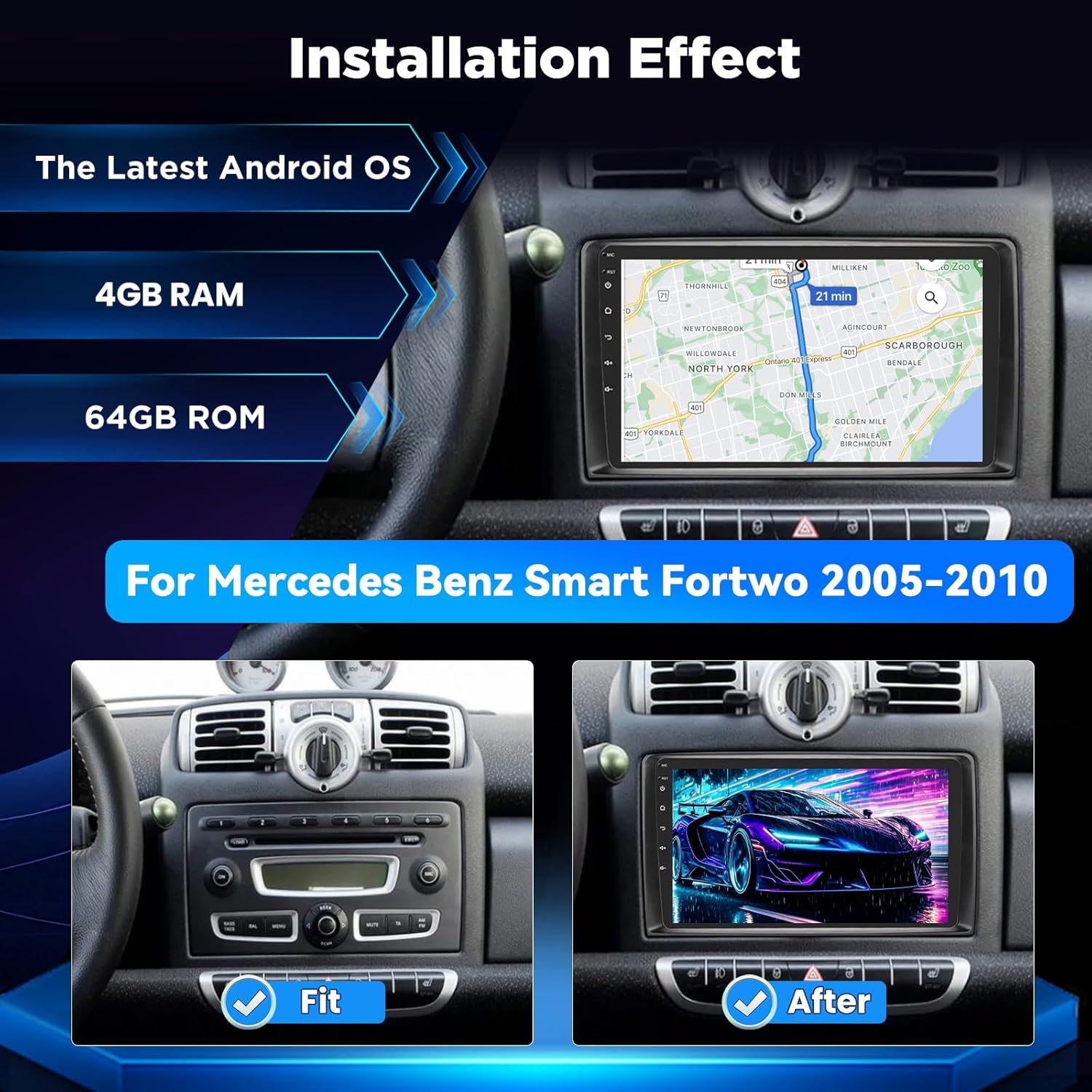
Thank you for choosing the LORPHEIR Android Car Radio. This manual provides detailed instructions for the installation, setup, and operation of your new 9-inch touchscreen stereo system. Designed specifically for the Mercedes Benz Smart Fortwo models from 2005 to 2010, this unit integrates advanced features such as Wireless CarPlay, Android Auto, GPS navigation, and enhanced audio processing to upgrade your in-car entertainment and connectivity.
Please read this manual thoroughly before installation and use to ensure proper operation and to maximize your experience with the product. Keep this manual for future reference.
2. Safety Information
- Professional Installation Recommended: Due to the complexity of vehicle electrical systems, professional installation is highly recommended to prevent damage to the unit or your vehicle.
- Driving Safety: Always prioritize driving safety. Do not operate the unit in a way that distracts you from the road. Adjust settings only when the vehicle is stationary.
- Power Supply: Ensure the unit is connected to a 12V DC power supply with negative grounding. Incorrect wiring can cause damage or fire.
- Avoid Moisture: Do not expose the unit to water or excessive moisture.
- Temperature: Operate the unit within specified temperature ranges. Extreme temperatures can affect performance and lifespan.
3. Package Contents
Verify that all items are present in your package:
- LORPHEIR Android Car Radio Unit
- Power Cable with Canbus Decoder
- AHD Backup Camera
- GPS Antenna
- USB Cables
- External Microphone
- Mounting Hardware and Tools
- User Manual (this document)
4. Installation
The LORPHEIR Android Car Radio is designed for a seamless fit into the Mercedes Benz Smart Fortwo (2005-2010) dashboard. Follow these general steps for installation. Specific wiring diagrams are provided with the unit and should be consulted during the process.
- Preparation: Disconnect the vehicle's battery before starting any electrical work.
- Remove Original Unit: Carefully remove the existing car radio and trim panels from the dashboard.
- Connect Wiring: Connect the provided power cable with Canbus to the vehicle's wiring harness. Connect the GPS antenna, USB cables, and external microphone.
- Install Backup Camera: Route the AHD backup camera cable to the rear of the vehicle and connect the camera.
- Mount New Unit: Secure the LORPHEIR Android Car Radio into the dashboard opening using the provided mounting hardware.
- Test Functionality: Reconnect the battery and perform initial tests before fully reassembling the dashboard.
5. Setup
After successful installation, perform the initial setup:
- Power On: Turn on the vehicle's ignition. The unit should power on automatically.
- Initial Boot: The system will boot up, which may take a moment.
- Language and Time Settings: Follow the on-screen prompts to select your preferred language, time zone, and date.
- Wi-Fi Connection: Connect to an available Wi-Fi network to enable online features, app downloads, and system updates. Go to Settings > Network & Internet > Wi-Fi.
- GPS Calibration: Ensure the GPS antenna is properly positioned for optimal signal reception. The system will automatically acquire satellite signals.
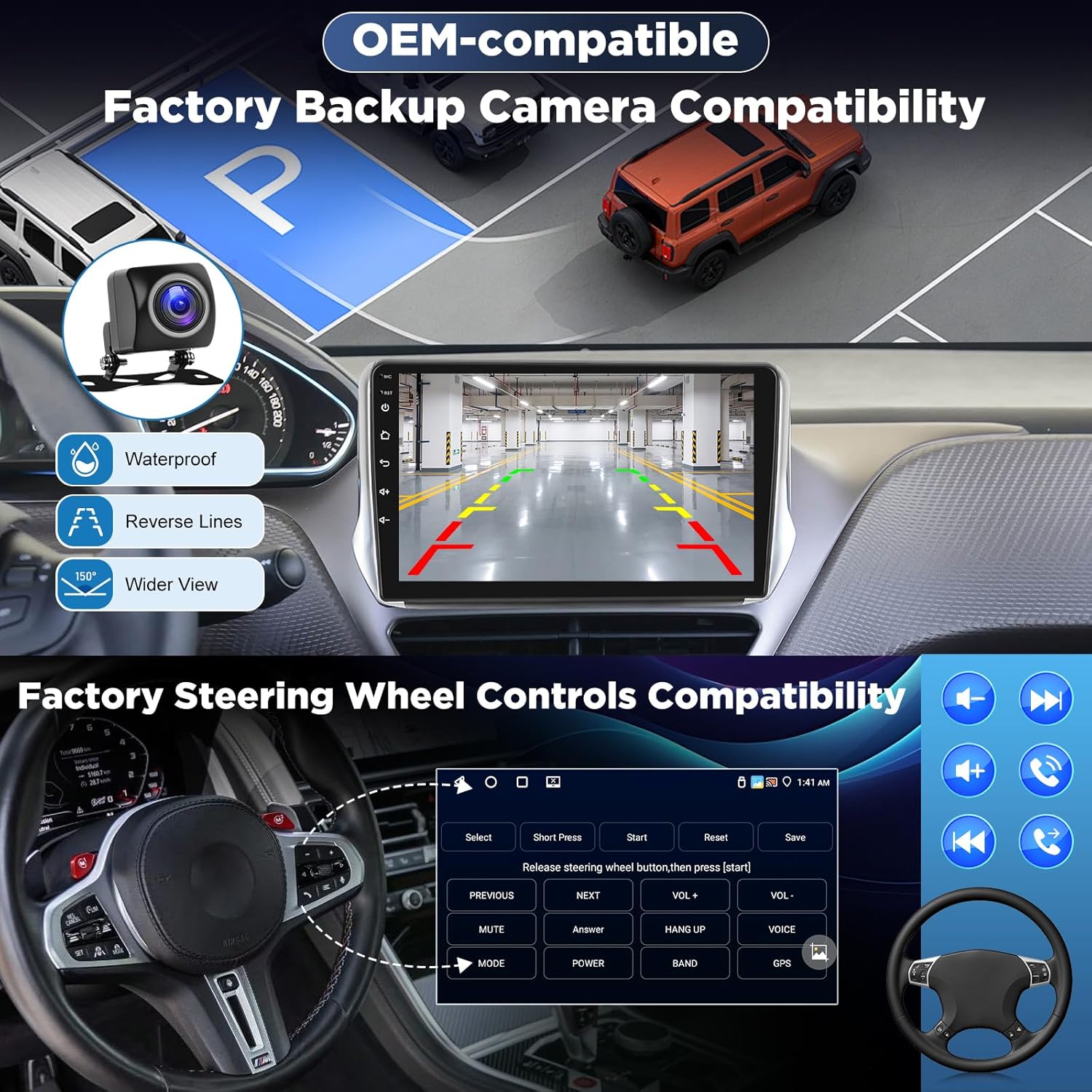
- Steering Wheel Control Learning: If your vehicle supports steering wheel controls, navigate to Settings > Steering Wheel Control to map the buttons to the desired functions.
6. Operating Instructions
6.1. Basic Operation
- Power On/Off: The unit typically powers on with the vehicle's ignition. A long press on the power button (if available) can turn the screen off or put the unit into standby.
- Volume Control: Adjust volume using the on-screen controls or your vehicle's steering wheel buttons.
- Home Screen: Tap the Home icon to return to the main interface.
6.2. Wireless CarPlay & Android Auto
Connect your smartphone wirelessly for seamless integration of navigation, music, calls, and voice assistants.
- Ensure Bluetooth and Wi-Fi are enabled on your smartphone and the car radio.
- Open the CarPlay or Android Auto application on the car radio.
- Follow the on-screen instructions to pair your phone. The system will auto-connect upon entering the vehicle after the initial setup.

6.3. Navigation
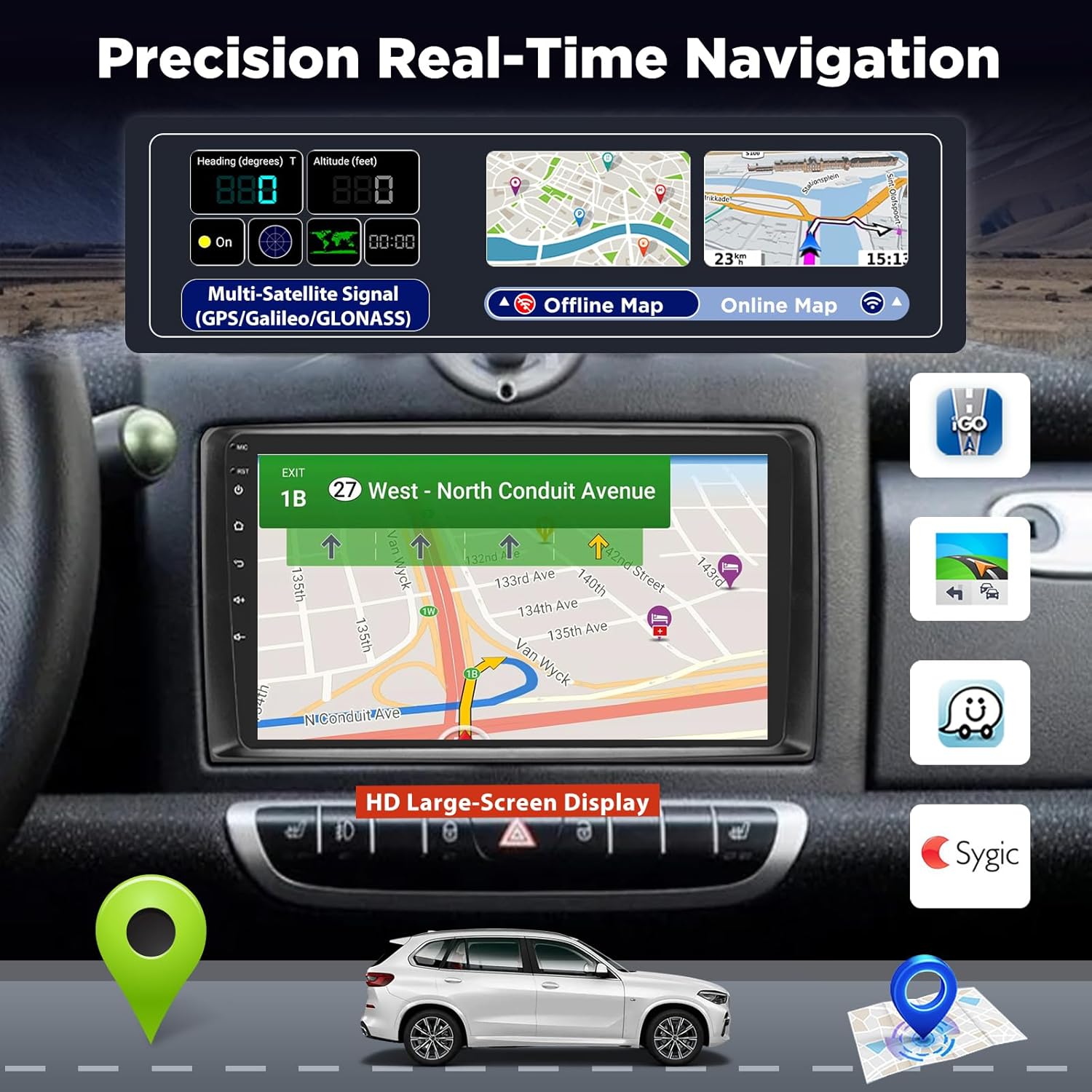
The unit supports multiple global navigation satellite systems (GPS, Beidou, Galileo, GLONASS) for precise positioning. You can use pre-installed offline maps or online navigation applications.
- Online Navigation: Requires a Wi-Fi connection or mobile hotspot. Use apps like Google Maps, Waze, etc.
- Offline Maps: Download maps for your region to use navigation without an internet connection.
6.4. Media Playback & Streaming
Enjoy a wide range of media options, including local files, radio, and online streaming services.
- FM/RDS Radio: Tune into your favorite radio stations. RDS provides station information and traffic announcements.
- USB Playback: Connect USB drives to play audio and video files.
- Bluetooth Audio: Stream music wirelessly from your smartphone via Bluetooth 5.0.
- Online Streaming: With Wi-Fi 6 and hotspot capabilities, stream content from apps like YouTube, Netflix, Spotify, and more in HD.

6.5. DSP Sound Enhancement
The integrated AI DSP (Digital Signal Processor) allows for advanced audio customization.
- 32-Band EQ: Fine-tune the audio output with a 32-band equalizer to match your preferences.
- Viper Sound: Access specialized sound effects for an immersive listening experience.
- Subwoofer Support: Connect an external subwoofer for enhanced bass response.

6.6. AHD Reversing Camera & Steering Wheel Controls
Enhance safety and convenience with the included AHD reversing camera and support for your vehicle's steering wheel controls.
- AHD Reversing Camera: When the vehicle is put into reverse gear, the display automatically switches to the camera view, providing a clear image with parking guidelines.
- Steering Wheel Controls: Control volume, track changes, answer calls, and more directly from your steering wheel buttons after configuration.
6.7. External Device Connectivity
The unit supports various external devices to expand its functionality:
- DVR: Connect a Digital Video Recorder for dashcam functionality.
- DAB+: Connect a DAB+ receiver for digital radio broadcasts (receiver sold separately).
- OBD: Connect an OBD-II scanner via Bluetooth for vehicle diagnostics (scanner sold separately).
7. Troubleshooting
If you encounter issues, refer to the following common problems and solutions:
- No Power: Check all power connections and fuses. Ensure the vehicle's ignition is on.
- No Sound: Verify volume levels, speaker connections, and audio output settings. Check if the mute function is active.
- GPS Signal Loss: Ensure the GPS antenna is securely connected and has a clear view of the sky. Move the antenna if necessary.
- Touchscreen Unresponsive: Try restarting the unit. If the issue persists, a factory reset might be necessary (note: this will erase all user data).
- Bluetooth/Wi-Fi Connection Issues: Ensure both devices have Bluetooth/Wi-Fi enabled and are within range. Try re-pairing or reconnecting.
- Backup Camera Not Displaying: Check the camera's power and video connections. Ensure the vehicle is in reverse gear.
For persistent issues, contact LORPHEIR customer support.
8. Maintenance
- Cleaning: Use a soft, dry cloth to clean the screen and unit exterior. Avoid abrasive cleaners or solvents.
- Software Updates: Periodically check for system software updates via the unit's settings menu to ensure optimal performance and access to new features.
- Avoid Extreme Conditions: Do not expose the unit to extreme heat, cold, or direct sunlight for prolonged periods.
9. Specifications
| Feature | Specification |
|---|---|
| Brand | LORPHEIR |
| Model | for 2005-2010, 4 Core, 4+64G |
| Compatible Vehicle | Mercedes Benz Smart Fortwo (2005-2010) |
| Screen Size | 9 Inches |
| Display Type | LCD |
| Display Resolution | 1280x800 |
| RAM | 4GB |
| ROM (Internal Storage) | 64GB |
| Operating System | Android (Latest OS) |
| Connectivity | Auxiliary, Bluetooth 5.0, USB, Wi-Fi 6 |
| Navigation | GPS, Beidou, Galileo, GLONASS |
| Audio Features | AI DSP, 32-band EQ, Viper Sound, Subwoofer Support |
| Compatible Devices | DVR, DAB+, TV, speakers, headphones, audio amplifier, projector |
| Item Weight | 1.2 Kilograms |
| Product Dimensions | 14 x 9 x 28 cm |
10. Warranty and Support
This LORPHEIR product comes with a standard manufacturer's warranty. Please refer to the warranty card included in your package or visit the official LORPHEIR website for detailed warranty terms and conditions.
For technical support, troubleshooting assistance, or any questions regarding your product, please contact LORPHEIR customer service through the contact information provided on the official website or your purchase platform. When contacting support, please have your product model number and purchase details ready.