1. Introduction
Thank you for choosing the RONGJI Android 13 Car Stereo. This manual provides essential information for the proper installation, operation, and maintenance of your new car stereo system. Please read this manual thoroughly before use to ensure optimal performance and safety.
This unit is designed specifically for Mazda CX-7 models manufactured between 2008 and 2015. It features an Android 13 operating system, a capacitive touch screen, built-in Car-Play and Android Auto, GPS navigation, Bluetooth, FM radio, and Wi-Fi connectivity.
2. Safety Information
- Always operate the vehicle safely. Distraction from the stereo system can lead to accidents.
- Do not attempt to install or service the unit yourself if you are not qualified. Refer to a professional installer.
- Ensure all wiring connections are secure and properly insulated to prevent short circuits and damage.
- Keep the volume at a level that allows you to hear outside traffic sounds.
- Avoid exposing the unit to extreme temperatures, direct sunlight for prolonged periods, or excessive moisture.
3. Package Contents
Verify that all items listed below are included in your package. If any items are missing or damaged, please contact customer support.

Image: Package contents for both 4 Core and 8 Core radio versions. The 4 Core package includes the main machine, plastic bezel, power plug, RCA cable, reversing camera cable, USB cable, microphone, and GPS antenna.
For the 4 Core radio (your model), the package typically includes:
- Main Machine (Head Unit)
- Plastic Bezel
- Power Plug
- RCA Cable
- Reversing Camera Cable
- USB Cable
- Microphone
- GPS Antenna
4. Setup & Installation
This unit is designed for a plug-and-play installation for Mazda CX-7 (2008-2015). However, professional installation is highly recommended to ensure correct wiring and functionality. Incorrect installation can damage the unit or your vehicle's electrical system.
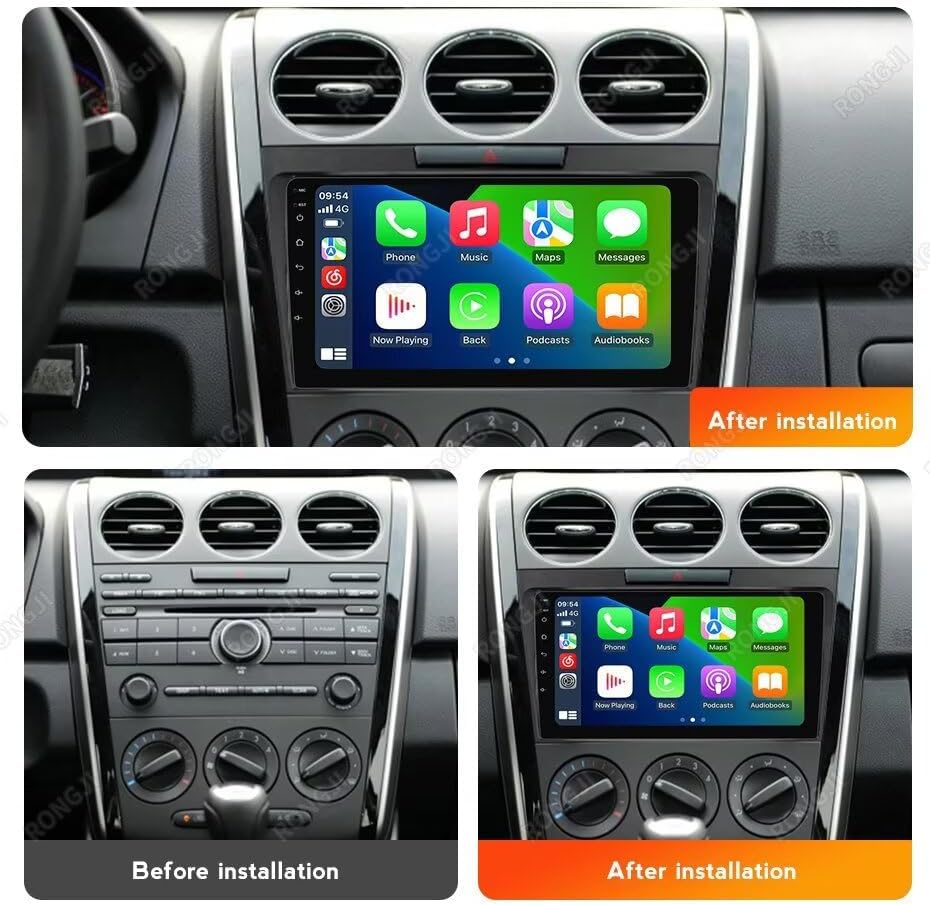
Image: Visual comparison showing the original Mazda CX-7 dashboard and the dashboard with the RONGJI Android stereo installed.
4.1 Pre-Installation Checks
- Confirm vehicle compatibility: This unit is for Mazda CX-7 2008-2015.
- Disconnect the vehicle's battery before starting installation to prevent electrical shorts.
- Ensure all necessary tools are available.
4.2 Installation Steps (General Guide)
- Carefully remove the original factory radio and dashboard trim.
- Connect the power harness, RCA cables, USB cables, GPS antenna, and microphone to the new head unit.
- Connect the vehicle-specific harness to the car's wiring.
- Route the GPS antenna and microphone to suitable locations (e.g., dashboard, A-pillar).
- Test the unit's basic functions (power on, radio, touch screen) before fully reassembling the dashboard.
- Secure the new head unit into the dashboard opening and reattach the trim.
- Reconnect the vehicle's battery.
For detailed vehicle-specific instructions, consult a professional installer or an automotive service manual for your Mazda CX-7.
5. Operating Instructions
5.1 Basic Operation
- Power On/Off: The unit typically powers on with the vehicle's ignition. Press and hold the power button (if available) for manual control.
- Volume Control: Adjust volume using the on-screen controls or steering wheel controls.
- Touch Screen: Navigate through menus and applications by tapping, swiping, and pinching on the capacitive touch screen.
5.2 Main Menu & User Interface
The system offers 61 different user interfaces (UIs) to personalize your experience. You can select your preferred UI from the settings menu.

Image: Examples of the 61 different main menu user interfaces available for selection.
5.3 Car-Play & Android Auto
The unit supports both wireless and wired Car-Play and Android Auto, allowing seamless integration with your smartphone for navigation, music, calls, and other apps.

Image: Visual representation of the Car-Play and Android Auto interfaces on the stereo screen, highlighting wired and wireless connection options.
- Connection: Connect your iPhone via USB or wirelessly for Car-Play. Connect your Android phone via USB or wirelessly for Android Auto.
- Features: Access phone calls, messages, music, maps, and compatible third-party applications directly from the stereo display.
5.4 Split Screen Function
Utilize the split-screen feature to display two applications simultaneously, such as navigation and music, or a web browser and FM radio.

Image: The top portion shows the split-screen function displaying a music player and a map application. The bottom portion illustrates the steering wheel control learning interface.
5.5 Steering Wheel Control (SWC)
The unit supports steering wheel controls, allowing you to manage audio functions (volume, track change) and answer calls without taking your hands off the wheel. This enhances driving safety.
- Setup: Access the SWC settings in the system menu to program the buttons on your vehicle's steering wheel. Follow the on-screen instructions to assign functions.
5.6 FM RDS Radio
Enjoy stable FM radio reception with RDS (Radio Data System) support. The system allows for automatic and manual station searching.

Image: The top section displays the FM RDS radio interface with station frequency and presets. The bottom section shows the Bluetooth calling interface with a dial pad and contact options.
- Searching: Use the on-screen controls to scan for stations or manually tune to a specific frequency.
- Presets: Save your favorite stations for quick access.
5.7 Bluetooth Function
Connect your mobile phone via Bluetooth for hands-free calling and audio streaming.
- Pairing: Enable Bluetooth on your phone and search for the car stereo. Select the stereo from your phone's device list and confirm pairing.
- Hands-Free Calling: Make and receive calls directly through the stereo. The unit has a built-in microphone and supports an external microphone for improved call quality.
- Bluetooth Music: Stream audio from your phone to the car stereo.
5.8 GPS Navigation
The unit includes a built-in GPS module and an external GPS antenna for accurate navigation. You can use online or offline map applications.
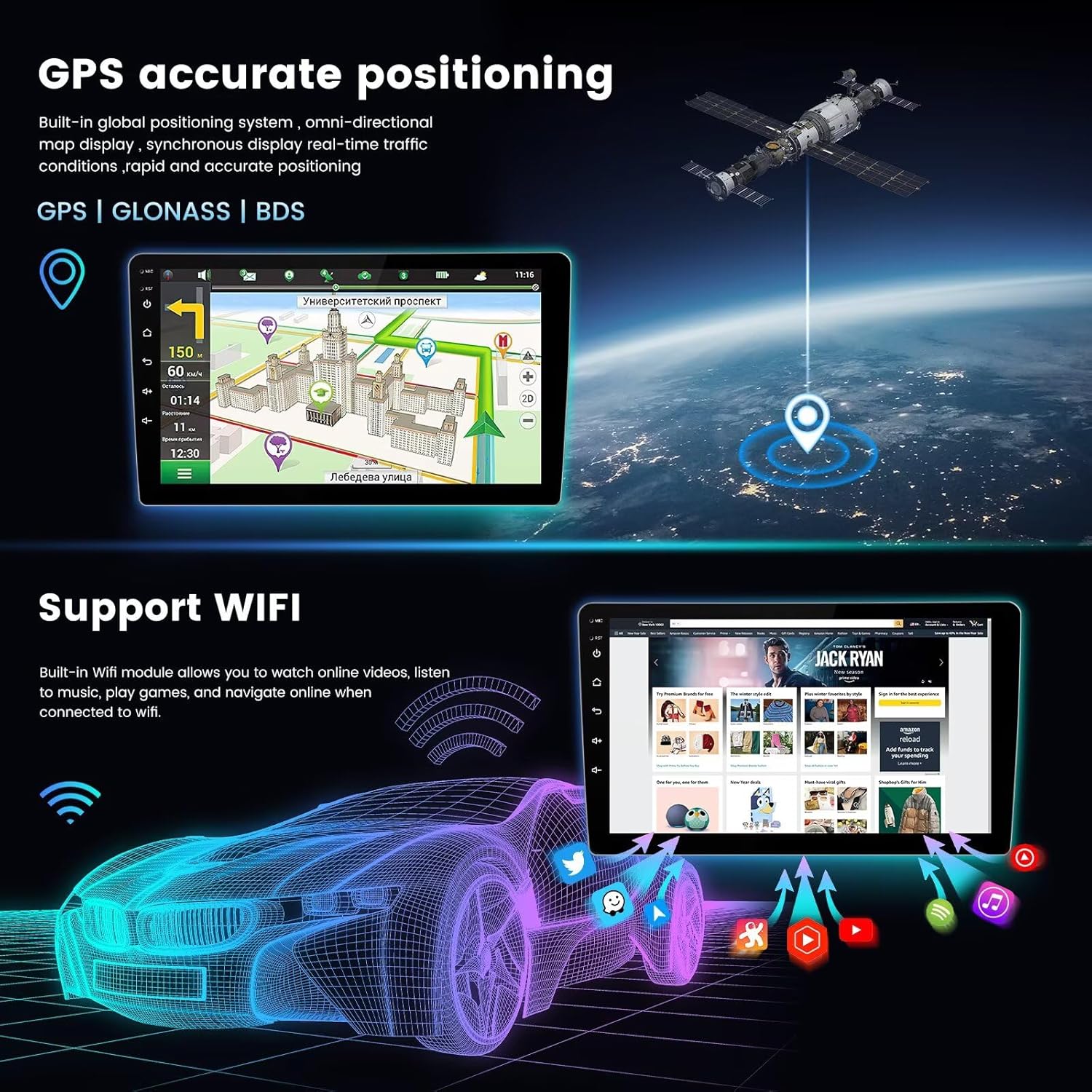
Image: The top section displays the GPS navigation interface with a map and route information. The bottom section illustrates the Wi-Fi connectivity feature with various app icons.
- Map Download: Connect to Wi-Fi to download maps for any region for offline use.
- Real-time Traffic: With an internet connection, receive real-time traffic updates.
5.9 Wi-Fi Connectivity
The built-in Wi-Fi module allows you to connect to the internet via a Wi-Fi hotspot or your phone's tethering. This enables online navigation, app downloads, and media streaming.
- Connection: Go to Wi-Fi settings, turn on Wi-Fi, and select your desired network. Enter the password if required.
- Applications: Access online content, download apps from the app store, and update system software.
6. Maintenance
- Screen Cleaning: Use a soft, lint-free cloth to gently wipe the touch screen. Do not use abrasive cleaners or solvents.
- Software Updates: Periodically check for system software updates via the Wi-Fi connection to ensure optimal performance and access to new features.
- General Care: Keep the unit free from dust and debris. Avoid spilling liquids on the unit.
7. Troubleshooting
| Problem | Possible Cause | Solution |
|---|---|---|
| Unit does not power on. | Loose power connection, blown fuse, vehicle battery issue. | Check power cables and fuse. Ensure vehicle battery is charged. Consult an installer. |
| No sound. | Volume too low, mute activated, speaker wiring issue. | Increase volume. Check if mute is active. Verify speaker connections. |
| Touch screen unresponsive. | System freeze, dirt on screen. | Restart the unit. Clean the screen. |
| GPS signal lost or inaccurate. | GPS antenna obstruction, faulty antenna. | Ensure GPS antenna has a clear view of the sky. Check antenna connection. |
| Bluetooth connection issues. | Device not paired, Bluetooth off on phone/unit. | Ensure Bluetooth is enabled on both devices. Re-pair the device. |
If the problem persists after attempting these solutions, please contact RONGJI customer support.
8. Specifications
- Model Name: For Mazda CX-7 CX7 2008-2015
- Operating System: Android 13.0
- CPU: 4 Core
- RAM: 2GB
- ROM (Internal Storage): 32GB
- Screen Size: 9 Inches
- Display Type: IPS Capacitive Touch Screen
- Resolution: 1080*600
- Connectivity: Built-in 5G Wi-Fi, Bluetooth (BT), GPS
- Special Features: Built-in Wireless/Wired Car-Play, Built-in Wireless/Wired Android Auto, FM RDS Radio, Steering Wheel Control (SWC), AHD Camera Support, Split Screen Function, Multiple UI options (61 kinds).
- Manufacturer: Shenzhen Rongji Electronics Co., Ltd
9. Warranty Information
RONGJI products are manufactured to high-quality standards. This product is covered by a limited warranty against defects in materials and workmanship from the date of purchase. The warranty period and terms may vary by region. Please retain your proof of purchase for warranty claims.
The warranty does not cover damage caused by improper installation, misuse, accidents, unauthorized repairs, or normal wear and tear. For specific warranty details, please refer to the warranty card included with your product or contact RONGJI customer support.
10. Support
For technical assistance, troubleshooting, or any questions regarding your RONGJI Android 13 Car Stereo, please contact our customer support team.
- Online Support: Visit the official RONGJI website for FAQs, software updates, and contact information.
- Email Support: Refer to your product packaging or warranty card for the customer service email address.
- Professional Installation: If you encounter complex installation issues, it is recommended to seek assistance from a certified automotive electronics installer.